You can't open, claim or complete a task
There's no Activities menu, a task says You cannot open this task or This task does not exist, Claim answers This action is unauthorized., or Complete is grayed out. Find the cause and fix it.
- Applies to
- Activities 3.1 and later
- Who can do this
- Team member, Administrator
- Permission
feature.act. queue.edit - Where
- Activities › Tasks
On this page
Symptom
Ask the person what they see. Each message points to a different cause:
| What they see | Go to |
|---|---|
| No Activities menu at all | 1 |
| Tasks shows No records found, or a task says This task does not exist / "It may have been removed, or it belongs to a workspace you cannot see." | 2 |
| You cannot open this task / 'Ask an administrator for the "View tasks" permission.' | 3 |
| This action is unauthorized. after selecting Claim | 3, then 4 |
| No Claim button | 5 |
| Priya claimed this first — you have been given the next task in the queue. | 6 |
| Complete is grayed out, with Waiting on TSK-2026-000120 — finish that first. | 7 |
| No Release | 8 |
Check these, in order
1. There's no Activities menu
The Activities menu comes only in the Platform Administration sidebar. People who work in another experience, such as Administration, don't get it, even with every Activities permission.
Fix: A platform owner with Menu Manager adds the items to that experience's sidebar:
-
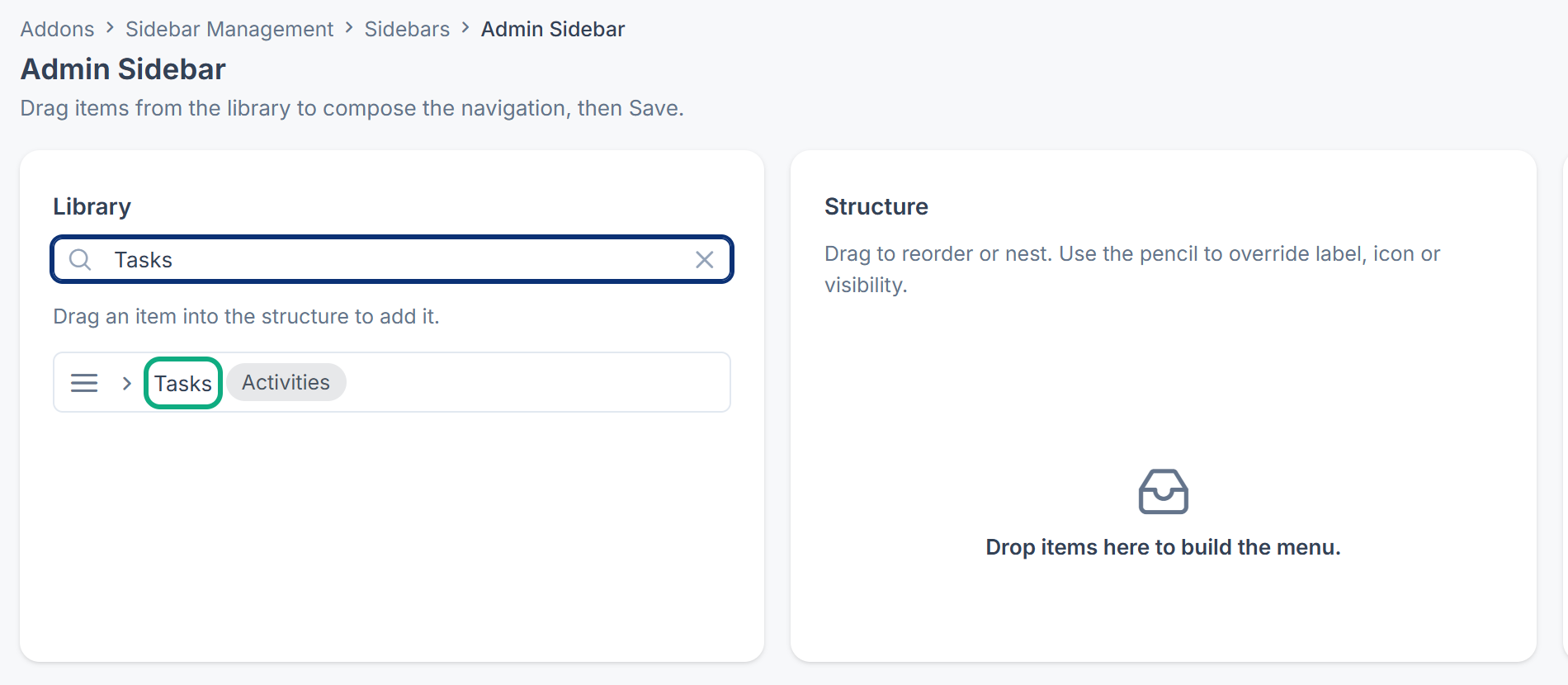
Open Sidebar Management › Sidebars, and select Manage items in the row of the experience's sidebar, for example Admin Sidebar.
-
In Library, search for Tasks, and drag it into Structure. Add Queues too for the people who manage queues.
-
Select Save.
Each item shows only to people with its permissions: Tasks to people with List Task or List Task (Own), and Queues to people with List Queue. See Arrange a sidebar menu by drag and drop.
Careful: When Activities is upgraded or turned on again, its items are removed from every sidebar except Super Admin Sidebar. Add them again afterwards. See A menu item is missing or keeps coming back.
Until then, people can open a task from a record's Work card or from a mention notification. For other screens that are missing, see A menu or screen is missing, or the menu is empty.
2. The task is in a workspace the person isn't in
Tasks belong to the workspace they were created in. Someone who isn't a member of that workspace sees No records found on Tasks, and This task does not exist when they follow a link to the task.
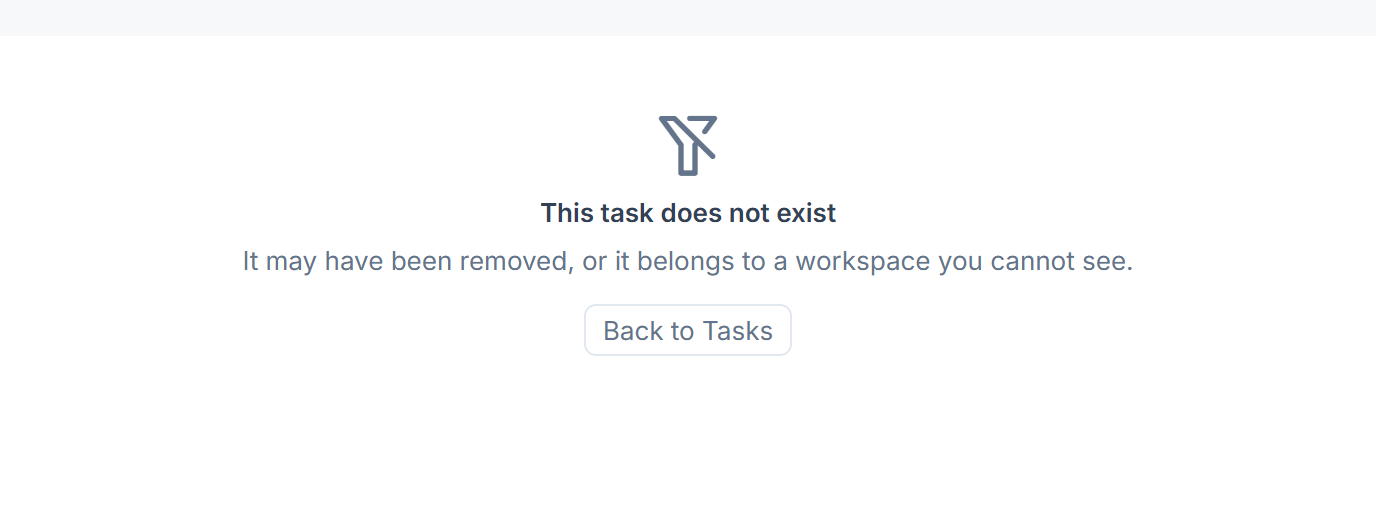
Fix:
- They're not a member: add them to the workspace. In Users Accounts › Workspaces, open the workspace's row actions menu and select Workspace Members. See Create a workspace.
- They're a member, but working in another workspace or in All Workspaces: they switch to the task's workspace in the header. Claiming and releasing only work in the task's own workspace. See Switch workspace.
3. The role can only open its own tasks
A role built on the own-records permissions, List Task (Own) and View Task (Own), works for tasks already assigned to the person. A task waiting in a queue is assigned to nobody, so it isn't theirs yet:
-
The Tasks list still shows every task in the workspace, other people's included.
-
Opening a queued task shows You cannot open this task. The hint's "View tasks" means the View Task permission.
-
Claim in the list answers This action is unauthorized.
Fix: In Roles & Permissions, give queue members' role View Task (feature.), not only View Task (Own). They can then open queued tasks and claim them from the task's screen. Remember that this lets them open every task in the workspace, which the list already shows them. See Change or delete a role.
4. Claim in the list is refused
The Claim in a list row answers This action is unauthorized. unless the person also holds Edit Task or Edit Task (Own) (feature.), even when they may claim from the queue.
Fix: Claim from the task's own screen instead: open the task and select Claim. Or give the role Edit Task (Own), which also lets them change tasks once they're theirs. To check what someone holds, see See why someone can do something. For "This action is unauthorized." on other screens, see You see "This action is unauthorized." or Access Denied.
5. There's no Claim button
Claim shows only when all of these are true:
- The task is in a queue, isn't done, and nobody has claimed it yet.
- The person holds Claim Queue (
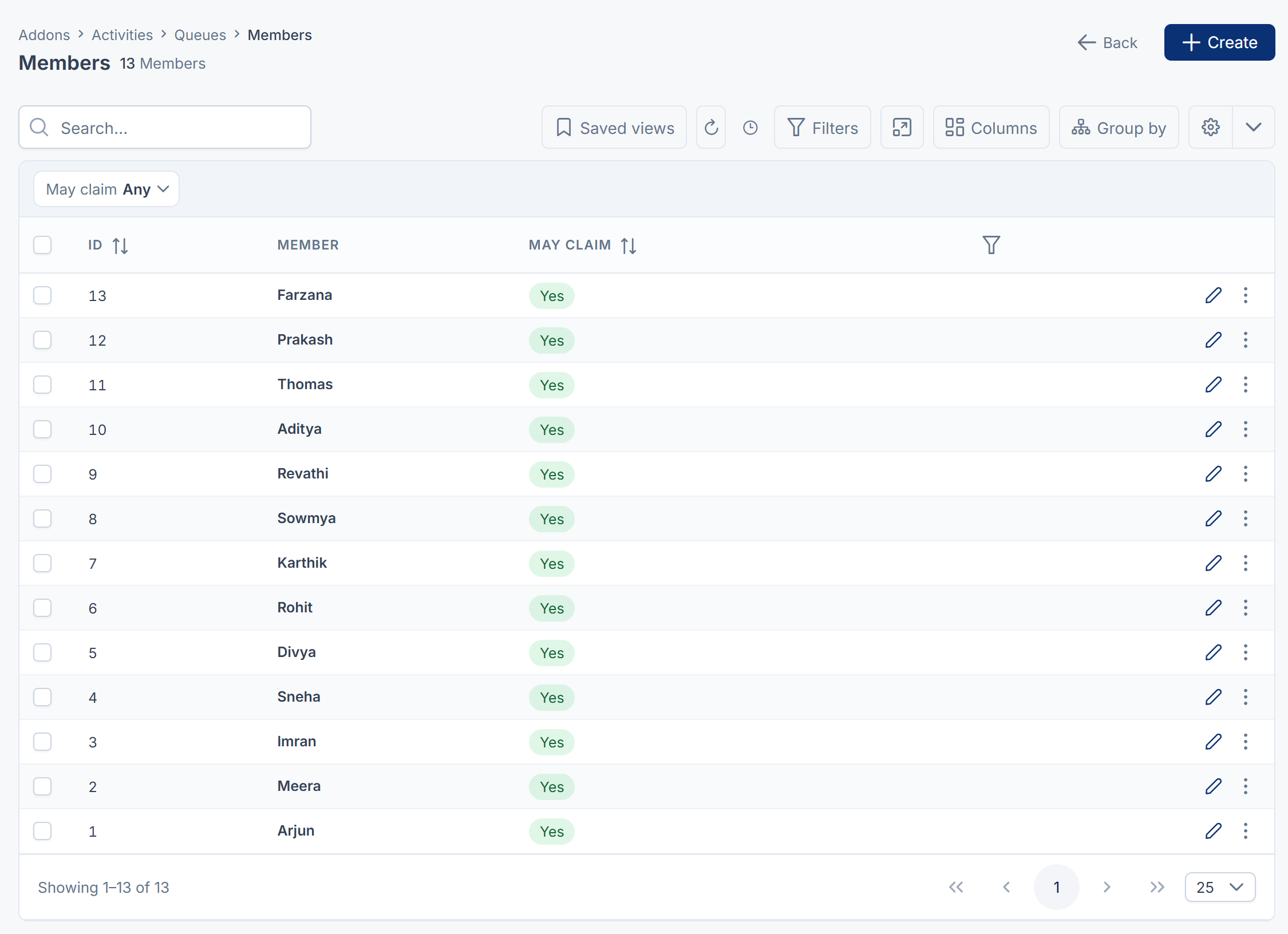
feature.).act. queue. claim - The person is a member of that queue with May claim set to Yes. Super admins can claim from any queue.
Fix: An administrator with Edit Queue opens the queue's row actions menu on Activities › Queues, selects Members, and adds the person with May claim set to Yes. Then give their role Claim Queue. See Share work through a queue and claim a task.
6. Someone else claimed it first
Two people selected Claim at almost the same time. The first one gets the task, and the other is given the queue's next task, with a message such as Priya claimed this first — you have been given the next task in the queue. That's expected.
7. The task waits on another task
Complete is grayed out while the task depends on a task that isn't finished. Hover over it to see which one, for example Waiting on TSK-2026-000120 — finish that first. The blocking task is listed under Related as Blocked by.
Fix: Finish the blocking task first, or remove the dependency.
8. There's no Release
Only the person who claimed a task can release it, and they need Release Queue (feature.).
Fix: If the person who claimed it can't release it, an administrator with Assign Task (feature.) opens the task's row actions menu on Activities › Tasks, selects Assign, and gives it to someone else or puts it back in the queue.
Still not working?
Raise a ticket from Support Center in your Laramin app. Include this page's link, the task's number, the person's role, and the exact message they see.
Thanks. That helps us decide what to write next.
Thanks for telling us what was missing.
You already answered for this article today. Thanks.
We got a lot of answers from your network just now. Try again in a few minutes.
We couldn't send that. Check your connection and try again.
Links in this article
Printed from help.bsscn.com. The online article may have changed since.