A task reminder didn't arrive
A reminder shows Sent but nobody got it, stays Scheduled after its time, or arrives as a notification that doesn't open the task. Find the cause from what the task's Reminders list says.
- Applies to
- Activities 3.1 and later
- Who can do this
- Team member, Administrator, Platform owner
- Permission
feature.act. task. assign - Where
- Activities › Tasks
On this page
Symptom
Someone expected a reminder for a task and didn't get one. Open the task and look at its Reminders list. Each row shows the time, how it was set, the channel, and a state. The state tells you where to look:
| The row says | Go to |
|---|---|
| Sent, but nobody got anything | 1, 2 and 3 |
| Sent, and the person found a notification with only the task's title | 4 |
| Scheduled, and the time has passed | 5 and 6 |
| Not needed — the task was done | 7 |
A reminder can arrive up to 30 minutes before the time shown. That's expected.
Check these, in order
1. Nobody is assigned to the task, or someone else is
A reminder goes only to the person in Assigned to. It doesn't go to whoever set it, to a team, or to a queue's members.
- Nobody is assigned, for example a task waiting in a queue or given only to a team: the row still changes to Sent, but nobody is notified.
- Someone else is assigned: Remind me reads as if the reminder is for you, but it goes to the assignee.
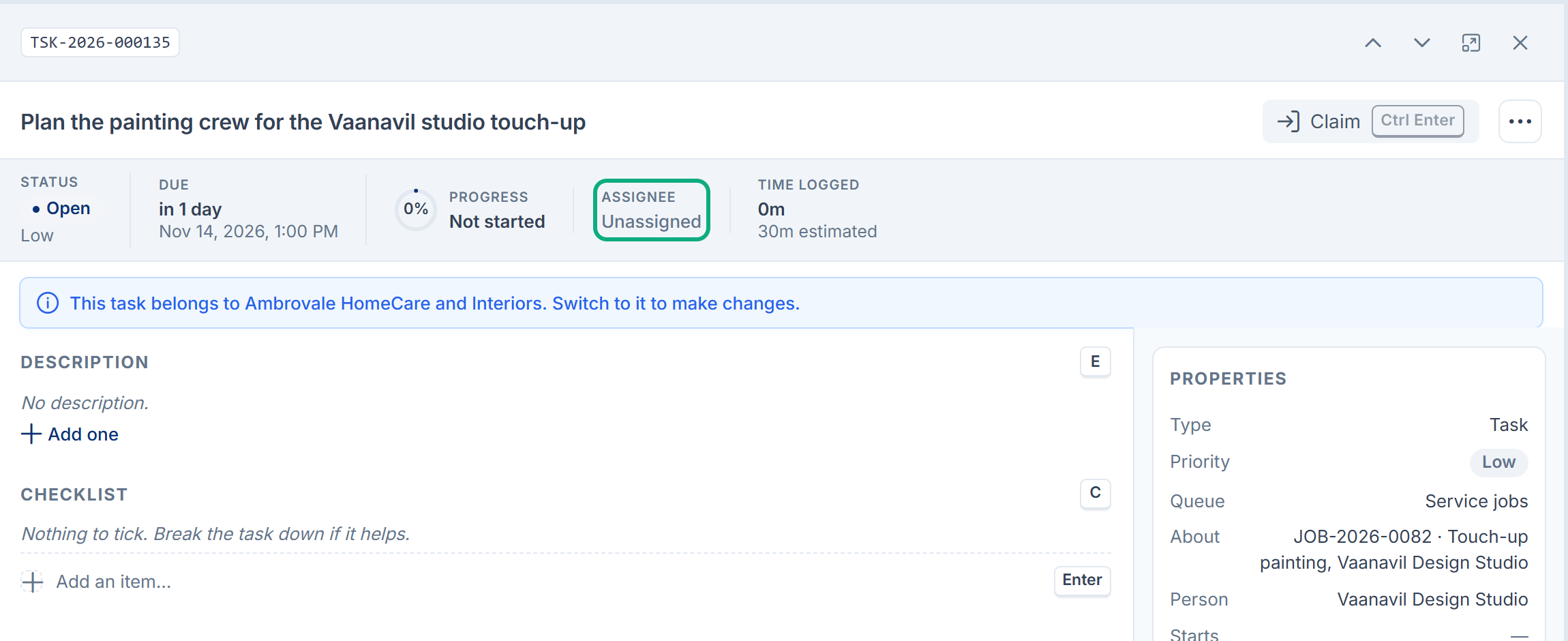
Fix: Assign the task to the person who should be reminded. To be reminded yourself, assign it to yourself, or claim it if it's in a queue. Then add a new reminder. Assigning needs Assign Task (feature.). See Share work through a queue and claim a task.
2. Notification Manager isn't turned on
Reminders are in-app notifications. They're saved to the person's notification bell only while the Notification Manager add-on is on. Without it, the header has no bell, the reminder reaches nobody, and the row still says Sent. A live pop-up can only appear if Realtime Broadcasting is set up and the person is online at that very moment.
Channel still offers In the app when Notification Manager is off, so the form doesn't warn you.
Fix: Ask a platform owner to install and turn on Notification Manager. Reminders sent before that are lost; set new ones. For other reasons the bell stays empty, see A notification doesn't appear in the bell.
3. You wanted the reminder by email, SMS or push
Reminders are only delivered in the app. Under Channel, Email, SMS and Push are grayed out with No delivery is set up for this channel., even when Notification Manager has providers for them.
Fix: None. Use In the app, and make sure the person checks their bell.
4. It arrived, but it doesn't look like a reminder
In the bell, a reminder shows only the task's title, with no other text. Selecting it doesn't open the task, and it has no link.
Fix: Open Activities › Tasks and find the task by its title. If the person has no Activities menu, see You can't open, claim or complete a task.
5. Background jobs aren't running
Reminders are sent by a job that runs every 5 minutes. While your Laramin's scheduled jobs don't run, reminders stay Scheduled after their time. Everyone's reminders are late, not only this one.
Fix: See Scheduled jobs don't run. Once jobs run again, reminders up to 24 hours late are sent.
6. The reminder was missed by more than 24 hours
A reminder that couldn't be sent within 24 hours of its time is never sent. It keeps showing Scheduled, with a time in the past, for good.
Fix: Select Cancel reminder (the cross) in its row, then add a new reminder. Fix the cause first, usually check 5, or the new one is missed too.
Whoever runs your server can change the 24-hour limit with ACT_, in minutes.
7. The task was finished first
When a task is done, its unsent reminders change to Not needed — the task was done. That's expected. If you reopen the task, add a new reminder.
Still not working?
Raise a ticket from Support Center in your Laramin app. Include this page's link, the task's number, a screenshot of its Reminders list, and who it's assigned to.
Thanks. That helps us decide what to write next.
Thanks for telling us what was missing.
You already answered for this article today. Thanks.
We got a lot of answers from your network just now. Try again in a few minutes.
We couldn't send that. Check your connection and try again.
Links in this article
Printed from help.bsscn.com. The online article may have changed since.