Tasks, queues and activity history explained
A task is work still to do, with an owner and a due date. An activity is something that already happened, such as a call. A queue is a shared list of tasks that its members claim.
- Applies to
- Activities 3.1 and later
- Who can do this
- Team member, Administrator, Platform owner
On this page
In short
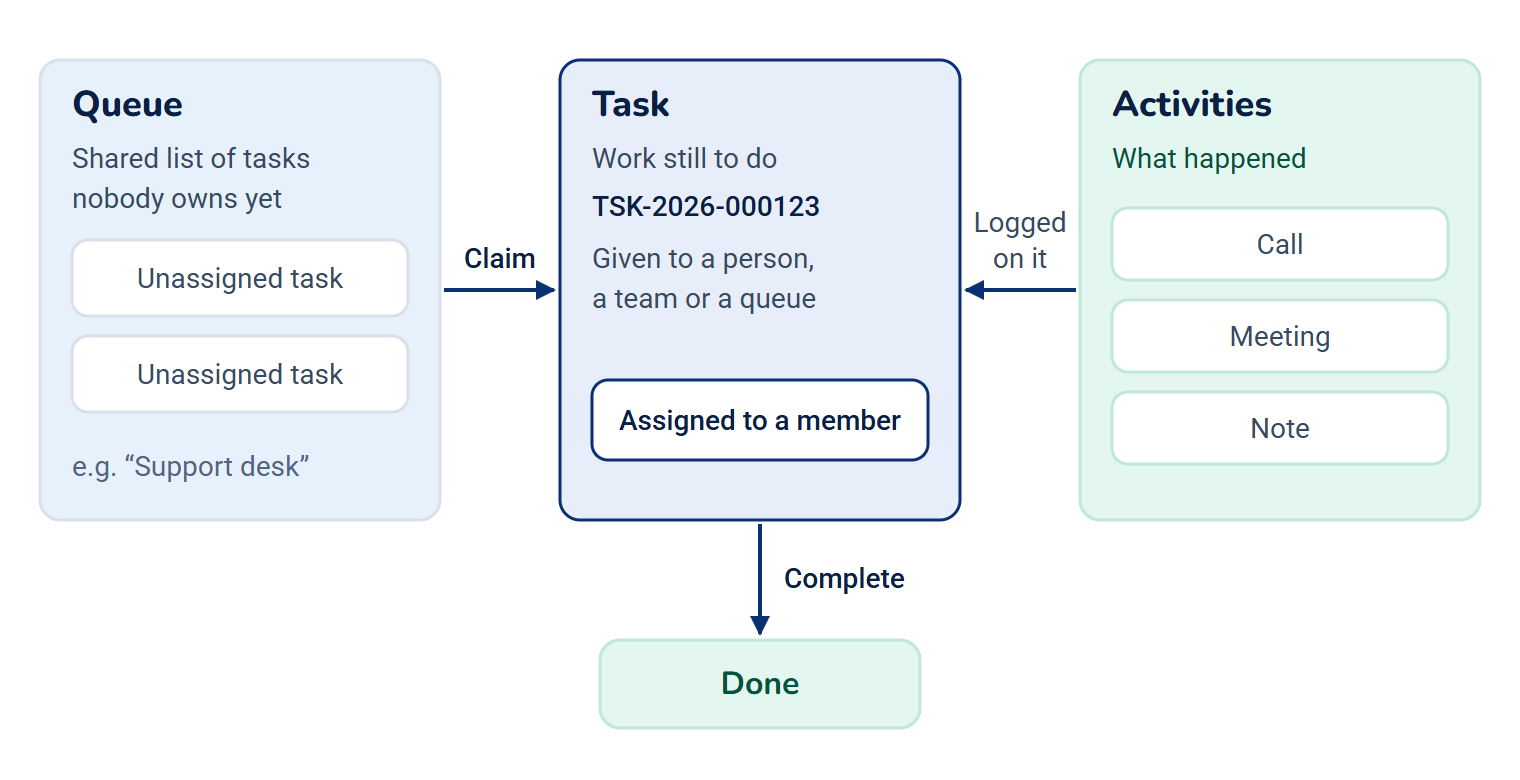
Activities keeps two kinds of record apart. A task is work that still has to happen, such as "Call Ravi about the revised quote". An activity is something that already happened, such as "Called Ravi, he asked for a revision". A queue is a shared list of tasks that nobody owns yet, where the people in the queue claim the next one.
How it works
Tasks: what has to happen
Each task has a number, such as TSK-2026-000123, and a Title. The number starts with the year the task was created in, by your Laramin's clock, and the count starts again at 1 each year. It also has:
- a Status: Open, In progress, Blocked, Done or Cancelled,
- a Type: Task, Call, Meeting, Email, Follow-up or Approval,
- a Priority: Low, Normal, High or Urgent,
- an optional Due date and time, and an optional Starts date.
Other modules can add their own types and statuses.
A task can be About a record from another module, such as a quote or a client. Laramin keeps that record's name on the task, so the task still says what it was about even if the module is later turned off.
A task is given to one of these: a person (Assigned to), a team (Assigned team), or a Queue.
Inside a task you can keep a checklist, comments with @mentions, files, reminders, time spent, watchers, and dependencies on other tasks. A task with an unfinished task it waits on can't be completed until that one is done.
Each task belongs to the workspace it was created in, and can't be moved to another. Deleting a task is reversible: a deleted task can be restored, with its checklist, time and history.
Activities: what happened
An activity records a call, meeting, email, visit, note or status update, with what happened, who recorded it and when. You log activities from the task they were about, on its Activity tab. The Activity tab also shows what changed on the task, such as a new due date or a new assignee, if your Laramin records changes.
Activities › History lists every activity you may see, newest first.
Activity history isn't the same as the Activity Log module. The Activity Log records automatically who changed which record and when, and is read when something goes wrong. Activity history holds what people chose to write down, and is read every day.
Queues: shared work
A queue is a shared inbox for a team, for example "Support desk". Tasks in a queue have no assignee. A member of the queue who May claim selects Claim, and the task becomes theirs. If two people claim the same task at once, one gets it and the other is given the next task in the queue.
Reminders and due dates
A reminder can be set for a time before the task's due date, or for a set date and time. A reminder set before the due date moves with it when the due date changes. Once a task is done, its remaining reminders are no longer sent.
The task view marks a task Due soon within 24 hours of its due date, and Overdue after it.
Repeating tasks
A task can be one occurrence of a repeating series, shown as Occurrence 3 under Series. Series are created by other modules. There's no screen in Activities to make a task repeat yourself.
Business calendars and time zones
Activities › Calendars holds your business's opening hours and holidays. Each calendar has a Timezone, and its opening hours are read in that zone, whoever is looking. A new calendar's Timezone starts as your workspace's time zone, or the system time zone if the workspace has none of its own. You can change it before you save.
Where you find tasks
- Activities › Tasks lists the tasks you may see. Select a task to open it. The Activities menu is only in the Platform Administration experience's sidebar. In other experiences, open tasks from the places below.
- Some modules show a Work card on a record's page, with the record's open tasks and an Add task button.
- The command palette finds tasks by number or title. See Search with the command palette.
- A mention notification opens its task. A reminder in the bell shows only the task's title and doesn't open it, so search for the title instead.
What you can see and do depends on your permissions. For example, someone may be allowed to open and complete only the tasks assigned to them. The Tasks list still shows them every task in the workspace. If someone can't open or claim a task, or has no Activities menu, see You can't open, claim or complete a task.
How it relates to
- Workspaces and teams: tasks and queues belong to a workspace, and a task can be given to a team. See Workspaces, teams and experiences: the basics.
- Notifications: reminders and @mentions arrive as notifications. See Read your notifications.
Next steps
Thanks. That helps us decide what to write next.
Thanks for telling us what was missing.
You already answered for this article today. Thanks.
We got a lot of answers from your network just now. Try again in a few minutes.
We couldn't send that. Check your connection and try again.
Links in this article
Printed from help.bsscn.com. The online article may have changed since.