Log a call or meeting
Record a call, meeting, email, visit or note on the task it was about, so everyone can see what happened and when.
- Applies to
- Activities 3.1 and later
- Who can do this
- Team member
- Permission
feature.act. activity. create - Where
- Activities › Tasks
On this page
Before you start
- You need Create Activity (
feature.), and you must be able to see the task.act. activity. create - You log an activity from the task it was about. If there's no task yet, create one first. See Create a task and set a reminder.
Steps
-
In the sidebar, open Activities › Tasks.
-
Select the task to open it.
-
Open the Activity tab.
-
Select Log activity.
-
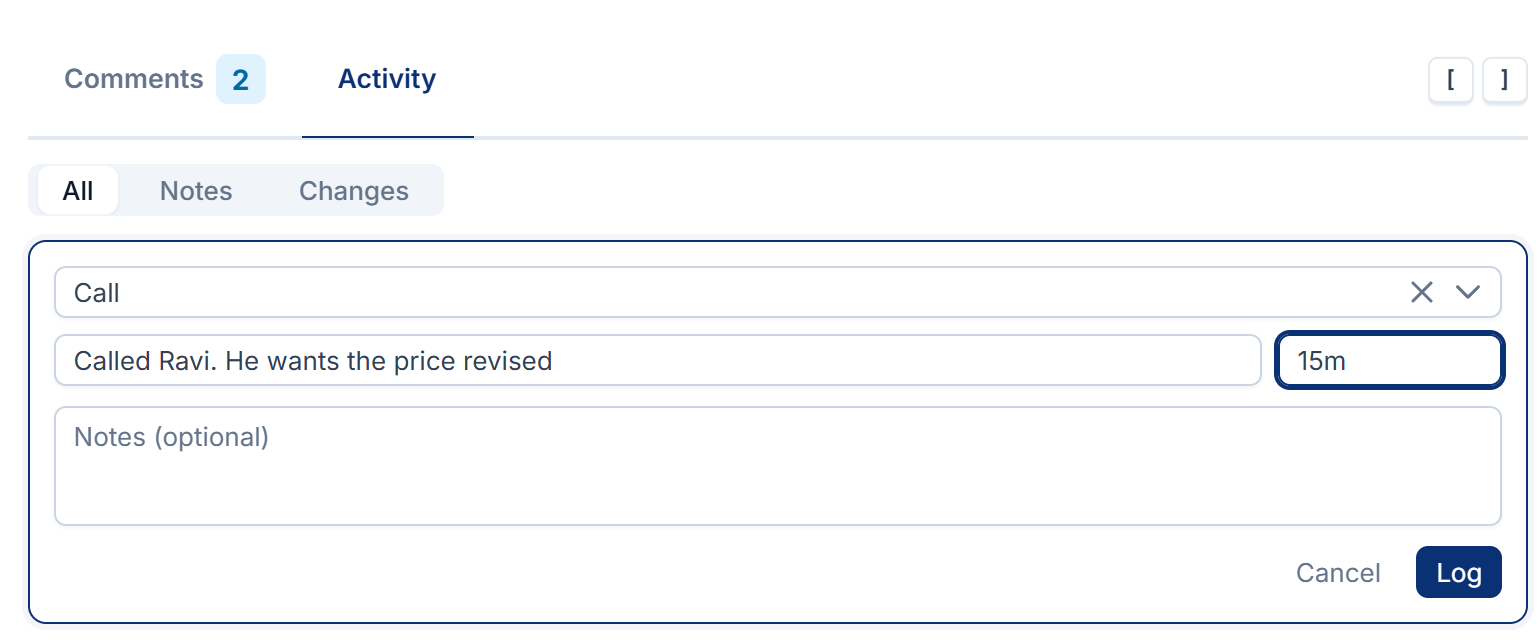
Choose the activity type: Note, Call, Meeting, Email, Visit or Status update. Other modules can add more types.
-
In What happened, write a short summary, for example "Called Ravi. He wants the price revised".
-
Optionally, enter the Duration, such as
15mor1h 30m. -
Optionally, add more detail under Notes (optional).
-
Select Log.
Log stays grayed out until you've chosen a type and filled in What happened or Notes (optional). If the duration isn't one Laramin understands, you see Write a duration like 45m, 1h or 1h 30m.
What happens next
-
The activity appears at the top of the Activity tab, under today's date, with your name and the time you logged it. The time is when you selected Log, so log a call straight after it ends.
-
Use the filter on the tab to show All, only Notes (what people logged) or only Changes (what changed on the task). Changes only has entries if your Laramin records changes.
-
People who can see the task and its activity history can read what you logged. Activities › History lists every activity you may see, newest first. You can filter it by Type and by Occurred.
-
Activity history is for what people chose to write down. It's separate from the Activity Log module, which records changes automatically.
Thanks. That helps us decide what to write next.
Thanks for telling us what was missing.
You already answered for this article today. Thanks.
We got a lot of answers from your network just now. Try again in a few minutes.
We couldn't send that. Check your connection and try again.
Links in this article
Printed from help.bsscn.com. The online article may have changed since.