Work through a task: checklist, comments and files
Open a task, break it into checklist items, talk about it with comments and @mentions, attach files, log your time and mark it complete.
- Applies to
- Activities 3.1 and later
- Who can do this
- Team member
- Permission
feature.act. task. complete - Where
- Activities › Tasks
On this page
Before you start
- You need to be able to see the task. To complete it, you need Complete Task (
feature.). Some people may only complete the tasks assigned to them.act. task. complete - Each part of the task view needs its own permission, for example to add checklist items, comment or attach files. A part you can't use is hidden or read-only.
Open the task
-
In the sidebar, open Activities › Tasks.
-
Select the task.
The task opens over the list. The top shows its number, title and main button, such as Complete. The right-hand side shows its Properties, the Related counts and its Files.
Keyboard shortcuts appear next to the controls they work: E edits the description, C adds a checklist item, T logs time, R adds a reminder and U attaches a file. [ and ] move between the Comments and Activity tabs.
Steps
Break it down with a checklist
-
Under Checklist, select Add an item… or press C.
-
Type the item and press Enter. Add as many as you need.
-
Tick each item when it's done.
The checklist shows how many items are done, for example 2 of 5. Once a task has checklist items, its Progress follows the checklist, and you can't type a percentage any more. Drag items, or use Move up and Move down, to change their order.
Comment and mention people
-
On the Comments tab, write in the box.
-
To bring someone in, type
@and pick them from the list.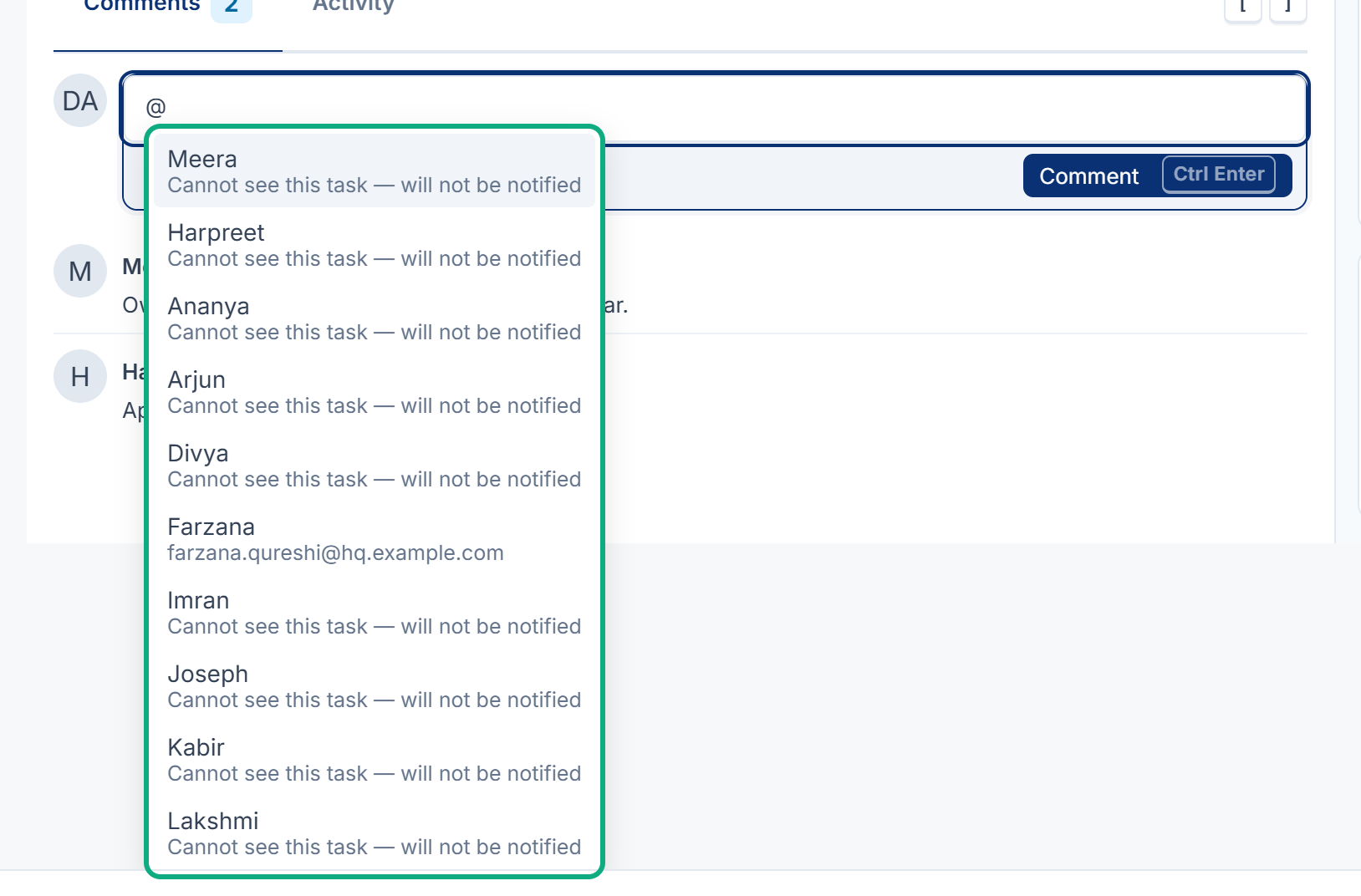
-
Select Comment.
Each person you mention gets a notification, such as "Priya mentioned you on TSK-2026-000123". A name you type by hand without picking it from the list notifies nobody, and the box says so. In the list, someone who can't see the task is marked Cannot see this task — will not be notified. When you edit a comment, only people you add in the edit are notified.
If you leave a comment you haven't posted, Laramin asks Discard the comment? first.
Attach files
-
Drag files onto Files, paste them, or select browse and choose them.
-
Wait for each upload to finish.
The panel shows which file types are allowed, and the largest size. To rename or remove a file, open its File actions menu. A removed file is taken off the task, but kept in storage.
Log your time
-
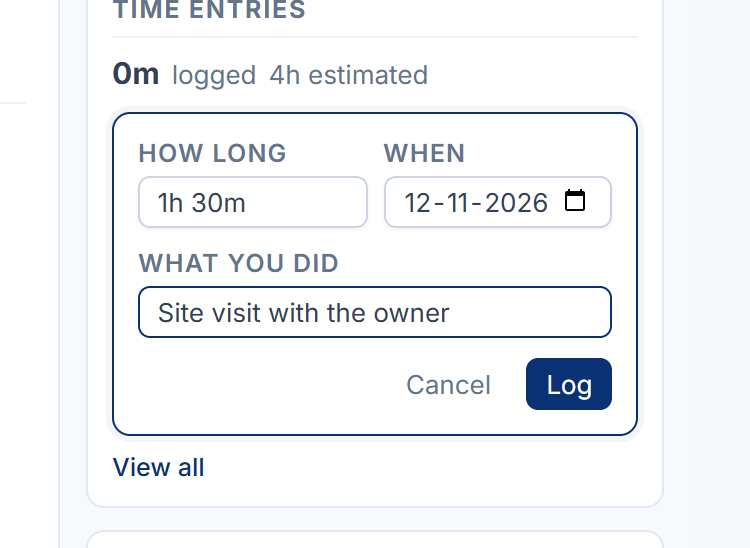
Under Related, select Log time, or press T.
-
In How long, type a duration such as
45m,1hor1h 30m. -
In When, check the day.
-
Optionally, fill in What you did.
-
Select Log.
Watch a task
Under Related, open the watchers count and select Watch. To stop, select Stop watching.
Complete it
- Select Complete, or press Ctrl+Enter (⌘+Enter on a Mac).
The task is marked done and its unsent reminders are no longer needed. If the task waits on another task that isn't finished, Complete is grayed out. Hover over it to see Waiting on TSK-2026-000120 — finish that first. The blocking task is also listed under Related as Blocked by.
To undo, select Reopen.
What happens next
-
If someone changes the task while you have it open, you see This task changed. Select Reload to see their change before you carry on.
-
To record a call or meeting about the task, see Log a call or meeting.
-
To delete a task, open More actions and select Delete task. A deleted task can be restored with Restore.
Thanks. That helps us decide what to write next.
Thanks for telling us what was missing.
You already answered for this article today. Thanks.
We got a lot of answers from your network just now. Try again in a few minutes.
We couldn't send that. Check your connection and try again.
Links in this article
Printed from help.bsscn.com. The online article may have changed since.