Search with the command palette
Open the command palette from any screen, search the records you're allowed to see, and open a result without leaving the keyboard.
- Applies to
- Core 12.0 and later
- Who can do this
- Administrator, Team member, Platform owner
- Where
- Header › Search or jump to
On this page
Before you start
- Global search must be turned on for your installation. When it's off, the palette doesn't open. A super admin controls this on the Global Search settings screen, under Security.
- What you can search for depends on your modules. Each module adds its own sources, for example a CRM's contacts, and each source shows only the records you're allowed to see.
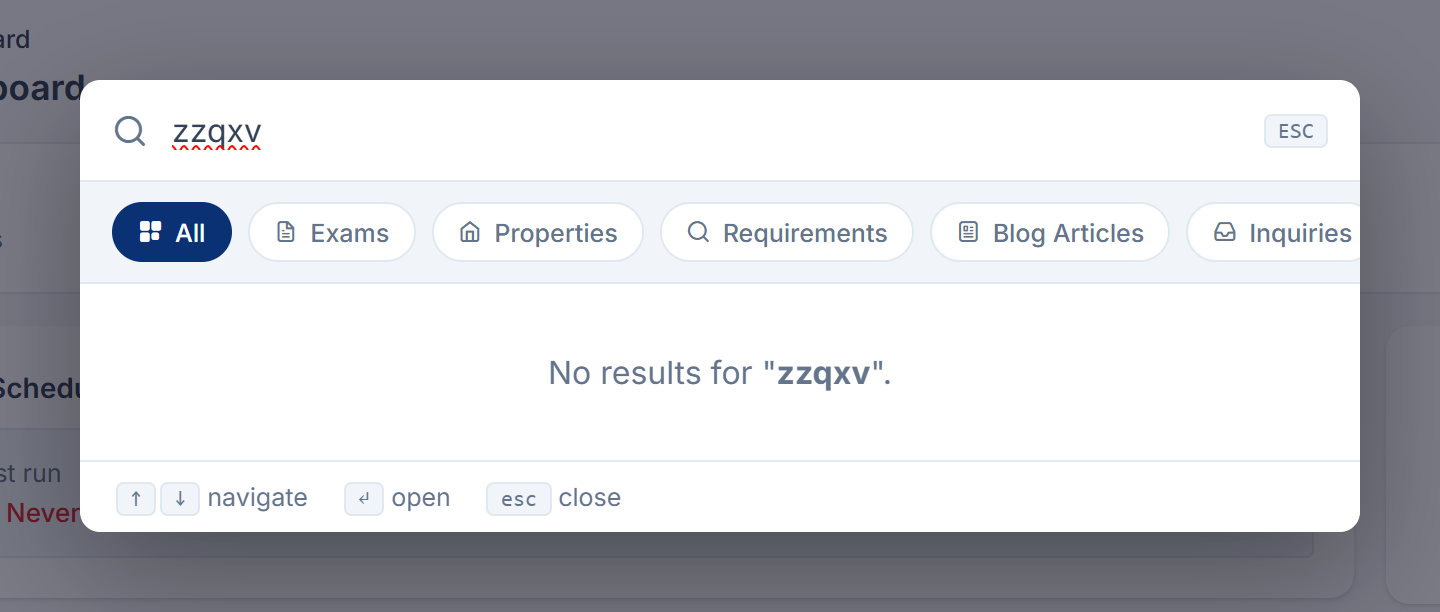
- Core doesn't add search sources of its own, so pages, users, roles and settings aren't searched. Searching for "Users", for example, answers No results for "Users". Use the menu to reach those. If a screen isn't in your menu, see A menu or screen is missing, or the menu is empty. If none of your modules adds a source, every search returns no results.
Steps
-
Press Ctrl+K on Windows or Linux, or ⌘+K on a Mac. You can also select Search or jump to in the header, or press /.
-
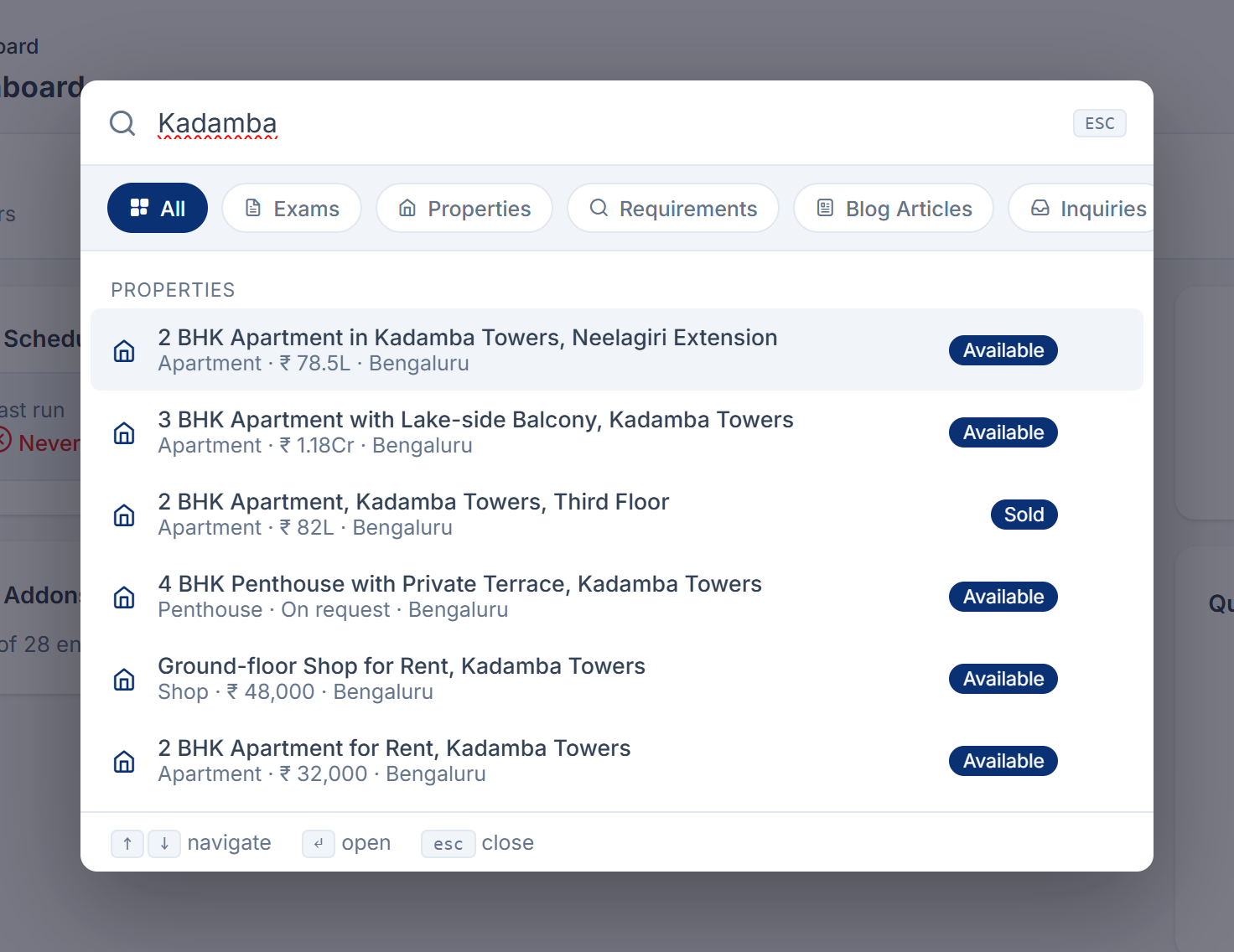
In the Search… box, type at least two characters. Results appear as you type, grouped by category.
-
To search one category only, select its chip under the search box. Select All to search everything again.
Tip: When the search box is empty, press Backspace to remove the category filter.
-
Press ↑ or ↓ to highlight a result.
-
Press Enter to open it, or select it with the mouse.
To close the palette without opening anything, press Esc or select outside it.
What happens next
Laramin opens the result's screen and saves your search under Recent. The next time you open the palette with an empty box, your Favorites and Recent searches appear first. See Pin favorites and clear recent searches.
If you see a message instead of results
| Message | What it means |
|---|---|
| Type at least 2 characters to search. | Keep typing. Your administrator can change the minimum, so the number may be different. |
| No results for "…". | Nothing you're allowed to see matches. Try fewer or different words, or select All. The name of a screen, such as "Users" or "Settings", doesn't find the screen, because screens aren't searched. |
| Too many searches – please slow down a moment. | You've gone over the search limit, which is 60 searches a minute unless your administrator changed it. Wait a moment and try again. |
| That result is no longer available. Search again. | The record changed or was removed after the results appeared. |
Thanks. That helps us decide what to write next.
Thanks for telling us what was missing.
You already answered for this article today. Thanks.
We got a lot of answers from your network just now. Try again in a few minutes.
We couldn't send that. Check your connection and try again.
Links in this article
Printed from help.bsscn.com. The online article may have changed since.