Switch to another experience
Change the view you're working in, such as Administration or a view a module adds, and choose the one you start in.
- Applies to
- Core 12.0 and later
- Who can do this
- Administrator, Team member, Platform owner
- Where
- Header › View
On this page
Before you start
- More than one experience must be available to you in the current workspace. If only one is, the header doesn't show the switcher. An administrator decides which experiences you can enter. See Choose which experiences a user can enter.
Steps
-
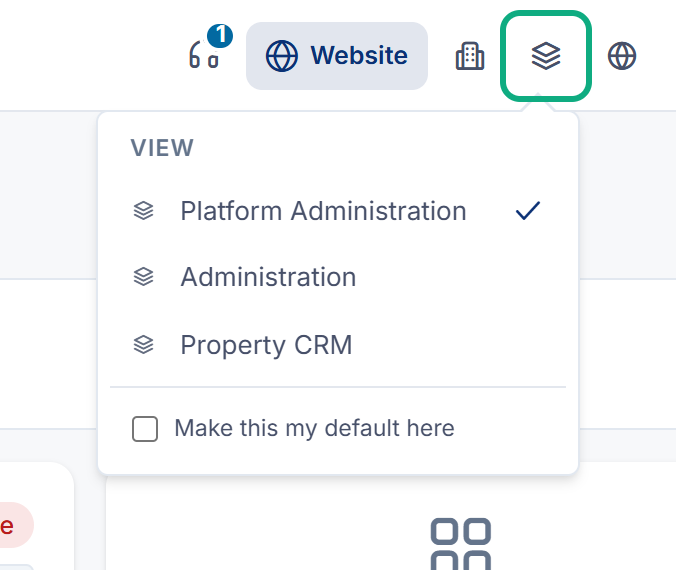
In the header, select the layers icon (View). Its tooltip shows the experience you're in now.
-
To start in this experience every time you work in this workspace, tick Make this my default here. The tick box isn't shown in All Workspaces.
-
Select the experience.
What happens next
Laramin opens the experience's home page, with its own menu and layout.
Switching experience changes how Laramin looks. It doesn't change what you're allowed to do: your roles decide that, whichever experience you're in.
If the switch fails, the panel shows Could not switch the view. Please try again.
When you sign in
If more than one experience is available and you haven't chosen a default for this workspace, Laramin asks How do you want to work? when you sign in. Tick Make this my default here to skip this question next time.
Thanks. That helps us decide what to write next.
Thanks for telling us what was missing.
You already answered for this article today. Thanks.
We got a lot of answers from your network just now. Try again in a few minutes.
We couldn't send that. Check your connection and try again.
Links in this article
Printed from help.bsscn.com. The online article may have changed since.