How Notification Manager sends notifications
When something happens in your Laramin, Notification Manager picks the message template for each channel and language, checks it's approved, and sends it through your providers. Here's how the pieces fit, and what other add-ons rely on it.
- Applies to
- Notification Manager 1.4 and later
- Who can do this
- Platform owner, Administrator
On this page
In short
Notification Manager is the add-on that delivers your Laramin's notifications. Something happens, such as a new lead or a password change. That is a business event. For each event you keep a template per channel and language. Notification Manager fills in the template, checks that it's approved, and sends it by Email, SMS, WhatsApp, Push or System (In-app), through the providers you connect. Every attempt is written to Delivery Logs.
How it works
The parts
| Part | What it is | Where you manage it |
|---|---|---|
| Business event | Something that happens, such as Lead Assigned or Admin Password Setup. Core and other add-ons bring their own events. | Notification Manager › Business Events |
| Template | The message for one event, on one channel, in one language. | The Template Builder, from an event's row |
| Provider | The service that delivers a channel: SMTP or AWS SES for email, Twilio or Msg91 for SMS, Meta WhatsApp Cloud API, and Firebase Cloud Messaging (FCM) for push. | Notification Manager › Settings |
| Sender ID | The name, number or address a message comes from. | Notification Manager › Settings › Sender IDs |
| Preference | A person's choice to stop one event on one channel. | Each person's Notification Preferences |
| Delivery log | One row for each message Laramin tried to send. | Notification Manager › Logs |
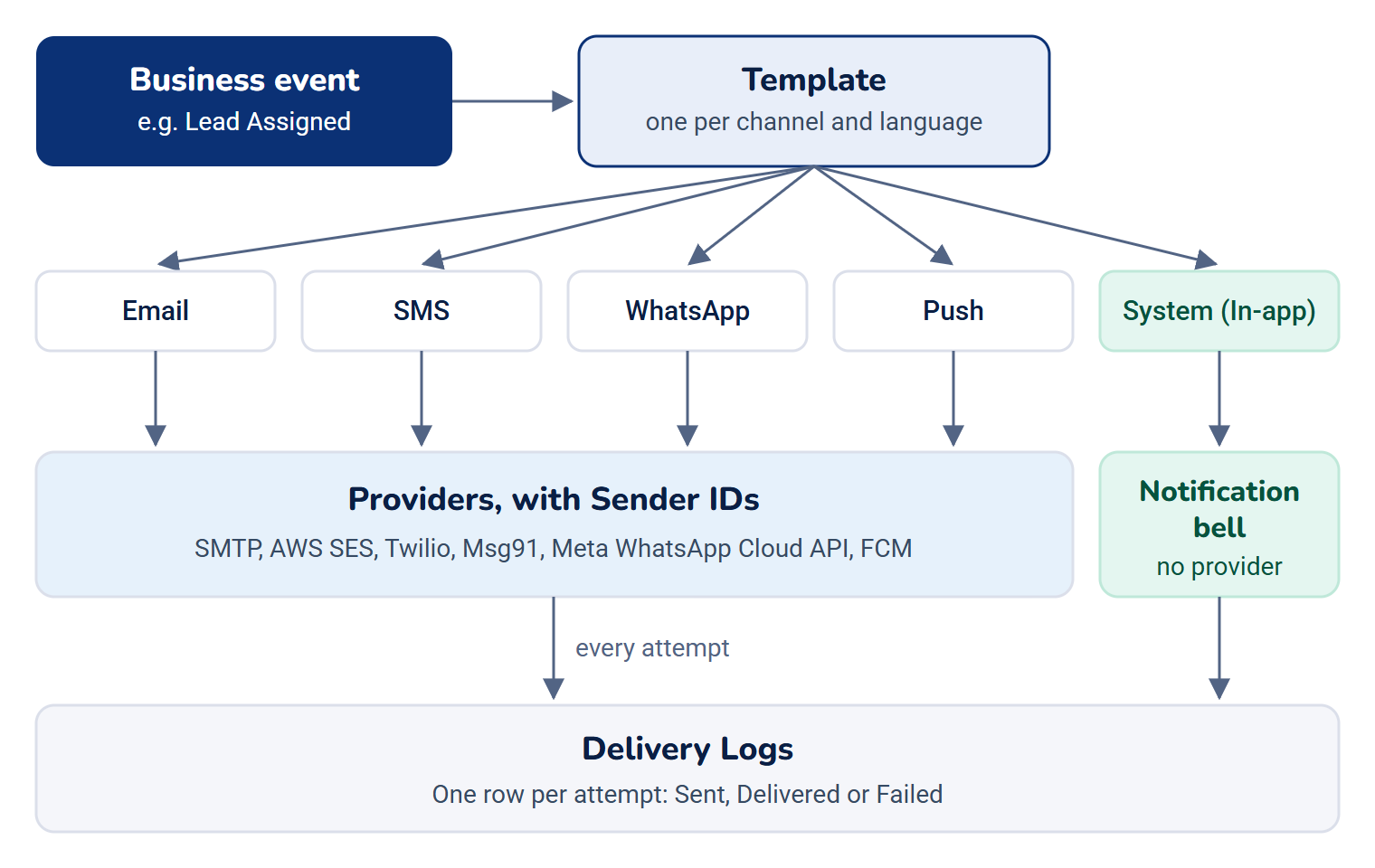
In-app notifications (System (In-app)) need no provider. They appear in the person's notification bell. See Read your notifications.
An add-on can attach files to an email it sends, such as a PDF. Only email carries them, through SMTP or AWS SES: up to 10 files and 7 MB per message, of document, spreadsheet, image and text types. Laramin refuses a file that is really a program, whatever its name says.
Notification Manager's screens are in the sidebar under Notification Manager. The provider settings also appear in the Settings hub, under Notification Providers.
What happens when an event fires
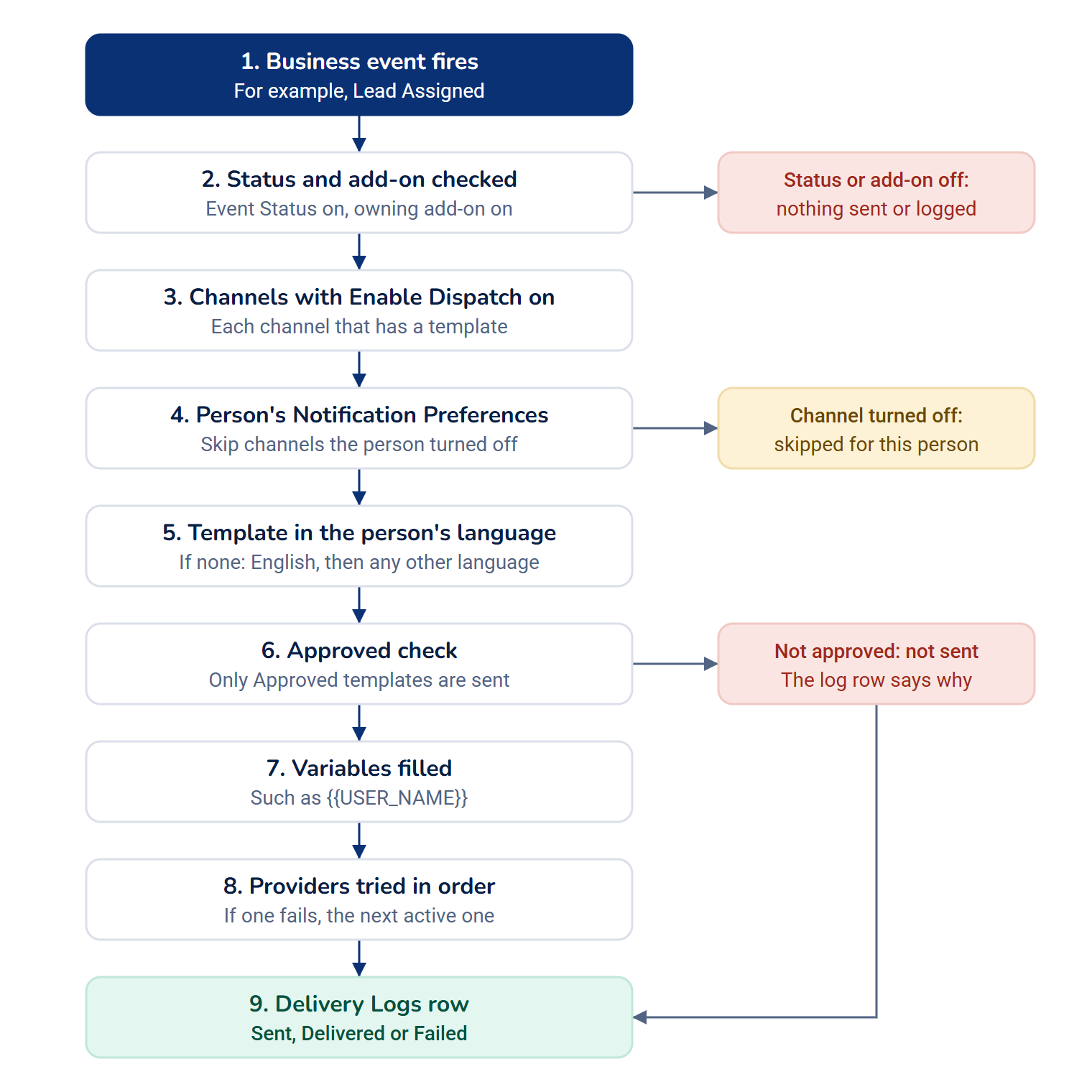
- Laramin checks the event. If its Status is off, or the add-on that owns it is turned off, nothing is sent and nothing is logged.
- It finds each channel that has a template with Enable Dispatch on.
- It skips any channel the person has turned off in their Notification Preferences. Everyone starts with every channel on.
- For each remaining channel, it picks the template in the person's own language. If there's none, it uses English, then any other language. The person's language is the one they chose in Laramin. See Change the interface language.
- It checks that the template is Approved. A template that isn't approved isn't sent. The log row says why.
- It fills in the variables, such as
{{USER_NAME}}, and sends the message through the channel's providers. If the first provider fails, it tries the next active one. - It writes the result to Delivery Logs: Sent, Delivered or Failed.
Sending happens in the background, through your server's queue worker. A message waits until the worker picks it up. See A notification wasn't sent or didn't arrive.
Careful: Saving a template, even without changes, sets it back to Draft. That channel then stops sending until someone approves the template again. See Submit, approve or reject a template.
Where events and templates come from
When Notification Manager is installed, it adds Core's events, such as sign-in, password and two-factor alerts, with ready-made, approved templates. Other add-ons add theirs the same way, for example:
| Add-on | Events it brings |
|---|---|
| Property CRM | New Lead Captured, Lead Assigned, Lead Converted, Requirement Fulfilled, Listing Sold, and alerts for rented and expiring listings, plus two optional messages to your clients |
| CRM | Follow-up due |
| Backup | Backup Completed Successfully, Backup Execution Failed, Restore Completed Successfully, Restore Execution Failed |
Templates you change are kept when an add-on is upgraded. An add-on's own templates replace a template only while it still holds Laramin's stand-in text, No message template has been set up for this event yet.
If an event fires that Laramin has never seen, it adds the event with that stand-in text as an in-app message, so you can see it and write a real template.
Which add-ons send through it
Core and add-ons hand their email, SMS, WhatsApp, push and in-app notifications to Notification Manager. For example:
- Property CRM sends its lead and listing alerts to your team, and, if you turn them on in Property CRM settings, a reply and a welcome message to clients. Alerts to your team go to the assigned agent, or to the people in Lead Alert Recipients, as in-app and email messages. The email goes to the address on the person's account.
- CRM sends Follow-up due reminders in the app. Notification Manager doesn't tell CRM or Activities which channels are ready, so even with providers connected, CRM's Also remind by options for Email, SMS and WhatsApp are grayed out with Not configured on this installation, and an Activities reminder's Email, SMS and Push channels with No delivery is set up for this channel.
- Core sends account and security messages, such as the temporary password when an administrator sets one.
Messages that other parts of Laramin show only as a live pop-up, such as a finished backup, are also saved to the person's notification bell while Notification Manager is on.
Without Notification Manager
If Notification Manager isn't installed or is turned off:
- The header has no notification bell, and nobody has Notification Preferences.
- Laramin emails only a few account and security messages, as plain text through your Laramin's own mail settings: password resets, welcome emails, security breach alerts, two-factor turned off, blocked suspicious sign-ins, changed credentials and the GDPR export and deletion messages.
- Every other notification, including Property CRM's alerts and the temporary password message, isn't sent. Laramin only notes it in the server's log.
- Live pop-ups still appear, but they aren't saved to a bell.
How it relates to
- Permissions: each screen has its own permissions, such as Edit Templates (Builder) and Approve / Reject Templates. Give them with a role. See Notification Manager settings for the list, and Give someone a role.
- Workspaces: providers, templates and logs are shared by your whole Laramin, not kept per workspace.
Next steps
Thanks. That helps us decide what to write next.
Thanks for telling us what was missing.
You already answered for this article today. Thanks.
We got a lot of answers from your network just now. Try again in a few minutes.
We couldn't send that. Check your connection and try again.
Links in this article
Printed from help.bsscn.com. The online article may have changed since.