Change the interface language
Switch the language Laramin's screens are shown in, from the sign-in screen, the header or your profile. Laramin remembers your choice.
- Applies to
- Core 12.0 and later
- Who can do this
- Administrator, Team member
- Where
- Header › Interface language
On this page
You can change the language in three places. They all set the same preference.
Before you start
- The header's language menu only appears when the Language module is enabled. The list on the sign-in screen only appears when more than one language is active. Your administrator manages the list of languages in Languages. See Add a language.
Change it in the header
- In the header, select the globe icon, Interface language.
- Select a language.
The whole page reloads in the new language. Each language in the list shows how much of the interface is translated, for example "85% of the interface is translated".
Change it before you sign in
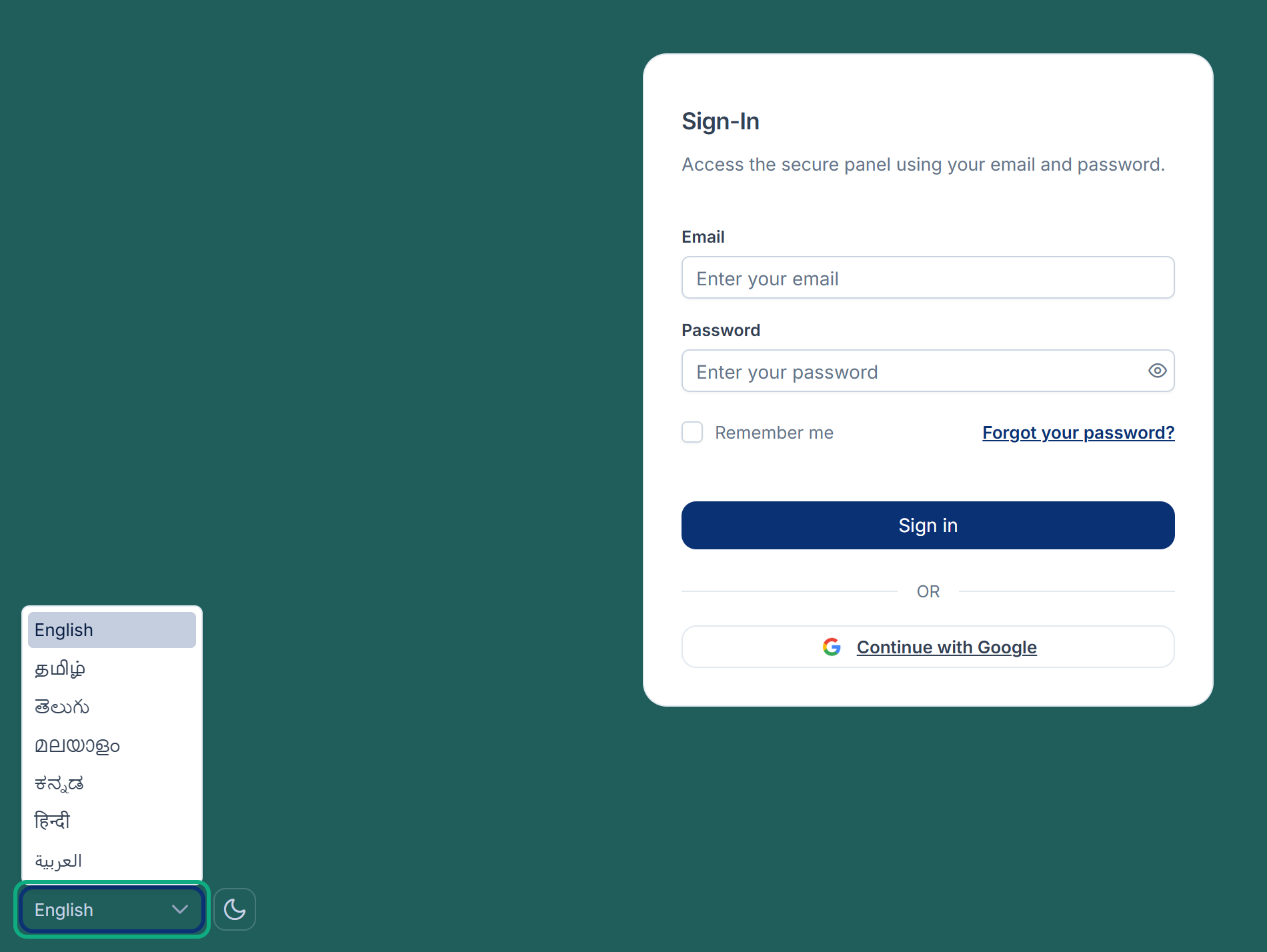
The sign-in screen reloads in that language.
Change it in your profile
-
Open the account menu: select your avatar in the header.
-
Select Profile.
-
In Language, choose your preferred interface language.
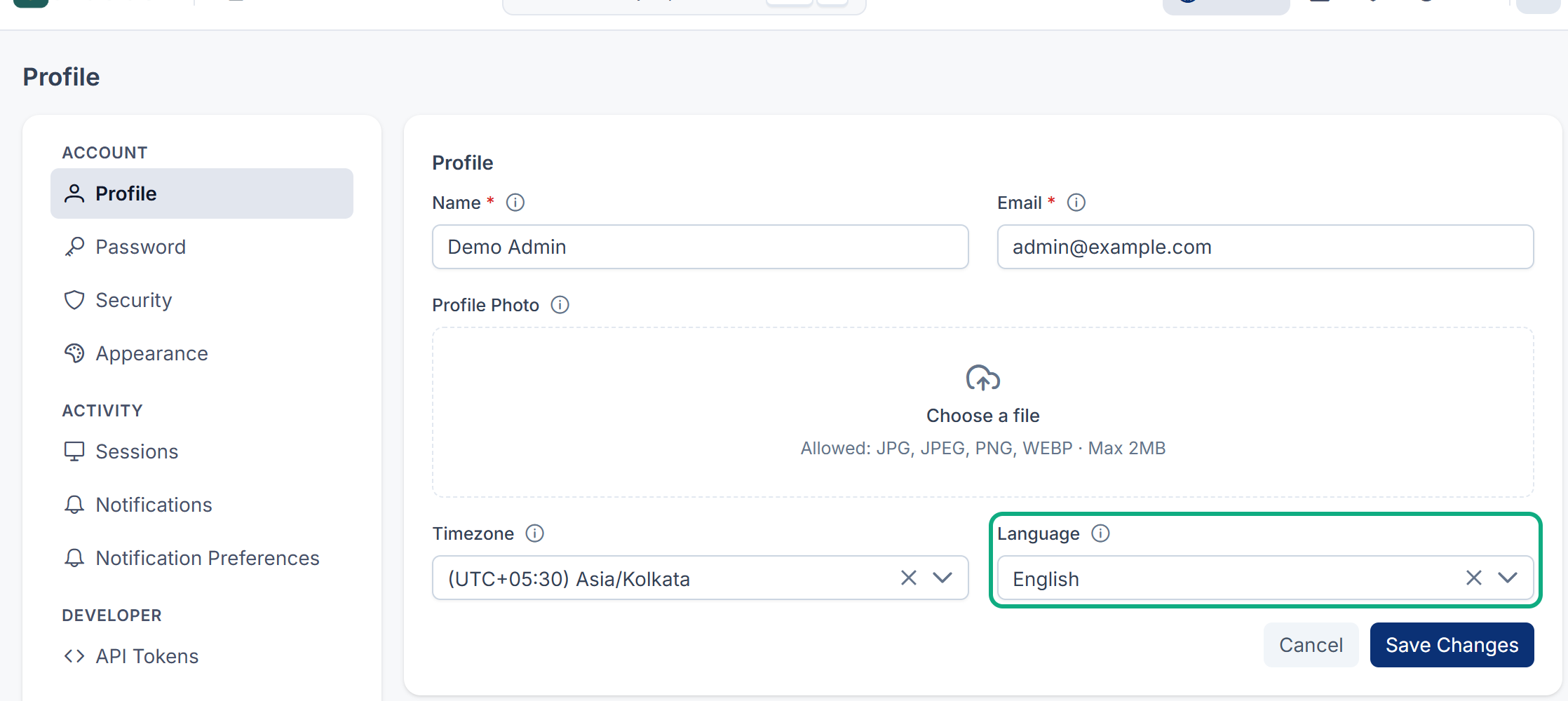
-
Select Save Changes.
If you leave Language empty, Laramin uses the installation's default language.
What happens next
When you change the language in the header or your profile while signed in, Laramin saves it to your account. The next time you sign in, Laramin uses that language.
Tip: The language of the interface is separate from the language of content. Some forms have their own Content language switcher for the text you are editing; see Translate your content.
Thanks. That helps us decide what to write next.
Thanks for telling us what was missing.
You already answered for this article today. Thanks.
We got a lot of answers from your network just now. Try again in a few minutes.
We couldn't send that. Check your connection and try again.
Links in this article
Printed from help.bsscn.com. The online article may have changed since.