Update your profile
Change your name, sign-in email, profile photo, time zone and interface language from the Profile section of your account.
- Applies to
- Core 12.0 and later
- Who can do this
- Administrator, Team member
- Where
- Account menu › Profile › Profile
On this page
Everything about your own account lives in the Profile hub. Its sections are grouped as Account, Activity, Developer and Privacy. You don't need any permission to use it.
Before you start
- Sign in to Laramin.
Steps
- In the header, select your avatar to open the account menu.
- Select Profile. The Profile hub opens on the Profile section.
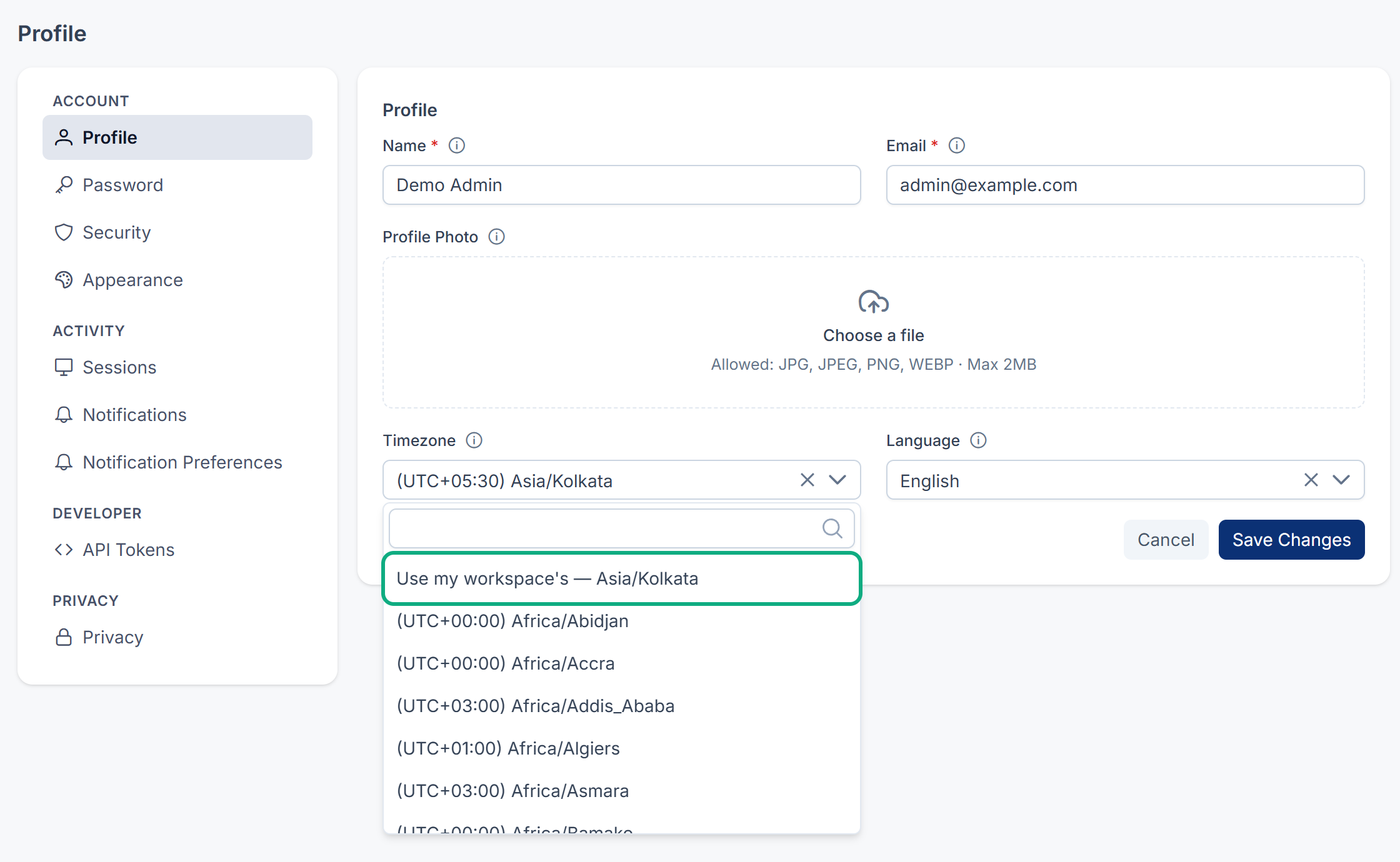
- In Name, enter your full name as you want it shown across the app.
- In Email, enter your sign-in email address.
- To change your picture, upload an image in Profile Photo. A square JPG, PNG or WebP image works best, up to 2 MB.
- In Timezone, choose the time zone you want times shown in. To follow your workspace, choose Use my workspace's — …, which names the workspace's zone.
- In Language, choose your preferred interface language.
- Select Save Changes.
Careful: Email is the address you sign in with, and password-reset links go there. Check it carefully. After the change, sign in with the new address.
What happens next
You see a confirmation that your profile was updated, and the page reloads so the header shows your new name and photo.
Your Timezone only changes how times are displayed to you. What counts as "today", working days and due times always follow your workspace's time zone. See Workspaces, teams and experiences: the basics.
Thanks. That helps us decide what to write next.
Thanks for telling us what was missing.
You already answered for this article today. Thanks.
We got a lot of answers from your network just now. Try again in a few minutes.
We couldn't send that. Check your connection and try again.
Links in this article
Printed from help.bsscn.com. The online article may have changed since.