Switch between light and dark mode
Choose light, dark or your device's setting for the admin, and set your contrast and panel style in Profile › Appearance.
- Applies to
- Core 12.0 and later
- Who can do this
- Administrator, Team member
- Where
- Account menu › Profile › Appearance
On this page
Your colour scheme is saved to your account, so it follows you to any browser you sign in on.
Before you start
- Sign in to Laramin.
Switch quickly from the account menu
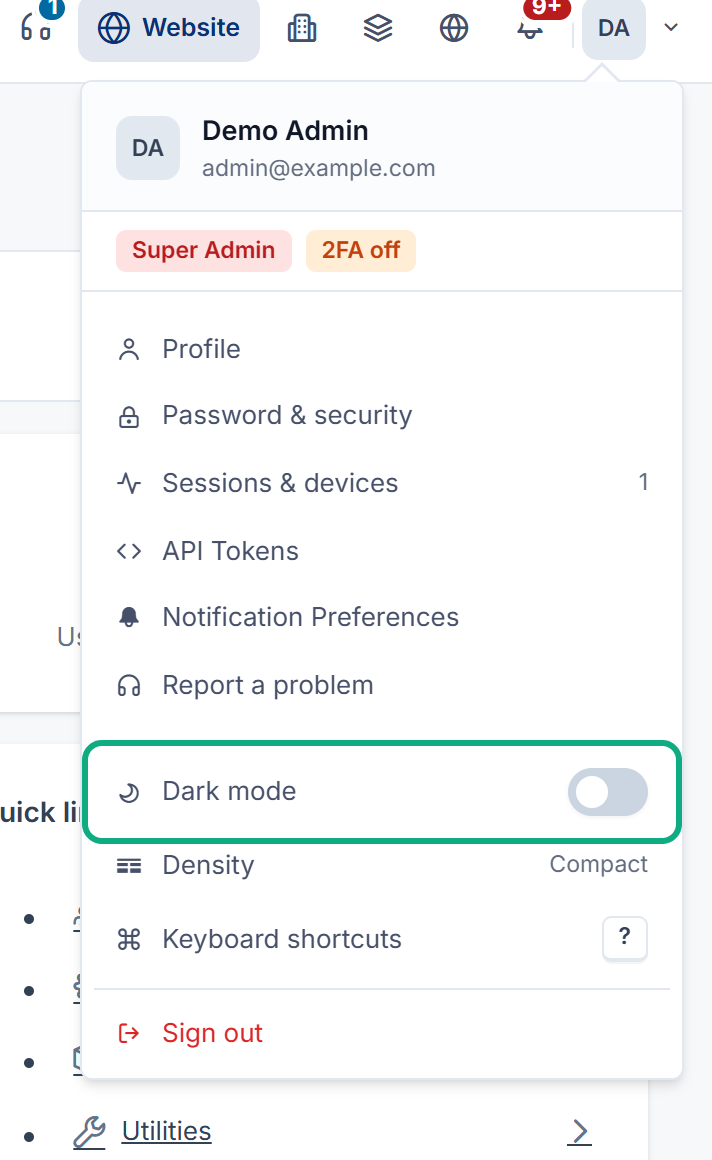
The page changes at once.
Choose a scheme in Appearance
Use this when you want Laramin to follow your device's light or dark setting.
- In the header, select your avatar to open the account menu.
- Select Profile.
- Select Appearance.
- In Colour scheme, choose System, Light or Dark. System follows your device setting.
- In Contrast, choose Normal or More contrast if you want stronger contrast.
- In the last field, the panel style, choose Default, Glass or Neomorphism. Glass shows panels as frosted, translucent surfaces. Neomorphism shows them as soft, raised surfaces. Both work in light and dark. In Core 12.7 this field has no label of its own: it shows
profile::instead.appearance.skin - Select Save Changes.
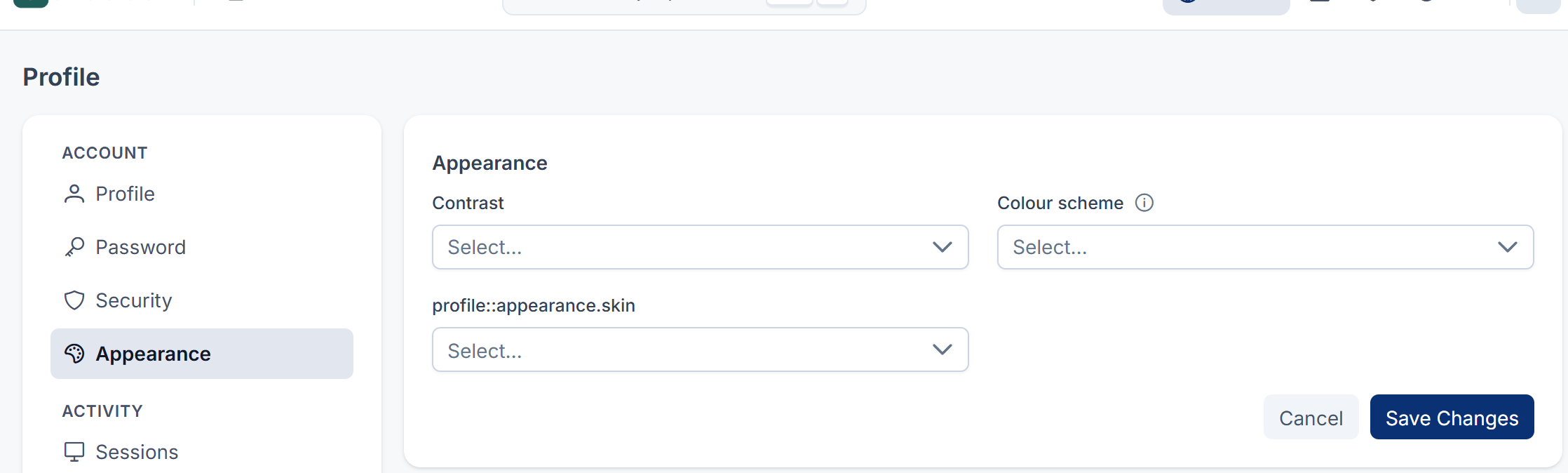
Every field also offers Use the default, which follows the setting your administrator chose for the installation.
What happens next
You see "Appearance preferences saved." and the screen updates straight away.
Tip: Row density and control size are no longer set per person. Your administrator sets them for the whole installation.
Thanks. That helps us decide what to write next.
Thanks for telling us what was missing.
You already answered for this article today. Thanks.
We got a lot of answers from your network just now. Try again in a few minutes.
We couldn't send that. Check your connection and try again.
Links in this article
Printed from help.bsscn.com. The online article may have changed since.