Sign out of other sessions and devices
See where you are signed in, sign out every other browser at once, and rename or revoke the devices you trusted to skip two-factor.
- Applies to
- Core 12.0 and later
- Who can do this
- Administrator, Team member
- Where
- Account menu › Sessions & devices
On this page
Laramin keeps two separate lists:
- Sessions are the browsers where you are signed in right now.
- Trusted Devices are browsers where you selected Trust this device at sign-in. A trusted device skips the two-factor code. This section only appears when your administrator has turned trusted devices on.
Signing out of other sessions doesn't remove trusted devices, and revoking a trusted device doesn't sign it out. If you lost a laptop or phone, do both.
Before you start
- Know your current password. You need it to sign out of other sessions.
Sign out of all other sessions
- In the header, select your avatar to open the account menu.
- Select Sessions & devices. The Sessions section opens. The menu item shows how many devices you are signed in on.
- Check the list. Each row shows the Browser / OS, IP Address and Last Activity. The browser you are using is marked Current.
- Under Log Out Other Devices, enter your password in Current Password.
- Select Log Out Others.
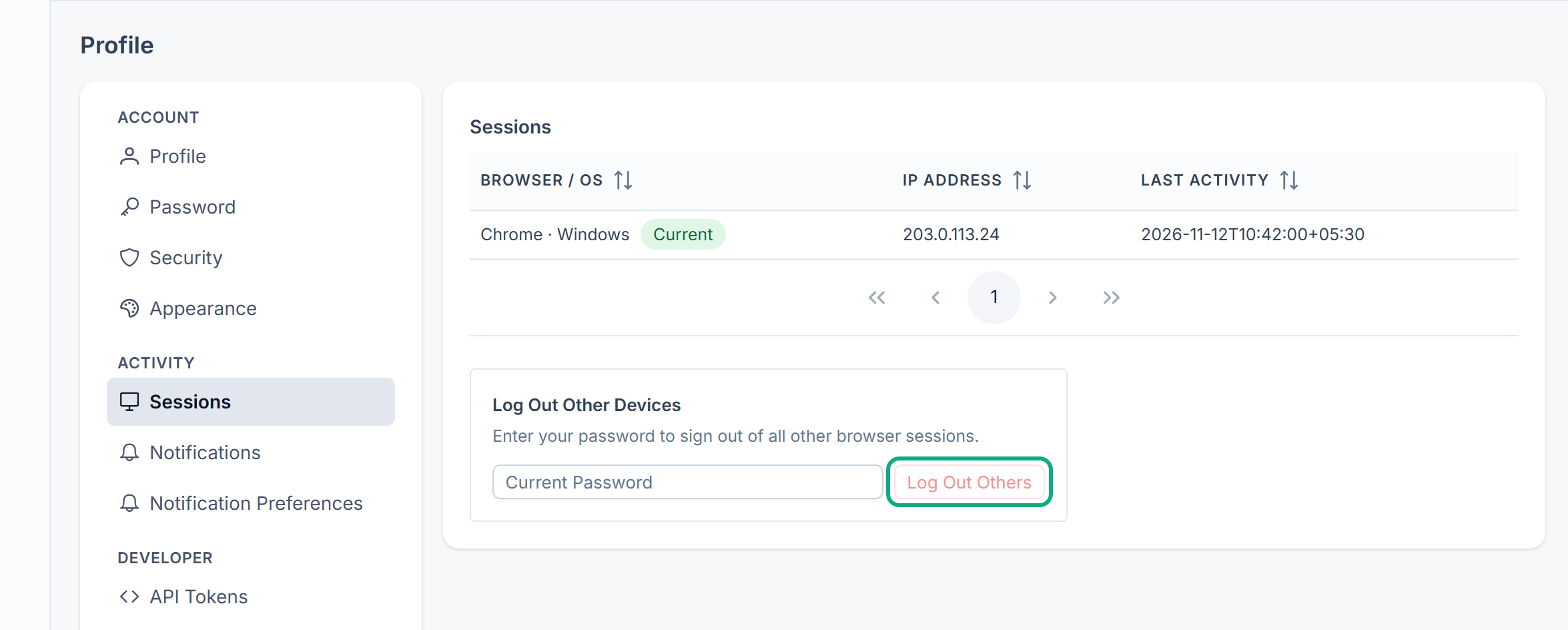
Every other browser is signed out. You stay signed in on this one. This doesn't sign you out of the mobile app: changing your password does.
Revoke a trusted device
- In the Profile hub, select Trusted Devices.
- Find the device. Each row shows the Device Name, Browser / OS, IP Address and Last Used.
- In its row, select Revoke.
- Confirm. That device needs to be trusted again before it can skip the two-factor code.
To revoke every trusted device except the one you are using, select Revoke All Other Devices and confirm.
Rename a trusted device
A new trusted device is named after its browser and system, for example "Chrome on Windows". To give it a clearer name:
- In Trusted Devices, select Rename in the device's row.
- In Rename Device, enter a name of up to 100 characters.
- Select Save.
What happens next
A device stays trusted for 30 days by default, and you can have up to 5 at a time. When you trust one more, Laramin revokes the one you used least recently. Your administrator can change both limits.
Tip: If you think someone knows your password, change your password first. That also signs out your other sessions and the mobile app. Then revoke your other trusted devices here.
Thanks. That helps us decide what to write next.
Thanks for telling us what was missing.
You already answered for this article today. Thanks.
We got a lot of answers from your network just now. Try again in a few minutes.
We couldn't send that. Check your connection and try again.
Links in this article
Printed from help.bsscn.com. The online article may have changed since.