Translate your content
Write a record's names and text in each language your website publishes, using the language tabs on the record's own form, and type Indian scripts phonetically.
- Applies to
- Language 1.3 and later
- Who can do this
- Platform owner, Administrator, Team member
On this page
Content is what you and your team write: a country's name, a static option, a blog post, a custom field's label. Many records have fields you can write in each language your website publishes. You translate them on the record's own form.
Before you start
- You need permission to edit the record itself, for example to edit blog posts. No Language permission is needed.
- At least two languages must have Website set to Published. With only one, forms show no language tabs. See Add a language.
Steps
-
Open the record you want to translate and select Edit, or start a new one.
-
Find a field with language tabs above it. Each tab is a published language, shown by its native name, with your Laramin's default language first.
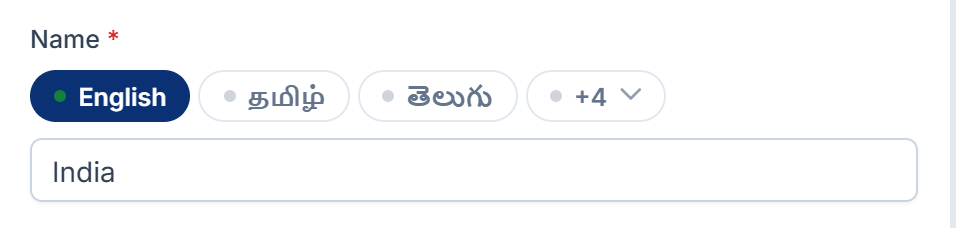
-
Fill in the default language's tab first. It's the record's main value, and the one required fields check.
-
Select another language's tab and type the translation.
-
Repeat for each field and language you need.
-
Select Save.
All the languages are saved together. Some larger forms, such as an article written on a full-page canvas, have one Content language switcher at the top instead of tabs on each field. Choose the language there, and every translatable field on the form switches to it.
Type Indian scripts phonetically
On a Tamil, Hindi, Telugu, Malayalam or Kannada tab, you can type the sound of a word in English letters and get it in that script. For example, typing india on the Tamil tab gives இந்தியா.
-
Select the field on that language's tab.
-
Press Ctrl+G to turn phonetic typing on.
-
Type. Press Ctrl+G again to turn it off.
Things to know
- Not every field can be translated. Only fields with language tabs are stored per language. Others, such as a price or a date, have one value for every language.
- A language you leave empty has no translation for that field. What a website or screen shows instead depends on the add-on.
- Screen text is separate. The labels around the fields are screen text, translated in Languages. See Translate screen text.
- Headless CMS has its own translation tools, with publishing per language. See Translate content into your other languages.
Thanks. That helps us decide what to write next.
Thanks for telling us what was missing.
You already answered for this article today. Thanks.
We got a lot of answers from your network just now. Try again in a few minutes.
We couldn't send that. Check your connection and try again.
Links in this article
Printed from help.bsscn.com. The online article may have changed since.