Choose a workspace and experience at sign-in
When you can reach more than one business or view, Laramin asks which one to open. Pick one, make it your default if you like, and switch later from the header.
- Applies to
- Core 12.0 and later
- Who can do this
- Administrator, Team member
- Where
- Sign-in › Choose a business / How do you want to work?
On this page
Laramin only asks when there is a real choice. You go straight on if you can reach one workspace, if you saved a default that you can still reach, or if you can enter the installation's default workspace. The same applies to experiences, except that there is no installation default for those. New to these terms? Read Workspaces, teams and experiences: the basics.
Before you start
- Sign in with your email and password.
Choose a workspace
If you can enter several workspaces, haven't saved a default, and can't enter the installation's default workspace, the Choose a business screen lists every workspace you can enter, with its name and code.
- If you want Laramin to open this workspace every time, select Start here every time.
- Select the workspace you want to work in.
Choose an experience
Next, the How do you want to work? screen lists the experiences you can enter in that workspace, for example Administration.
- If you want this experience to be your default in this workspace, select Make this my default here.
- Select the experience.
Laramin opens the experience's home page.
Tip: The choice of experience changes how the app is laid out, not what you are allowed to do. Your roles decide that.
Switch later from the header
You don't need to sign out to change your choice. The header shows a switcher for each choice you have:
- Workspace appears when you can reach more than one workspace. It can also offer All Workspaces, which shows records across every workspace you can reach. New records still need a single workspace.
- View appears when you can enter more than one experience.
- Team appears when you belong to a team. Global means your platform-wide permissions apply.
To switch:
- In the header, select the Workspace, View or Team switcher.
- If you want to save the change as your default, select Make this my default workspace or Make this my default here first.
- Select the workspace, experience or team you want.
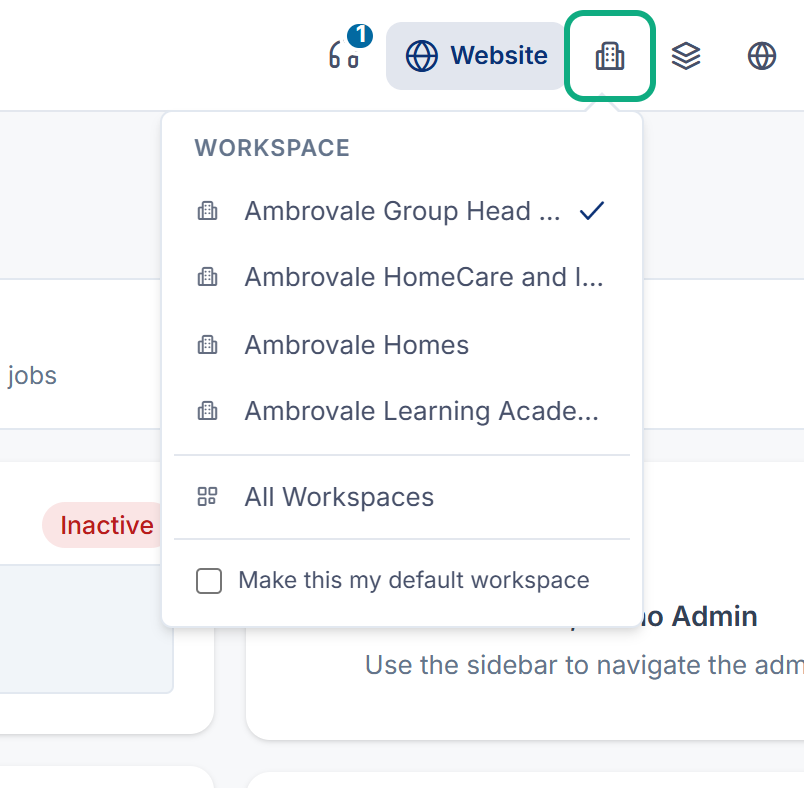
The page reloads in the new context.
What happens next
If a saved default stops being available, for example because the workspace was archived, Laramin asks you to choose again the next time you sign in. If there is nothing you can open, see You see "No business yet" or "Nothing to open here".
Thanks. That helps us decide what to write next.
Thanks for telling us what was missing.
You already answered for this article today. Thanks.
We got a lot of answers from your network just now. Try again in a few minutes.
We couldn't send that. Check your connection and try again.
Links in this article
Printed from help.bsscn.com. The online article may have changed since.