A notification wasn't sent or didn't arrive
Nothing appears in Delivery Logs, a row says Failed or skipped, or the provider accepted the message but the person never got it. Find the cause and fix it.
- Applies to
- Notification Manager 1.4 and later
- Who can do this
- Platform owner
- Permission
feature.nm. log.list
On this page
Symptom
One of these:
- Something happened in your Laramin, but there's no row for it in Notification Manager › Logs.
- A row shows Failed, with an Error Message.
- A row shows
skipped. - A row shows Sent, but the person says nothing arrived.
Open Delivery Logs, find the event and the person, and follow the section that matches.
Check these, in order
1. There's no row at all
Laramin writes a row only when it tries to send. No row means the message is still waiting, or Laramin decided not to send it.
-
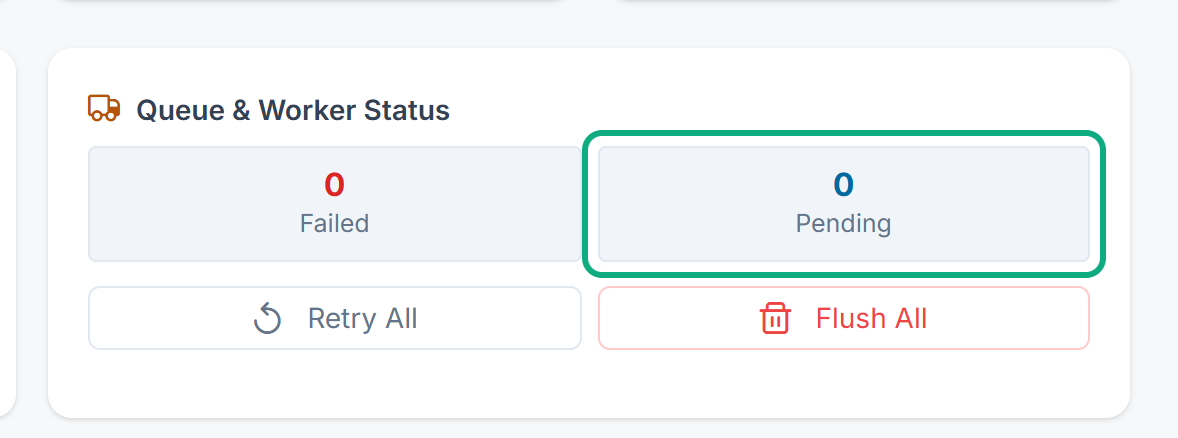
The queue worker isn't running. Messages are sent in the background. Open Extra Utilities and look at Pending under Queue & Worker Status. A count that keeps growing means no worker is running. Ask whoever manages your server to start it. Waiting messages are then sent. If your server has no separate queue worker, the queue is worked through by your Laramin's scheduled jobs, so see Scheduled jobs don't run too.
-
The event is off. On Business Events, check the event's Status. See Turn a notification on or off.
-
The add-on that owns the event is off. An event isn't sent while its add-on is disabled.
-
No channel is switched on. In the event's Template Builder, Translation Coverage must show On for the channel. A channel with no template, or with Enable Dispatch off, isn't sent.
-
The person turned it off. People can switch off a notification for themselves in Notification Preferences. You can't see their choice. Ask them to check.
-
The add-on didn't send it. Some messages depend on the add-on's own settings. For example, Property CRM sends new-lead alerts to the people in Lead Alert Recipients. If that list is empty, no alert goes out. See Property CRM settings.
2. The row says skipped
The Error Message reads Template not approved with the template's state. The template for that channel and the person's language is switched on but isn't Approved. Remember that every save puts a template back to Draft.
Fix: Submit and approve the template. See Submit, approve or reject a template. If it's a translation you aren't ready to approve, turn off its Enable Dispatch, and people in that language get the English one.
3. The row says Failed
Read Error Message in the row's Diagnostics.
| Error Message | What it means | What to do |
|---|---|---|
| No active provider for channel [email] (or another channel) | No provider is Active for that channel. | Connect one. See Connect an email, SMS, WhatsApp or push provider. |
| Recipient address or token is empty. | The person has no email address, phone number or device token in Laramin for that channel. | Add it to their profile, or stop that channel. |
| Attachment refused: and a reason | An add-on attached a file to the email that Laramin won't send: more than 10 files, more than 7 MB in all, a type that isn't allowed, or a program. The email isn't sent without it. | Tell whoever looks after that add-on, with the reason. |
| Recipient must be a valid User model for system in-app notifications. | An in-app message was sent to an email address or phone number, for example from the Test Center. | In-app messages need a person in Laramin. Ignore this row for tests. |
| Meta WhatsApp template name is missing. | The WhatsApp template has no Meta Approved Template Name. | Fill it in, save, and approve the template again. |
| A provider's error, such as an authentication or "template not found" message | The provider refused the message. | Check the provider's details and run its connection test. For WhatsApp, check that the template name and language match the one approved in Meta. For SMS in India, check the DLT template. |
| Job failed after retries: and a reason | Laramin tried 4 times over about 6 minutes and gave up. | Fix the reason, then fire the event again. |
When a channel has more than one active provider, Attempts shows how many were tried. The error is from the last one.
4. The row says Sent, but nothing arrived
Sent means the provider accepted the message. What happens after that is up to the provider.
- Email: ask the person to check their spam folder. Check that your mail provider lets you send from the From Address, and that your domain's email records are set up with your mail provider.
- SMS and WhatsApp: set up delivery reports so the row changes to Delivered or Failed with the provider's reason. If your provider's card on Webhook Center shows a warning, its reports are refused until you save the Auth Token or App Secret it names. See Check what was sent. Then look up the Provider Message ID in the provider's own dashboard.
- Push: check that the person's device is signed in to your app, and that the push provider uses the Service Account JSON, not only the FCM Server Key.
5. Emails go to a test mailbox or nowhere
If you never changed Email Settings, SMTP still points at a placeholder local mailbox (127.0.0.1, port 1025). Rows show Failed with a connection error, or Sent if a test mailbox happens to run there, and nobody gets the email.
Fix: Enter your real mail server. See Connect an email, SMS, WhatsApp or push provider. If saving refuses with Cannot activate SMTP — its connection test failed:, see A delivery provider won't switch on.
Still not working?
Raise a ticket from Support Center in your Laramin app. Include this page's link, the event's name, the channel, the time it should have been sent, and the Status and Error Message from Delivery Logs. Don't include passwords or keys.
Thanks. That helps us decide what to write next.
Thanks for telling us what was missing.
You already answered for this article today. Thanks.
We got a lot of answers from your network just now. Try again in a few minutes.
We couldn't send that. Check your connection and try again.
Links in this article
Printed from help.bsscn.com. The online article may have changed since.