Extra Utilities
What each part of the Extra Utilities screen shows and does, from system health and the scheduler heartbeat to the queue controls, cache and log clearing, developer mode, Force HTTPS and resetting navigation.
- Applies to
- Core 12.0 and later
- Who can do this
- Platform owner
- Where
- Configurations › Utilities › Extras
On this page
Extra Utilities is for super admins only. No permission can grant it to anyone else. Every action asks Are you sure you want to proceed? first. Select Yes, Proceed to run it.
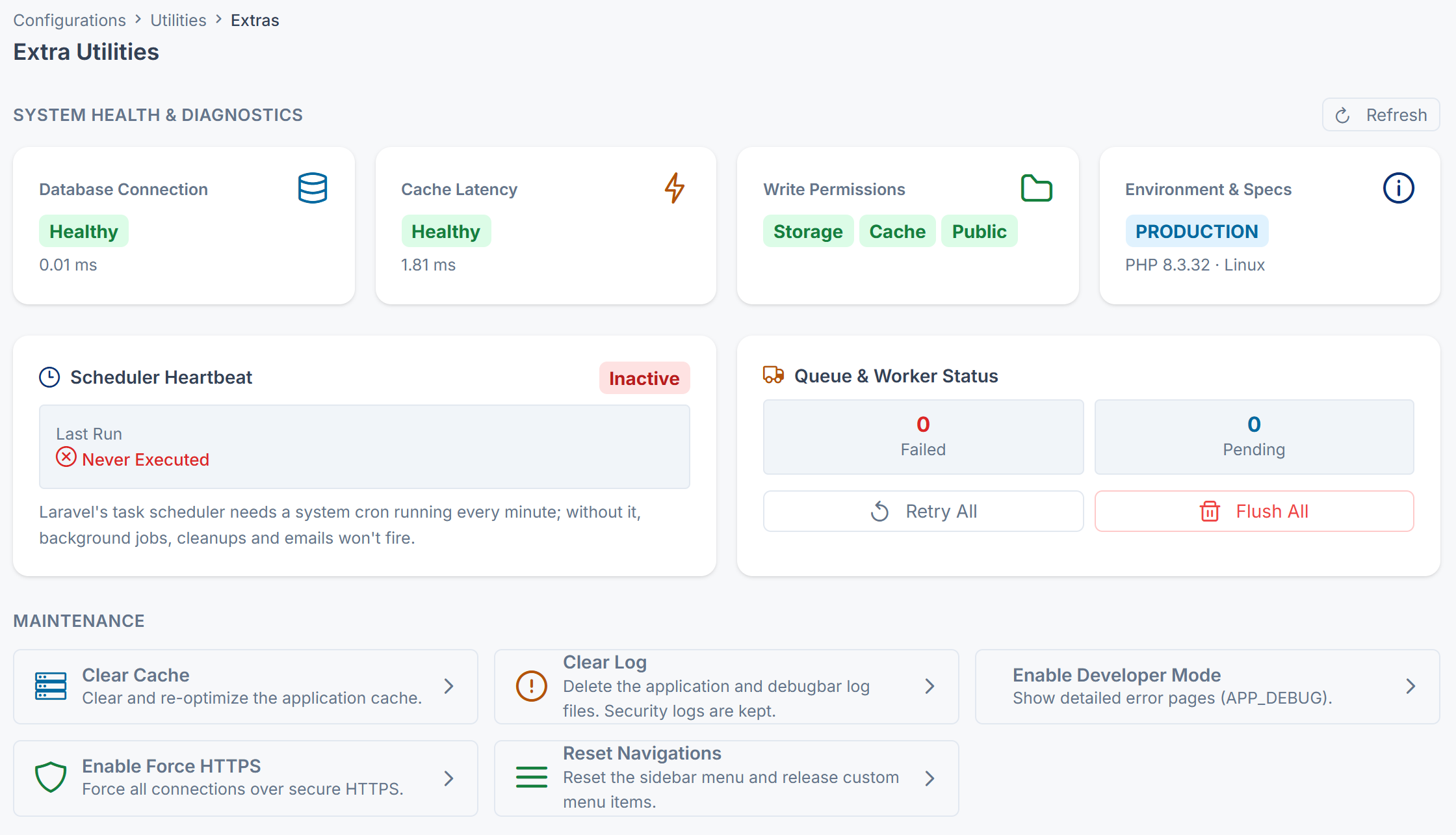
System Health & Diagnostics
Select Refresh to run the checks again.

| Card | What it shows |
|---|---|
| Database Connection | Healthy and the connection time, or Error and the reason. |
| Cache Latency | Healthy and how long a test write and read took, or Error and the reason. |
| Write Permissions | Whether Laramin can write to its Storage, Cache and Public folders. A red badge means it can't. |
| Environment & Specs | The environment name, for example PRODUCTION, the PHP version and the operating system. |
Scheduler Heartbeat
| Item | What it shows |
|---|---|
| Active / Inactive | Active if a scheduled job logged a successful run in the last 15 minutes. |
| Last Run | When a scheduled job last logged a successful run, or Never Executed. |
The scheduler needs a cron job that runs every minute on your server. Without it, scheduled jobs, clean-ups, license checks and monitoring alerts don't run, and neither does queued work such as emails when the queue isn't on Sync.
Careful: Active doesn't prove that the cron job works. Selecting Run Now for any job on Developer Tools › Scheduler counts as a run, so the tile shows Active for 15 minutes with no cron job at all. The tile also reads the server's time in your browser's time zone: if your browser's time zone is behind the server's, it can show Active for hours after the last run, and if it's ahead, it can show Inactive although jobs just ran.
To check the scheduler, open Developer Tools › Scheduler instead. It lists every job with its Last Run, and from Core 12.8.1 it marks a job it can't schedule as Not scheduled: invalid frequency. See Scheduled jobs don't run.
Queue & Worker Status
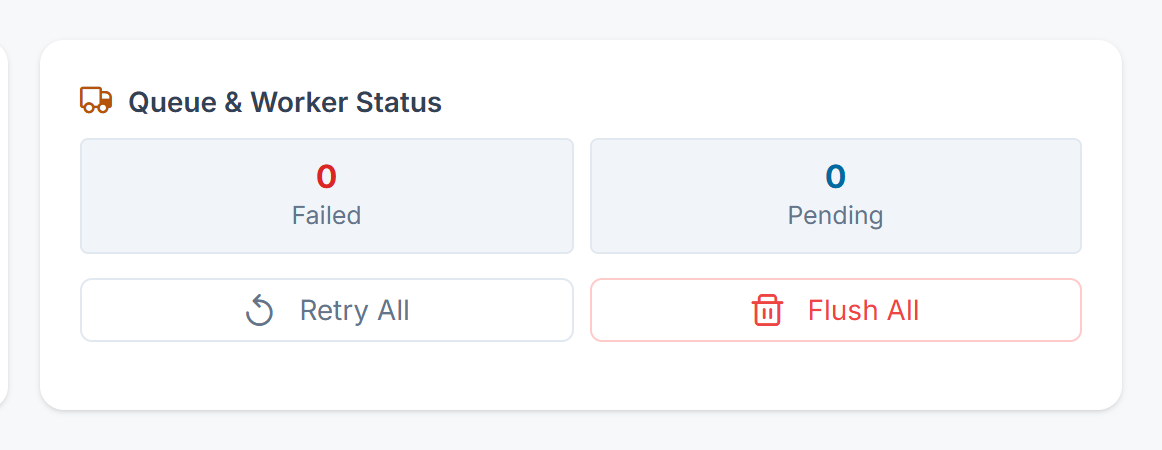
| Item | What it does | Notes |
|---|---|---|
| Failed | The number of failed background jobs. | |
| Pending | The number of jobs waiting to run. | A count that keeps growing means nothing is working through the queue. It stays at 0 when Connection in Queue Settings is Sync, because jobs then run straight away. |
| Retry All | Puts every failed job back on the queue to run again. | You see Failed queue jobs have been queued for retry. |
| Flush All | Deletes every failed job. | You see Failed queue jobs have been flushed successfully. |
Danger: Flush All permanently deletes every failed job and its details. You can't retry them afterwards. Retry the jobs you need first.
Maintenance
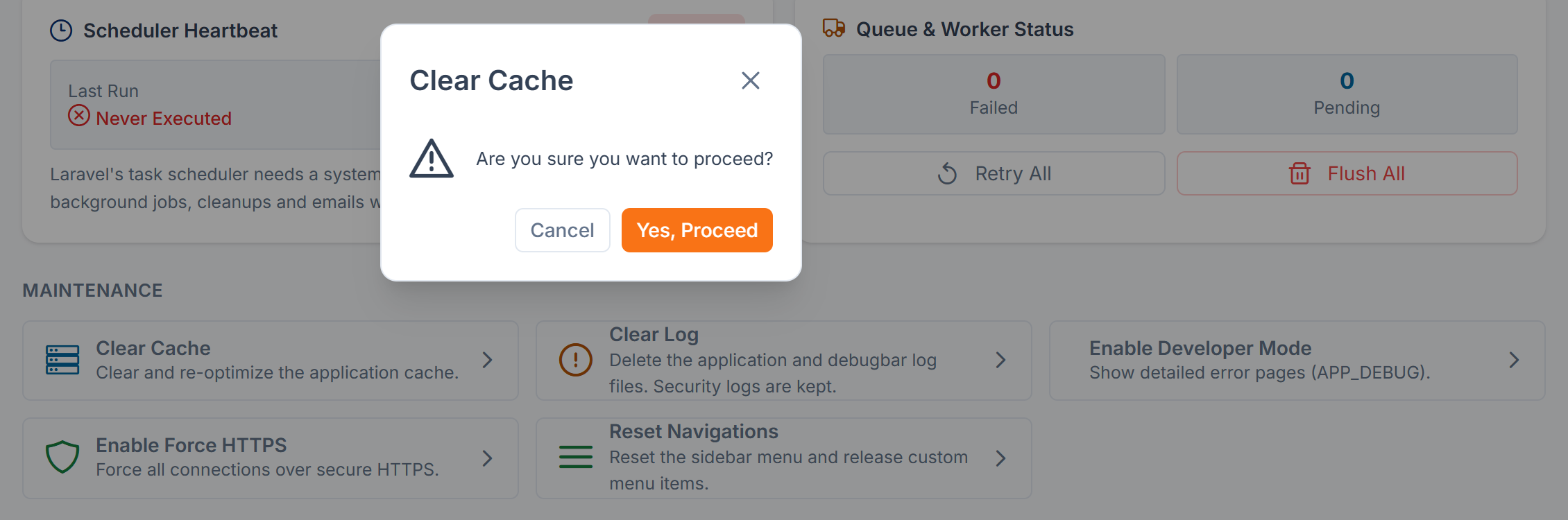
Clear Cache
Clears and re-optimizes the application cache, including the compiled files in bootstrap/cache. You see Cache Cleared ( Optimized ) Successfully!, and the diagnostics run again.
Clear Log
Deletes every application and debugbar log file. You see System Logs Cleared Successfully!
Danger: Clear Log keeps the security log, so its 90-day audit history survives. Every other log file is deleted.
Enable Developer Mode / Disable Developer Mode
Turns detailed error pages (APP_DEBUG) on or off, in the server's environment file. While it's on, the tile reads Active — detailed errors are enabled.
Danger: Never leave developer mode on for a live site. Detailed error pages can show visitors your configuration, including database credentials. Turn it on only while you investigate a problem, then turn it off.
Enable Force HTTPS / Disable Force HTTPS
Redirects every HTTP request to HTTPS and sends the Strict- header, or stops doing so. While it's on, the tile reads Active — SSL is enforced.
Danger: Turn on Force HTTPS only once your SSL certificate works. If the site can't serve HTTPS, every page redirects to an address that doesn't load, and you can't reach the admin to turn it off again. Browsers also remember the HTTPS-only header for a while.
Reset Navigations
Resets the sidebar menus to their defaults and releases custom menu items. You see Your sidebar navigations resets to default successfully!., and the page reloads. Your changes to the sidebar menus are replaced. If your Laramin has the Menu Manager module, it saves a Pre-rebuild snapshot first, so you can bring them back; see Go back to an earlier version of a sidebar.
Thanks. That helps us decide what to write next.
Thanks for telling us what was missing.
You already answered for this article today. Thanks.
We got a lot of answers from your network just now. Try again in a few minutes.
We couldn't send that. Check your connection and try again.
Links in this article
Printed from help.bsscn.com. The online article may have changed since.