Arrange a sidebar menu by drag and drop
Open a sidebar in the Sidebar Builder, drag items in from the library, reorder and nest them, rename or hide an item in this sidebar only, and save.
- Applies to
- Menu Manager 1.2 and later
- Who can do this
- Platform owner
- Permission
feature.sidebar. menu.edit - Where
- Sidebar Management › Sidebars
On this page
Before you start
- You need Edit Sidebar (
feature.). With View Sidebars only, the builder opens read-only and says You have view-only access to this builder.sidebar. menu.edit - The item you want must be in the library and Active. To add one, see Add or change a sidebar item.
- Turn on any module whose items are in this sidebar before you start. See the warning under Save below.
Open the builder
- In the sidebar, open Sidebar Management › Sidebars.
- In the row of the sidebar you want, select Manage items.
The builder has three panels: Library, Structure and Live preview.
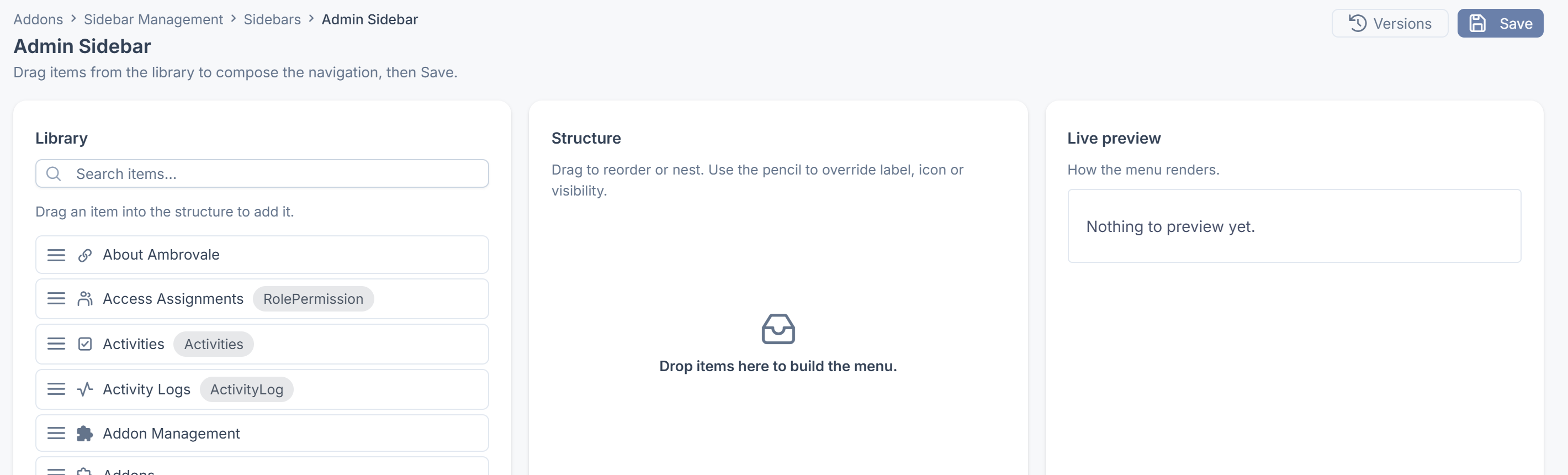
The Library lists the active items you can add. Items of modules that are turned off aren't listed. Type in Search items… to find an item by name or route.
Add, move and nest items
- Drag an item from Library into Structure. The item stays in the library, so you can add it again elsewhere.
- To move an item, drag it up or down in Structure.
- To nest an item, drag it into the indented area under another item. The item it's under becomes a group in the menu. With the keyboard, select an item's row and press Alt+↑ or Alt+↓ to move it, or Alt+→ to nest it under the item above.
- To take an item out of this sidebar, select its trash icon (Remove). The item stays in the library.
While you work, Unsaved changes shows next to the title. Live preview shows how the menu will look, a moment after each change.
The preview shows every item, whatever your permissions. In the real menu, each person only sees the items they're allowed to. A heading with nothing under it isn't shown in either.
Rename, change the icon or hide an item in this sidebar
-
In Structure, select the item's pencil icon (Edit placement).
-
Fill in what you want to change:
- Custom label: the name to show in this sidebar. Leave it empty to use the item's own name.
- Custom icon: the icon to show in this sidebar.
- Visibility: Hidden keeps the item in the sidebar but shows it to nobody. Default shows it as usual.
-
Select Apply.
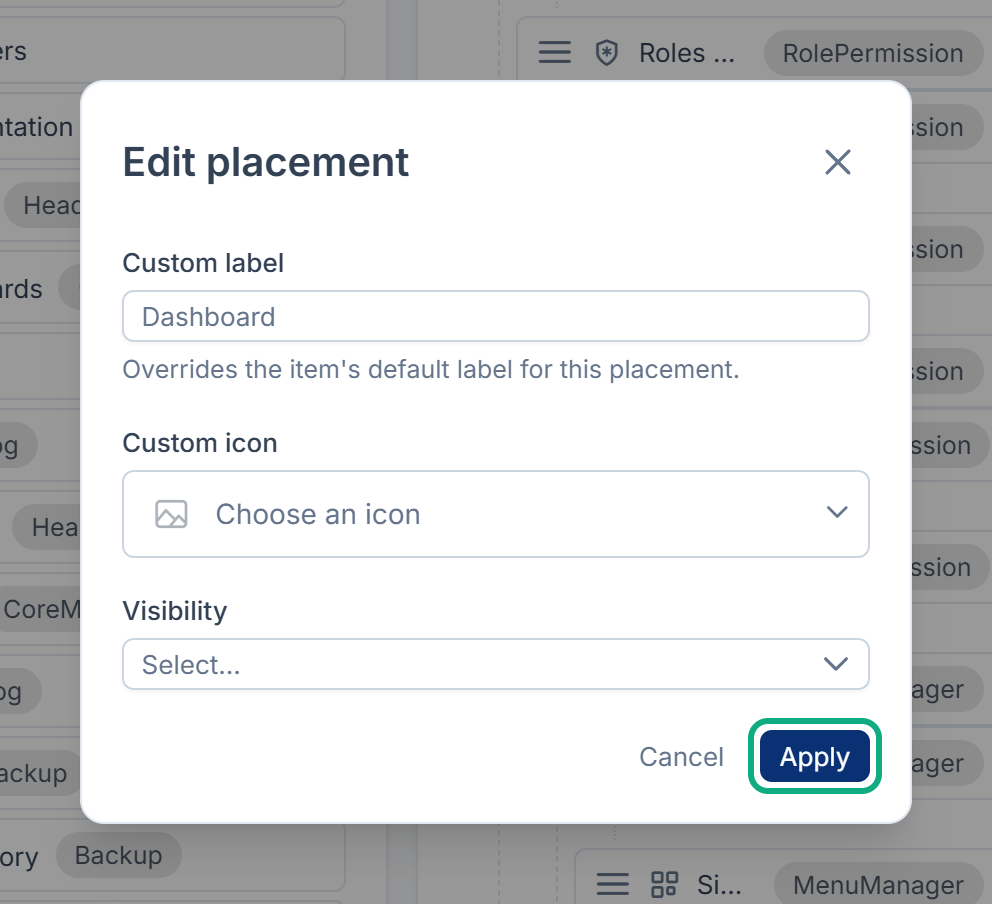
A hidden item is struck through in Structure. These changes only apply to this sidebar. To change an item everywhere, edit it in the library instead.
Tip: To keep a built-in item out of the Super Admin Sidebar, set its Visibility to Hidden rather than removing it. Laramin puts removed built-in items back when it rebuilds the menus, for example after an add-on is installed or upgraded.
Save
- Select Save. Save is only available when there are unsaved changes.
You see a message such as Sidebar Admin Sidebar layout updated successfully!. The menu changes for everyone who uses this sidebar, and your own menu updates without reloading the page. Laramin keeps the saved layout as a new version.
If you leave the builder with unsaved changes, Laramin asks you first.
Careful: The builder doesn't show items of modules that are turned off, or items deleted from the library, and saving removes them from the sidebar, with the items nested under them. To keep them, turn the module back on, or restore the item, before you save. In Menu Manager 1.2.1, saving drops these placements without a warning, and restoring the item afterwards doesn't put it back.
You can save a sidebar with no items at all. The items stay in the library, and you can go back to the previous version.
What happens next
- To undo a save, see Go back to an earlier version of a sidebar.
- To give an experience this menu, see Create a sidebar for an experience.
- If someone doesn't see an item you added, see A menu item is missing or keeps coming back.
Thanks. That helps us decide what to write next.
Thanks for telling us what was missing.
You already answered for this article today. Thanks.
We got a lot of answers from your network just now. Try again in a few minutes.
We couldn't send that. Check your connection and try again.
Links in this article
Printed from help.bsscn.com. The online article may have changed since.