Add or change a sidebar item
Add your own entry to the sidebar items library, such as a link to another screen or an outside website, or change an existing item everywhere it's used. Includes every field on the form.
- Applies to
- Menu Manager 1.2 and later
- Who can do this
- Platform owner
- Permission
feature.sidebar. item. create - Where
- Sidebar Management › Sidebar Items
On this page
Before you start
- To add an item, you need Create Sidebar Item (
feature.). To change one, you need Edit Sidebar Item (sidebar. item. create feature.).sidebar. item.edit - Adding an item to the library doesn't put it in a menu. You place it in a sidebar afterwards, in the builder.
- Most items in the library come from Core and modules. Some of their fields are put back when Laramin rebuilds the menus. See Changing a built-in item below.
Add an item
-
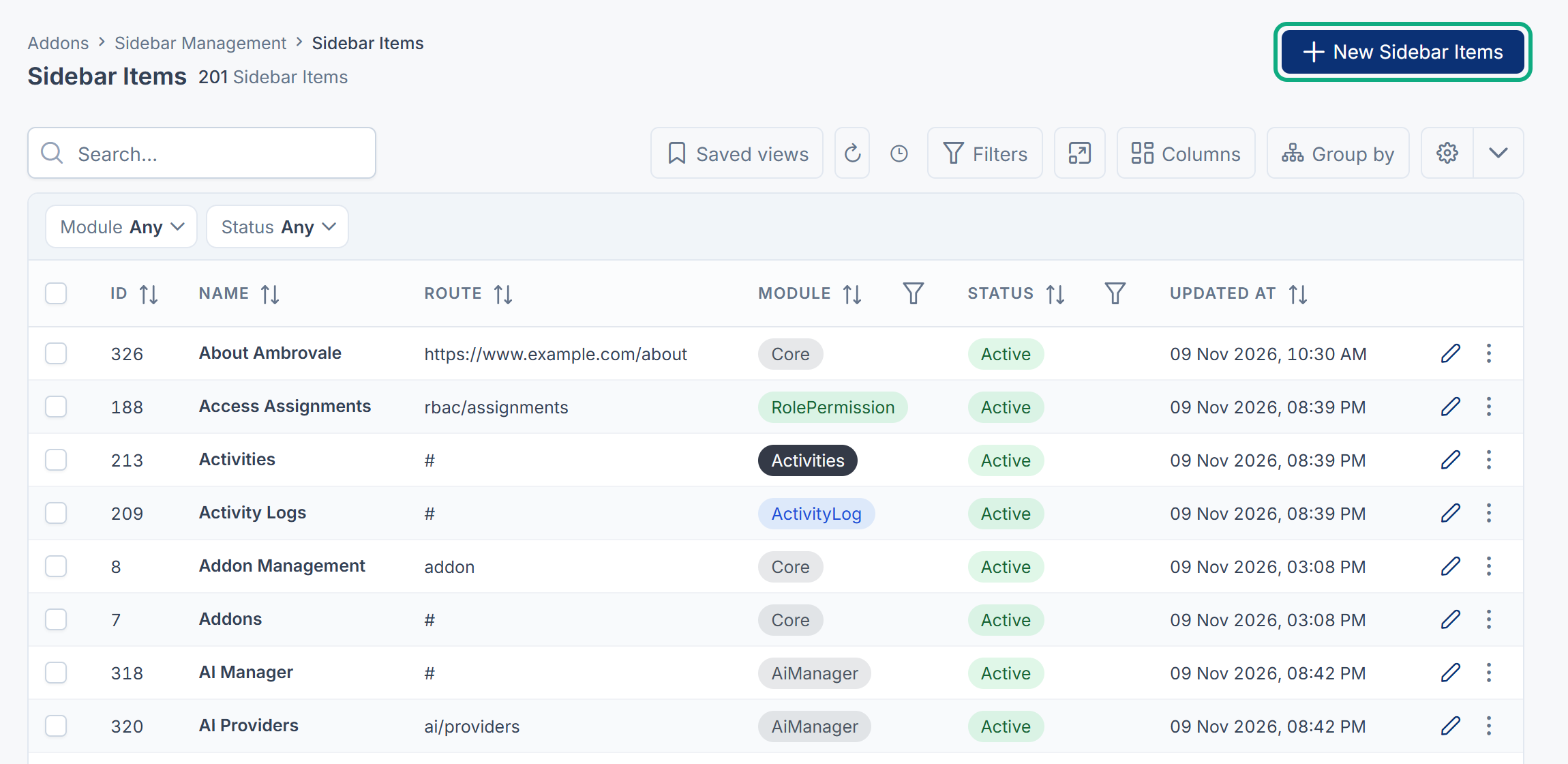
In the sidebar, open Sidebar Management › Sidebar Items.
-
Select New Sidebar Items.
-
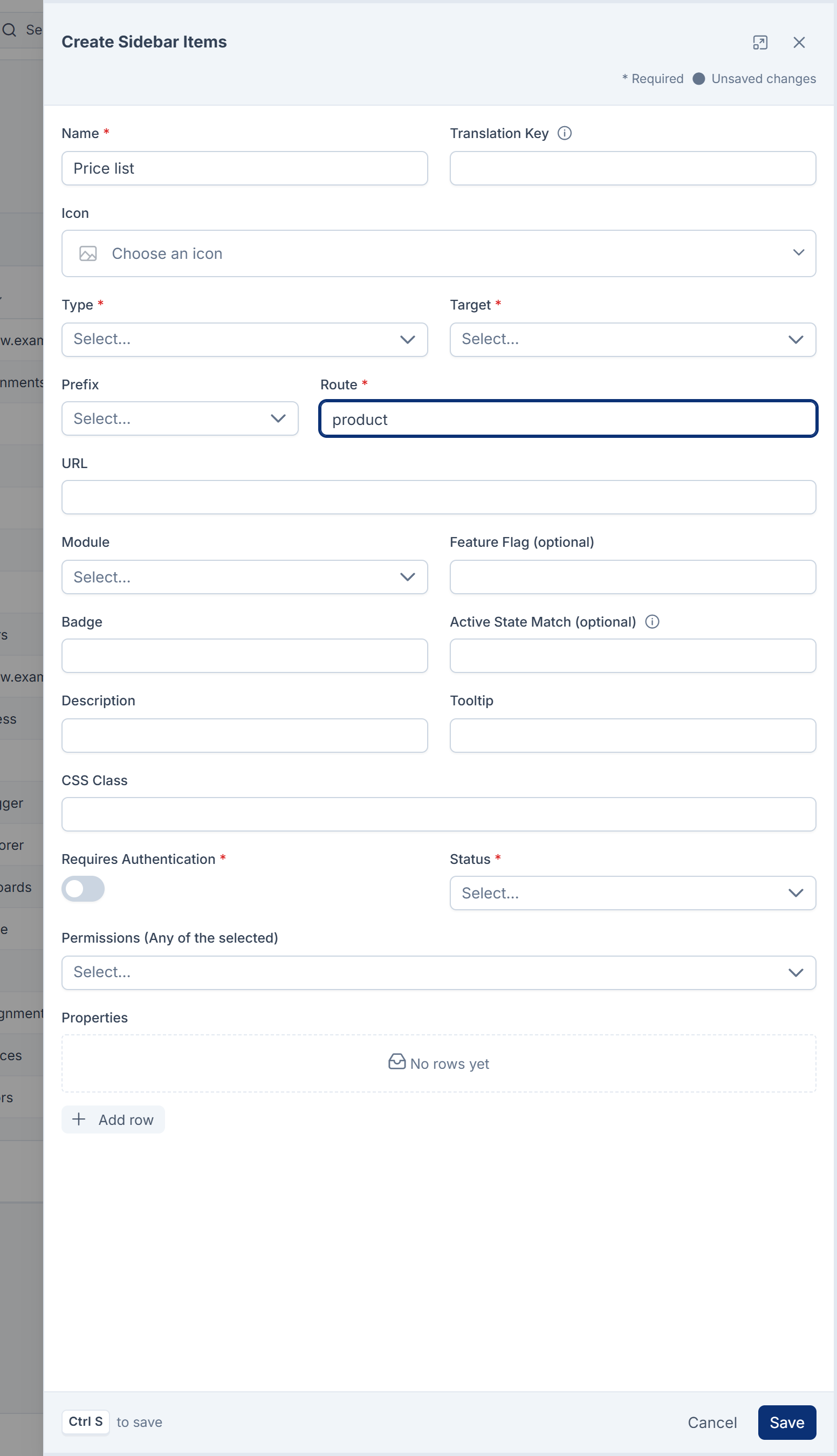
In Name, enter the label, for example
Price list. -
In Type, choose Internal for a screen in your Laramin, or External for another website.
-
For an internal link, choose a Prefix, usually Admin, and enter the screen's path in Route, for example
product. The link becomes your Laramin's address, then the prefix, then the route. For a heading with no link, enter#. -
For an external link, enter the full address in URL, for example
https://example.com, and enter/price-list #in Route. -
In Module, choose the module the screen belongs to, or Core.
-
In Permissions (Any of the selected), choose who may see the item. The list shows the permissions of the module you chose. Leave it empty to show the item to everyone who sees the sidebar.
-
Make sure Requires Authentication is on, so the permissions are checked.
-
Set Status to Active.
-
Select Save.
You see Sidebar Item Price list Created Successfully!. To show it in a menu, open the sidebar in the builder and drag it in. See Arrange a sidebar menu by drag and drop.
Change an item
- Open Sidebar Management › Sidebar Items.
- Open the item's row actions and select Edit.
- Change the fields, then select Save.
The change reaches every sidebar the item is placed in. To change how it looks in one sidebar only, use Edit placement in the builder instead.
If the item has a Translation Key that your Laramin has a translation for, the menu shows that translation, not the Name. To rename a built-in item, give it a Custom label in the builder.
Fields
| Field | What it does |
|---|---|
| Name | The label shown in the menu, unless a translation or a custom label replaces it. Required. |
| Translation Key | A key such as menu.dashboard that gives the label in each interface language. Leave it empty for your own items. |
| Icon | The icon shown next to the label. |
| Type | Internal for a screen in your Laramin, External for an outside address. |
| Target | Where the link opens. _self opens it in the same tab, _blank in a new tab. |
| Prefix | The part of the address before the route: Admin, Agent or Worker. |
| Route | The screen's path after the prefix, for example user_activity. # makes a heading with no link. Required. |
| URL | The full address of an external link. |
| Module | The module the item belongs to. The item is hidden while that module is turned off. |
| Feature Flag (optional) | Saved with the item. Your Laramin doesn't check feature flags yet, so this has no effect: the item shows whatever you enter. |
| Badge | Short text shown next to the label, such as New or 3. |
| Active State Match (optional), Description, Tooltip, CSS Class, Properties | Saved with the item. The current menu doesn't use these fields. |
| Requires Authentication | When on, the item is only shown to people who hold one of its permissions. When off, the permissions are ignored and everyone who sees the sidebar sees the item. |
| Status | Active items are offered in the builder's library. Setting an item that's already in a sidebar to Inactive doesn't hide it from that menu. Use Visibility Hidden in the builder. |
| Permissions (Any of the selected) | The person needs any one of these to see the item. |
An item that has a link and also has items nested under it opens as a group in the menu, with its own link as the first entry.
Careful: Showing or hiding a menu item doesn't change who may open the screen. Laramin checks permissions on the screen itself. Give the item the same permission the screen asks for, so people don't see links that end in an error.
Changing a built-in item
Items that came with Core or a module are rebuilt from the module's own list when Laramin rebuilds the menus, for example after an add-on is installed or upgraded. Their Route, Permissions, Icon, Type, Target, Prefix, Requires Authentication, Properties and Translation Key are put back to the module's values. Your Name and Status are kept.
When a module is turned on again or upgraded, its items are replaced by new copies. See A menu item is missing or keeps coming back.
Delete an item
- Open the item's row actions and select Delete.
The item disappears from every sidebar it's placed in, with the items nested under it in those sidebars. It moves to the trash, so you can restore it. See Delete, restore and act on records in bulk.
An item that's still placed in a sidebar can't be deleted for good, so Delete forever isn't offered for it. A deleted item stays placed until you save each sidebar that held it in the builder. Saving removes it.
What happens next
- Place the item in a sidebar: Arrange a sidebar menu by drag and drop.
- Find a permission key: Permission key reference.
Thanks. That helps us decide what to write next.
Thanks for telling us what was missing.
You already answered for this article today. Thanks.
We got a lot of answers from your network just now. Try again in a few minutes.
We couldn't send that. Check your connection and try again.
Links in this article
Printed from help.bsscn.com. The online article may have changed since.