Delete, restore and act on records in bulk
Select several records in a list, or every record that matches your filter, then delete them, restore them from the trash, delete them for good, or run a bulk action such as Activate.
- Applies to
- Core 12.0 and later
- Who can do this
- Administrator
On this page
Before you start
Each bulk operation needs the matching permission for the list. They follow the pattern feature.<module>.<resource>.<action>:
| Button | Permission action | Example: Countries |
|---|---|---|
| Delete | delete | feature. |
| Restore | restore | feature. |
| Delete forever | remove | feature. |
A button only appears when you hold its permission.
Select records
-
Open the list.
-
Tick the box at the start of each row you want. The toolbar is replaced by a selection bar that says, for example, 3 selected.
-
To include every record that matches your search and filters, not only those on this page, select Select all n in the selection bar. It then says All n matching rows selected. If you untick a row after that, it says how many are excluded.
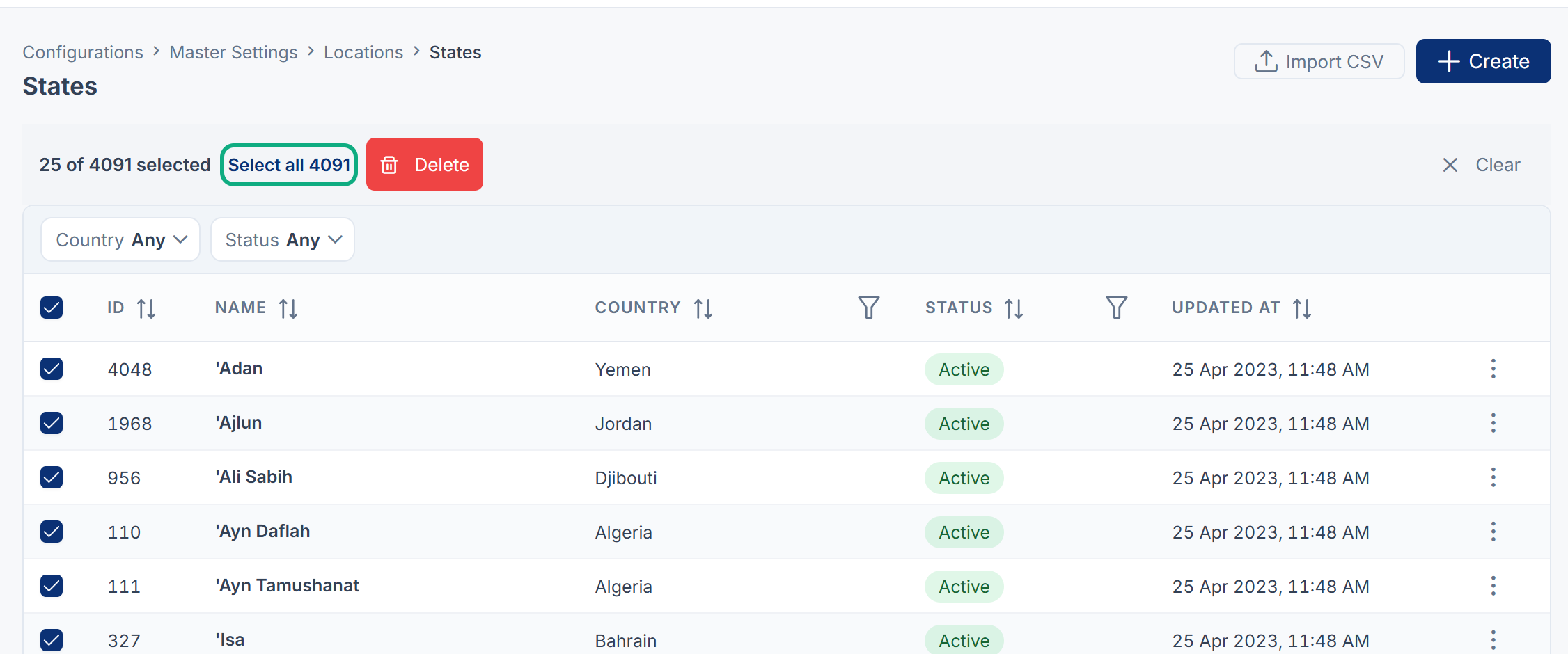
To leave selection mode, select Clear.
Careful: "Select all" acts on every matching record across all pages, not just the rows you can see. Check your filters first. Some lists can't select across pages and say Select-all across pages is not available for this list; select the rows on the page instead.
Delete records
-
Select the records.
-
In the selection bar, select Delete.
-
In Confirm delete, check the count, for example Delete 3 selected records?, then select Delete.
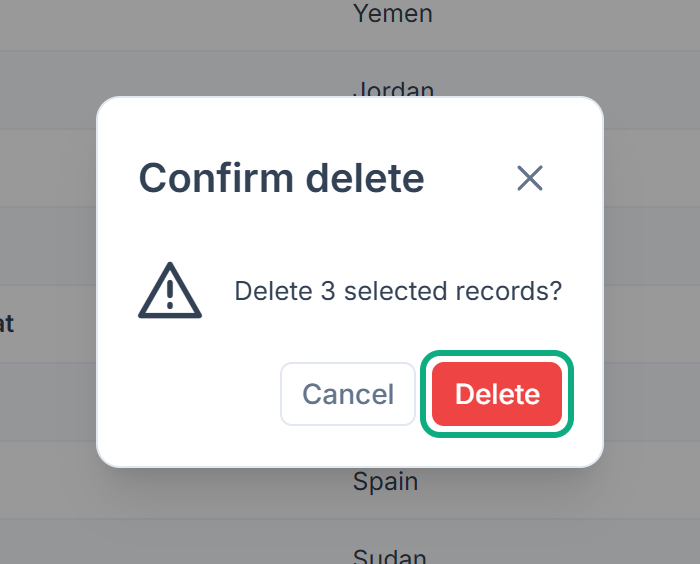
On most lists, deleted records move to the trash, where you can restore them. A list whose records can't be restored has no Trashed view, and Delete removes them for good.
Restore or permanently delete records
-
Select the gear (⚙) button's menu arrow at the end of the toolbar.
-
Select Trashed. The list now shows deleted records. If there are none, it says The recycle bin is empty.
-
Select the records.
-
Select Restore to put them back, or Delete forever to remove them.
-
For Delete forever, confirm in Confirm permanent delete. Some lists, such as Users, ask you to type
DELETEfirst. -
To go back to the live records, open the same menu and select Active.
Danger: Delete forever can't be undone. The records and their history are removed from the database.
Run a bulk action
Some lists offer their own actions in the selection bar. For example, Users Accounts › Users offers Activate and Deactivate.
-
Select the records.
-
Select the action in the selection bar.
-
If the action asks for details, fill them in. The form says how many records it will run over, for example This action will run over 12 records.
-
Select the button at the bottom of the form, which carries the action's name.
What happens next
A message reports the result, for example 10 deleted, 2 skipped. A record is skipped when you aren't allowed to act on that particular record, for example a system item that can't be deleted, or a record outside the ones you own. Nothing is done to a skipped record.
Thanks. That helps us decide what to write next.
Thanks for telling us what was missing.
You already answered for this article today. Thanks.
We got a lot of answers from your network just now. Try again in a few minutes.
We couldn't send that. Check your connection and try again.
Links in this article
Printed from help.bsscn.com. The online article may have changed since.