Export a list to CSV
Download the records a list is showing, with your search, filters and sort applied, as a CSV file you can open in a spreadsheet.
- Applies to
- Core 12.0 and later
- Who can do this
- Administrator, Team member
On this page
Before you start
- You need permission to see the list, for example
feature.for Countries. A few lists, such as the activity logs, ask for a separate permission that ends incore. country.list .export. Without it, the export is refused. - One export holds up to 5,000 rows.
- If Export CSV is grayed out, the reason shows under it in the menu.
- Narrow the list first. The export contains the records that match your search and filters, in the order you sorted them. See Filter a list.
Steps
-
Open the list, then search, filter and sort it until it shows the records you want.
-
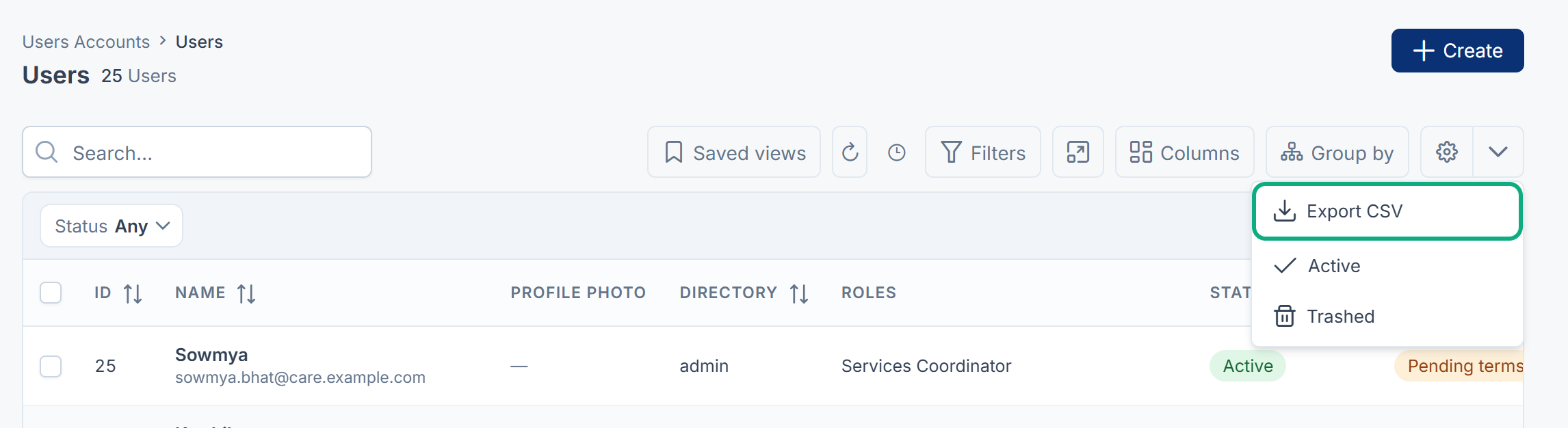
Select the menu arrow beside the gear (⚙) button at the end of the toolbar.
-
Select Export CSV.
Your browser downloads a file named after the list, for example country.csv.
Tip: To export deleted records, switch the list to Trashed in the same menu first. The export follows whichever set you're looking at.
What's in the file
- One column for every column the list defines, headed with the column's name in your language. Columns you've hidden are still included.
- Plain text values. Formatting and HTML are removed.
- Every matching record, not only the page you're on, and not only the rows you've ticked.
If the export is refused
If more records match than one export can hold, nothing is downloaded and you see Too many rows to export. Narrow the filter to 5,000 rows or fewer. Laramin refuses rather than giving you a file that looks complete but isn't.

Add a filter, for example on a date range, and export in parts.
What happens next
The file is UTF-8 encoded. If accented or non-Latin characters look wrong when you open it, open it through your spreadsheet's text or CSV import and choose UTF-8.
To add records from a spreadsheet instead, see Import records from a CSV file. Countries, States and Cities support it.
Thanks. That helps us decide what to write next.
Thanks for telling us what was missing.
You already answered for this article today. Thanks.
We got a lot of answers from your network just now. Try again in a few minutes.
We couldn't send that. Check your connection and try again.
Links in this article
Printed from help.bsscn.com. The online article may have changed since.