Find out who did what
Search and filter User Activities to find who created, changed or deleted something and when, then open the entry to see the changes, the device and the page it came from.
- Applies to
- Activity Log 1.2 and later
- Who can do this
- Platform owner, Administrator
- Permission
feature.activitylog. user.view - Where
- Activity Logs › User Activities
On this page
Before you start
- You need View User Activity (
feature.). To export, you also need Export User Activities (activitylog. user.view feature.).activitylog. user. export - Sign-ins and sign-outs aren't in this list. They're in Login Activities. See Review sign-ins and open sessions.
- Not every change is recorded. See What the Activity Log records.
Find the entry
-
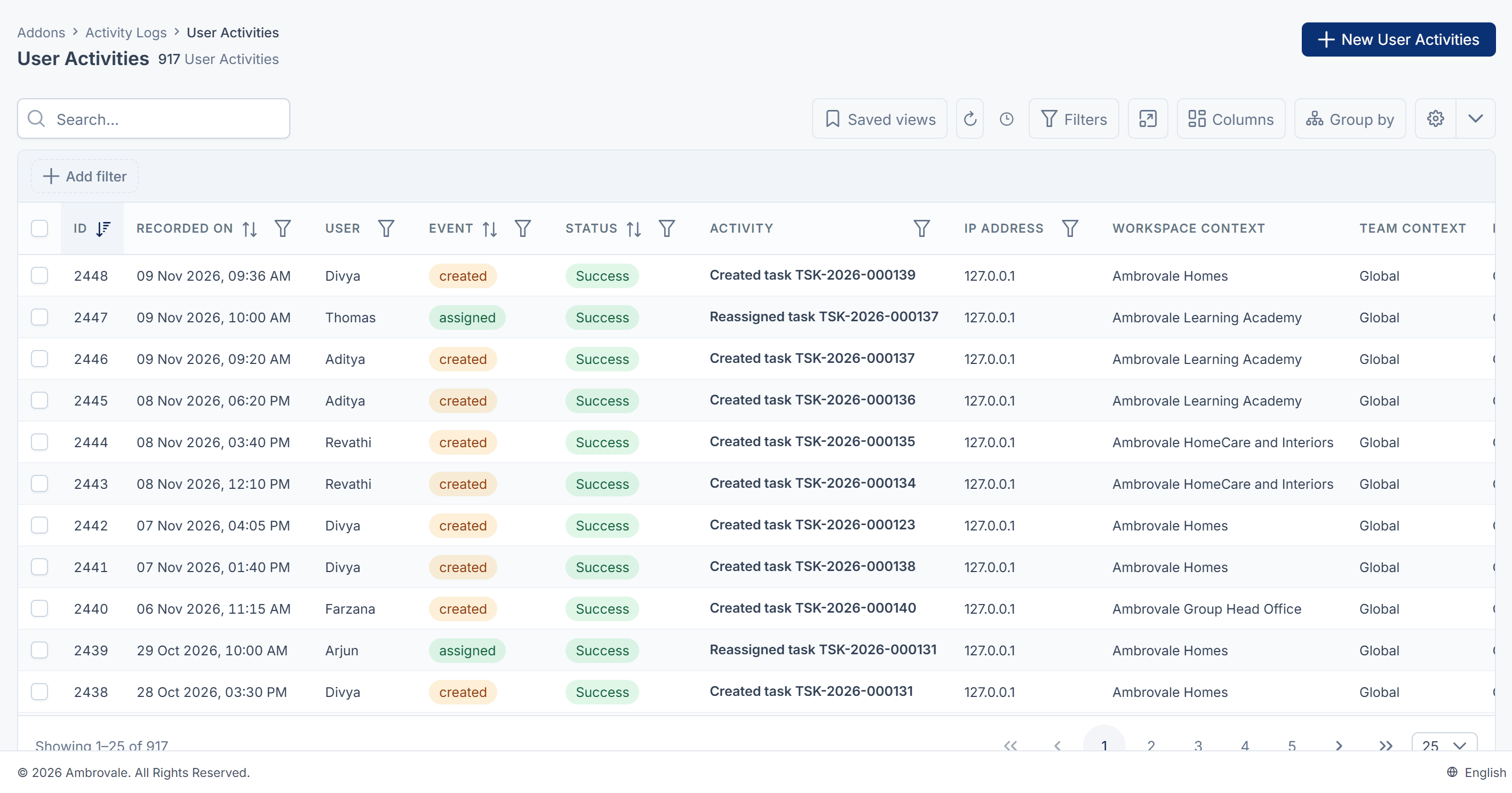
In the sidebar, open Activity Logs › User Activities. The newest entries are at the top.
-
Type a word from the sentence you expect in the search box, for example the record's name. The search looks in Activity.
-
Narrow the list with filters:
- User: the person who did it.
- Recorded On: a date range, such as Last 7 days.
- Event: Create, Update, Delete or Mail.
- Status: Success, Error, Warning, Info or Others.
- IP Address, Request Method, Device Type or URL, when you know where the request came from.
The Event filter only offers those four events. Other events, such as restoring a user or signing in as someone else, are in the list too. Find them by searching their sentence.
For more on filters, see Filter a list.
Read the entry
- Select the entry's Activity to open it.
The entry has these panels:
| Panel | What it shows |
|---|---|
| Summary | Recorded On, Event, Status and the Activity sentence. |
| Actor | The User and their IP Address. |
| Request Context | Request Method, URL, Referrer, Device Type, Browser, Platform and User Agent. |
| Changes | Each field that changed, one per line, for example Status: Draft → Active. Empty when the screen didn't pass its changes. |
| Raw Data | Subject, the record it was about, for example User #42, and Raw Properties, everything stored with the entry. |
The Workspace context and Team context columns in the list show the workspace and team the person was working in. Not recorded means the entry is older than that feature.
If someone was signed in as another person, the entry is under the person they were signed in as. The operator's name and ID are under impersonator in Raw Properties.
Export what you found
- Filter the list to the entries you need.
- Export it as CSV. See Export a list to CSV.
Careful: An export holds IP addresses, devices and the pages people visited. Store it safely, and delete it when you no longer need it.
What happens next
- If the list is empty, or an action you expected is missing, see Nothing appears in the Activity Log.
- To remove entries, see Delete entries and choose how long they're kept.
Thanks. That helps us decide what to write next.
Thanks for telling us what was missing.
You already answered for this article today. Thanks.
We got a lot of answers from your network just now. Try again in a few minutes.
We couldn't send that. Check your connection and try again.
Links in this article
Printed from help.bsscn.com. The online article may have changed since.