A list is missing records
A list shows No records found, No matching records or The recycle bin is empty, or fewer rows than you expect. Find the view, filter, workspace or setting that hides them.
- Applies to
- Core 12.7 and later
- Who can do this
- Team member, Administrator
On this page
Symptom
A list shows fewer records than you expect, or none. Under the table you see one of these:
| You see | Go to |
|---|---|
| No matching records, or No matching followed by the list's name, with "Try adjusting your search or filters." and Clear filters | 1 and 2 |
| The recycle bin is empty | 3 |
| No records found with "There is nothing here yet.", or the list's own empty message | 4 and 5 |
| Some rows, but not the ones you want | 1 to 5 |
Check these, in order
1. A search or filter is still on
A word in the search box, or a chip on the filter bar, narrows the list. Filters stay in the page address, so a bookmark or a link from a colleague can open the list already filtered. The Filters button shows how many are running, for example 2 filters.
Fix: Select Clear filters. It removes every filter and clears the search box. To remove one filter, select the × on its chip. See Filter a list.
2. The list opens on a saved view
If you made a saved view your default, the list opens on it, with its filters. Open Saved views in the toolbar: the view that's applied is highlighted in the views strip.
Fix: Select the first pill in the views strip. Its name starts with All, and it shows every record. To stop landing on the filtered view:
- Set an unfiltered view as your default instead: open the view picker, select View actions (…) on that view, then Set as default.
- Or delete your default view, if it's one of yours. You then land on all records again. Delete view acts straight away, without a confirmation.
3. You're looking at Trashed records
The recycle bin is empty means the list shows deleted records only, and there are none. Saved views don't keep this choice.
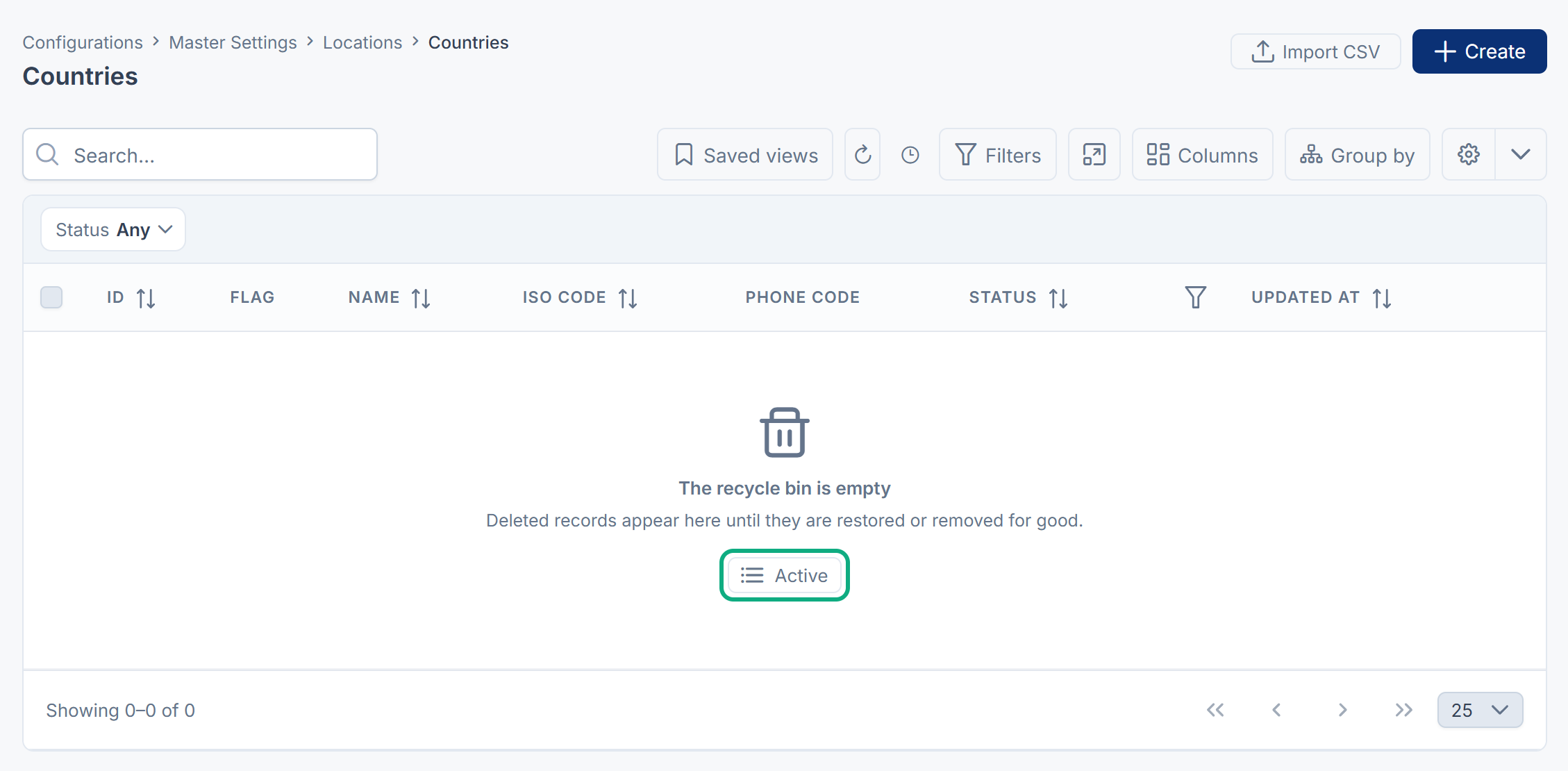
Fix: Select Active under the message, or open the menu next to the gear button and choose Active.
4. The records belong to another workspace
Most lists show the records of the workspace you're working in. The workspace switcher in the header shows which one that is.
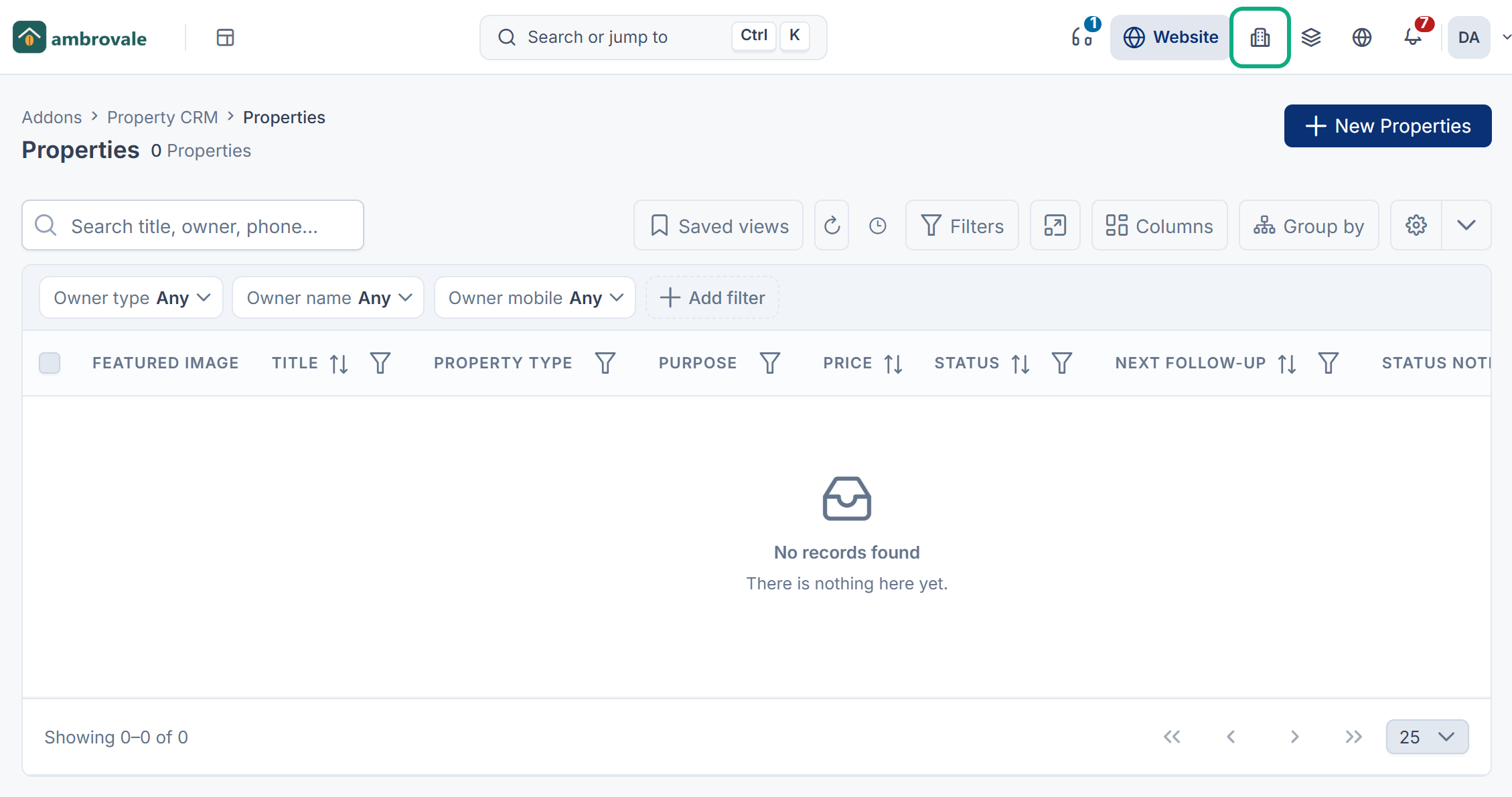
Fix: Switch to the workspace the records belong to, or select All Workspaces to read records from every workspace you can enter. See Switch workspace.
5. They're super admin accounts
On the Users list, anyone who isn't a super admin can't see super admin accounts. They're missing from the list, its counts, search and export. See Super admin vs Administrator.
Tip: To find a record quickly, use the list's own search box. The command palette (Ctrl+K) only searches what your add-ons offer to it, and doesn't find Laramin's own screens or users: searching for "Users" there answers No results for "Users". See Search with the command palette.
Still not working?
Raise a ticket from Support Center in your Laramin app. Include this page's link, the list, the workspace you were in, and one record you expected to see.
Thanks. That helps us decide what to write next.
Thanks for telling us what was missing.
You already answered for this article today. Thanks.
We got a lot of answers from your network just now. Try again in a few minutes.
We couldn't send that. Check your connection and try again.
Links in this article
Printed from help.bsscn.com. The online article may have changed since.