A menu item is missing or keeps coming back
Someone sees an empty menu, an item you added doesn't show, an item you removed comes back, or a module's items lose your changes. Find the cause and fix it.
- Applies to
- Menu Manager 1.2 and later
- Who can do this
- Platform owner
- Permission
feature.sidebar. menu.edit
On this page
Symptom
One of these:
- Someone's menu is empty, and they see This menu has no items yet. Please contact your administrator. or None of this menu’s items are available to your account. You may not have permission to see them — please contact your administrator.
- An item you placed in a sidebar doesn't show for someone.
- An item isn't offered in the builder's Library.
- An item you removed from the Super Admin Sidebar is back.
- A module's items lost your custom labels, icons, hidden settings or positions.
- An item you set to Inactive still shows.
Find your symptom below.
Check these, in order
1. The menu is empty
What the person sees tells you why:
| Message | What it means |
|---|---|
| This menu has no items yet. | The experience's sidebar has no items at all. The Admin Sidebar used by Administration starts like this. |
| None of this menu’s items are available to your account | The sidebar has items, but the person may see none of them. |
If you have Edit Sidebar, the message comes with Configure navigation, which opens the sidebar in the builder. If the experience points at a sidebar that no longer exists, you see Manage navigation instead, which opens Sidebars.
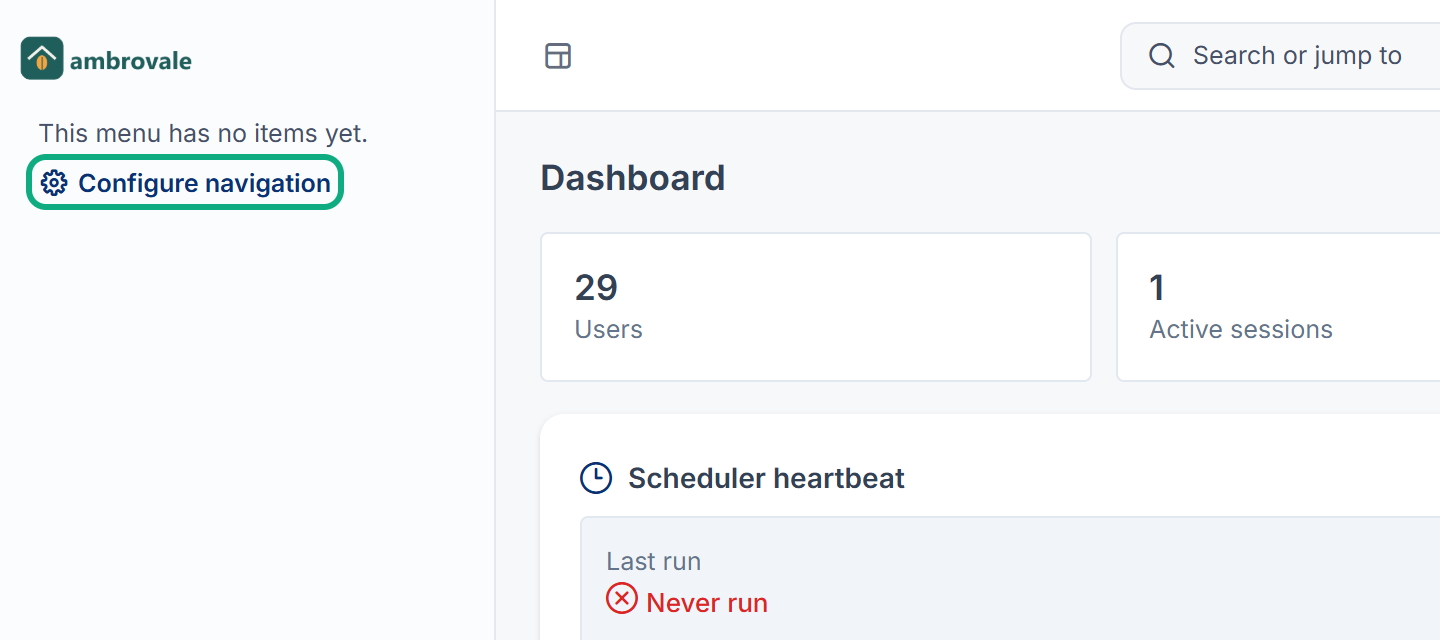
Fix: For an empty sidebar, add items in the builder and save. See Arrange a sidebar menu by drag and drop. For a deleted sidebar, restore it from the trash, or choose another sidebar for the experience. See Create a sidebar for an experience. For missing permissions, see the next check.
2. An item doesn't show for someone
Laramin leaves an item out of a person's menu when any of these is true. Check them in the builder and in Sidebar Items:
- Its Visibility in this sidebar is Hidden. Hidden items are struck through in Structure.
- The person holds none of its Permissions (Any of the selected). Find out what they hold with See why someone can do something.
- Its Module is turned off or not licensed.
- It's a heading (route
#), and nothing under it is visible to the person. - It's nested under an item that's hidden from the person.
- The library item was deleted. Restore it from the trash in Sidebar Items.
- The person works in another experience, or in a workspace where the experience uses another sidebar. Check Sidebar on Users Accounts › Experiences in that workspace.
- You didn't select Save in the builder.
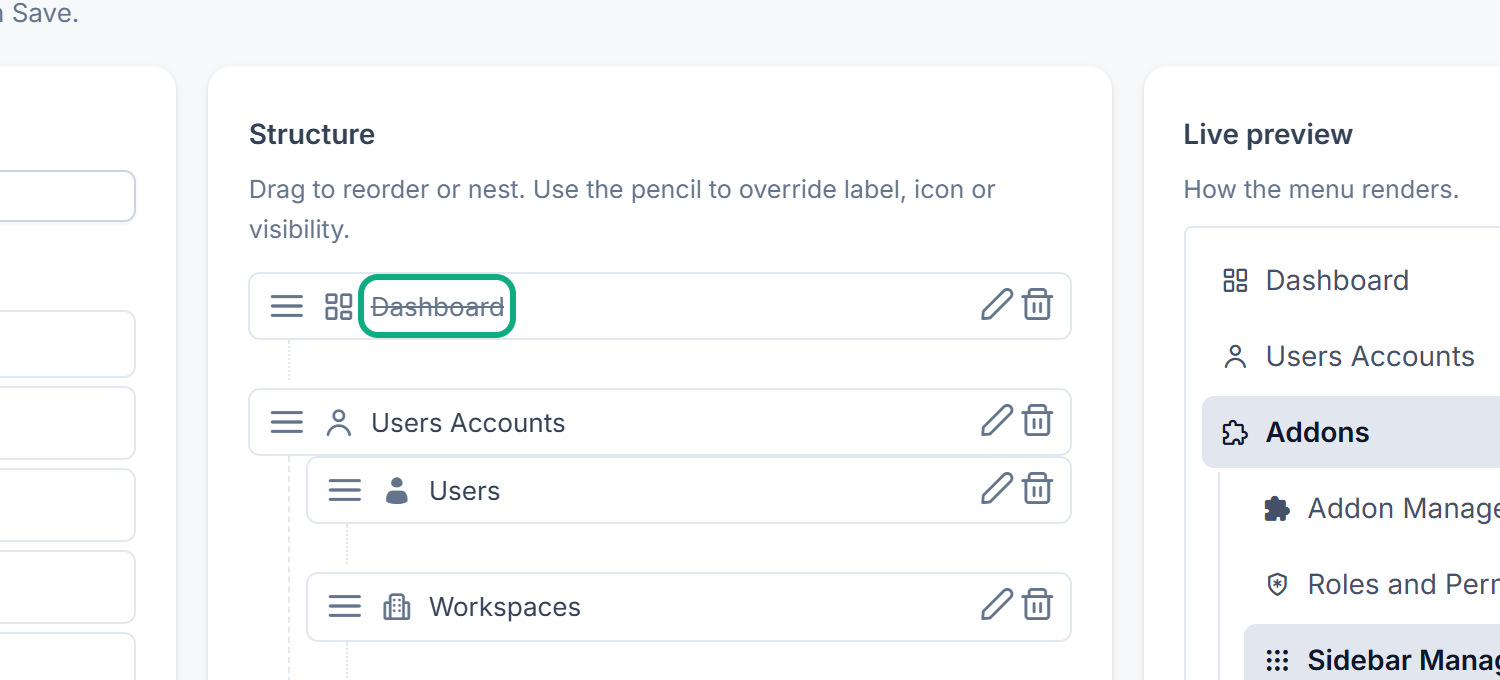
Fix: Change what's wrong, then ask the person to reload the page.
3. An item isn't in the builder's Library
The library only offers items whose Status is Active and whose module is turned on.
Fix: In Sidebar Items, set the item's Status to Active, or turn its module on. If the item doesn't exist yet, see Add or change a sidebar item.
4. An item you removed came back
Core and each module come with a list of their menu items for the Super Admin Sidebar. When Laramin rebuilds the menus, it puts back every item from those lists that isn't in the sidebar, at the end of its group. It rebuilds them after an add-on is installed, upgraded or licensed, and when an upgrade changes those lists.
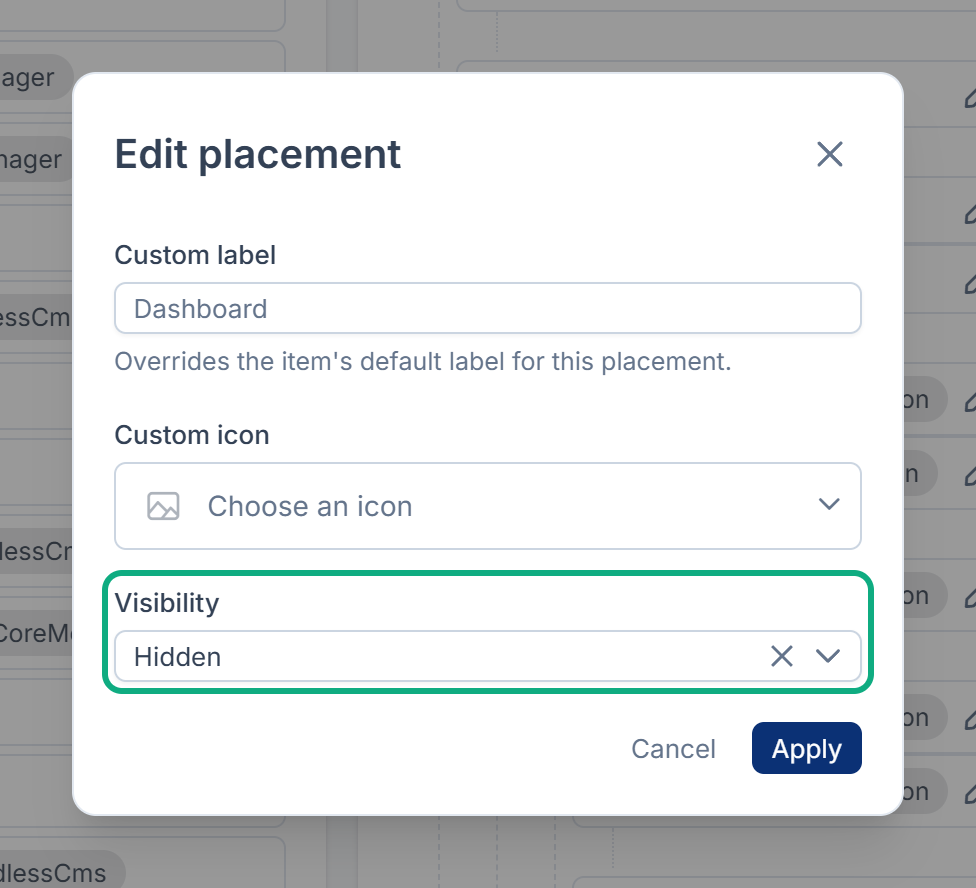
Fix: Don't remove a built-in item. Open Edit placement and set Visibility to Hidden. A hidden item stays hidden after a rebuild.
5. A module's items lost your changes
When a module is turned on again, or upgraded, Laramin replaces its menu items with new copies. In the Super Admin Sidebar, the copies are put back, usually at the end of the Addons group. In every other sidebar, such as the Admin Sidebar, the module's items are removed and not put back. What you changed about them is lost: their positions, custom labels and icons, hidden settings, and edits to the items themselves. Items you created yourself with that Module are moved to the trash. Laramin doesn't keep a version first. An upgrade does add a Pre-rebuild snapshot to each sidebar's versions, but it's taken after the items were replaced, so it doesn't hold your changes. Note your changes before you turn a module on again or upgrade it.
Fix: After you turn a module on or upgrade it, open each sidebar that used its items in the builder, drag them back in from Library and arrange them again. Restore any of your own items from the trash in Sidebar Items, then place them again. Restoring an older version doesn't bring the module's items back. See Go back to an earlier version of a sidebar.
6. An Inactive item still shows
Status only decides whether the builder's Library offers the item. An item that's already in a sidebar keeps showing when you set it to Inactive: in Menu Manager 1.2.1, Inactive doesn't hide an item that's already placed.
Fix: In the builder, set the item's Visibility to Hidden, or remove it from the sidebar and save.
Still not working?
Raise a ticket from Support Center in your Laramin app. Include this page's link, the sidebar's name, the item's name, the experience and workspace the person works in, and the message they see.
Thanks. That helps us decide what to write next.
Thanks for telling us what was missing.
You already answered for this article today. Thanks.
We got a lot of answers from your network just now. Try again in a few minutes.
We couldn't send that. Check your connection and try again.
Links in this article
Printed from help.bsscn.com. The online article may have changed since.