See why someone can do something
Use the Effective access panel to see every permission a person has in a workspace or team, and which role or direct grant gives it. Use Assignees to see who holds a role.
- Applies to
- Roles & Permissions 1.2 and later
- Who can do this
- Platform owner, Administrator
- Permission
feature.rbac. assignment.list - Where
- Roles and Permissions › Access Assignments (Platform Administration)
On this page
Before you start
- You need List Assignment (
feature.). It lets you look without changing anything, which suits someone who checks access for an audit.rbac. assignment.list - Know which workspace and team the question is about. What someone can do depends on where they're working.
Check one person
-
Open Roles and Permissions › Access Assignments.
-
Choose a Scope, search for the person and select them.
-
In Scope, choose the place you're asking about. For a team, choose the team: the answer then includes the team's workspace too.
-
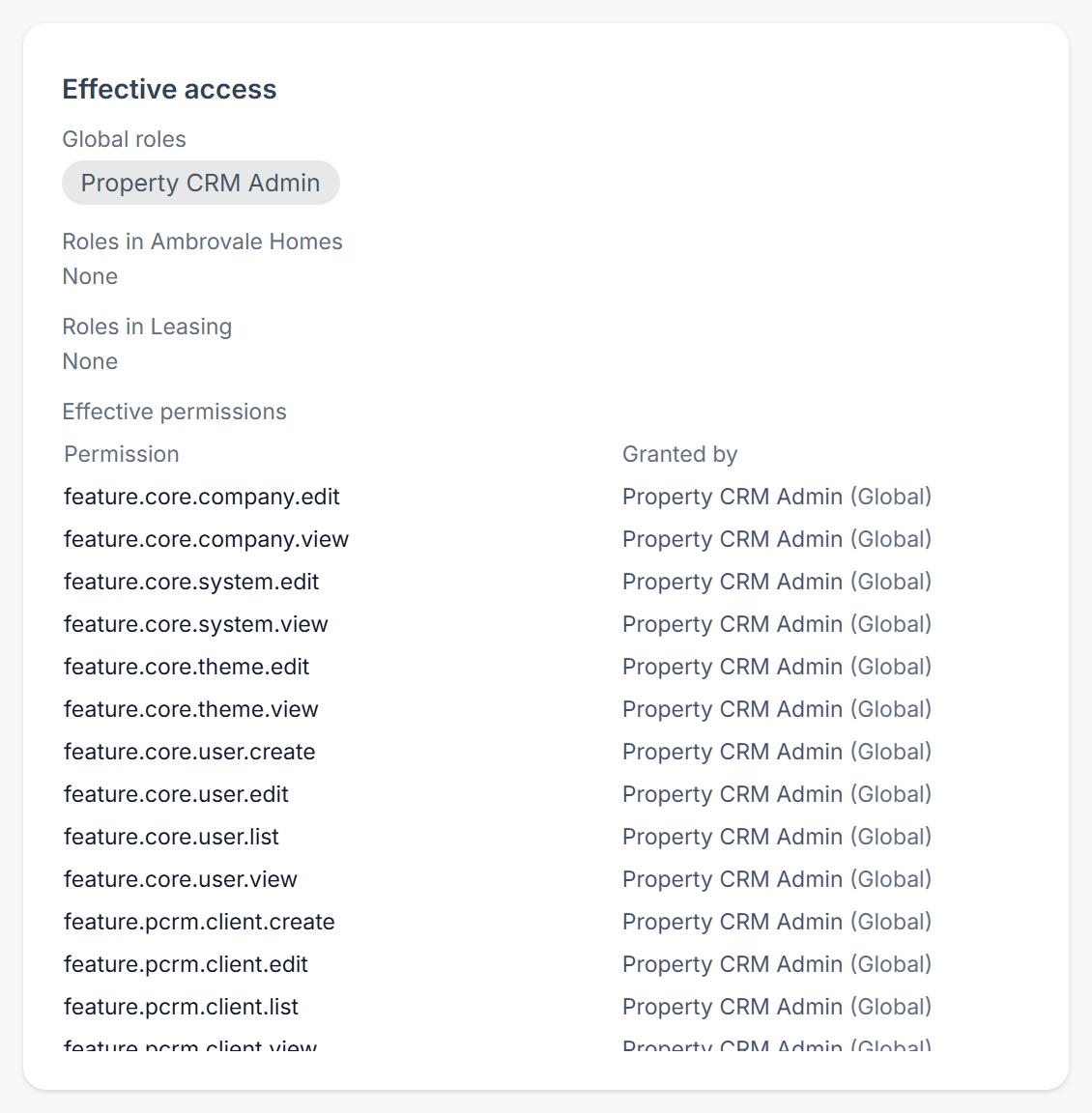
Read the Effective access panel:
- Global roles: roles that apply everywhere.
- Roles in and the workspace's name: roles that apply in that workspace.
- Roles in and the team's name, when you chose a team: roles that apply in that team.
- Effective permissions: every permission the person has there, by key. Granted by names each role, or Direct grant, that gives it, with the scope in brackets.
A permission with more than one source stays as long as any source remains. To take it away, remove every source, each in its own scope.
If the person is a super admin, the screen says so. Their roles don't limit them, so the panel can't explain what they can do.
Tip: To see the app as the person sees it, someone allowed to sign in as other users can sign in as that user.
See who holds a role
-
Open Roles and Permissions › Roles.
-
On the role's row, select Assignees. The role editor's Held by … link opens the same screen.
-
The screen lists the people under Held globally, Held in workspaces and Held in teams. Each workspace and team is named.
It reads across every workspace you can see, not only the one you're in. A workspace or team marked Not in force is archived, or the person is no longer an active member there. Those assignments are kept but give nothing until the person is back.
Thanks. That helps us decide what to write next.
Thanks for telling us what was missing.
You already answered for this article today. Thanks.
We got a lot of answers from your network just now. Try again in a few minutes.
We couldn't send that. Check your connection and try again.
Links in this article
Printed from help.bsscn.com. The online article may have changed since.