How sidebars and sidebar items work
A sidebar is one menu, such as the Platform Administration menu. Sidebar items are a shared library of menu entries. You place items in a sidebar by drag and drop, and each experience shows one sidebar.
- Applies to
- Menu Manager 1.2 and later
- Who can do this
- Platform owner
On this page
In short
Menu Manager builds the menus inside your Laramin app: the sidebar on the left of every admin screen. It doesn't build menus for a public website.
It works with two things. A sidebar is one whole menu, for example the menu people see in Platform Administration. Sidebar items are the entries a menu can hold, such as Users or Backups. Items live in one shared library, and you place them in a sidebar with the Sidebar Builder, by drag and drop. Each experience shows one sidebar.
How it works
Sidebars
Your Laramin starts with four sidebars, marked Yes in the Default column:
| Sidebar | Used by |
|---|---|
| Super Admin Sidebar | The Platform Administration experience. Core and every module put their menu items here when they're installed. |
| Admin Sidebar | The Administration experience. It starts empty, so someone has to build it. |
| Agent Sidebar | No experience in Core. Kept for modules and for your own use. |
| Worker Sidebar | No experience in Core. Kept for modules and for your own use. |
The four default sidebars can't be deleted. You can add sidebars of your own, and some modules bring a sidebar for their own experience.
Each sidebar has a Name and a Slug. The slug, for example admin_sidebar, is how an experience points at the sidebar, so it can't be changed after the sidebar is created.
Sidebar items
A sidebar item says what a menu entry shows and where it goes: its name, icon, link, and the permissions someone needs to see it. Items are kept in one library, under Sidebar Management › Sidebar Items.
The same item can be placed in many sidebars, and more than once in one sidebar. When you change an item in the library, the change reaches every sidebar it's placed in.
An item with # as its route is a heading. It has no link of its own and only groups the items under it. A heading with nothing visible under it isn't shown.
Placements
Putting an item in a sidebar makes a placement. A placement holds the item's position and its parent, so items can be nested. A placement can also change how the item looks in that one sidebar, without changing the library item:
- Custom label replaces the item's name.
- Custom icon replaces its icon.
- Visibility set to Hidden keeps the item in the sidebar, but nobody sees it.
Versions
Every time you save a sidebar in the builder, Laramin keeps a copy of how it looked, as a numbered version. Laramin also keeps a copy before it rebuilds the menus, for example when an add-on is installed or upgraded. You can go back to any of the last 20 versions. See Go back to an earlier version of a sidebar.
Who sees which items
A sidebar can hold more items than one person sees. When someone opens a screen, Laramin builds their menu from the experience's sidebar and leaves out each item that:
- has Visibility set to Hidden in that sidebar,
- belongs to a module that's turned off or not licensed,
- asks for permissions the person doesn't hold. An item that lists several permissions is shown if the person holds any one of them. This check only applies when the item's Requires Authentication is on.
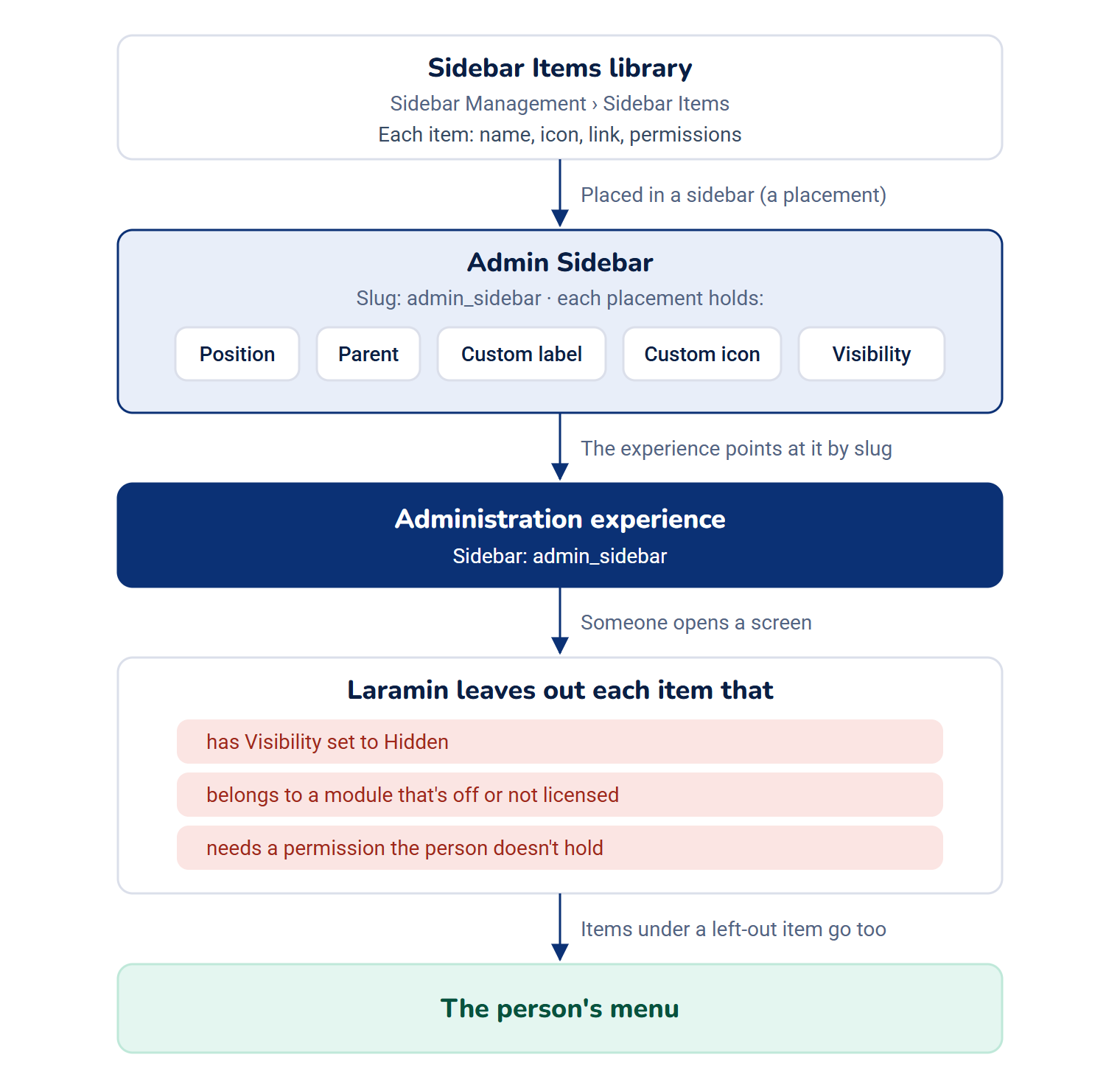
When an item is left out, the items under it are left out too. If nothing is left, the person sees an empty menu. See A menu item is missing or keeps coming back.
A menu only hides links. Laramin checks permissions again on every screen, so hiding an item doesn't take away access, and showing an item doesn't give it.
Where you find it
In the Platform Administration sidebar, Menu Manager adds Sidebar Management with Sidebars and Sidebar Items.
| Permission | Allows |
|---|---|
View Sidebars (feature.) | Opening Sidebars, and opening the builder read-only. |
Create Sidebar (feature.) | Adding a sidebar. |
Edit Sidebar (feature.) | Renaming a sidebar, arranging it in the builder and going back to a version. |
Delete Sidebar (feature.) | Deleting a sidebar you added, including deleting it for good. |
Restore Sidebar (feature.) | Restoring a deleted sidebar. |
Export Sidebars (feature.) | Exporting the list. |
View Sidebar Items (feature.) | Opening Sidebar Items. |
Create Sidebar Item (feature.) | Adding an item to the library. |
Edit Sidebar Item (feature.) | Changing a library item. |
Delete Sidebar Item (feature.) | Deleting a library item, including deleting it for good. |
Restore Sidebar Item (feature.) | Restoring a deleted item. |
Export Sidebar Items (feature.) | Exporting the list. |
Super admins have them all. Nobody else does until a role gives them. See Give someone a role.
How it relates to
- Experiences: an experience decides which sidebar people see. Someone with Edit Experience Presentation can choose a different sidebar for an experience in one workspace. See Workspaces, teams and experiences explained.
- Reset Navigations: in Extra Utilities, it puts every sidebar back to its defaults. Laramin keeps a version of each sidebar first, so you can go back.
Next steps
Thanks. That helps us decide what to write next.
Thanks for telling us what was missing.
You already answered for this article today. Thanks.
We got a lot of answers from your network just now. Try again in a few minutes.
We couldn't send that. Check your connection and try again.
Links in this article
Printed from help.bsscn.com. The online article may have changed since.