Create a sidebar for an experience
Add a new sidebar, fill it in the builder, and make an experience show it in a workspace. Also covers renaming and deleting a sidebar.
- Applies to
- Menu Manager 1.2 and later
- Who can do this
- Platform owner
- Permission
feature.sidebar. menu. create - Where
- Sidebar Management › Sidebars
On this page
Before you start
- You need Create Sidebar (
feature.) and Edit Sidebar (sidebar. menu. create feature.).sidebar. menu.edit - To make an experience use the sidebar, you also need Edit Experience Presentation (
feature.), and you must be working in a single workspace, not All Workspaces.core. experience.edit - You may not need a new sidebar. The Administration experience already uses the Admin Sidebar, which starts empty. To fill it, open it in the builder. See Arrange a sidebar menu by drag and drop.
Create the sidebar
-
In the sidebar, open Sidebar Management › Sidebars.
-
Select New Sidebars.
-
In Name, enter a name, for example
Sales Desk Sidebar. -
In Slug, enter a short key with lowercase letters and underscores, for example
sales_. You can't change it later.desk_ sidebar 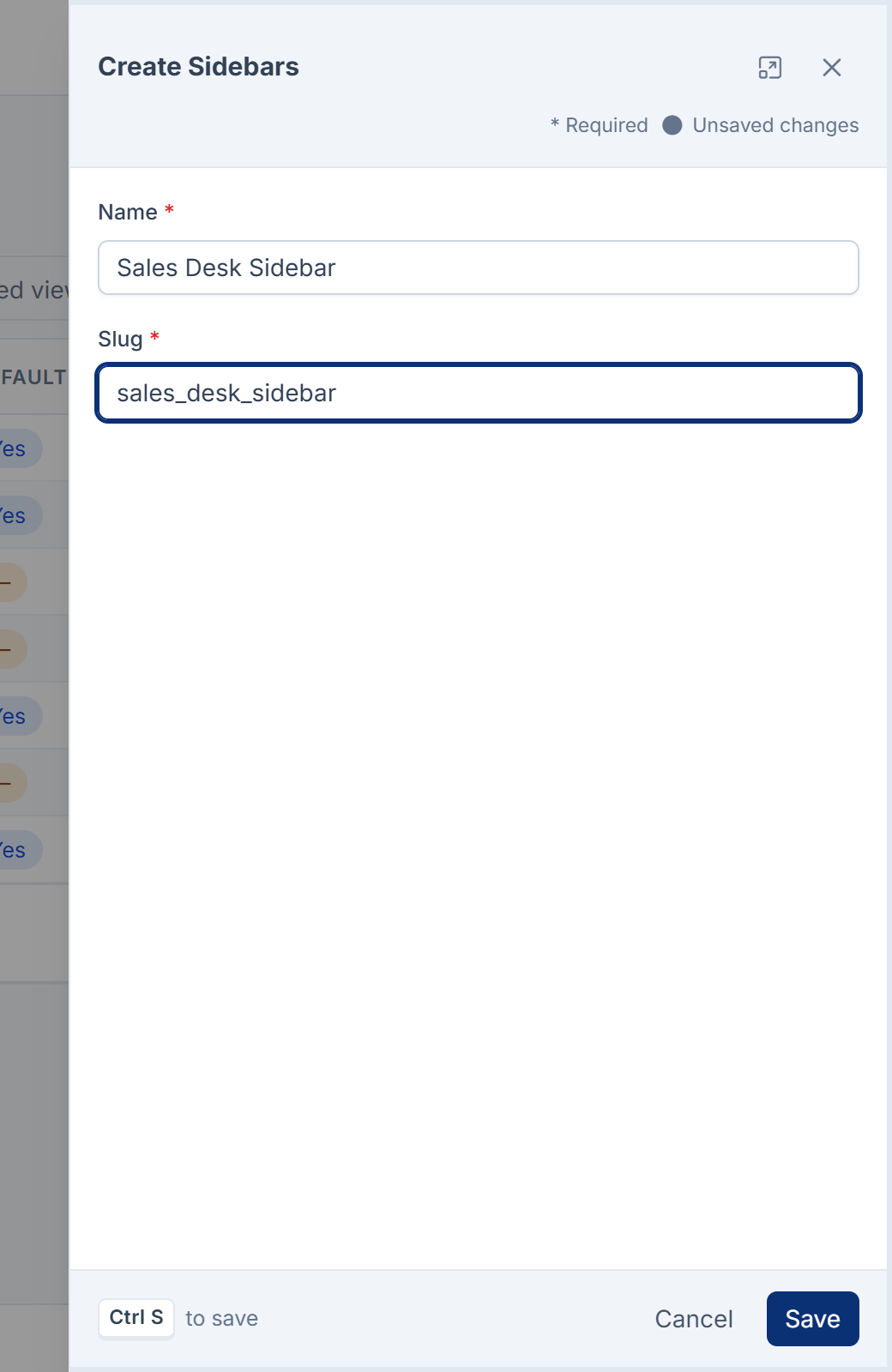
-
Select Save.
You see Sidebar Sales Desk Sidebar Created Successfully!. The new sidebar is empty.
Fill it
- In the new sidebar's row, select Manage items.
- Drag items from Library into Structure, arrange them, and select Save.
See Arrange a sidebar menu by drag and drop for the details.
Make an experience show it
-
In the header, switch to the workspace where the experience should use this sidebar.
-
Open Users Accounts › Experiences.
-
Select the pencil (Edit) on the experience's row.
-
In Sidebar, choose your sidebar. Leave it blank to use the sidebar the experience comes with.
-
Select Save.
You see Experience presentation saved.. Everyone who works in that experience, in that workspace, now sees the new menu. Other workspaces keep their own choice. For the other fields on this form, see Choose which experiences a user can enter.
Rename a sidebar
- In the sidebar's row, open the row actions and select Edit.
- Change Name. Slug is shown but can't be changed.
- Select Save.
Delete a sidebar
You can delete a sidebar you added. The four default sidebars can't be deleted.
- In the sidebar's row, open the row actions and select Delete.
- Confirm.
The sidebar moves to the trash, with its layout. Restoring it brings the layout back. Deleting it for good also removes its versions. See Delete, restore and act on records in bulk.
Careful: Laramin doesn't stop you deleting a sidebar that an experience still uses. People in that experience then see an empty menu. Choose another sidebar for the experience first. A deleted sidebar's slug can't be used again for a new sidebar. In Menu Manager 1.2.1, a deleted sidebar keeps its slug taken, although the app means it to be free again: the form accepts the slug as you type, then Save answers The slug has already been taken. Choose a different slug.
What happens next
- People switch to the experience with View in the header. See Switch to another experience.
- If someone sees an empty menu, see A menu item is missing or keeps coming back.
Thanks. That helps us decide what to write next.
Thanks for telling us what was missing.
You already answered for this article today. Thanks.
We got a lot of answers from your network just now. Try again in a few minutes.
We couldn't send that. Check your connection and try again.
Links in this article
Printed from help.bsscn.com. The online article may have changed since.