Change or delete a role
Rename a role, change its permissions, compare it with another role, see who changed what in its History, or delete it.
- Applies to
- Roles & Permissions 1.3 and later
- Who can do this
- Platform owner, Administrator
- Permission
feature.rbac. role.edit - Where
- Roles and Permissions › Roles (Platform Administration)
On this page
Before you start
- Changing a role needs Edit Role (
feature.) and deleting one needs Delete Role (rbac. role.edit feature.), both held globally.rbac. role. delete - A change to a role reaches everyone who holds it, in every workspace and team, at their next click. To see who that is, select Assignees on the role's row, or the Held by … link in the role editor.
Rename a role
-
Open Roles and Permissions › Roles.
-
On the role's row, select Edit.
-
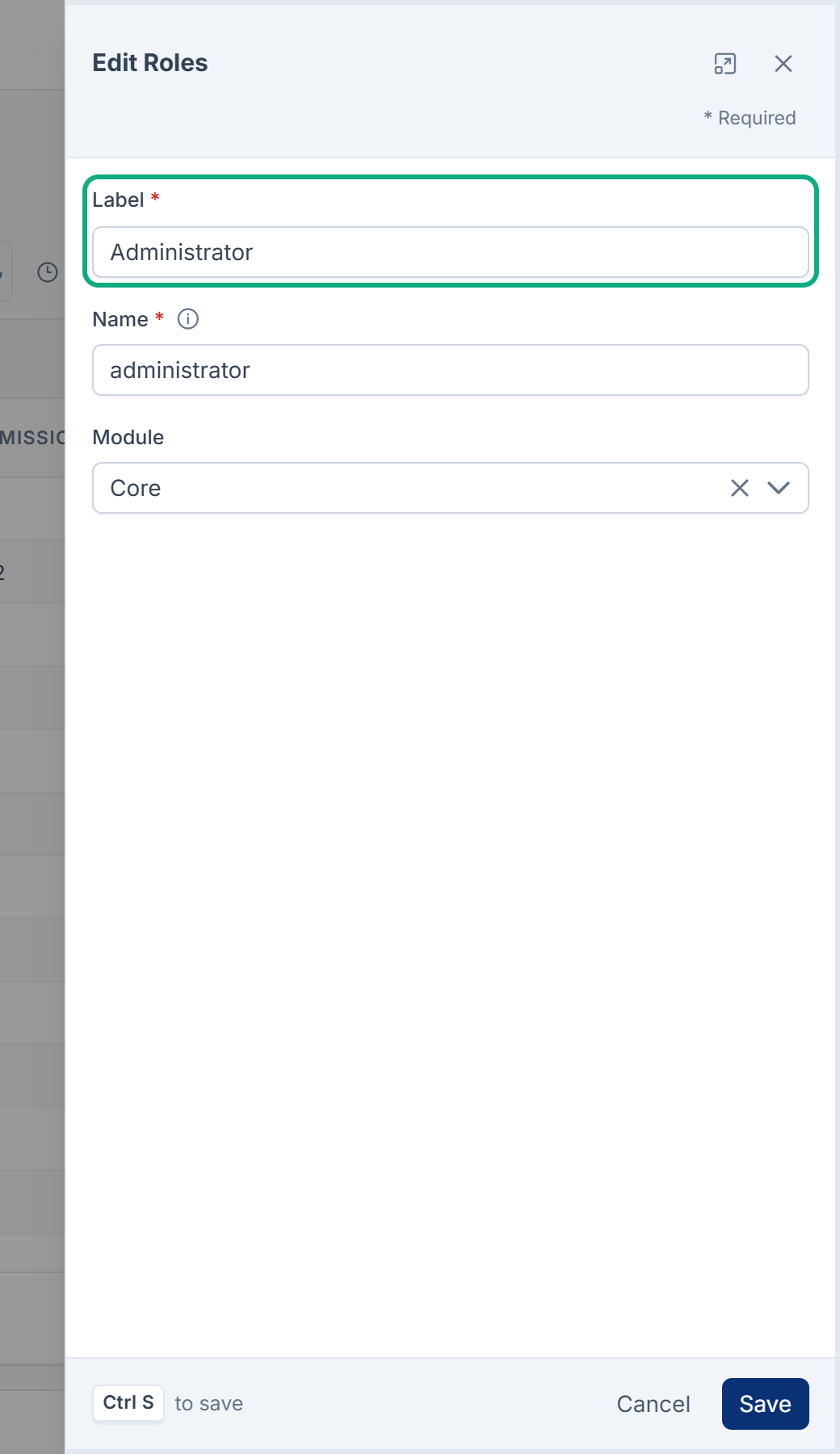
Change the Label, the name people see.
-
Select Save.
Only a super admin can change a role's Name or Module after it's created. Nobody can rename the roles that belong to Core (super.admin, administrator, admin and dev.admin), but you can change their Label.
Change its permissions
- On the role's row, select Manage permissions.
- Change levels and cells the same way as for a new role. See Create a role and assign permissions.
- Select Review and save, check the changes, then select Save … changes.
To back out, select Undo last action, or Discard changes to drop them all.
The role called Super Admin (super.admin) has no permissions to edit. The editor says Super Admin needs no permissions, because super admin accounts pass every check whatever the role holds.
Compare with another role
-
Select Compare with… and pick a role.
-
The bar says how many permissions differ, and each cell shows the other role's value. Turn on Differences only to hide the rest.
-
To make this role match, select Copy all into this role. This only changes the editor. Nothing is saved until you review and save.
-
Select Exit compare when you're done.
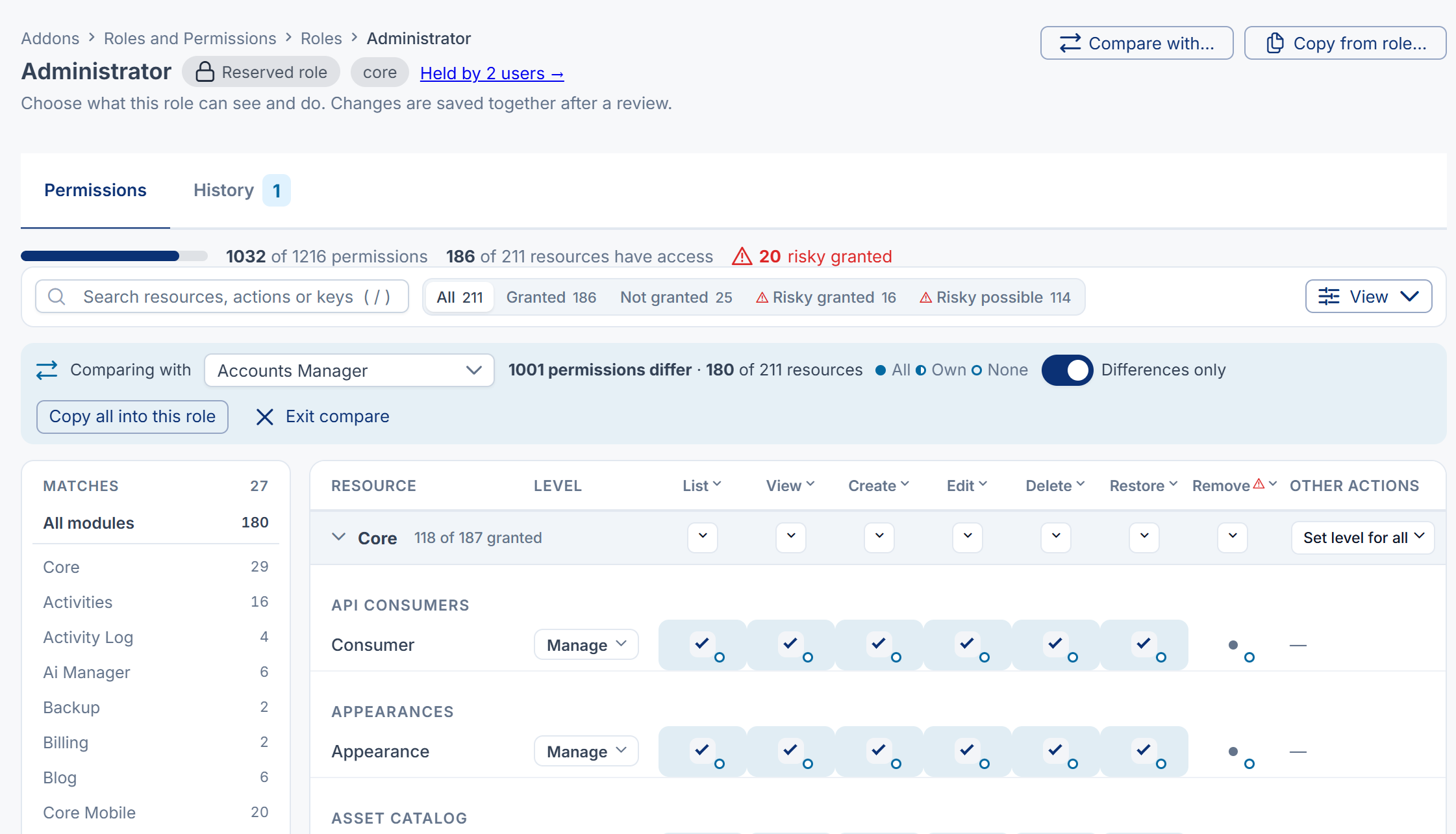
Copy from role… does the same copy without comparing first. Either way, the copy replaces this role's own permissions, except locked cells.
See who changed what
Open the History tab. Each line says who granted or revoked which permission, and when. Narrow it with Changed by and Changed when. The newest 500 changes are shown.
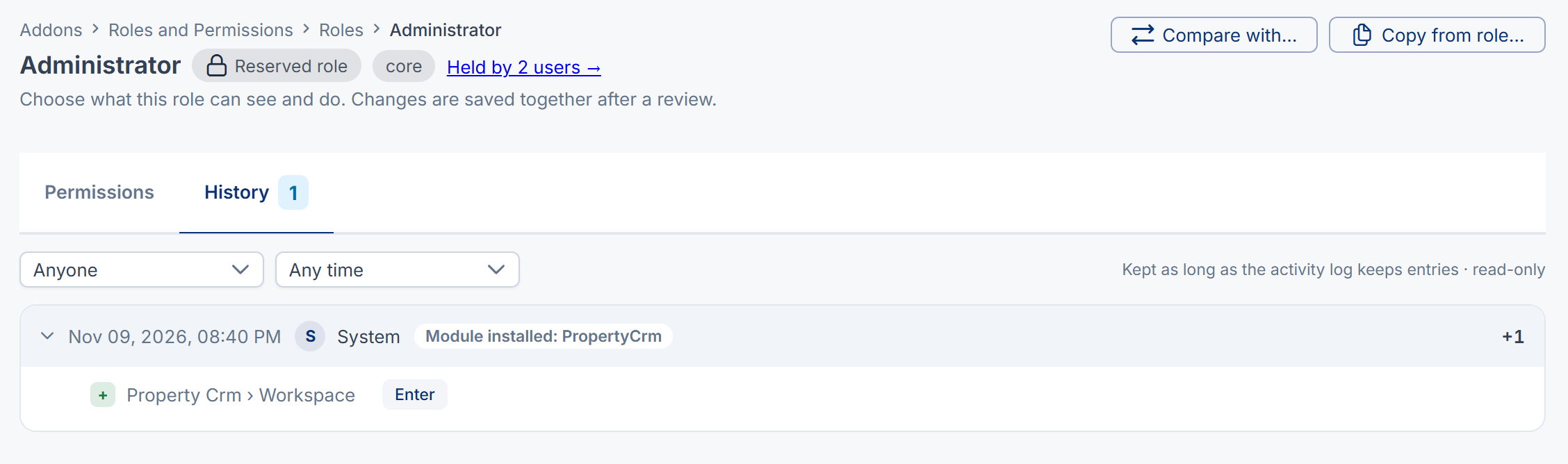
History comes from the activity log, so it needs:
- the Activity Log module. Without it, the tab says History is not recorded.
- the activity log view permission (
feature.). Without it, the tab says You can't read the audit log.activitylog. user.view
Changes made before Core 12.1.0 weren't recorded.
Delete a role
- On the role's row, select Delete.
- Confirm.
Careful: Deleting a role takes it away from everyone who holds it, in every scope, at once. They lose every permission it gave them, unless another role or a direct grant also gives it. Check Assignees first.
You can't delete the roles that belong to Core, so their rows have no Delete.
If your save is refused
| Message | What it means | What to do |
|---|---|---|
| Someone else saved this role. | Another person saved the role after you opened it. Your changes weren't saved. | Select Compare with the latest to see their changes, or Reload the latest and redo yours. |
| Some changes were refused. | You no longer hold some of the permissions you changed. | Select Undo on those lines, then save again. |
| Nothing was saved: you no longer hold … of these permissions yourself. | Your own access changed after you opened the editor. | Ask someone who holds them to make the change. |
Thanks. That helps us decide what to write next.
Thanks for telling us what was missing.
You already answered for this article today. Thanks.
We got a lot of answers from your network just now. Try again in a few minutes.
We couldn't send that. Check your connection and try again.
Links in this article
Printed from help.bsscn.com. The online article may have changed since.