How Billing keeps your money records
Billing accounts, orders, invoices, credit notes, the ledger, payments and tax rules: where each comes from, what you can change, and how Billing works with CRM, Monetization, Payment Gateway and Product Catalog. Start here.
- Applies to
- Billing 2.0 and later
- Who can do this
- Administrator, Team member
On this page
In short
Billing is where your Laramin keeps what was sold, what was demanded and what was paid. Other add-ons do the selling: CRM raises an order when a customer accepts a quote, and Monetization raises an invoice when a subscription renews. Billing prices those documents, works out the tax from your tax rules, numbers each invoice, records every payment and refund, and writes each step to a ledger.
Most of Billing is a set of records you read. On screen you can issue a draft invoice, refund a payment and manage your tax rules. Nobody can type an invoice in by hand, edit one after it's issued, or delete a payment. That's on purpose: an issued invoice has a legal number and has been sent, so it's corrected with a new document, never changed.
How it works
The parts
| Part | What it is | Where you see it |
|---|---|---|
| Billing account | One customer, as your business bills them: legal name, email, tax ID, country, state, address and currency. Each invoice keeps its own copy of these details from the day it was created. | Billing › Billing Accounts |
| Order | What a customer agreed to buy, priced at the moment they agreed. | Billing › Orders |
| Invoice | A demand for payment. It starts as a Draft. Issuing it gives it a permanent number and adds it to the ledger. | Billing › Invoices |
| Credit note | A new document that gives back some or all of an issued invoice. It's the only way to reverse an issued invoice. | Billing › Credit Notes |
| Ledger | A record of every invoice issued, payment received and credit note, per customer. Entries are never edited or removed. | Billing › Ledger |
| Payment | Money taken through a payment gateway, with its status from start to finish, and any refunds. | Billing › Payments |
| Tax rule | What your business charges in one country, or one state of it, made of one or more tax items, such as CGST and SGST. | Billing › Tax Rules |
Where the records come from
Billing has no New button for accounts, orders, invoices, credit notes, ledger entries or payments. Other add-ons create them through Billing, so every document gets the same tax, numbering and ledger treatment.
| What happens | What Billing records |
|---|---|
| A customer accepts a quote in CRM. | A billing account for the customer's party, if they don't have one yet, and an order with the quote's lines and prices. |
| Monetization renews a subscription. | A draft invoice for the period, on the subscription's billing account. When that invoice is paid, Monetization completes the renewal. |
| A checkout on your website or app takes a payment. | A payment, and the money applied to the invoice it pays. |
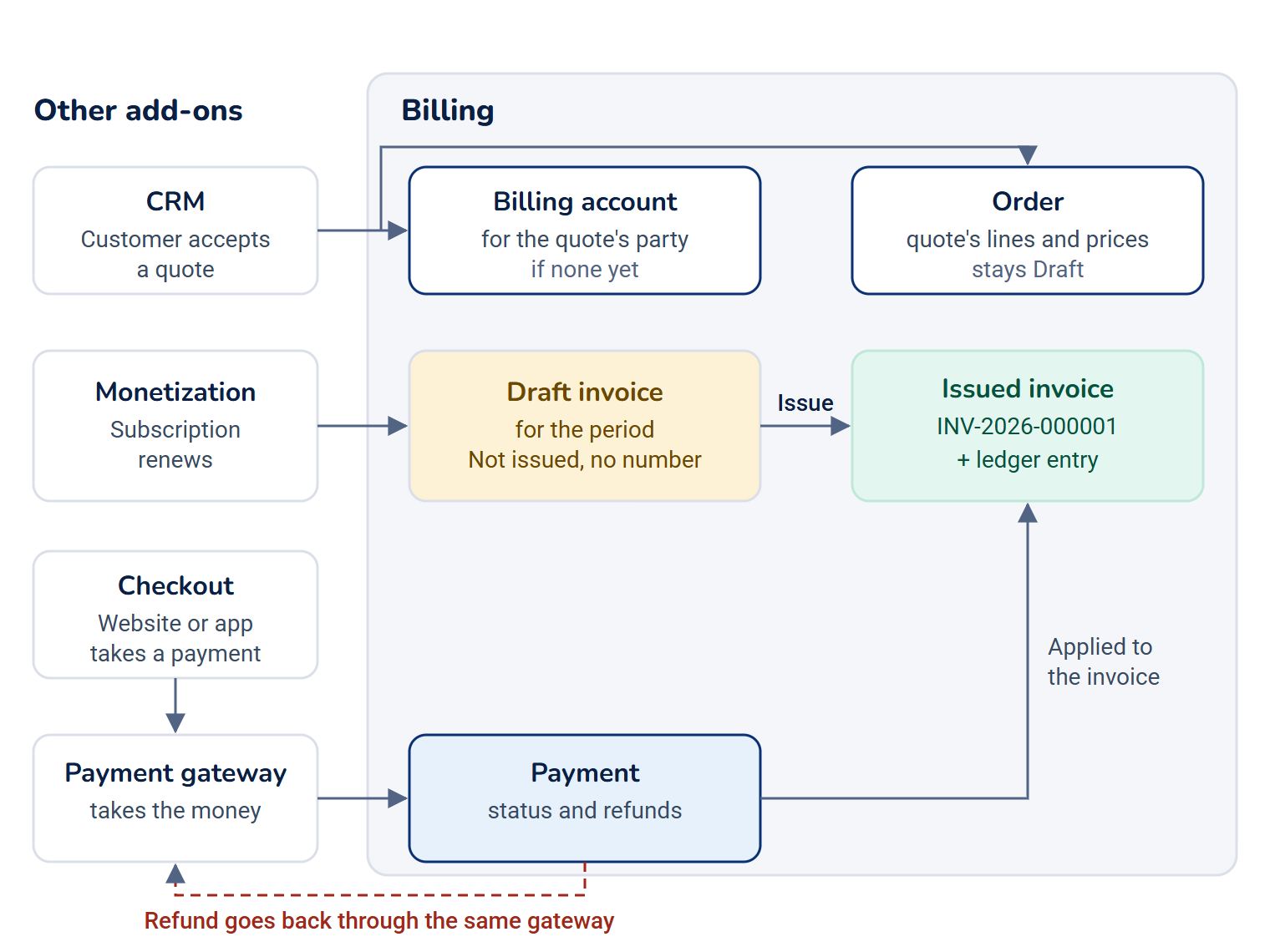
In Billing 2.0.0 nothing in the add-ons listed here raises an invoice from an order, so orders stay Draft, and nothing issues credit notes or starts payments. Those lists fill only when another add-on or your own integration does it.
What you can change on screen
- Issue a draft invoice. See Issue an invoice.
- Refund a payment in full. See Refund a payment.
- Add, change, delete and restore tax rules and their items. See Set up your tax rules.
Everything else is read only. You can search, filter, export and open each record, as on any list. See Filter a list and Export a list to CSV.
One business at a time
Each billing record belongs to one business (a workspace in Laramin) and stays with it for good. Two of your businesses can bill the same customer, each with its own billing account, its own invoice numbers, its own tax rules and its own ledger.
- In a single workspace you see and work with that business's records only.
- In All Workspaces you can read the records of every business you can enter, and a Business column shows whose each one is. You can't issue, refund or change tax rules there. Switch to the business first. See Switch workspace.
A record from a business you can't enter doesn't show at all, as if it didn't exist.
Who the invoice is from
When an invoice is issued, Billing copies your business's details onto it: legal name, address, postcode, email and phone. They come from Company Settings (Company Name, Business Address and so on). See System and company settings. Later changes to those settings don't change invoices already issued.
Your tax registration number (for example, your GSTIN), a registration number, a trading name and a website have no field in Laramin. Whoever hosts your Laramin sets them in its server configuration. See Billing permissions and server settings.
A workspace's own Company values, set in Users Accounts › Workspaces › Settings, aren't used on invoices. Every business's invoices show the installation's company details unless the server configuration sets them per business.
Invoice numbers
Each business numbers its invoices in its own series, by year: INV-2026-000001, INV-2026-000002, and from 1 January INV-2027-000001. Credit notes have a separate series, such as CN-2026-000001. A draft has no number, and the Invoices list shows Not issued for it. A number is given once, at issue, and never reused.
Who does what
Billing brings no roles of its own. You give its permissions through a role, for example to a finance team. See Give someone a role.
| Someone who… | Needs |
|---|---|
| Reads accounts, orders, invoices, credit notes and the ledger | list and view on each, such as feature. and feature. |
| Issues invoices | feature. |
| Reads payments | feature. and feature. |
| Refunds payments | feature. |
| Manages tax rules | feature. and feature. |
Every permission is listed in Billing permissions and server settings.
Where to find it
The Billing menu holds Billing Accounts, Orders, Invoices, Credit Notes, Ledger, Payments and Tax Rules. Each item shows only to people whose permissions allow it.
To open Orders from any screen, press G then O. The shortcut is offered only to people who may open Orders. See How the Laramin screen is organized.
The Billing menu is in the Platform Administration experience's sidebar only. Someone who can't enter Platform Administration has no menu path to Billing, even with Billing permissions. See Switch to another experience.
How it relates to
- Payment Gateway: holds your gateways, their credentials and currencies. Billing records the payments taken through them, and a refund always goes back through the same merchant account that took the payment. A refund needs the gateway's provider add-on, such as Razorpay, to be installed and to support refunds. Without Payment Gateway, Billing still keeps its documents, but no payment can be taken.
- Tax rules in Payment Gateway: tax rules moved from Payment Gateway to Billing. There is one set of tax rules, the one under Billing › Tax Rules, and it's the one every document uses. See How Billing works out tax.
- CRM: an accepted quote becomes an order in Billing, with a billing account for the quote's party. The billing account's details come from the party's billing address as the quote recorded it, and an existing billing account is never overwritten.
- Monetization: each renewal is an invoice in Billing. A payment that settles the invoice completes the renewal, and a refund of that payment lets Monetization end the access it gave.
- Product Catalog: Billing doesn't read the catalog. A line keeps the description and price it had on the quote or plan. A product's Tax class doesn't change the tax Billing charges: every line of a document is taxed by the same rule.
- Organization: the state and country on a party's billing address become the new billing account's State and Country, through the CRM quote. Those two decide which tax rule applies.
Next steps
Thanks. That helps us decide what to write next.
Thanks for telling us what was missing.
You already answered for this article today. Thanks.
We got a lot of answers from your network just now. Try again in a few minutes.
We couldn't send that. Check your connection and try again.
Links in this article
Printed from help.bsscn.com. The online article may have changed since.