How Billing works out tax
Which tax rule applies to a customer, how percentage, fixed, compound and inclusive items add up, when tax is fixed on a document, why some tax is "undetermined", and which Tax Rules screen counts.
- Applies to
- Billing 2.0 and later
- Who can do this
- Administrator, Team member
On this page
In short
When an add-on creates an order or a draft invoice, Billing picks one tax rule from your business's rules, using the customer's country and state, and applies its items to every line. The tax is stored on the document at that moment and never recalculated. If no rule fits, the tax is undetermined, which isn't the same as zero: an invoice with undetermined tax can't be issued.
How it works
Which rule applies
- Billing looks only at the rules of the business the document belongs to. Another business's rules never apply, even for the same customer.
- It keeps the Active rules for the customer's Country, from their billing account.
- If one of those has a Region that matches the customer's State, ignoring capitals, that rule applies.
- Otherwise the rule with an empty Region applies.
- If there's still none, the tax is undetermined.
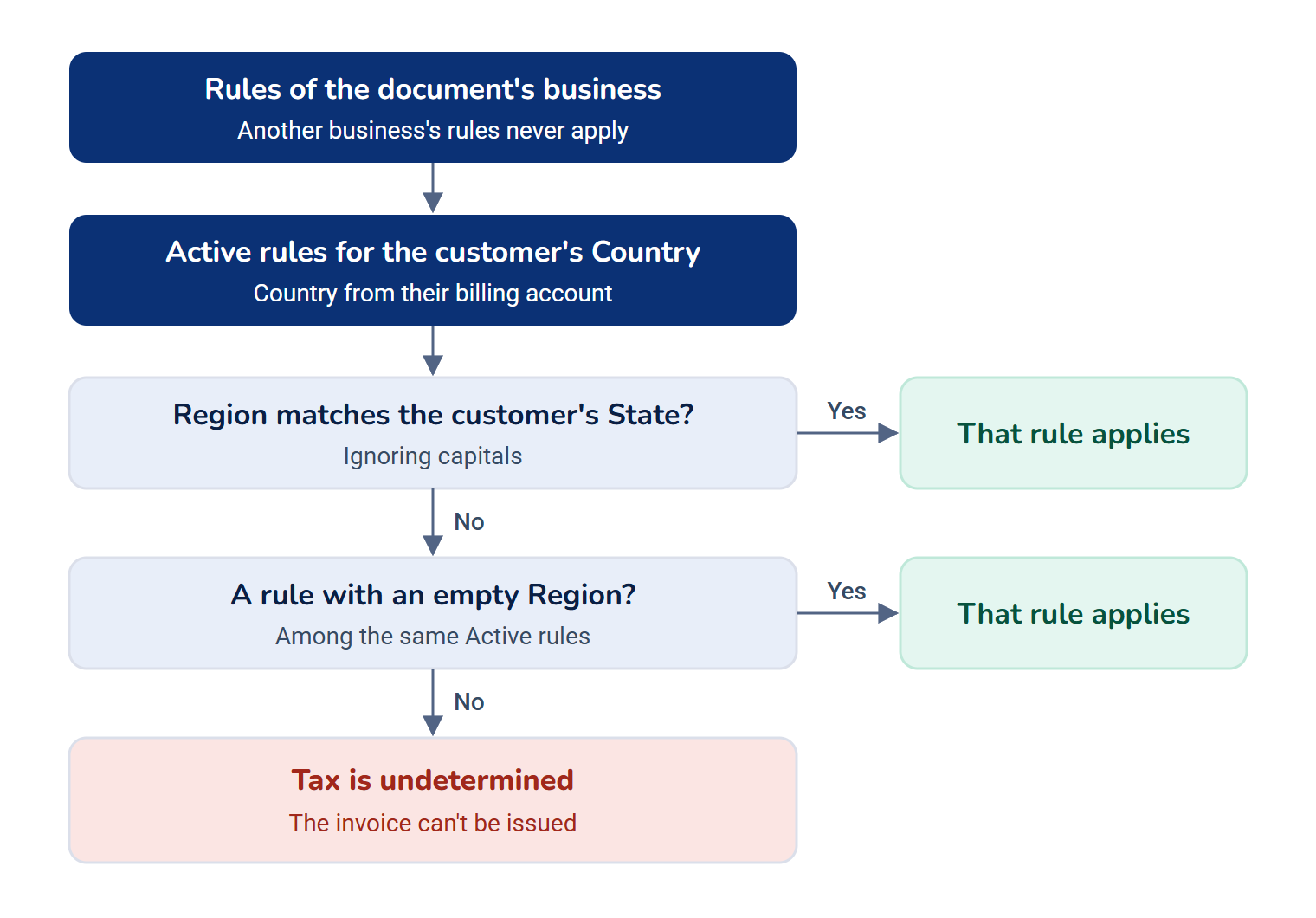
Each business can have only one active rule for a country and region, so the choice is never a guess.
Tip: A customer with no country on their billing account always gets undetermined tax. Their country comes from the party's billing address when CRM creates the account.
How the items add up
Tax is charged on what the customer actually pays for each line: unit price × quantity, minus any discount on the line and its share of any discount on the whole document.
Then the rule's active items are applied in Priority order, lowest first:
- A Percentage Charges item that's Simple is that percentage of the line.
- A Percentage Charges item that's Compound is that percentage of the line plus the items already applied. For example, on a line of 1,000.00 with a 10% item and then a 2% compound item: 100.00, then 2% of 1,100.00, which is 22.00.
- A Fixed Charges item adds its amount once to each line, whatever the quantity.
Each item shows as its own line in the invoice's tax table, with its name and rate, such as CGST (9%). Items with the same Priority are applied in the order they were created.
Prices that include tax
With In Inclusive? on, the price already contains the tax, so Billing takes it out: a price of 1,180.00 under 18% is 1,000.00 before tax and 180.00 of tax. The tax is split between the items in proportion to their rates, and the last item takes any rounding difference, so the parts always add up.
An inclusive rule can't have a compound item. There's no single rate to take out, so Billing makes the tax undetermined rather than guess.
Zero tax, and undetermined tax
| Situation | Result | Can the invoice be issued? |
|---|---|---|
| The rule has no active items. | Zero tax, recorded as a sale rated at zero, for example an export or an exempt customer. | Yes |
| No active rule for the customer's country, or state and country. | Undetermined | No |
| The customer has no country. | Undetermined | No |
| The rule is inclusive and has a compound item. | Undetermined | No |
| A line is in a different currency from the document. | Undetermined | No |
| The document was created in All Workspaces or by a background task outside one business. | Undetermined | No |
Both zero and undetermined show 0.00 as the tax. Only the first is a real zero.
When the tax is fixed
Billing works out the tax once, when the order or draft invoice is created, and stores the result with the document. After that:
- Changing, adding or stopping a rule doesn't change documents that already exist.
- An issued invoice and its PDF always show the tax as charged, item by item.
- A draft whose tax was undetermined stays undetermined, even after you add the missing rule. Billing 2.0.0 has no way to recalculate or discard such a draft on screen. The add-on that raised it has to raise a new one.
Rounding
Each item's tax is rounded on each line, half up by default, and the lines are added together. So each printed line's tax adds up to the tax total. Your Laramin's host can switch to rounding once for the whole document, or to half-even rounding. See Billing permissions and server settings.
Every line gets the same rule
The rule is chosen for the customer, not for the product. Every line of a document is taxed by the same items.
Billing 2.0.0 ignores the tax class or tax code a line carries. A Product Catalog Tax class, or a Monetization plan that isn't taxable, still gets the customer's rule.
An add-on can bring its own tax calculation for some countries. When one is installed and handles a customer's country, it's used instead of your tax rules.
Which Tax Rules screen applies
There's one set of tax rules: Billing › Tax Rules. Every order and invoice uses it.
Payment Gateway kept tax rules before its version 3.0.0. When Billing arrived, the rules, their items and their permissions moved to Billing, under the same address (/admin/tax_rules), and Payment Gateway's own Tax Rules menu item was removed. If your team's notes, bookmarks or older screenshots show Tax Rules under Payment Gateway, they point to these same rules.
The Fixed Charges and Percentage Charges you may see on a gateway's currencies in Payment Gateway are the gateway's own fees, not tax.
Next steps
Thanks. That helps us decide what to write next.
Thanks for telling us what was missing.
You already answered for this article today. Thanks.
We got a lot of answers from your network just now. Try again in a few minutes.
We couldn't send that. Check your connection and try again.
Links in this article
Printed from help.bsscn.com. The online article may have changed since.