How the Product Catalog works
The Product Catalog lists what you sell: products with their variants, categories, brands, collections, prices, files and bundles. Here's how the pieces fit, what CRM quotes and Billing take from it, and what you can manage on screen today.
- Applies to
- Product Catalog 1.3 and later
- Who can do this
- Platform owner, Administrator, Team member
On this page
In short
The Product Catalog is the list of things your business sells: physical goods, digital downloads, services, subscriptions, bundles, or anything in between. It describes each product once, so that other add-ons, such as CRM when you build a quote, can offer it without keeping their own copy.
It describes products. It doesn't take orders, hold stock, raise invoices or take payments. Those belong to other add-ons.
How it works
The parts
| Part | What it is | Where you manage it |
|---|---|---|
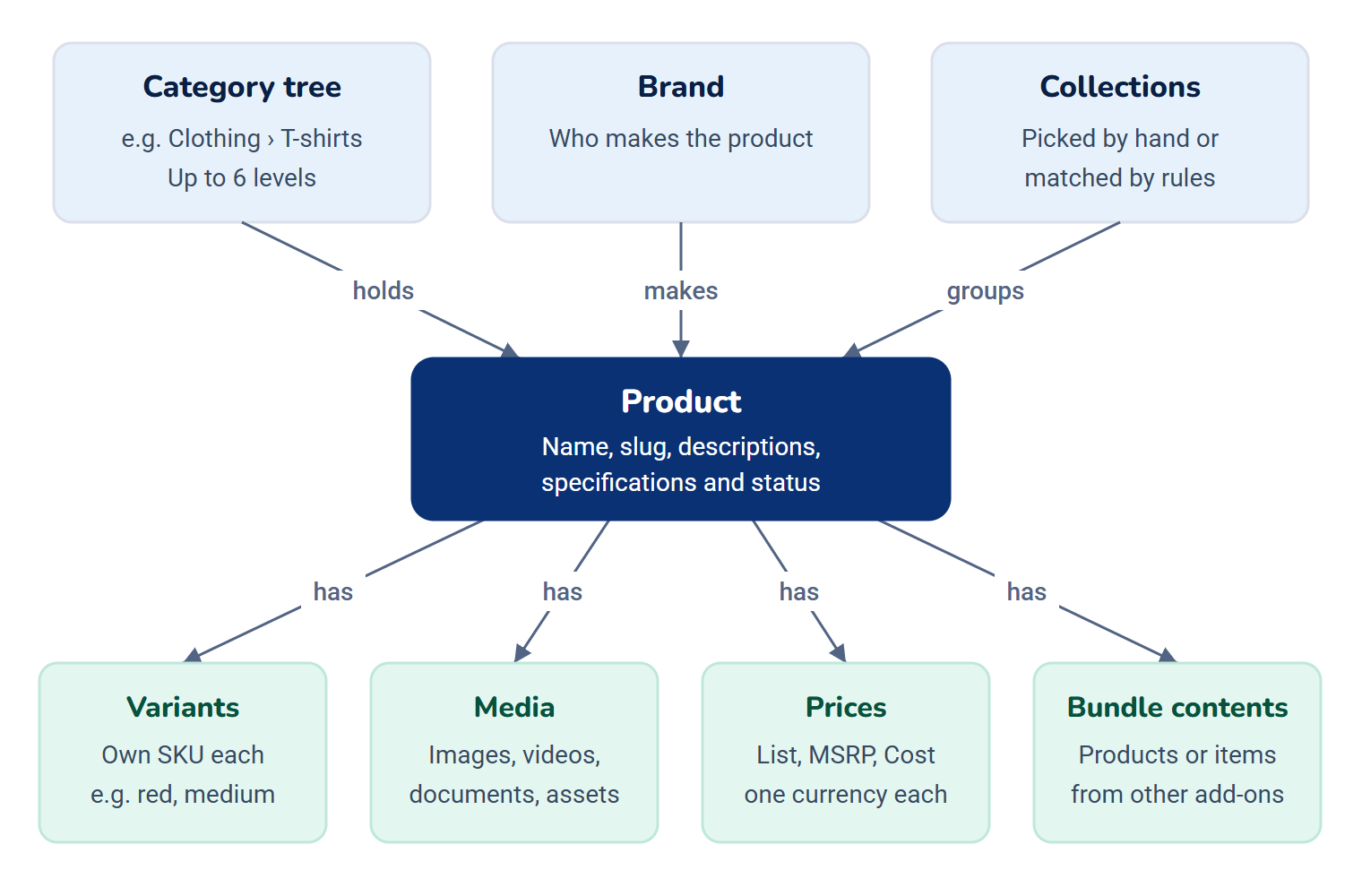
| Product | One thing you sell, with a name, address (slug), descriptions, specifications and a status. | Catalog › Products |
| Variant | One version of a product with its own SKU, such as the red, medium T-shirt. | The product's Variant matrix |
| Category | A place in your product tree, such as Clothing › T-shirts. Categories can nest up to 6 levels. | Catalog › Categories |
| Brand | Who makes the product. | Catalog › Brands |
| Collection | A group of products, either picked by hand or matched by rules, such as "all digital products". | Catalog › Collections |
| Price | What a product or variant costs in one currency: a List price, an MSRP or a Cost. | No screen yet. See below. |
| Media | Images, videos, documents and digital assets for a product. | The product's Media |
| Bundle contents | The products, or items from other add-ons, that a bundle product contains. | The product's Bundle contents |
A product's status
A product is always Draft, Active or Archived. You don't set this on the form.
| Status | Meaning |
|---|---|
| Draft | Being prepared. Other add-ons can't offer it. Every new product and imported product starts here. |
| Active | Published and available to sell. |
| Archived | Withdrawn from sale. Quotes and invoices that already include it keep it. |
The product list offers Publish and Archive for this, but in Product Catalog 1.4.0 they don't change the product yet: you see 1 processed and its status stays as it was. There's no other way on screen to change a product's status, so products created on screen stay Draft. See Add and publish a product.
Once a product has been published, its Slug can't be changed, because links to it would break.
Type and capabilities
A product's Type (Physical, Digital, Service, Subscription, Bundle or Hybrid) is a label for filtering and reports. It doesn't decide what the product does. That's set by capabilities: Shipping, Inventory, Subscription, Licence, Usage and Digital delivery. A product can have any mix of them.
The product form has no field for capabilities in Product Catalog 1.4.0, so products created on screen have none.
Prices
Each price answers one question, in one currency:
| Kind | Meaning |
|---|---|
| List | What you sell it for. This is the price other add-ons use. |
| MSRP | The maker's suggested price, for comparison. |
| Cost | What it costs you. Never used as a selling price. |
Prices are kept per currency and never converted. A product with no List price in the currency asked for counts as unpriced, not free.
No screen in Product Catalog 1.4.0 adds or changes prices, so products created on screen have no price. See A product is missing or unpriced in a quote.
What other add-ons take from the catalogue
CRM quotes
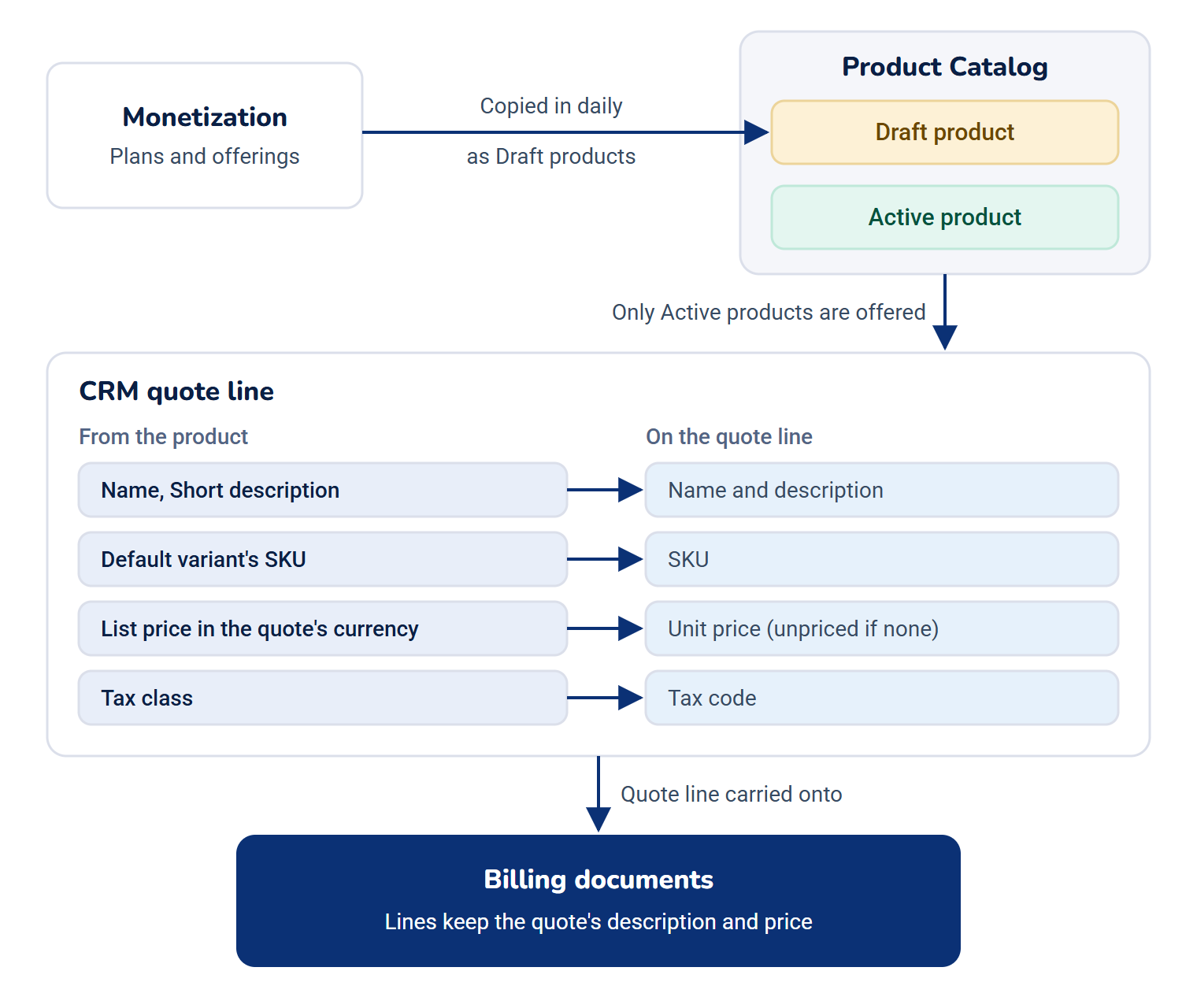
When you add a line to a quote in CRM, the product search offers only Active products, found by name or slug. For the chosen product, the line takes:
| On the quote line | From the product |
|---|---|
| Name and description | Name and Short description |
| SKU | The default variant's SKU, if it has variants |
| Unit price | The List price in the quote's currency. Without one, the line is added unpriced and you enter the price yourself. |
| Tax code | Tax class |
A price in another currency is never converted: the line is added unpriced instead. A bundle is quoted at its own List price, as one line; its contents aren't added up.
Archiving a product doesn't change quotes that already include it: they keep the name it was sold under. It just stops being offered for new lines.
Billing
Billing doesn't read the catalogue itself. A document line keeps the description and price it had on the quote, so later changes in the catalogue don't change documents.
Tax class is a label, such as standard or reduced, that travels with the product onto quote lines. The field's help says Billing turns it into a tax rate, but Billing 2.0.0 ignores it and taxes every line of a document by the same rule. See How tax is calculated.
Products copied from other add-ons
Every day, your Laramin copies items that other add-ons sell into the catalogue as Draft products. Today that's Monetization's plans and offerings. You can then describe them and add files. A copy is never overwritten: later changes in the other add-on only update when it was last checked. The Origin column on the product list shows where a product came from.
What you can manage on screen today
| You can | You can't yet |
|---|---|
| Add, edit and delete products | Publish, archive or copy a product |
| Create categories, brands and collections | Set prices |
| Upload images, documents and digital assets | Choose a product's categories or capabilities |
| Add bundle contents | Create attributes (the axes variants are made from, such as size) |
| Generate variants from existing attributes | Edit or price single variants |
| Add products to a manual collection, or link related products |
The catalogue can hold everything in the right-hand column, but no screen in Product Catalog 1.4.0 does it. Publish, Archive and Duplicate are on the product list, but they answer 1 processed and change nothing. Ask your platform owner how products are being loaded into your catalogue.
How it relates to
- Custom Fields. Fields you add for Product appear in the product form's Additional fields card. See How custom fields work.
- Permissions. Each screen and action has its own permission, and some can be limited to products a person created. See Product Catalog fields and permissions.
- Workspaces. The catalogue is shared by your whole Laramin.
- Turning it off. Products stop being offered to quotes. Existing quotes keep their lines. See Disable or delete an add-on.
Next steps
Thanks. That helps us decide what to write next.
Thanks for telling us what was missing.
You already answered for this article today. Thanks.
We got a lot of answers from your network just now. Try again in a few minutes.
We couldn't send that. Check your connection and try again.
Links in this article
Printed from help.bsscn.com. The online article may have changed since.