Add and publish a product
Create a product, describe it, and delete or restore it. In Product Catalog 1.4.0 the list's Publish, Archive and Duplicate don't change a product yet, so products you create stay drafts.
- Applies to
- Product Catalog 1.3 and later
- Who can do this
- Platform owner, Administrator, Team member
- Permission
feature.pcat. product. create - Where
- Catalog › Products
On this page
Before you start
- You need Create Product (
feature.). To open the list you need List Product (pcat. product. create feature.) or List Product (Own) (pcat. product.list feature.).pcat. product. list_own - If the product has a brand, add the brand first.
Add a product
-
In the sidebar, open Catalog › Products.
-
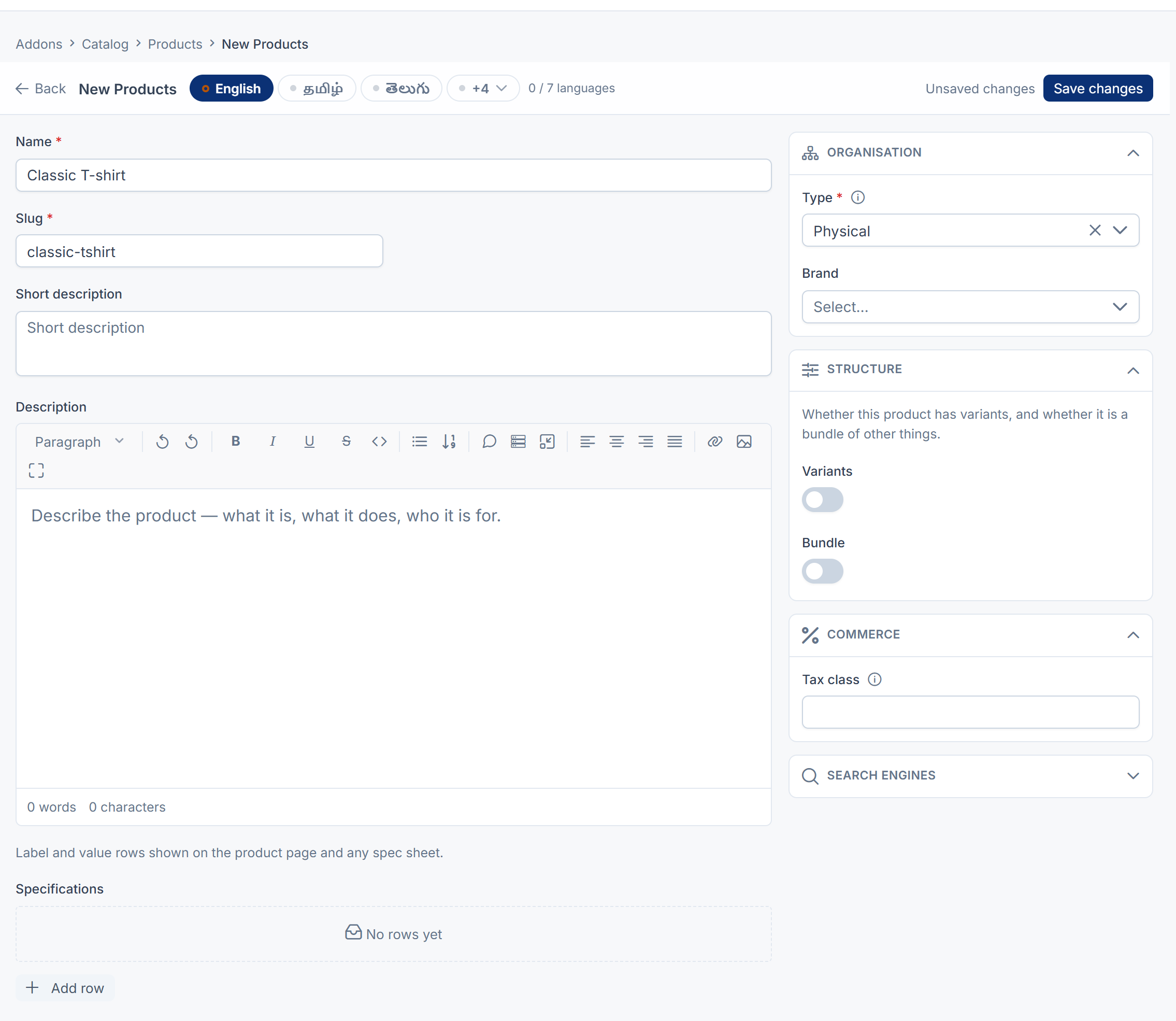
Select New Products. The product editor opens as a full page.
-
In the Identity card, enter the Name, for example
Classic T-shirt. -
In Slug, enter the product's address, in lowercase with dashes, for example
classic-tshirt. It must be unique, and it can't be changed after the product is published. -
Optional: enter a Short description, up to 500 characters. CRM uses it as the line description on quotes.
-
Optional: in the Description card, write the full description.
-
Optional: in the Specifications card, add label and value rows, such as
MaterialandOrganic cotton. -
In the Organisation card, choose the Type, such as Physical, and optionally a Brand.
-
In the Structure card, turn on Bundle if this product is made of other products. Leave Variants on Single SKU: it switches to Has variants by itself when you generate variants.
-
Optional: in the Commerce card, enter a Tax class, such as
standard. It's carried onto CRM quote lines as the tax code. -
Optional: open the folded Search engines card and enter a Meta title and Meta description.
-
Fill in any fields in Additional fields.
-
Select Save.
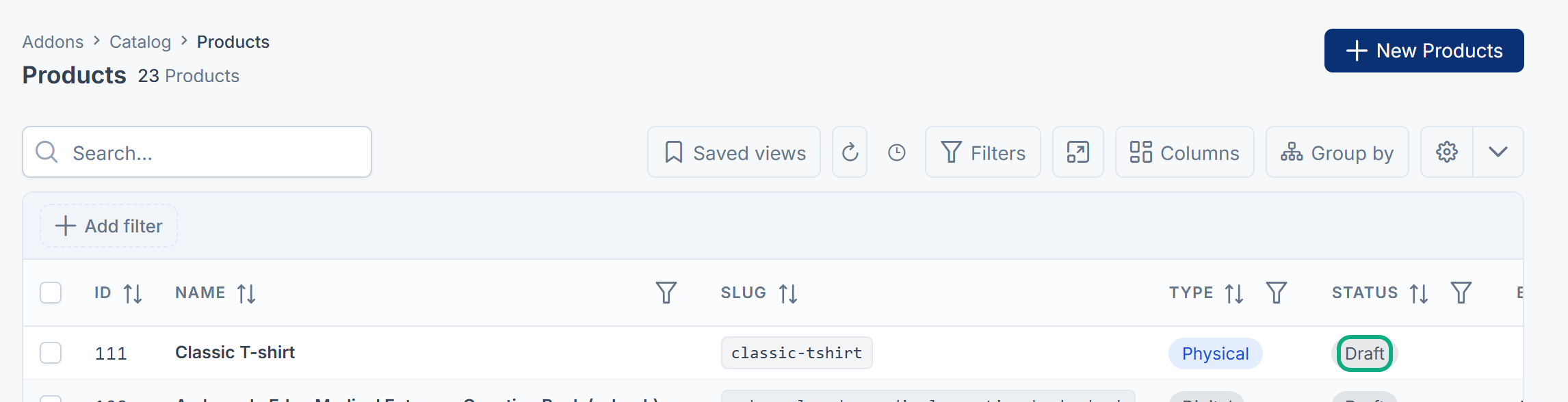
You see Product Classic T-shirt created. The product is a Draft: nothing else in your Laramin offers it yet.
Translate a product
Name, Short description, Description, Specifications, Meta title and Meta description can be entered per language. Use the language switch on those fields.
Publish, archive or copy a product
The product list's row actions menu offers Publish, Archive and Duplicate, and the bulk actions offer Publish and Archive. In Product Catalog 1.4.0 they don't change the product yet: you see 1 processed, but its Status stays as it was and no copy is made.
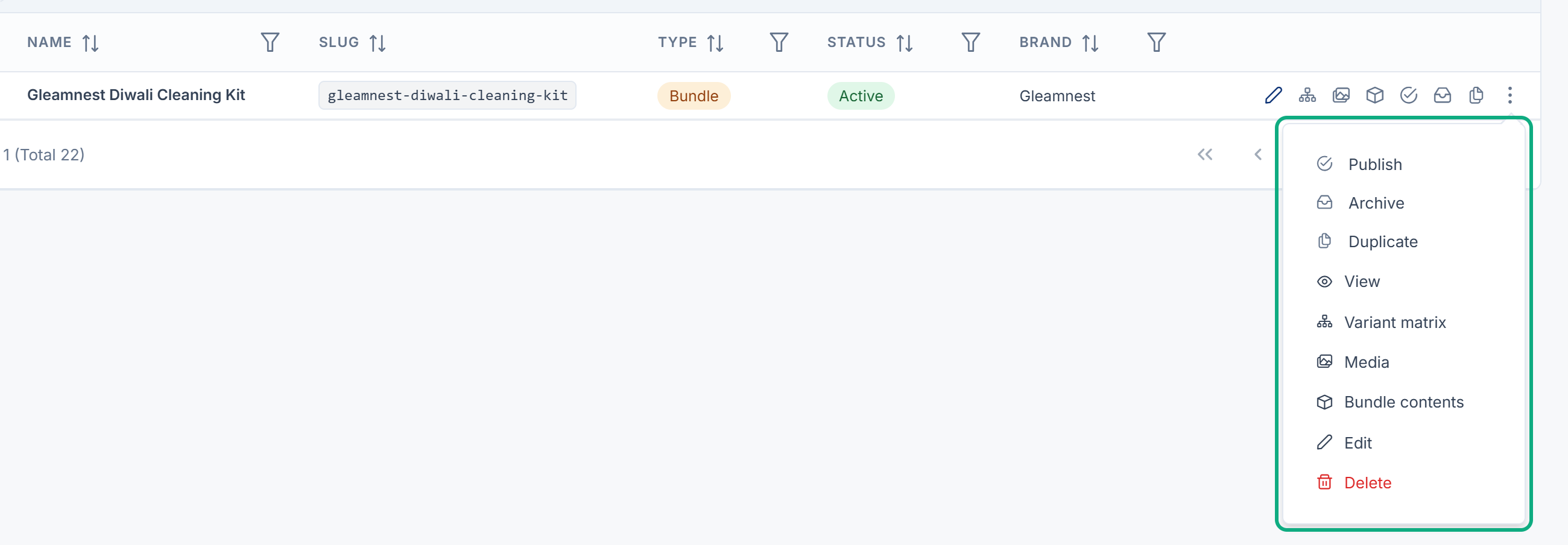
There's no other way on screen to publish, archive or copy a product. So a product you create here stays a Draft, and CRM quotes don't offer it. See A product is missing or unpriced in a quote.
To start a product similar to an existing one, create a new one with New Products.
Delete and restore
- Delete: select Delete in the row's actions menu. The product goes to the trash. You see Product moved to trash.
- Restore: in the list's Trashed view, select Restore. You see Product restored.
- Delete forever: in the Trashed view, select Delete forever. You see Product permanently deleted. This can't be undone.
Quotes that already include a deleted product keep their lines. For the Trashed view and acting on several products at once, see Delete, restore and act on records in bulk.
Only your own products
A role can be limited to the products its holders created, with the (Own) permissions, such as Edit Product (Own). Someone with only those sees and changes just their own products.
What happens next
- Add images and files.
- Create variants, if the product comes in sizes or colors.
- Build a bundle, if you turned on Bundle.
Thanks. That helps us decide what to write next.
Thanks for telling us what was missing.
You already answered for this article today. Thanks.
We got a lot of answers from your network just now. Try again in a few minutes.
We couldn't send that. Check your connection and try again.
Links in this article
Printed from help.bsscn.com. The online article may have changed since.