Build a bundle
Make a product that contains other things: other catalogue products, or plans and offerings from Monetization. Set each item's quantity, whether it's optional, and how it's priced.
- Applies to
- Product Catalog 1.3 and later
- Who can do this
- Platform owner, Administrator, Team member
- Permission
feature.pcat. bundle. create - Where
- Catalog › Products
On this page
A bundle is a product made of other items, such as a starter kit, or a hardware device sold with a subscription plan. Its contents can be catalogue products, other bundles, or items another add-on sells.
Before you start
-
You need Create Bundle (
feature.). To change or remove items, Edit Bundle and Delete Bundle.pcat. bundle. create -
The bundle product must have Bundle turned on in its Structure card. Setting its Type to Bundle isn't enough. See Add and publish a product.
-
Find each item's source and reference:
Item Source Reference A catalogue product catalog.productThe product's UUID A Monetization plan monetization.planThe plan's slug in Monetization A Monetization offering, including enterprise plans monetization.offering The plan's slug in Monetization The product list and form don't show a product's UUID, so you may need your platform owner to look it up.
Steps
-
In the sidebar, open Catalog › Products.
-
In the bundle product's row, select Bundle contents.
-
Select New Component.
-
Enter the Source and Reference. You can't change them after saving: to swap an item, remove it and add the new one.
-
Optional: enter the name to show in Component. If you leave it empty, the item's current name is filled in for you, or the source and reference if the item can't be found.
-
In Quantity, enter how many are included, for example
2. -
Turn on Optional if the customer may leave this item out.
-
In Pricing, choose how the item counts towards the bundle's total:
- Component price: the item's own price.
- Fixed amount: a set price for this item in the bundle. Enter it in Fixed price (minor units), in the currency's smallest unit (
1999means 19.99), and enter the three-letter currency code. - Included free: no charge.
-
Select Save.
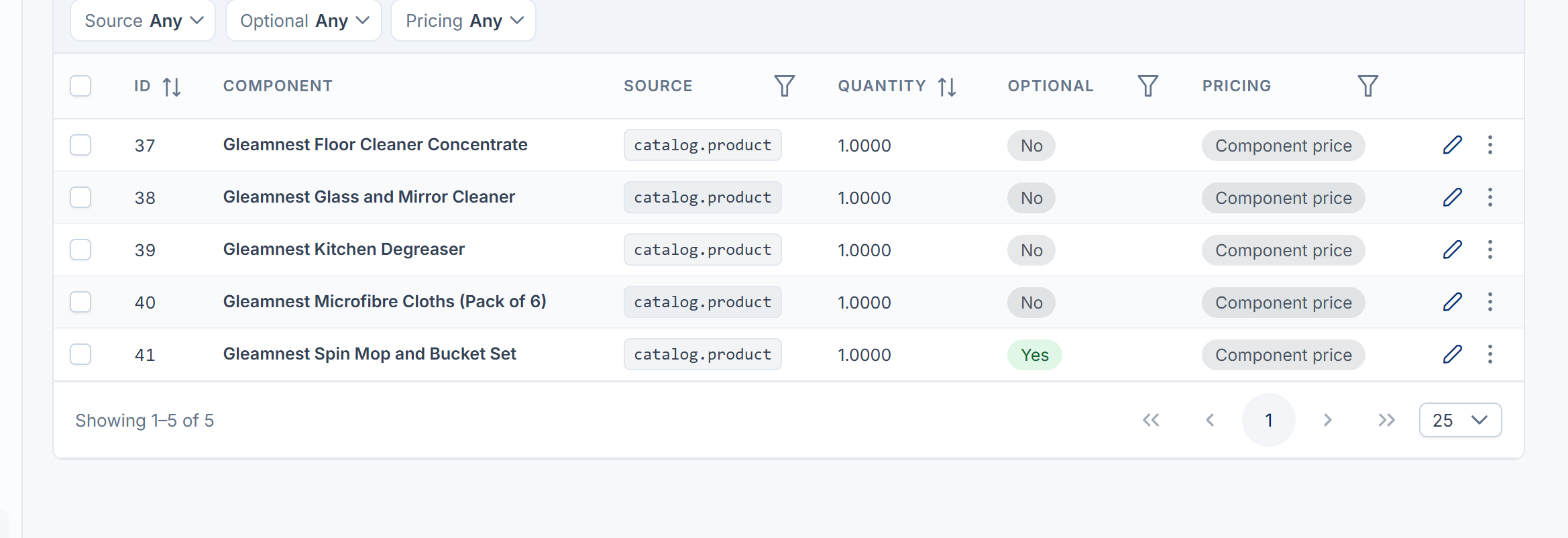
You see Component added to the bundle.
When Laramin refuses
| Message | Why | What to do |
|---|---|---|
| name is not a bundle. | The product's Bundle setting is off. | Edit the product and turn on Bundle. |
| A bundle cannot contain itself. | The reference is the bundle's own UUID. | Use a different product. |
| Adding item would make bundle contain itself, directly or through another bundle. | The item is a bundle that contains this bundle somewhere inside it. | Choose a different item, or change the other bundle. |
| Bundles may not nest more than 5 levels deep. | Bundles inside bundles go too deep. | Flatten some of the levels. |
| A fixed price needs both an amount and a currency. Use "Included free" to add a component at no charge. | Fixed amount was chosen without an amount or currency. | Fill in both, or choose Included free. |
Your Laramin doesn't check that the reference exists. If the item's name shows as its source and reference, such as catalog., the reference was probably wrong, or the add-on it comes from is turned off.
How a bundle is priced on quotes
When a bundle is added to a CRM quote, it's one line at the bundle product's own List price. The contents and their Pricing settings don't change that price. They record what the bundle contains for whoever delivers it.
Change or remove an item
- Change: select Edit in the row's actions menu. You can change everything except Source and Reference. You see Component updated.
- Remove: select Delete. You see Component removed.
- Restore or Delete forever from the Trashed view.
Thanks. That helps us decide what to write next.
Thanks for telling us what was missing.
You already answered for this article today. Thanks.
We got a lot of answers from your network just now. Try again in a few minutes.
We couldn't send that. Check your connection and try again.
Links in this article
Printed from help.bsscn.com. The online article may have changed since.