A file won't upload
The upload box says a file is too large, Failed to upload, or Upload failed. Find out which limit refused it: the field's own, your File Uploads settings, or your server's.
- Applies to
- Core 12.7 and later
- Who can do this
- Administrator, Team member, Platform owner
- Permission
feature.core. uploads.edit - Where
- Configurations › General Settings › File Uploads
On this page
Symptom
You choose a file in an upload box, such as a profile photo, a logo or an add-on package, and it doesn't upload. The box shows one of these:
| The upload box shows | Go to |
|---|---|
| file name exceeds maximum allowed size of size | 1 |
| You can only upload: followed by a list of file types | 1 |
| Failed to upload file name, then Upload failed, "0 of 1 file uploaded" and Retry. The dialog's button stays on Uploading…. | 2, then 3 and 4 |
| Upload failed, "0 of 1 file uploaded" and Retry. Its details say "This looks like a network error, the endpoint might be blocked by an internet provider or a firewall." | 2 |
If the file uploaded but shows as a broken image later, see Uploaded images don't show instead.
Check these, in order
1. The file is over the field's limit, or of the wrong type
The upload box checks the file before sending it, so these messages appear straight away. The size in the message is the limit for that field.
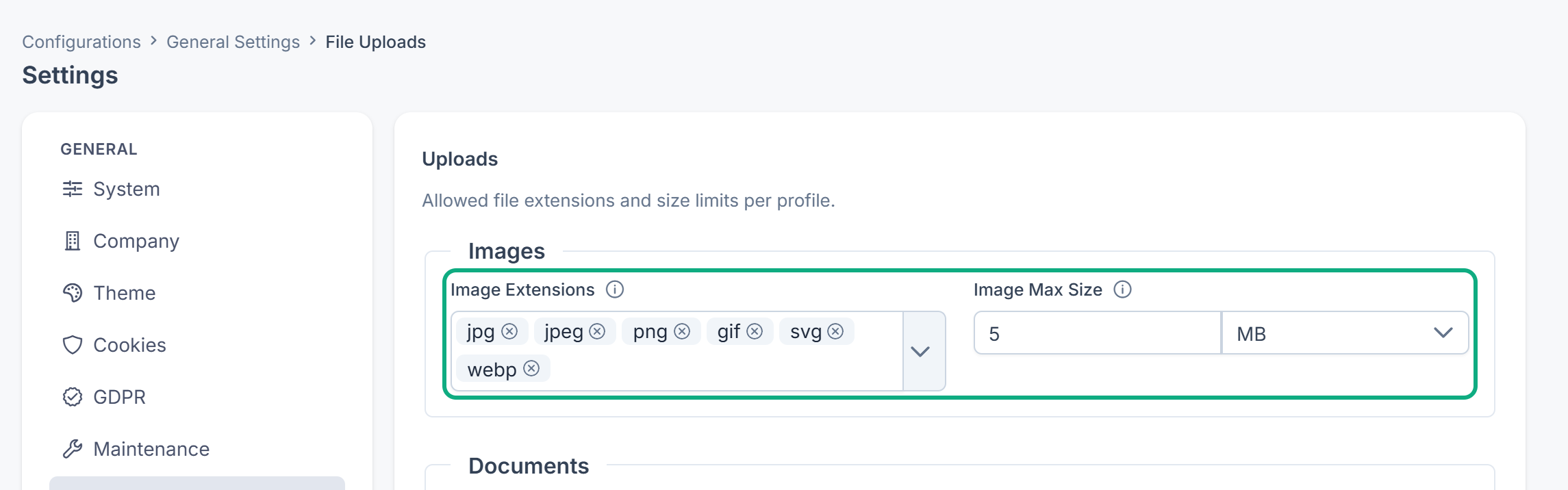
- Most fields follow your File Uploads settings: Images, Documents, Archives or Default. Each has its own file types and largest size. See File upload settings.
- Some fields have a fixed limit that those settings don't change. For example, the Profile Photo on the Users form allows 2 MB, the App icon 2 MB, and an add-on package 100 MB. A CSV import has its own limit of 10 MB.
Fix: Make the file smaller, or save it as an allowed type. If the field follows your File Uploads settings, someone with feature. can raise its max size there (for example Image Max Size) or add the extension.
2. The file is over your server's limit (platform owner)
Your server has upload limits of its own, set outside Laramin:
- PHP's
upload_, for one file. A file over it, but under the next limit, gives Failed to upload file name.max_ filesize - PHP's
post_max_size, for the whole request. A file over it gives Upload failed with the "network error" detail. - The web server's own limit on a request, for example
client_in nginx.max_ body_ size
None of these show the real reason on screen. Laramin's web installer asks for at least 32 MB, which is less than an add-on package (up to 100 MB) or a large Max Size in your File Uploads settings.
Fix: Ask whoever runs your server to raise all three above the largest file people need to upload, and above 100 MB if you upload add-on packages. post_max_size must be at least as large as upload_. Then restart PHP so the new limits apply.
3. Your session ended while the page was open
An upload needs a signed-in session. If the page was open for longer than the session lifetime, the upload is refused and the box shows Failed to upload file name.
Fix: Reload the page, sign in again if Laramin asks, and choose the file again. See You see "Session Expired" or "Page Expired", or you're signed out.
4. Laramin can't save files
If every upload fails, even small ones, Laramin may not be able to write to its storage folder. Open Extra Utilities and check Write Permissions. A red badge means Laramin can't write there.
Fix: Ask whoever runs your server to let the web server write to Laramin's storage folder.
Still not working?
Raise a ticket from Support Center in your Laramin app. Include this page's link, the screen and field you uploaded to, the file's type and size, and the exact message.
Thanks. That helps us decide what to write next.
Thanks for telling us what was missing.
You already answered for this article today. Thanks.
We got a lot of answers from your network just now. Try again in a few minutes.
We couldn't send that. Check your connection and try again.
Links in this article
Printed from help.bsscn.com. The online article may have changed since.