Choose what your website's home page shows
Decide what visitors see at your site's root address, choose which module's page the public website opens on, and set the site's host and search description.
- Applies to
- Core 12.2 and later
- Who can do this
- Administrator, Platform owner
- Permission
feature.core. home_page.edit - Where
- Configurations › Security › Public website
On this page
Before you start
- This setting changes only the root address of your site,
/. The admin stays at/adminwhatever you choose. - To show a public website, at least one enabled module must offer a home page.
- The Content space setting needs the Headless CMS module, installed and set up. See Set up a content space and deliver your first content.
Choose what the root address shows
-
Open Configurations › Security › Public website. The Public website panel opens.
-
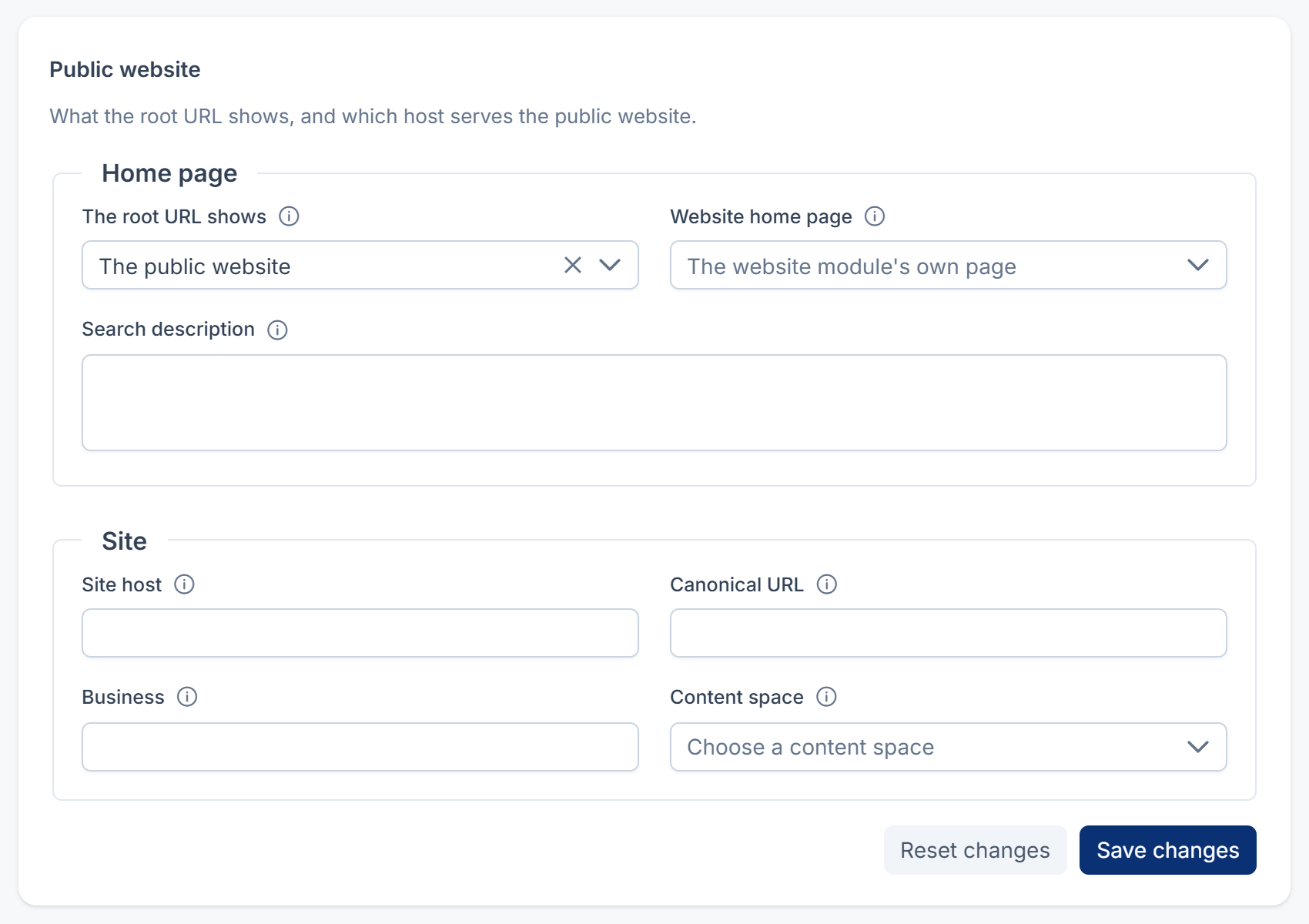
Under Home page, choose an option in The root URL shows:
Option What visitors see The public website The website that a module provides. The default page A plain branded page with the product's name and version. It loads no scripts, fonts or cookies. The admin sign-in The admin's sign-in screen. A coming-soon page A coming-soon page. It tells search engines the site is temporarily unavailable, and not to index it. -
Select Save changes.
If nobody has chosen yet, the root shows The public website when a module offers one, and The default page otherwise.
Choose the website's home page
-
Set The root URL shows to The public website. Website home page appears.
-
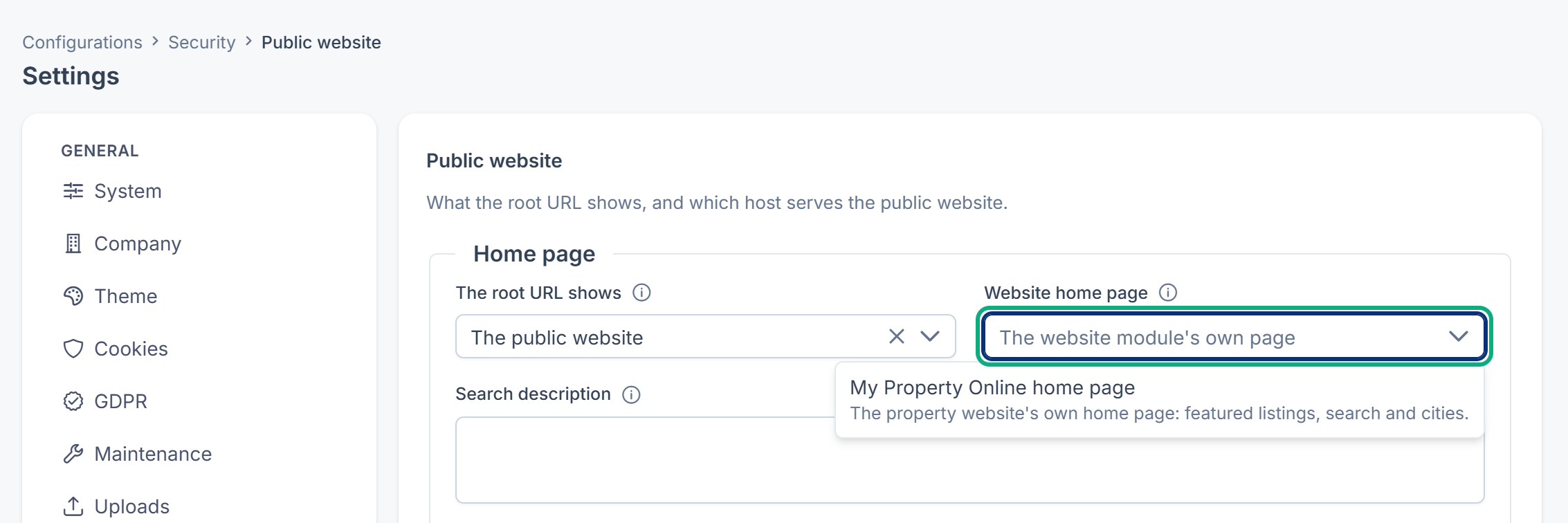
In Website home page, choose the module page the root address opens on. Only pages from enabled modules are offered. Leave it blank to keep the page your website module provides on its own.
-
Select Save changes.
If the module behind your chosen page is turned off later, visitors see the default page instead. The panel then shows a warning, The chosen home page (…) is unavailable because its module is disabled., and the page is listed with This page's module is disabled. Choose another page, or turn the module on again.
Set the search description
- In Search description, write the sentence search engines show under the default page's title. Up to 160 characters.
- Select Save changes.
Leave it blank to use "Sign in to" followed by the system name. Formatting is removed, so type plain text.
Set up the site
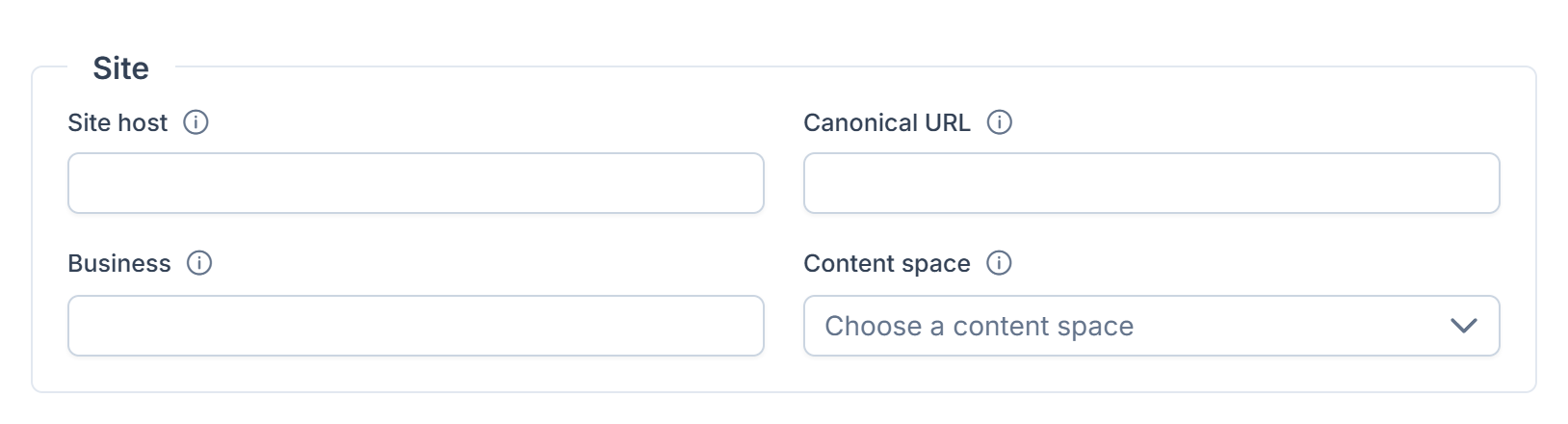
Under Site:
| Field | What it does | Notes |
|---|---|---|
| Site host | The host name visitors use. | Without https://, for example example.com. Up to 253 characters. |
| Canonical URL | The address search engines should index. | Must start with http:// or https://. Defaults to https:// plus the site host. |
| Business | The business whose listings the site shows. | Enter the workspace's Reference, the 26-character code on its details in Users Accounts › Workspaces. Leave it blank when there's only one. |
| Content space | The content space the website's pages, such as Services, are read from. | Only public, active spaces are offered. Without the Headless CMS, a note says Install and set up the Headless CMS to choose a content space. |
When the site has its own host
Your Laramin's own address is the one it's set up with, APP_URL in its settings file. When Site host is a different host name, for example example.com for the website and app.example.com for your Laramin, the admin and its sign-in answer only on your Laramin's own address. From Core 12.8.5, on the website's address they show Page not found, like any page the website doesn't have, so nobody can sign in there. The website's own pages keep working.
If The root URL shows is The admin sign-in, or The default page with its Sign in button, visitors to the website's address are sent to the sign-in on your Laramin's own address.
When Site host is empty, or is the same host name as your Laramin's own address, nothing changes: the website and the admin share that address.
What happens next
The admin header's Website link shows the state of your site. Hover over it to see, for example, Open website in a new tab, or Visitors currently see the coming-soon page.
To close the whole installation for a while, including the admin, use maintenance mode instead. See Turn on maintenance mode.
Thanks. That helps us decide what to write next.
Thanks for telling us what was missing.
You already answered for this article today. Thanks.
We got a lot of answers from your network just now. Try again in a few minutes.
We couldn't send that. Check your connection and try again.
Links in this article
Printed from help.bsscn.com. The online article may have changed since.