Times are shown hours off
A due time, a reminder, a maintenance window or "today" is off by a few hours. Check the four time zones Laramin uses: yours, your workspace's, the installation's and the server's clock.
- Applies to
- Core 12.7 and later
- Who can do this
- Administrator, Team member, Platform owner
- Where
- Profile › Timezone
On this page
Symptom
Times in Laramin don't match your clock. For example, a task due at 10:00 shows 15:30, a task counts as overdue too early, or a maintenance window starts at the wrong hour. Laramin shows no message.
How Laramin picks a time zone
Laramin shows you each time in the first of these that's set:
- Your own time zone, the Timezone in your profile.
- Your workspace's time zone, set on the workspace.
- The installation's time zone, the Default Timezone on the System settings panel. A new installation starts with Asia/Kolkata.
Your own time zone only changes how times are shown to you. What counts as "today", working days and due times always follow the workspace's time zone, so two people in one workspace share one "today".
Check these, in order
1. Your profile's time zone isn't where you are
Open your profile and look at Timezone.
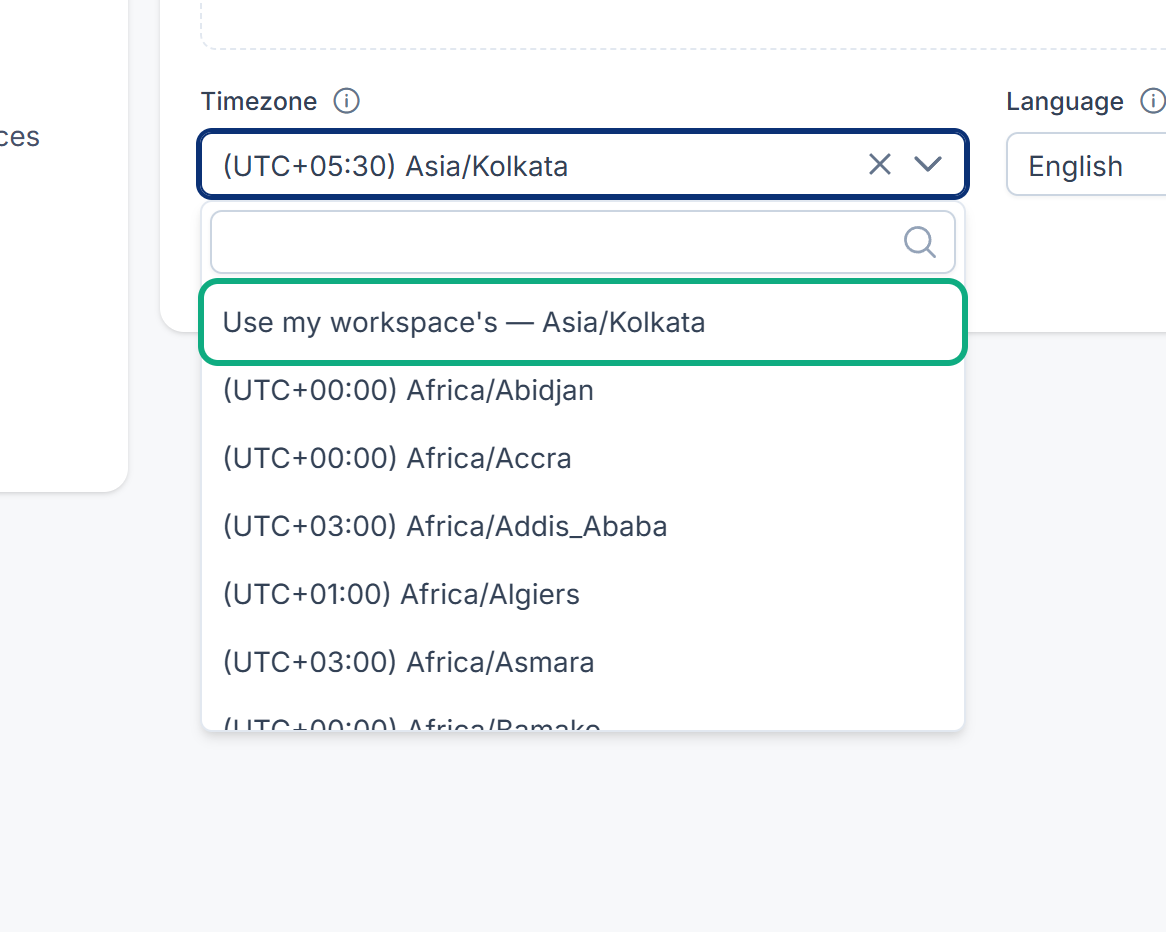
Fix: Choose the time zone you're in, or choose Use my workspace's — … to follow your workspace. Select Save Changes. See Update your profile.
2. "Today" or a due time follows the workspace, not you
If you're in a different time zone from your workspace, a task can turn overdue, or a day can start, at an hour that looks wrong to you. That's by design: these follow the workspace's time zone, whatever you choose in your profile.
Fix: Nothing to change if the workspace's time zone is right. If it's wrong, see the next check.
3. The workspace has the wrong time zone
A workspace has its own Time zone, or Follow the system, which uses the installation's time zone.
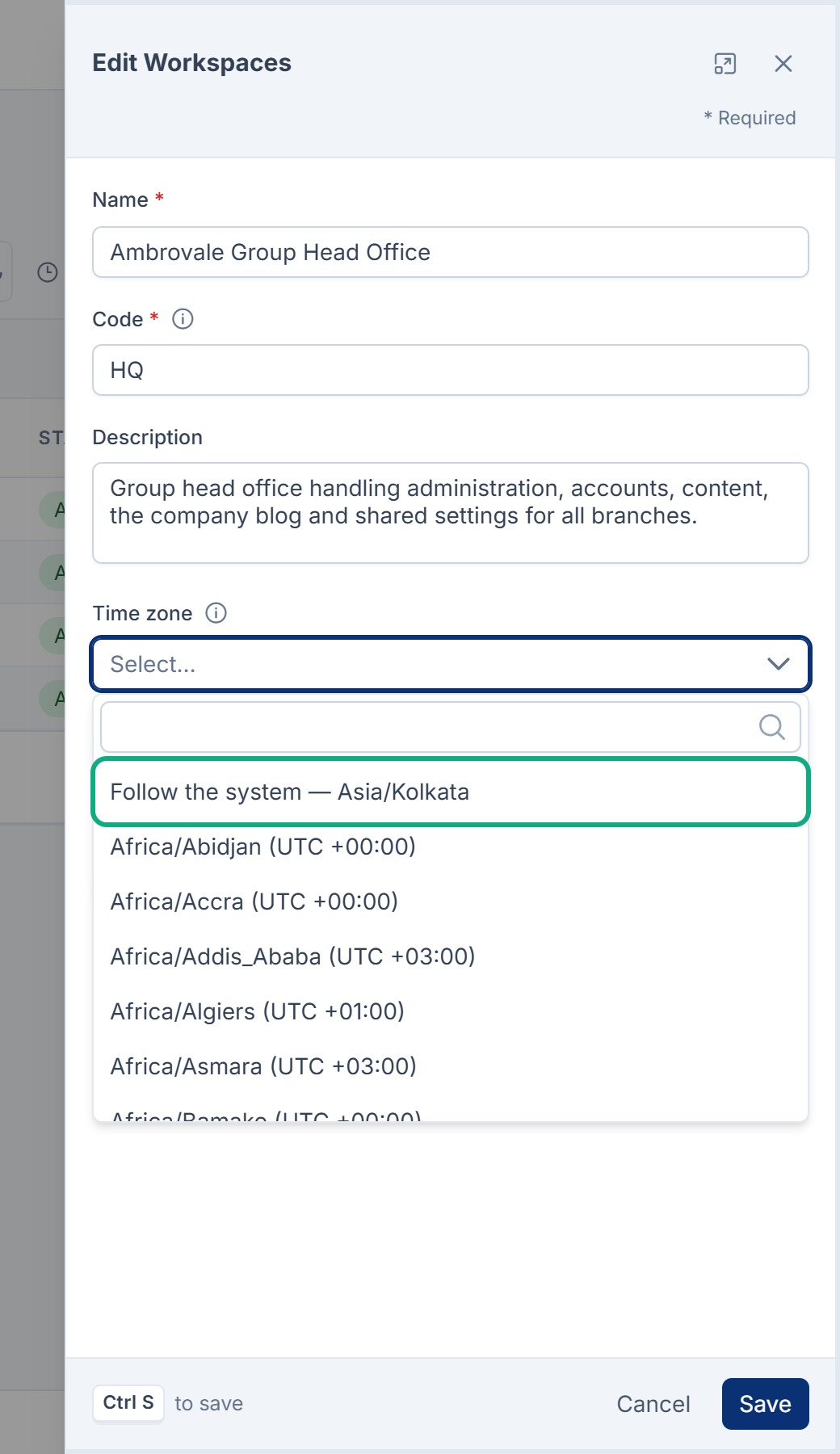
Fix: An administrator who can edit workspaces opens Users Accounts › Workspaces, edits the workspace and chooses its Time zone. Saved times don't move: the same moments are shown in the new zone. See Create a workspace.
4. The installation's time zone was never set
If nobody changed it, the installation uses Asia/Kolkata. Every workspace on Follow the system, and everyone without a time zone of their own, then sees times in Indian time.
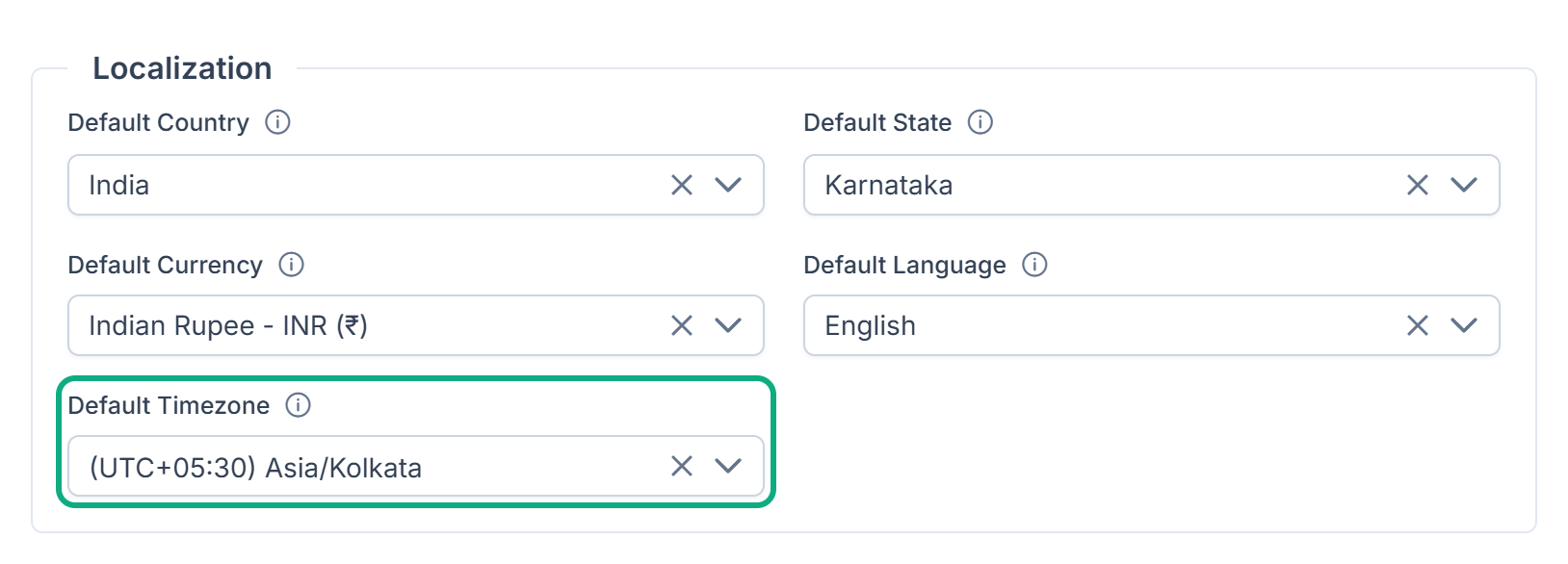
Fix: Someone with feature. opens Configurations › General Settings › System Settings, chooses the right Default Timezone, and selects Save changes. See System and company settings.
Tip: A scheduled maintenance window is always read in the installation's time zone, whatever time zone you're in. The tooltip on its Start Date / Time and End Date / Time fields names that zone. See Turn on maintenance mode.
5. The server's clock is wrong (platform owner)
If the time zones are right and times are still off, or everyone's two-factor codes are refused at once, the server's own clock may be wrong. Two-factor codes only work when the server's clock and the phone's clock agree.
Fix: Ask whoever runs your server to turn on automatic time sync (NTP) on it.
Still not working?
Raise a ticket from Support Center in your Laramin app. Include this page's link, the time Laramin shows, the time you expected, and your profile's and workspace's time zones.
Thanks. That helps us decide what to write next.
Thanks for telling us what was missing.
You already answered for this article today. Thanks.
We got a lot of answers from your network just now. Try again in a few minutes.
We couldn't send that. Check your connection and try again.
Links in this article
Printed from help.bsscn.com. The online article may have changed since.