Uploaded images don't show
Logos, profile photos and other uploaded pictures show as broken images, here or on a website or app that uses your Laramin. Find the cause on the server and fix it.
- Applies to
- Core 12.7 and later
- Who can do this
- Platform owner, Administrator
On this page
Symptom
Logos, profile photos and other uploaded pictures show as broken images. Opening one in its own tab gives a "not found" page instead of the picture. Uploading still seems to work, and no error appears.
If an upload itself fails, see A file won't upload instead.
Check these, in order
1. The storage link is missing
Uploaded files are kept in your Laramin's storage folder, and visitors reach them through a link at public/storage. Some hosts don't allow that link, and moving Laramin can leave it pointing nowhere.
Ask whoever runs your server to run this command. It checks the link and the folder permissions, and explains anything wrong, for example that public/storage doesn't exist.
Couldn't copy. Select the code and press Ctrl+C (⌘+C on a Mac).
php artisan storage:check-publicFix: run it again with --fix, which re-creates the link and corrects the permissions. php artisan storage:link also re-creates the link.
Couldn't copy. Select the code and press Ctrl+C (⌘+C on a Mac).
php artisan storage:check-public --fix2. The web server can't read the new files
Pictures uploaded before a certain day work, and newer ones don't. The folders created since can't be read by the web server, for example because they belong to another user.
Fix: php artisan storage:check-, as in check 1.
3. The site address in the settings file is wrong
Your Laramin builds each picture's address from APP_URL, or from LOCAL_ASSET_URL when that's set. If either names another address, an old domain, or http:// on a site served over HTTPS, the browser can't load the pictures or blocks them.
The web installer writes the address it was opened at into APP_URL, from Core 12.8.2. If it was opened at an IP address or a temporary address, change it once the real domain is ready.
Fix: whoever runs the server sets both to your site's address in the server's settings file, for example:
Couldn't copy. Select the code and press Ctrl+C (⌘+C on a Mac).
APP_URL=https://crm.example.com
LOCAL_ASSET_URL=https://crm.example.com/storage/
Replace the highlighted values with your own.
Then they run php artisan config:clear. To find the file, see A setting or a change to the settings file doesn't take effect.
If your Laramin was installed with Core 12.8.1 or earlier
The web installer left APP_URL, ASSET_URL and LOCAL_ASSET_URL at http://127.0.0.1:8000, whatever address you installed at. If they still say that, change all three to your site's address as above. Upgrading doesn't change them for you.
4. Local Asset URL on the Storage panel holds an old address
When Local Asset URL in Developer Tools › Developer Settings › Storage Settings has a value, it replaces the address from the settings file.
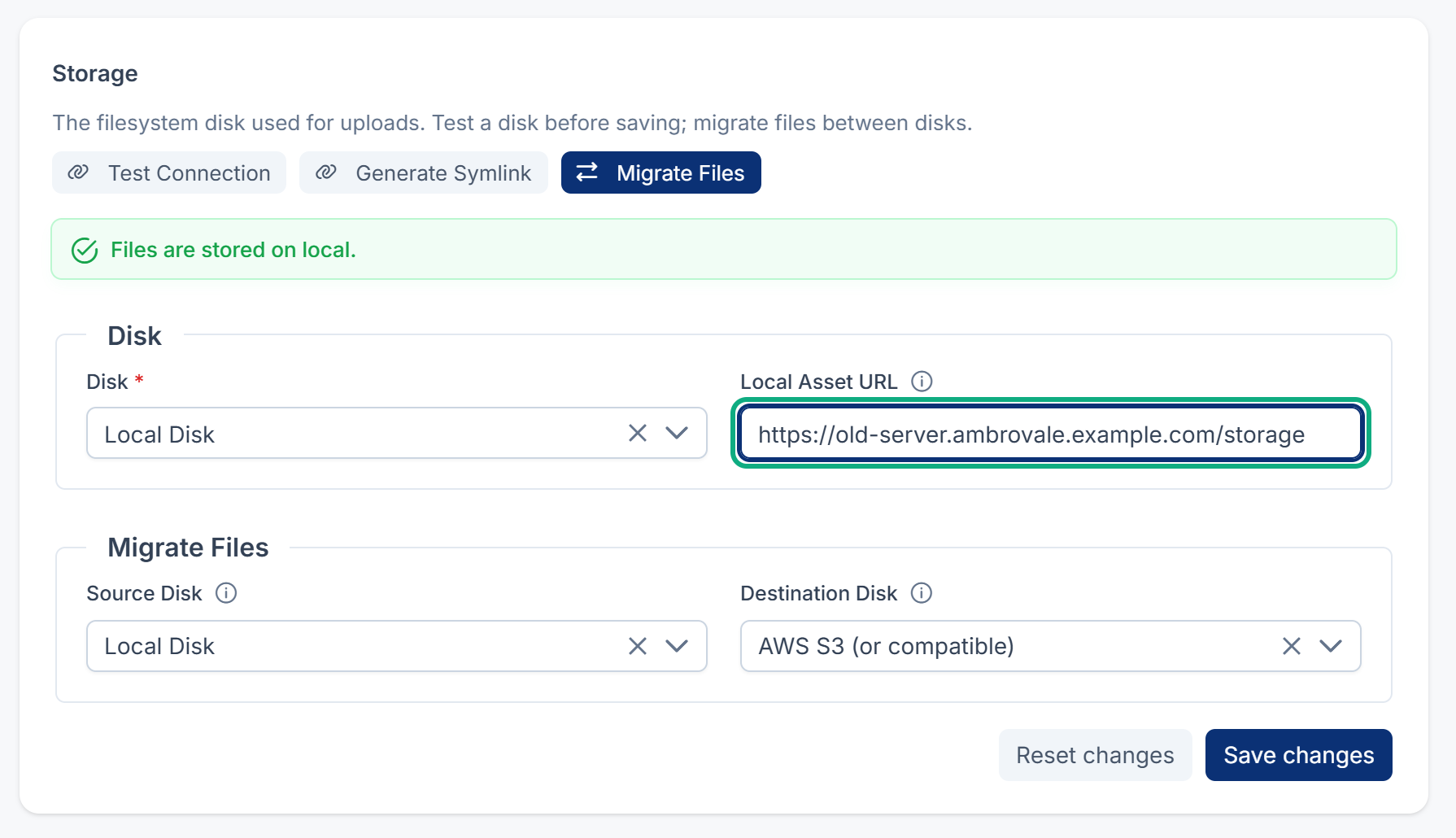
Fix: correct it, or clear it unless you serve files from another address on purpose, such as a CDN.
5. The storage was switched after files were uploaded
If someone changed where uploads are stored, for example from the server to S3, older files stay where they were and newer pictures point at the new place.
Fix: whoever runs the server copies the files across, naming the old storage and the new one:
Couldn't copy. Select the code and press Ctrl+C (⌘+C on a Mac).
php artisan storage:migrate --from=<old-disk> --to=<new-disk>Also check that the new storage's address fields are filled in and that its files can be read publicly.
6. Only one person's photo is broken, after their account was restored
Deleting a user from the row menu also deletes their profile photo, and restoring the account doesn't bring it back.
Fix: upload the photo again. See Delete, restore or permanently delete a user.
Still not working?
Raise a ticket from Support Center in your Laramin app. Include this page's link, the address of one broken picture, and the output of php artisan storage:check-.
Thanks. That helps us decide what to write next.
Thanks for telling us what was missing.
You already answered for this article today. Thanks.
We got a lot of answers from your network just now. Try again in a few minutes.
We couldn't send that. Check your connection and try again.
Links in this article
Printed from help.bsscn.com. The online article may have changed since.