Things break after moving Laramin to a new address or server
After a move from staging to live, to a new domain or to a new server, pages refuse, pictures break, add-ons lose their license or scheduled jobs stop. Work through this checklist.
- Applies to
- Core 12.7 and later
- Who can do this
- Platform owner
On this page
Symptom
You moved Laramin to a new address, a new server, or both. Now some of these happen:
-
Pages answer with error 400 (Bad Request), or load without styles.
-
Pictures show as broken images.
-
Add-ons show Invalid License.
-
Sign-in to the Help Center, social sign-in or mobile app sign-in fails.
-
Scheduled jobs and emails stopped.
Each piece fails on its own, so go through the whole list.
Check these, in order
1. The site address in the settings file
APP_URL, ASSET_URL, LOCAL_ASSET_URL and TRUSTED_HOSTS still name the old address.
Fix: whoever runs the server sets them to the new address in the server's settings file, then runs php artisan config:clear. See Laramin answers Bad Request, redirects endlessly or loads without styles. If the new server sits behind a proxy or load balancer, set TRUSTED_PROXIES too.
2. The storage link and Local Asset URL
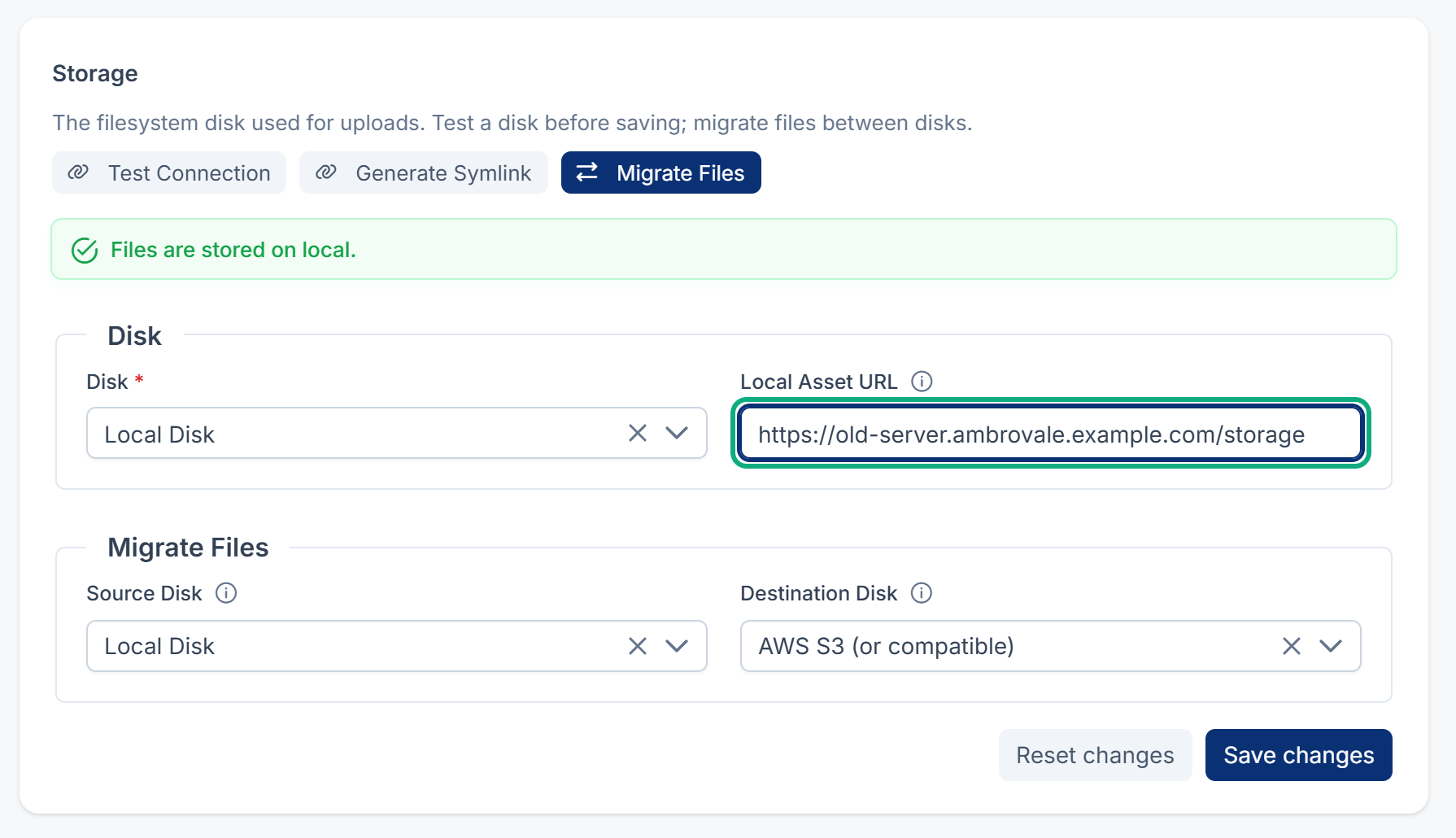
The public/storage link may point at the old folder, and Local Asset URL in Developer Tools › Developer Settings › Storage Settings may still name the old address.
Fix: run php artisan storage:check-, and correct or clear Local Asset URL. See Uploaded images don't show.
3. The application key
Passwords and keys saved in Laramin, such as mail servers, storage and providers, are encrypted with APP_KEY. On a new server with a new key, Laramin can't read them.
Fix: keep the same APP_KEY as the old server. If it's already changed, run php artisan app:check- to list what can't be read, then put back the old key or enter each value again. See A setting or a change to the settings file doesn't take effect.
4. Add-on licenses
Licenses are tied to your Laramin's address and application key, so a move can make add-ons show Invalid License and turn them off.
Fix: activate each license again, then enable the add-on. See An add-on is stuck, failed or won't upgrade.
5. The cron entry
The new server has no cron entry, or the HTTP cron service still calls the old address.
Fix: add the cron entry on the new server, or point the cron service at the new address with the same secret. See Scheduled jobs don't run.
6. The mobile app's sign-in
The new server may lack the keys the mobile app's sign-in needs. Whoever runs the server runs this command. It changes nothing, and says what's missing:
Couldn't copy. Select the code and press Ctrl+C (⌘+C on a Mac).
php artisan auth:mobile-client --checkFix: if it reports a problem, run php artisan auth:mobile-. See An integration stopped working.
7. Connections that know your old address
- Help Center: if opening help from your Laramin no longer signs you in, connect again. See Connect your installation to the Help Center.
- Social sign-in: each provider sends people back only to the callback addresses registered with it. Add the new callback address in the provider's console. See Set up a sign-in provider.
- Webhooks and payment providers: services that call your Laramin, such as a payment provider, still call the old address. Update the address in each provider's dashboard.
Still not working?
Raise a ticket from Support Center in your Laramin app. Include this page's link, the old and new addresses, and which of these checks you've done.
Thanks. That helps us decide what to write next.
Thanks for telling us what was missing.
You already answered for this article today. Thanks.
We got a lot of answers from your network just now. Try again in a few minutes.
We couldn't send that. Check your connection and try again.
Links in this article
Printed from help.bsscn.com. The online article may have changed since.