A setting or a change to the settings file doesn't take effect
You changed the server's settings file or saved a setting, and Laramin carries on as before. Find which value really applies: the right file, a cached copy, a setting saved in Laramin, or a personal choice.
- Applies to
- Core 12.7 and later
- Who can do this
- Platform owner
On this page
Symptom
You changed a value in the server's settings file, or saved a setting on a screen, and nothing changed. No message says why.
Check these, in order
1. You edited a file Laramin doesn't read
Your Laramin reads its settings from environments/ when that file exists, and otherwise from the .env file in its main folder. <environment> is the APP_ENV value in that main .env, such as production. So when environments/ exists, the main .env only chooses the environment, and changes to anything else in it do nothing.
Fix: make the change in the file Laramin reads, for example:
Couldn't copy. Select the code and press Ctrl+C (⌘+C on a Mac).
/path/to/laramin/environments/.env.productionReplace the highlighted values with your own.
2. The settings are cached
Many servers cache the settings file when Laramin is deployed, so later edits are ignored until the cache is rebuilt.
Fix: whoever runs the server runs php artisan config:clear. A super admin can instead select Clear Cache on Extra Utilities.

3. A setting saved in Laramin wins over the settings file
For some settings, a value saved in Laramin wins over the settings file, so editing the file changes nothing:
| Setting | Where to change it |
|---|---|
| Queue connection | Developer Tools › Developer Settings › Queue Settings |
| Session driver, Same-Site Cookie, Encrypt Session Data, Secure Cookie (HTTPS only) | Developer Tools › Developer Settings › Session Settings |
| Cache driver | Developer Tools › Developer Settings › Cache Settings |
| Storage driver and Local Asset URL | Developer Tools › Developer Settings › Storage Settings |
| Force HTTPS | Enable Force HTTPS on Extra Utilities |
A new installation saves a value for most of these straight away: the queue as Sync, the session driver as Database with Encrypt Session Data on and Secure Cookie (HTTPS only) off, Force HTTPS off, and local storage. So a new installation starts on Sync, even when the server's settings file says QUEUE_, because the setting saved in Laramin wins. Background work runs straight away until someone sets Connection to Database on Developer Tools › Developer Settings › Queue Settings. Only a setting that's saved empty gives way to the settings file.
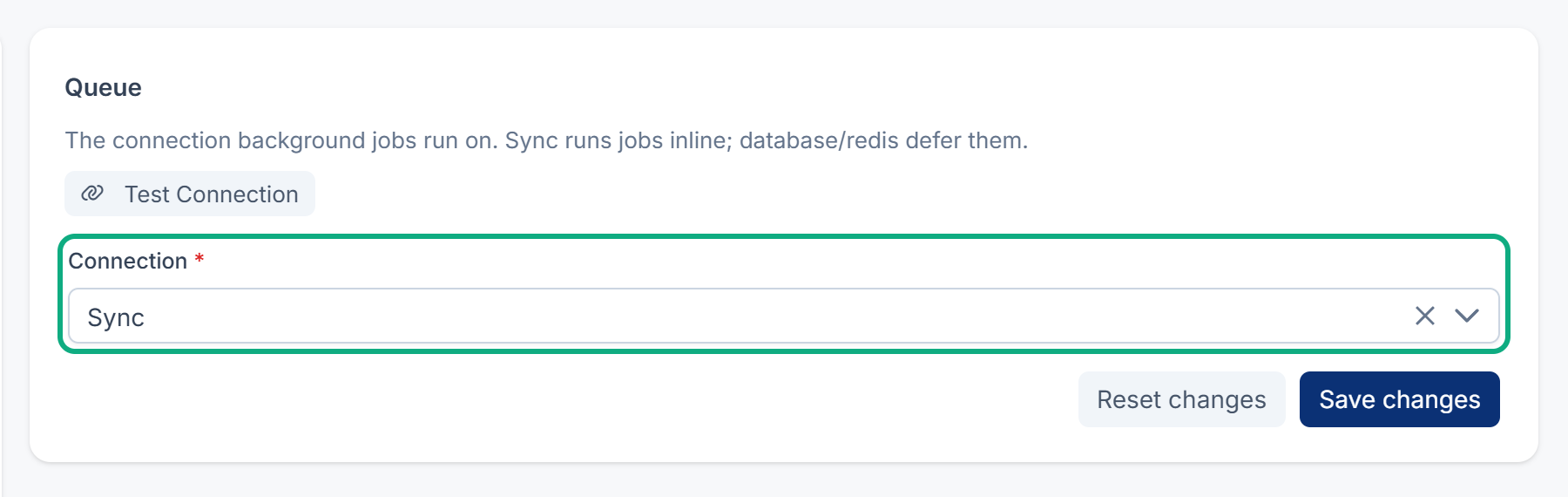
Fix: change the value on its panel. To see which value each part of Laramin really uses, whoever runs the server runs this command. It compares what's asked for with what's in effect:
Couldn't copy. Select the code and press Ctrl+C (⌘+C on a Mac).
php artisan infra:doctorIf you're on, or installed with, Core 12.8.1 or earlier
-
Installed with 12.8.1 or earlier: Same-Site Cookie was saved as Strict, so links from emails and other websites open the sign-in page and sign people out, and social sign-in fails.
SESSION_in the settings file changes nothing. It stays Strict until someone changes it; upgrading doesn't switch it. Fix: in Developer Tools › Developer Settings › Session Settings, set Same-Site Cookie to Lax and save, unless your team chose Strict on purpose. New installations from Core 12.8.2 save Lax. See You see "Session Expired" or "Page Expired", or you're signed out.SAME_ SITE=lax 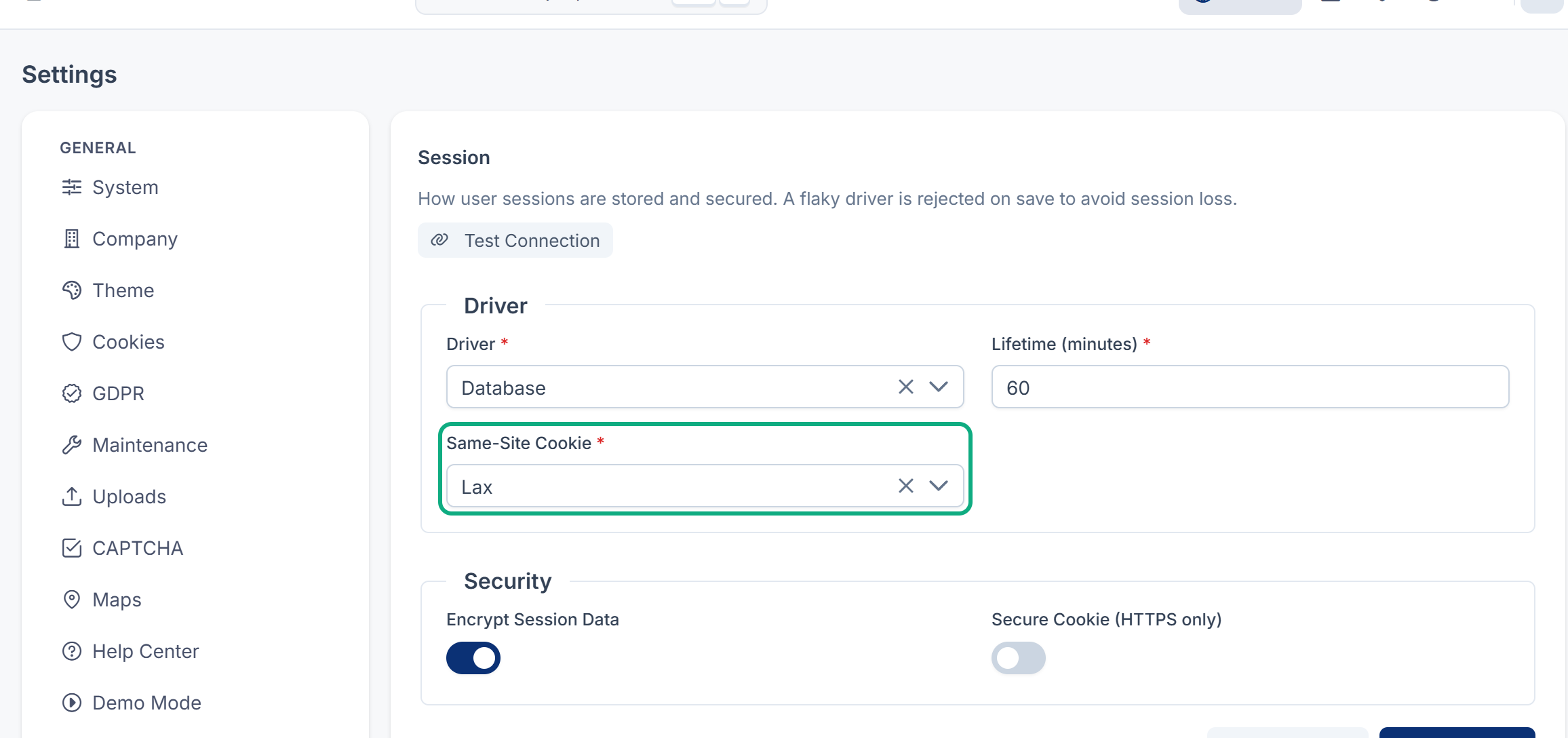
-
Running 12.8.1 or earlier: the mail server's address, user name, password and encryption in the settings file were ignored. Fix: upgrade Core to 12.8.2. See Emails from Laramin don't arrive.
4. A saved value can't be read
Passwords and keys are saved encrypted with your Laramin's APP_KEY. If the key changed after they were saved, Laramin can't read them. This happens on every Laramin installed with Core 12.8.1 or earlier, because the installer changed the key after saving Notification Manager's email details. It also happens when APP_KEY changes later, for example after a move.
From Core 12.8.2, a value Laramin can't read counts as empty, so the settings file's value applies instead. On an earlier Core, the setting stays broken until you enter it again.
Fix: whoever runs the server runs this command. It changes nothing; it lists each saved value Laramin can't read, with its table and record.
Couldn't copy. Select the code and press Ctrl+C (⌘+C on a Mac).
php artisan app:check-encryptedEnter each listed value again on its own settings screen and save, or put back the APP_KEY they were saved with. For Notification Manager's email, see Emails from Laramin don't arrive.
5. A personal or workspace value wins
Some settings can be changed for one person or one workspace, and that choice wins over the installation's:
- A person's Language and Timezone in their profile. Every account has its own language, so changing Default Language doesn't change anyone's language. New accounts start in English too, unless the mobile app sends a language at sign-up. Default Language only sets the sign-in screen's language until someone chooses one there. See Change the interface language.
- A workspace's own time zone and company details. See Times are shown hours off.
Fix: change it where it applies.
6. Someone changed the database directly
Laramin keeps its settings in a cache, so a change made straight in the database isn't seen until the cache is cleared.
Fix: run php artisan cache:clear. If your Laramin runs on several servers that each keep their own file cache, clear it on every server, or switch to a shared cache on Cache Settings.
Still not working?
Raise a ticket from Support Center in your Laramin app. Include this page's link, the setting, the file or screen you changed, and the output of php artisan infra:doctor. Don't include passwords or keys.
Thanks. That helps us decide what to write next.
Thanks for telling us what was missing.
You already answered for this article today. Thanks.
We got a lot of answers from your network just now. Try again in a few minutes.
We couldn't send that. Check your connection and try again.
Links in this article
Printed from help.bsscn.com. The online article may have changed since.