How Property CRM fits into Laramin
Property CRM keeps your properties, your clients' requirements and your inquiries, and matches them. Here's what it keeps itself, what it borrows from other parts of your Laramin, and how a lead becomes a sale.
Why this step
Property: A listing: its owner, what's on offer and at what price, its details and photos. CRM borrows from other parts of your Laramin. Knowing which tells you what works on day one, and what needs another add-on.
Today you only need:
- Applies to
- Property CRM 5.1 and later
- Who can do this
- Platform owner, Administrator, Team member
In short
Property CRM is where a property business keeps its properties (listings), its clients' requirements (what a buyer or tenant is looking for) and its inquiries (leads). It matches requirements to properties and follows each lead from first contact to a sale or a rental. The people behind them, your clients, live in your Laramin's shared directory, so a person is recorded once however many deals they're part of.
How it works
What Property CRM keeps
| Record | What it is | In the sidebar |
|---|---|---|
| Property | A listing: its owner, what is offered and at what price, its details, location, photos and whether it shows on your website. | Properties |
| Requirement | What one buyer or tenant wants: purpose, property type, size, budget and location. | Requirements |
| Inquiry | A lead: who got in touch, how, and what they asked for. | Inquiries |
| Client | A person or company your business deals with, and the role they play in a deal: Buyer or Seller. A tenant is recorded as a Buyer and a landlord as a Seller on a Rent deal. See Deal roles. | Clients |
In the Platform Administration sidebar, these are under Property CRM. Each property, requirement and inquiry gets a code when it's created, such as PROP-000012. You can change how codes look in Property CRM settings.
From inquiry to sale
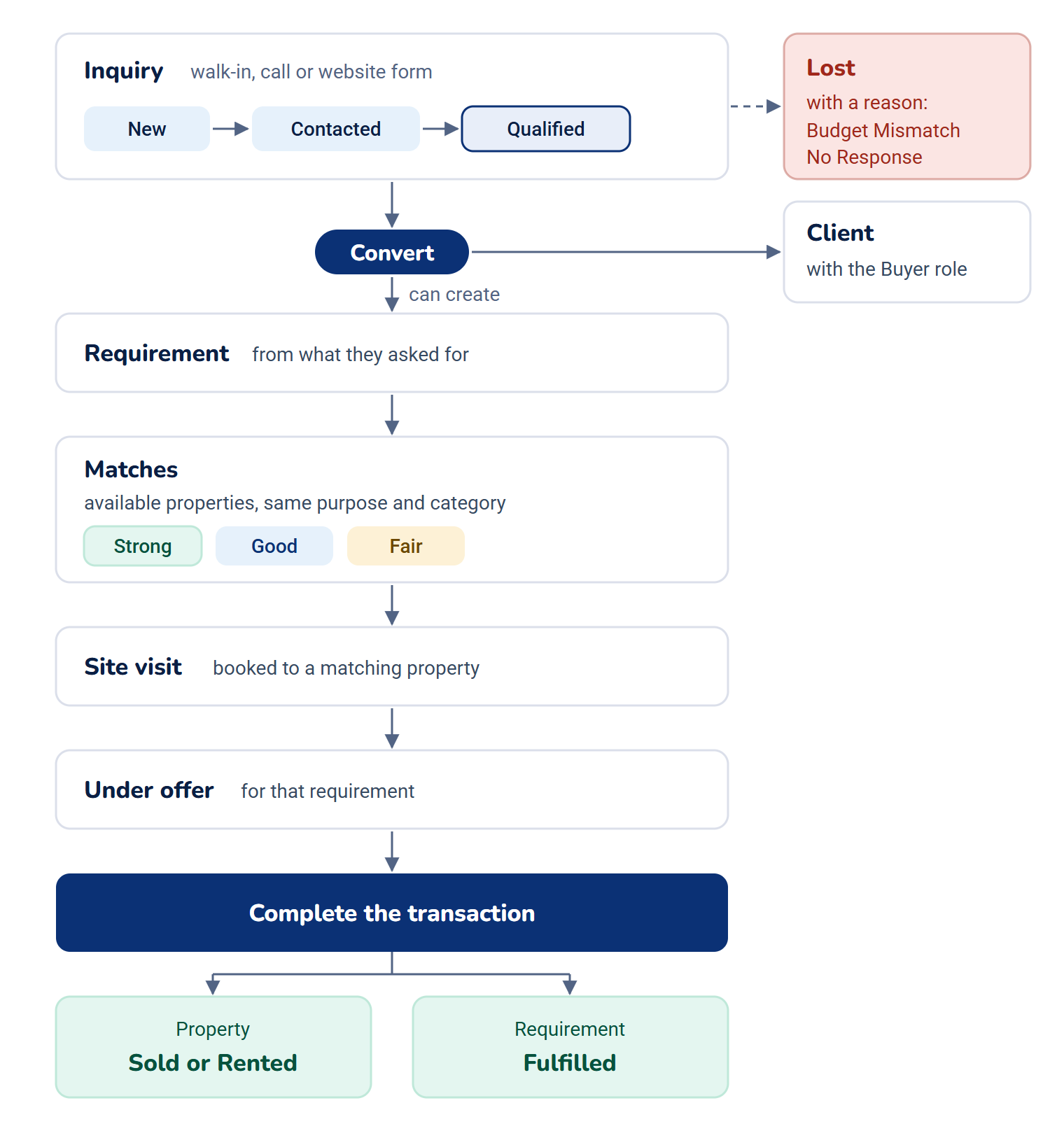
- An inquiry comes in: someone walks in, calls, or sends a form from your website. It starts as New.
- You contact and qualify them. The inquiry moves to Contacted, then Qualified.
- You convert the inquiry. Laramin makes the person a client with the Buyer role, and can create a requirement from what they asked for.
- The requirement lists matches: available properties for the same purpose and category, ranked Strong, Good or Fair.
- You book a site visit to a matching property.
- When the buyer commits, you place the property under offer for that requirement, then complete the transaction. The property becomes Sold or Rented and the requirement Fulfilled.
A lead that goes nowhere is marked Lost, with a reason such as Budget Mismatch or No Response, so the record says why.
What it borrows from the rest of your Laramin
| From | What it gives Property CRM | Without it |
|---|---|---|
| Organization add-on | The shared directory that stores your clients. See How Organization keeps one record per person and company. | Required. Property CRM doesn't start without it. |
| CRM add-on | Follow-ups: Schedule follow-up on an inquiry, requirement or property, and the Follow-ups list. | Optional. Each record's Follow-ups tab says follow-ups are unavailable. |
| Activities add-on | Tasks, and site visits, which are booked as tasks. | Optional. Site visits can't be booked or recorded. Everything else works. |
| Notification Manager add-on | Delivers Property CRM's alerts, such as a new lead, on the channels and with the message templates you set up there. | Optional. Without it, Property CRM's alerts aren't sent: your Laramin's built-in email covers only a few account and security messages. See How Notification Manager sends notifications. |
| Core search | Clients, properties, requirements and inquiries in the command palette. | Always there. See Search with the command palette. |
One business at a time
Every property, requirement, inquiry and client belongs to one workspace, the business it was recorded in. You see and change the records of the workspace you're working in. To add or change a record you must be working in a single workspace: in All Workspaces you can read records but not change them, and Laramin says Choose a business before making this change. See Switch workspace.
Within a workspace, Property CRM roles don't limit people to their own records. An agent sees every client, property, requirement and inquiry of the business.
The Property CRM experience
Property CRM brings its own experience, Property CRM, with a sidebar made for the work: Dashboard, Clients, Properties, Requirements, Inquiries, Follow-ups (when the CRM add-on is installed), and a Property CRM group with Users, Settings and the System, Company and Theme settings. It opens on the Property CRM dashboard. Each entry shows only to people whose permissions allow it.
Anyone with a Property CRM role can enter it. People who also use other parts of Laramin switch to it with View in the header. See Switch to another experience.
Your website
Each property has a Show on website switch, on for new properties. If your business has a website that shows your listings, a property appears there while the switch is on, its status is Available or Under Offer, and its Listing Expires On date hasn't passed. Forms sent from that website arrive as inquiries with Inquiry Source set to Website.
How it relates to
- Workspaces, teams and experiences: they decide where people work and what they see. See how workspaces, teams and experiences control access.
- Roles: five ready-made Property CRM roles decide what each person can do. See Give people a Property CRM role.
Next steps
Links in this article
Printed from help.bsscn.com. The online article may have changed since.