How Organization keeps one record per person and company
Organization is your Laramin's shared directory of people and companies, called parties. Here's what a party holds, what each business keeps for itself, and how Property CRM and other add-ons build on it.
- Applies to
- Organization 3.1 and later
- Who can do this
- Platform owner, Administrator, Team member
On this page
In short
Organization keeps one record for each person, company or group your businesses deal with. Each record is a party. A party is recorded once for your whole Laramin, however many businesses deal with it and whatever it is to each of them: a customer of one business, a supplier to another. Other add-ons, such as Property CRM, keep their clients here instead of keeping their own list of people.
How it works
What a party is
Every party has a Type:
| Type | Use it for |
|---|---|
| Person | One human being. You can record their first, middle and last name, date of birth and gender. |
| Organization | A company or other body. You can record its legal and trading names, and a parent organization. |
| Group | A household, a buying group or a family paying one bill: several people acting as one. |
You choose the type when you add the party, and you can't change it later. Each party gets a party number, such as PTY-00042.
What's shared, and what each business keeps
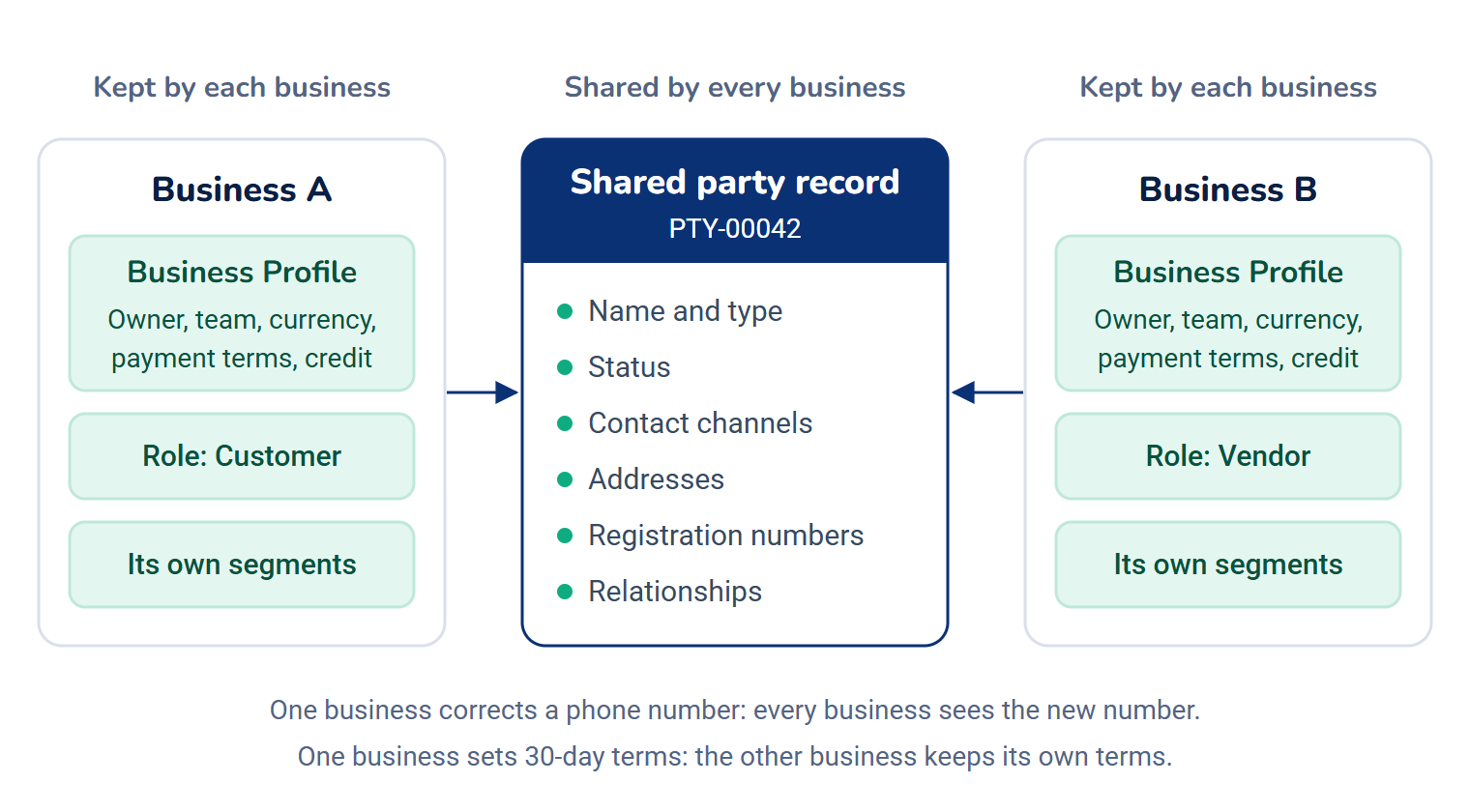
A party's identity is shared. Everything a business has agreed with the party belongs to that business alone.
| Shared by every business | Kept by each business |
|---|---|
| Name and type, status, notes and parent organization | Business Profile: who owns the relationship, the team, currency, payment terms and credit |
| Contact channels: email, phone, mobile, WhatsApp, fax and website | Roles: what the party is to that business, such as Customer or Vendor |
| Addresses | Segments the business has tagged the party with |
| Registration numbers and relationships to other parties |
So when one business corrects a phone number, every business sees the new number. When one business puts a supplier on 30-day terms, another business that buys from the same supplier keeps its own terms.
You see the parties your businesses deal with. A party you've never dealt with doesn't appear in your Parties list, even if another business on your Laramin knows it, and it doesn't open from your business.
Roles: what a party is to you
A party's roles say what it is to your business. Organization comes with nine: Customer, Prospect, Vendor, Supplier, Partner, Reseller and Distributor for people and organizations, and Employee and Contractor for people only. Other add-ons add their own. Property CRM, for example, adds Buyer, Seller, Landlord and Tenant.
Each role has dates: Held from and, once it ends, Held until. Ending a role keeps its history, so you can always see that someone was a customer from March to August. One party can hold several roles at once. See Give a party a role, or end one.
The roles listed under Roles & Relationships are these party roles. They are not the roles that decide what your users can do. For those, see Give someone a role.
Where you find it
Organization's screens are in the Platform Administration experience, under Organization: Parties, Groups, Segments and Roles & Relationships. Each entry shows only to people whose permissions allow it. The Organization menu is only in the Platform Administration experience's sidebar, so people who can't enter that experience work with parties through the add-ons that use them, such as Property CRM's Clients.
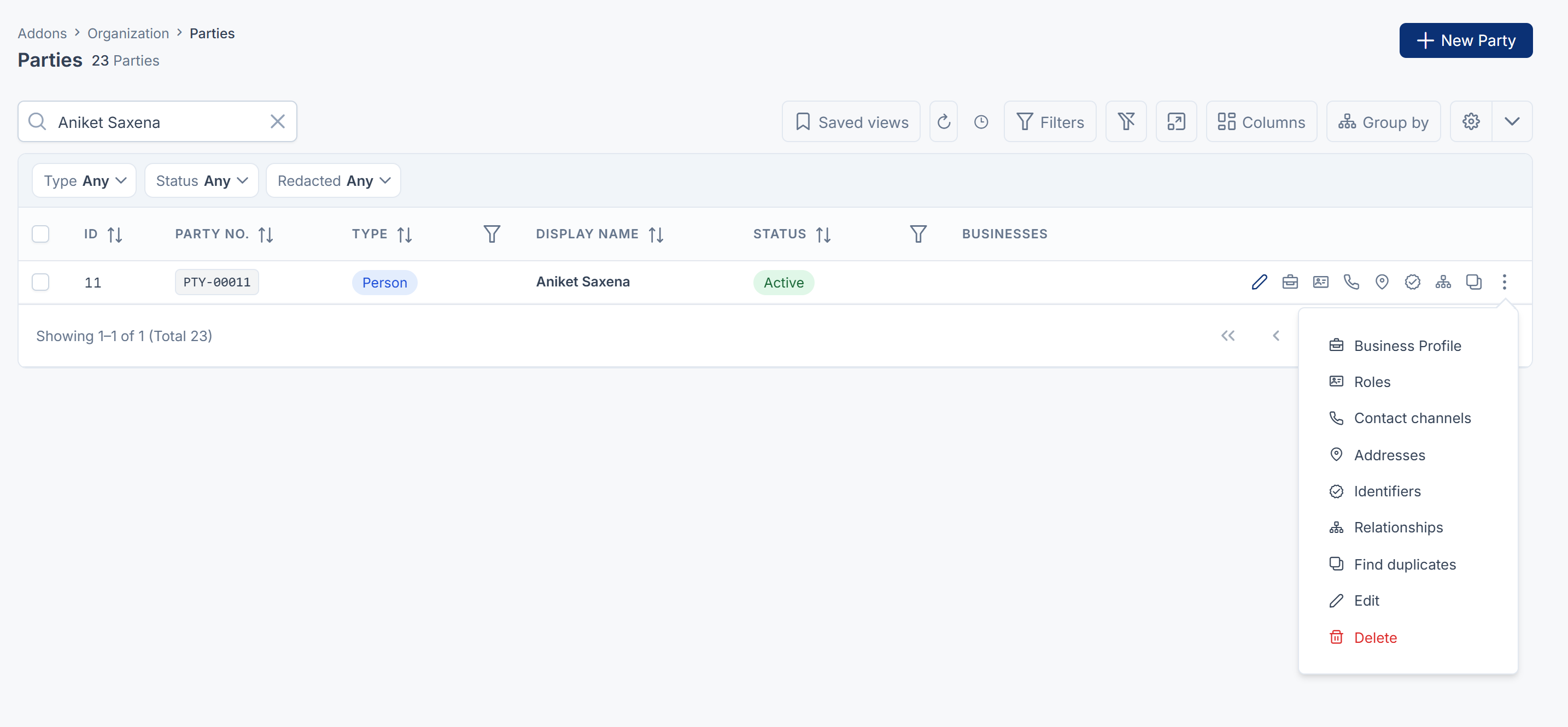
From a party's row in the Parties list you reach its Business Profile, Roles, Contact channels, Addresses, Identifiers and Relationships, and Find duplicates.
Party 360
Party 360 shows everything about one party on one page: how to reach them, their addresses, who they're connected to, what has happened with them, their roles, their registration numbers, your business's terms and, when they're in any, their segments. The How to reach them, Where they are, Who they are connected to, What they are to us and Registration numbers cards each have a Manage button that opens the matching screen.
Two cards depend on other add-ons:
- What has happened lists calls, meetings and notes when the Activities add-on is installed. Without it, the card says Nothing is recording history. See Tasks, queues and activity history explained.
- How each business knows them lists the records other add-ons keep for this party, such as a Property CRM client number, with a link to each. You change those records in the add-on that owns them.
There's no link to Party 360 in the Parties list: no row link or action opens it. It opens after you merge two parties, and from a linked party on another Party 360. To open it yourself, edit the party, then in your browser's address bar change the end of the address from /edit to /overview.
One business at a time
To add a party, or change its identity, roles or business terms, work in one workspace. In All Workspaces you can read parties but not add or change them, and Laramin says Switch to a single business before adding or changing records here. See Switch workspace.
A new party joins the workspace you added it in. Your business then has a relationship with it, shown on its Business Profile.
Duplicates and merging
Two records for the same person happen: a walk-in and a website form, a typo in a name. Find duplicates suggests likely matches, and merging keeps one record. The other record becomes a pointer to the one you kept, so anything that referred to it still works. A merge can't be undone. See Merge two records for the same person or company.
How it relates to
- Property CRM needs Organization. Its clients are parties: adding a client, or converting an inquiry, finds the person in the directory by mobile number or adds them. See How Property CRM fits into Laramin.
- CRM keeps its own list of customers. Your developer can copy them into Organization with a command-line tool, and Organization remembers where each one came from.
- Activities fills the What has happened card on Party 360.
- Workspaces decide which parties you see and where you can change them. See how workspaces, teams and experiences control access.
Next steps
Thanks. That helps us decide what to write next.
Thanks for telling us what was missing.
You already answered for this article today. Thanks.
We got a lot of answers from your network just now. Try again in a few minutes.
We couldn't send that. Check your connection and try again.
Links in this article
Printed from help.bsscn.com. The online article may have changed since.