Read the Property CRM dashboard
What each number and card on the Property CRM dashboard counts, how the period works, and how to act on the work waiting for you in Needs your attention.
Why this step
The dashboard is where your team starts the day. Needs your attention: A dashboard card listing your own records that need something done. shows each person their own waiting work, such as leads nobody has contacted.
Today you only need:
- Applies to
- Property CRM 5.1 and later
- Who can do this
- Administrator, Team member
- Permission
feature.pcrm. dashboard.view - Where
- Property CRM › Dashboard
Before you start
- You need
feature.. Every Property CRM role has it.pcrm. dashboard.view - The dashboard counts the records of the workspace you're in. In All Workspaces, it adds up every workspace you can enter.
- Your administrator chooses which cards appear and in what order. See Property CRM settings.
Open the dashboard and choose a period
-
In the Property CRM sidebar, open Dashboard. The Property CRM experience opens on it.
-
Open the period menu and choose Last 7 days, Last 30 days, This quarter, Last 90 days or Custom range. Your business may offer fewer.
The line under the title shows the dates and what they're compared with, for example "vs the previous 30 days", or "vs the same days of last quarter" for This quarter. Laramin remembers your choice on this device.
A Custom range can be at most one year and has to end by today.
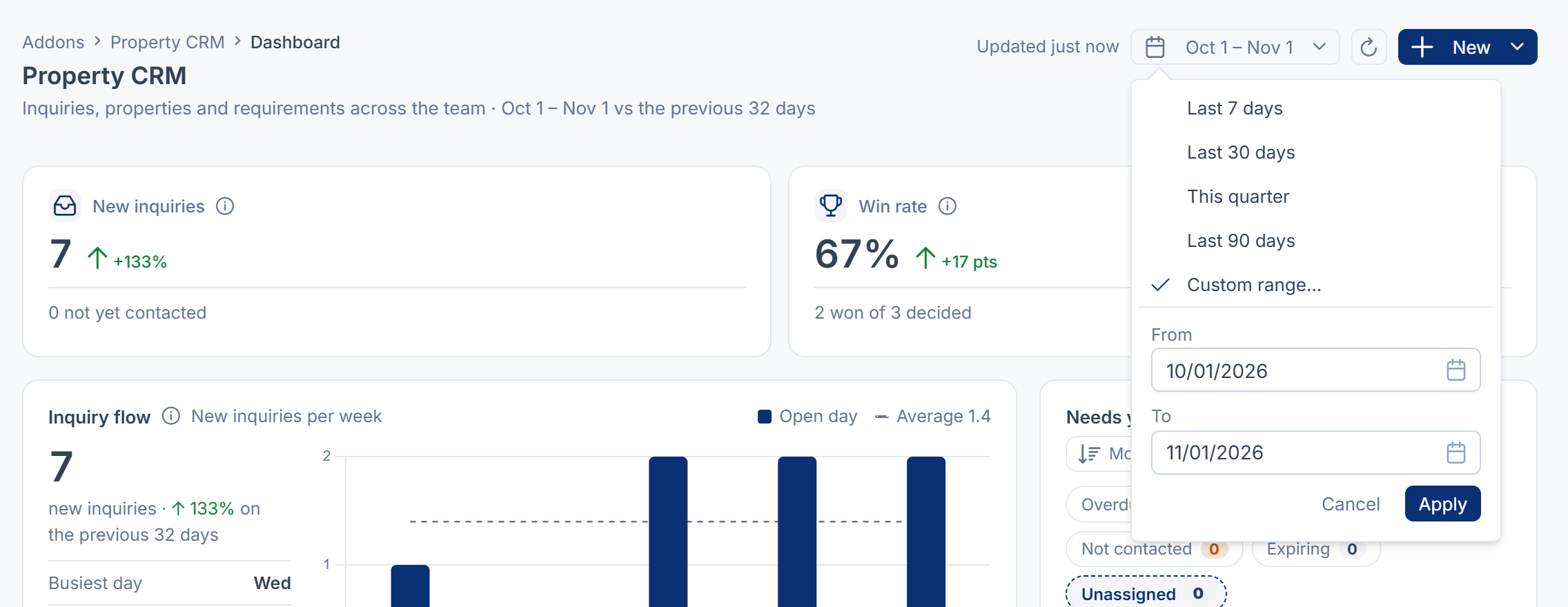
Select Refresh to update every card. New opens a form to add a property, a requirement or an inquiry without leaving the page. While your business has no properties, requirements or inquiries yet, a Set up your Property CRM band takes the place of the numbers.
Hover over a card's information icon to read what it counts.
The headline numbers
| Number | What it counts | The line below it |
|---|---|---|
| New inquiries | Inquiries that arrived in the period, compared with the period before. | How many are not yet contacted. |
| Open pipeline | Inquiries that arrived in the period and are still New, Contacted or Qualified. | How many are qualified, ready to visit. |
| Win rate | Of the inquiries that ended in the period, the share converted. Lost and Closed count as not won. The change is shown in points. | For example, "6 won of 20 decided". |
| Available properties | Properties with Status Available today. | How many were added this period, and how many have no photo. |
| Active requirements | Requirements with Status Active today. | How many were added this period, and how many have no next follow-up. |
The cards
| Card | What it shows |
|---|---|
| Inquiry flow | New inquiries per day, or per week for periods longer than 31 days, with the average. Lighter bars are days your office is closed, taken from your business hours. Beside it: the Busiest day of the week, Properties added and Requirements recorded. |
| Where inquiries come from | Each Inquiry Source, how many inquiries it brought and its share. A source shows a win rate once enough of its inquiries have ended, 5 unless your business changed it. A tip can point out a source that closes much better than your busiest one. |
| How long open inquiries have waited | The period's still-open inquiries grouped by age: Under 1 day, 1–3 days, 4–7 days, 8–30 days, Over 30 days, and how many were never contacted. |
| Inventory | The properties added in the period, by their status today, and checks on your available properties: Without a photo, Not on the website, Expiring within a number of days, No enquiry in the period, and the average Property completeness. |
| Most enquired properties | The five properties with the most inquiries in the period, with each one's views to date. |
| Needs your attention | Your own work that needs action. See below. |
Every card except Needs your attention counts the whole business, not only your own records.
Work through Needs your attention
This card lists records assigned to you that need something done. Choose a list at the top:
| List | What's in it | What you can do |
|---|---|---|
| Overdue | Your inquiries, requirements and properties whose next follow-up is late. | Complete or Snooze the follow-up. |
| Upcoming | Follow-ups due within as many days ahead as the period is long. | Complete or Snooze. |
| Not contacted | Your new inquiries from the period that nobody has contacted yet. | Schedule follow-up. |
| Expiring | Your available properties whose Listing Expires On is close. | Edit property. |
| Unassigned | Open inquiries and available properties from the period with nobody assigned. | Assign an inquiry, or Edit property. |
- Overdue and Upcoming need the CRM add-on. Without it, the card says follow-up reminders are off, and the other lists still work.
- Unassigned shows only to people who can assign inquiries, such as Manager.
- Sort orders a list by Most urgent, Newest first, Oldest first or Name A–Z.
- Select a row to open the record. Show all expands the list. Open the follow-up queue opens the CRM add-on's follow-ups.
When you act on a row, the headline numbers update too.
If a card says it couldn't load
Couldn't load this card. The rest of the page is unaffected. Select Retry on the card. If the whole page says The dashboard couldn't load., select Retry at the top, or reload the page.
Links in this article
Printed from help.bsscn.com. The online article may have changed since.