Create and publish a plan
Create a plan, give it prices per currency and billing interval, set what it includes and bundles, then publish it so CRM quotes and your website can offer it. Also archive or delete a plan, and price offerings.
- Applies to
- Monetization 3.0 and later
- Who can do this
- Administrator
- Permission
feature.mon. plan. create - Where
- Monetization › Plans
On this page
A plan is what a customer subscribes to. It has a name and, optionally, a region. Under it sit three lists: its Pricing (what it costs), its Entitlements (what it includes) and its Bundled offerings (anything else it comes with). Build all three, then publish the plan to put it on sale.
Plans are shared by every business in your Laramin.
Before you start
- You need
feature.,mon. plan. create feature.andmon. plan_pricing. create feature.. Publishing needsmon. plan_feature. create feature.. Bundled offerings needmon. plan. publish feature..mon. plan_offering. create - Every currency you price in must be listed under Configurations › Master Settings › Currency. See Manage currencies and locations.
- Add the features the plan will include. See Define features and feature groups.
- If the plan is for one country or state, add its region first. See Set up regions and their currencies.
1. Create the plan
-
Go to Monetization › Plans.
-
Select New Plan.
-
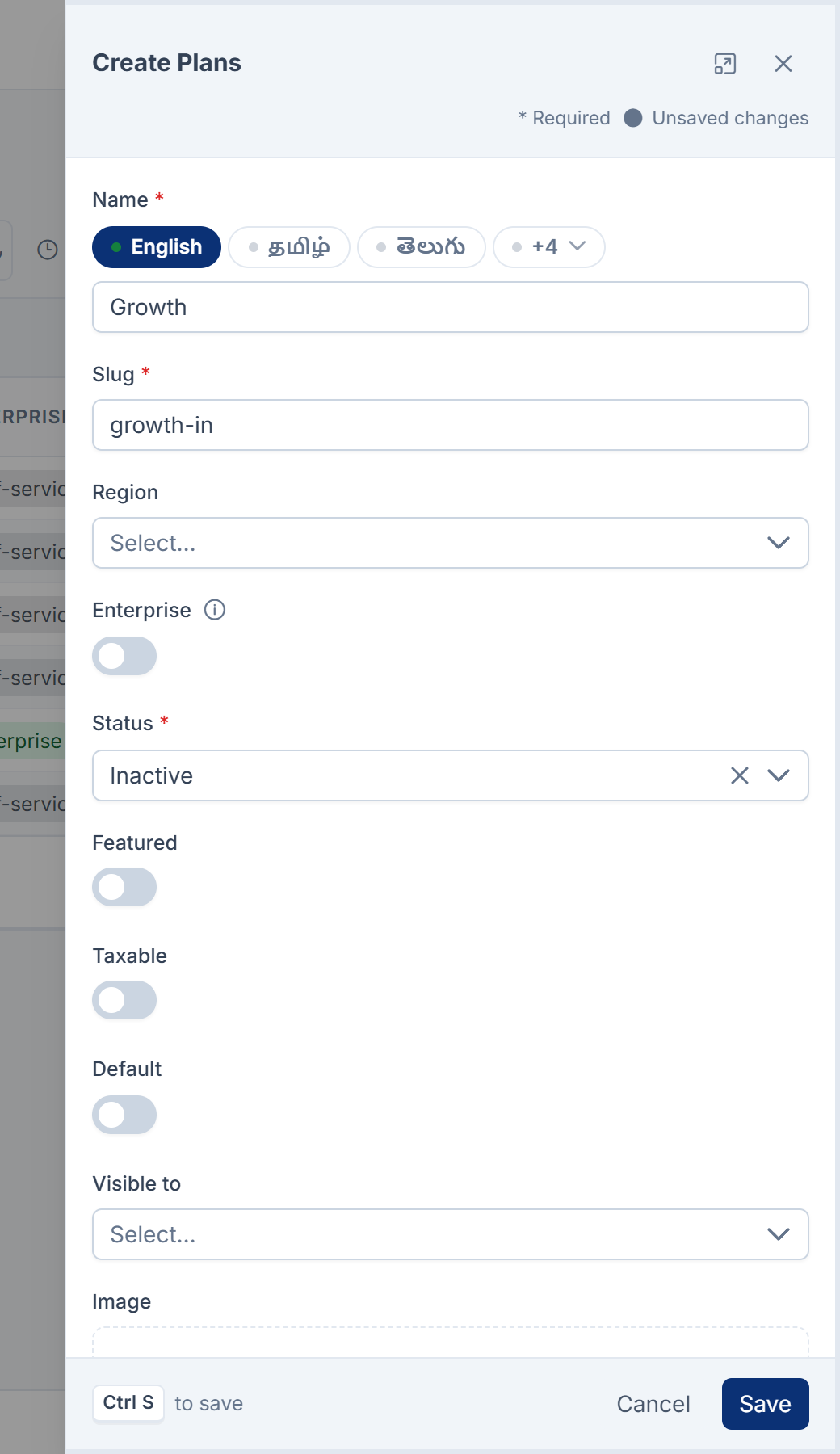
In Name, enter the plan's name, such as
Growth. You can enter it in each of your languages. -
In Slug, enter a unique slug of up to 100 characters, such as
growth-in. It's how CRM quotes, Product Catalog and other systems refer to the plan, and you can't change it after you save. -
Optional: choose a Region.
-
Turn on Enterprise if the plan is quoted by your sales team rather than bought from a price list. An enterprise plan can be published without a price.
-
In Status, choose Inactive. You'll publish it once it's priced.
-
Optional: fill in Description, Image and Order, and turn on Featured, Taxable or Default. See the table below.
-
Select Save.
You see Plan created. If another plan in the same region already has that name, Laramin says Another plan in this region is already called "…".
Careful: Choosing Active in Status puts the plan on sale straight away. In Monetization 3.0.0 the form doesn't check the plan has a price, or that you hold feature.. Use Publish instead, which checks both.
| Field | What it does |
|---|---|
| Enterprise | Shows Enterprise or Self-service. An enterprise plan never needs a price. It can go on a CRM quote line as an offering, but not as a plan, so an accepted quote for an enterprise plan doesn't start a subscription. |
| Featured | A label your website can use to highlight the plan. |
| Taxable | Whether the plan's invoices should be taxed. Billing 2.0.0 taxes every invoice line by the customer's tax rule, whatever this says. See How Billing works out tax. |
| Default | A label your website can use for the plan it suggests first. Archiving a plan turns it off. |
| Visible to | Public or Internal, a label your website can use. The catalogue API returns every active plan either way. |
| Order | Where the plan sorts in lists, in CRM's search and in the catalogue API. Lower numbers first. |
2. Add its prices
-
In the plan's row, select Pricing.
-
Select New Price.
-
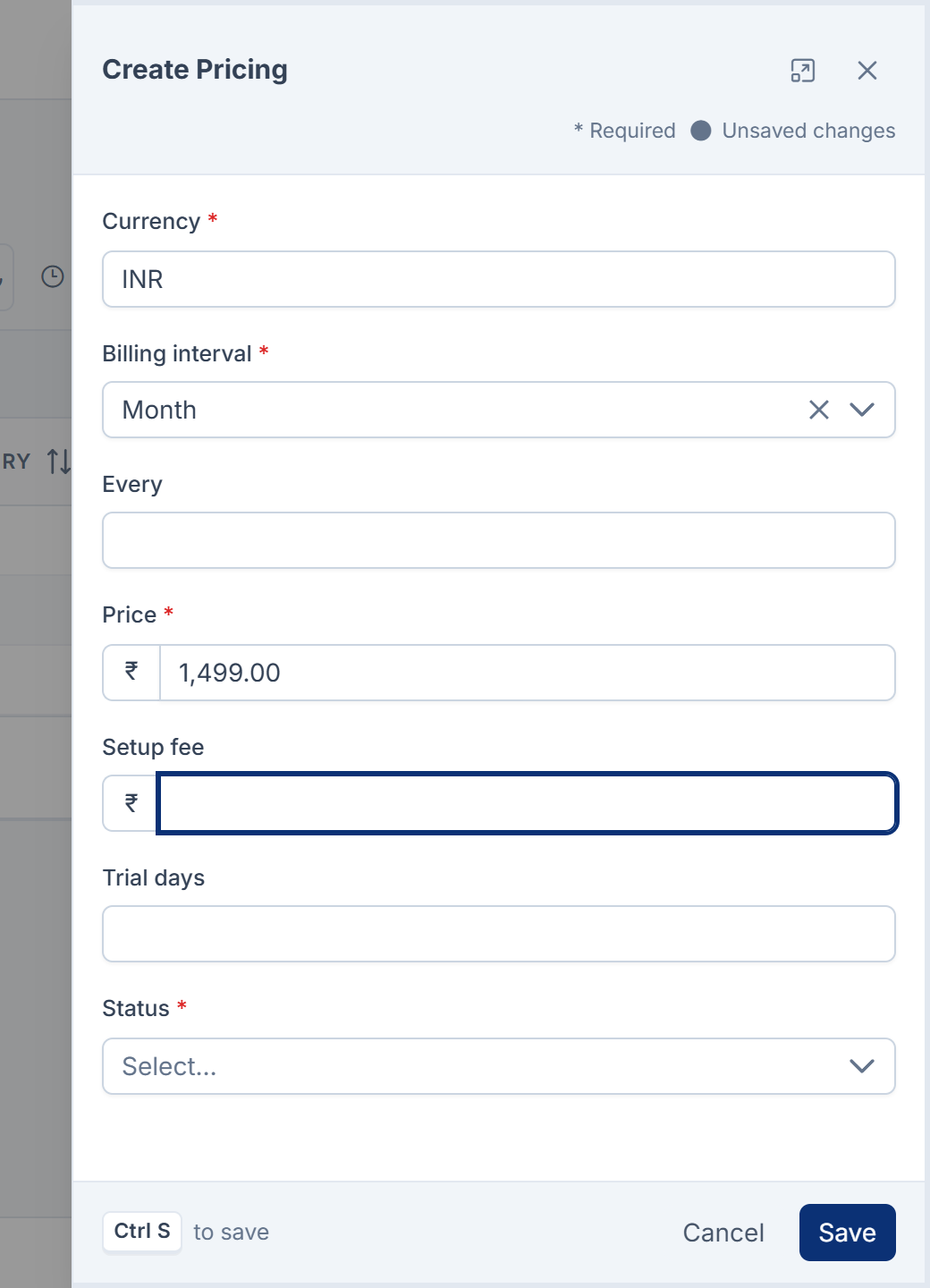
In Currency, enter the three-letter code, such as
INR. -
In Billing interval, choose Day, Week, Month, Quarter or Year.
-
In Every, enter how many intervals one period lasts. Leave it empty for 1. For example, Month and
6bills every six months. -
In Price, enter the price for one period, in the currency's normal units, such as
1499.00. -
Optional: enter a Setup fee and Trial days.
-
Leave Status as Active.
-
Select Save.
-
Repeat for each currency and interval you sell in.
You see Price saved. A plan has one price for each currency, interval and Every. Adding a second with the same three replaces the first one's amounts.
If the currency isn't in your Laramin's currency list, Laramin says No currency is configured with the code … A negative price is refused.
- Trial days apply when a subscription starts from this price: the first period is the trial, and the first invoice comes at its end.
- In Monetization 3.0.0 nothing charges the Setup fee. It's stored and served to your website or app only.
- When CRM adds the plan to a quote, it uses the plan's price in the quote's currency with the shortest interval. Your sales team can change it on the quote. See How subscriptions and renewals work.
3. Set what it includes
-
In the plan's row, select Entitlements.
-
Select New Entitlement.
-
In Feature, choose the feature.
-
In Value, enter how much of it the plan gives, in the form its unit type expects, such as
10for a number or1for a yes. Leave it empty to use the feature's Default value. See Unit types. -
Leave Included on. Turn it off only to state on a comparison that this plan doesn't include the feature.
-
Optional: enter a Customer label, if this plan should describe the feature differently, such as
10 team members, and a Description. -
Select Save.
-
Repeat for each feature.
You see Entitlement saved. A feature turned off in Included gives the customer nothing, the same as leaving it out. It's there so a comparison can show it as not included rather than say nothing.
Changes to a plan's entitlements reach existing subscribers at their next renewal, not before. A customer keeps what they bought until then.
4. Add bundled offerings (optional)
A bundled offering is something else the plan comes with, such as a product from your catalogue or another plan.
-
In the plan's row, select Bundled offerings.
-
Select New Bundled offering.
-
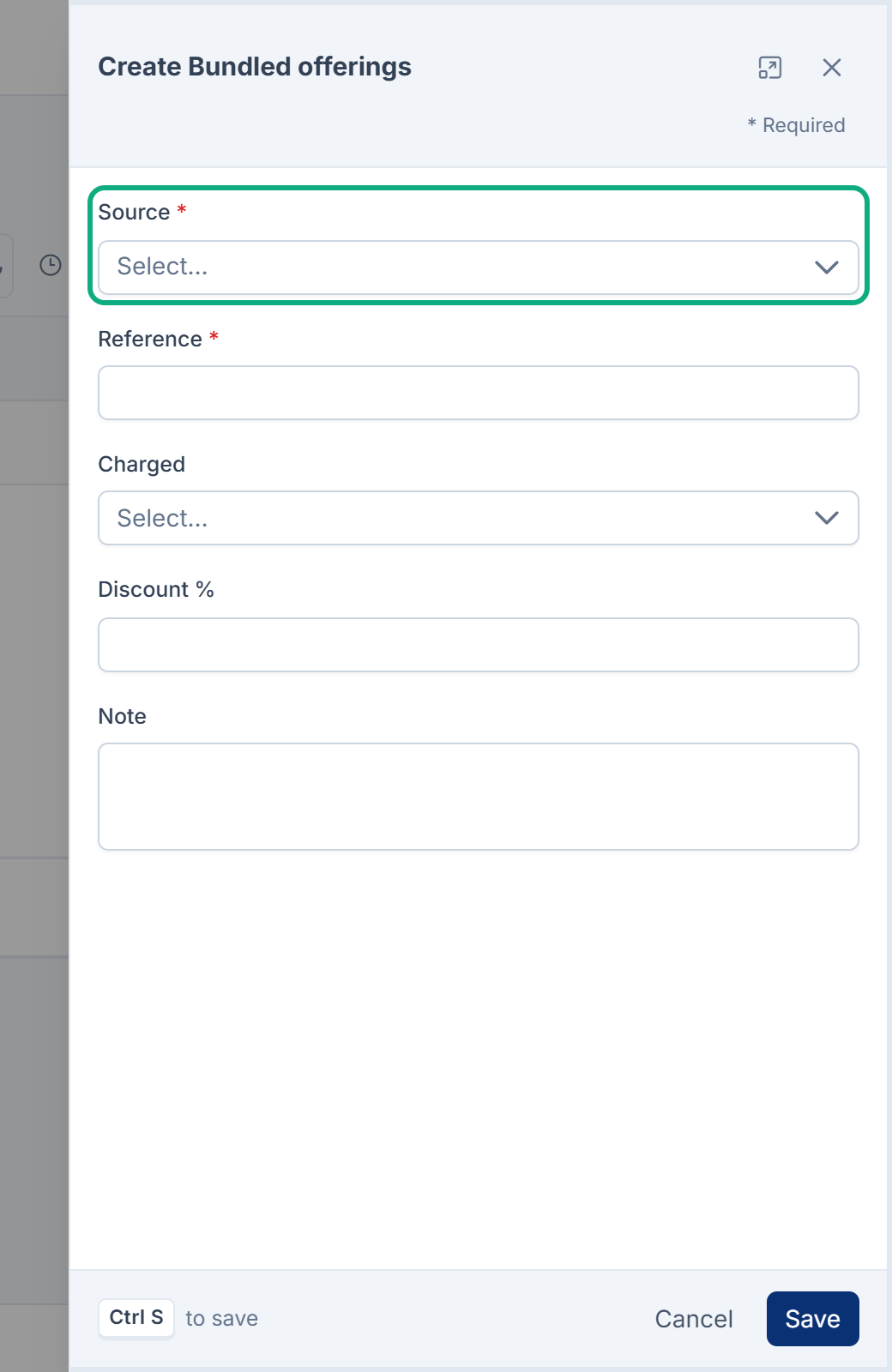
In Source, choose where the item lives:
monetization.planormonetization.for another plan, oroffering catalog.productfor a Product Catalog product. Only add-ons that are installed are listed. -
In Reference, enter the item's identifier: a plan's Slug, or a product's reference.
-
Optional: choose Charged: Once or Every period, enter a Discount %, and add a Note.
-
Select Save.
You see Offering saved. The list's Currently column shows the item's name, or Source unavailable if the add-on that sells it has been disabled. The offering stays on the plan either way. If nothing matches the reference, Laramin says Nothing answers for the reference …, so this offering would point at nothing.
In Monetization 3.0.0 a bundled offering describes what the plan comes with. Renewals charge the subscription's own price only: offerings aren't charged, and their Discount % isn't applied.
The Product Catalog 1.4.0 product list and form don't show a product's reference. See Build a bundle.
Price an offering on its own
Monetization › Offering pricing holds what an item costs on its own, per region, currency and interval, whether or not a plan bundles it yet. Select New Offering price, choose the Source and enter the Reference, then fill in Region, Currency, Billing interval, Every, Price, Setup fee, Trial days and Status, and select Save.
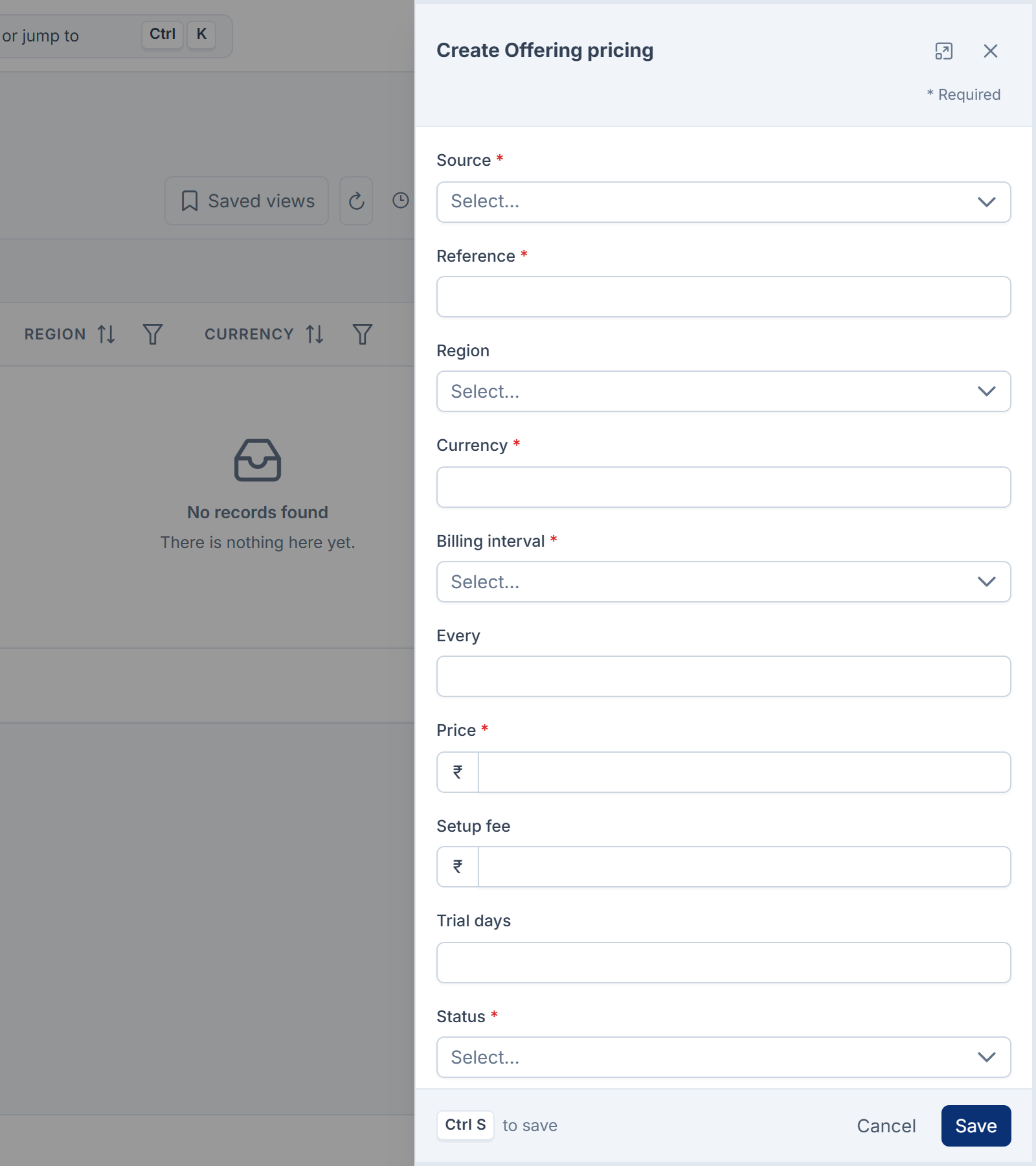
In Monetization 3.0.0 nothing reads offering prices. They're a record for your team.
5. Publish it
-
Go to Monetization › Plans.
-
In the plan's row, select Publish. To publish several, select them and choose Publish from the bulk actions.
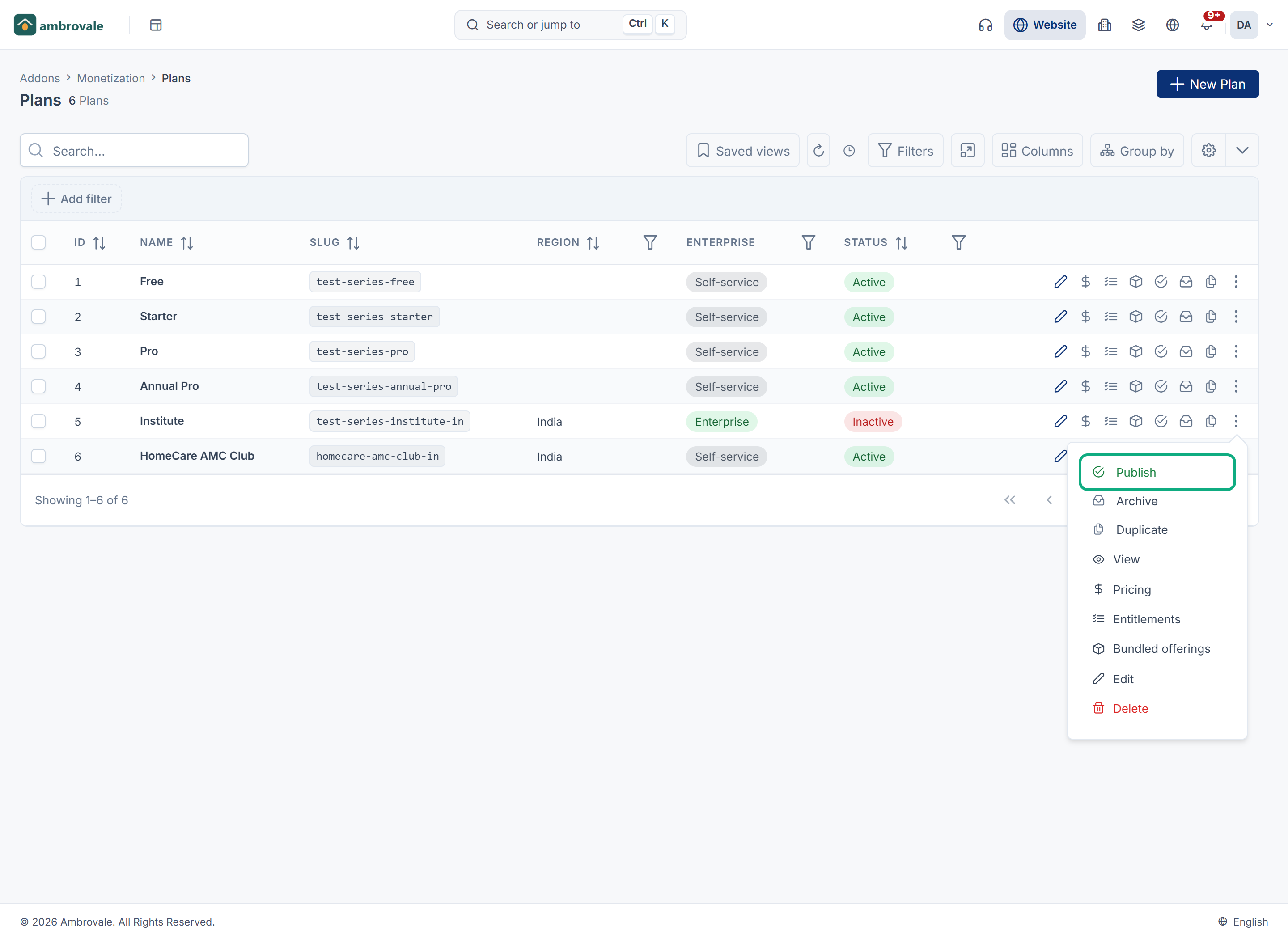
You see Plan published. and its Status becomes Active. If the plan has no active price and isn't Enterprise, Laramin says This plan has no active price, so publishing it would put a card on the pricing page with nothing to click. Add a price, or mark the plan as enterprise.
Once it's active:
- CRM's quote builder offers it. A self-service plan can be added as a plan or as an offering; an enterprise plan only as an offering. Only a plan line starts a subscription when the quote is accepted.
- Your website or app can read it, with its active prices, from the catalogue API. See Monetization catalogue API reference.
- The next day, Product Catalog adds it to the catalogue as a Draft product, with the Origin
monetization.plan, and again with the Originmonetization.. An enterprise plan gets only the second. See How the Product Catalog works.offering
If you later delete a published plan's last active price, the plan stays on sale with nothing to buy, and the health check reports it.
Archive, duplicate or delete a plan
-
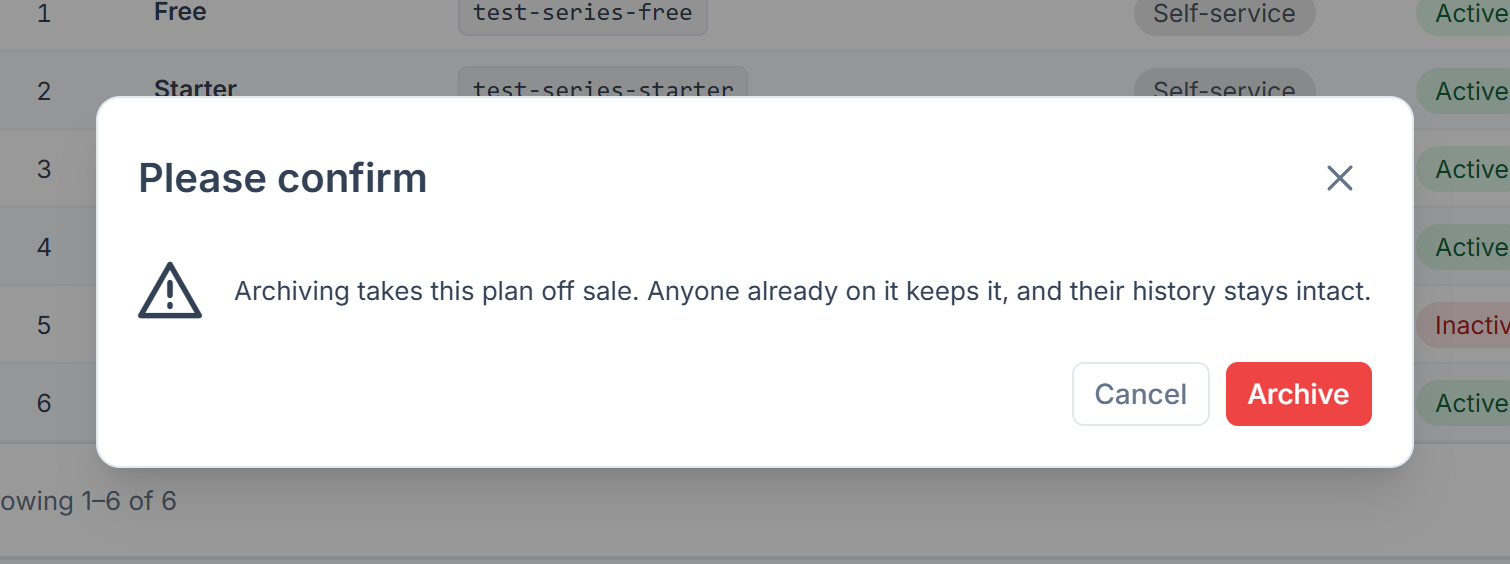
Archive takes a plan off sale. Confirm Archiving takes this plan off sale. Anyone already on it keeps it, and their history stays intact. You see Plan archived. CRM stops offering it.
-
Duplicate doesn't work in Monetization 3.0.0: it fails with a general error, An unexpected error occurred on our servers. …, and no copy is made. To start a similar plan, create a new one with New Plan and add its prices, entitlements and offerings.
-
Delete puts a plan in the trash. Subscriptions to it carry on: each one keeps a copy of the plan's name, slug and price from the day it started.
In Monetization 3.0.0 an archived plan shows the status archived as plain text. Status on the plan form offers only Active and Inactive, so editing an archived plan makes you choose one of the two.
What changes for existing subscribers
- Prices: a subscription renews at the price it started with. Changing or deleting a plan's price doesn't change what current subscribers pay.
- Entitlements: each subscriber gets the plan's current entitlements at their next renewal.
- Name: a subscription keeps the name it started with, and its renewal invoices use that name.
Thanks. That helps us decide what to write next.
Thanks for telling us what was missing.
You already answered for this article today. Thanks.
We got a lot of answers from your network just now. Try again in a few minutes.
We couldn't send that. Check your connection and try again.
Links in this article
Printed from help.bsscn.com. The online article may have changed since.