Set up regions and their currencies
Add a region for each country, or state of one, that you price plans for, and record the currencies and languages used there.
- Applies to
- Monetization 3.0 and later
- Who can do this
- Administrator
- Permission
feature.mon. region. create - Where
- Monetization › Regions
On this page
A region is a place you sell in: a whole country, or one state or province of it. You give a plan a region when its prices are meant for that place, for example a Growth (India) plan priced in rupees. Regions are optional. A plan with no region is for everywhere.
Regions are shared by every business in your Laramin, like plans are.
Tip: A region has nothing to do with tax. Billing works out tax from the country and state on the customer's billing account. See How Billing works out tax.
Before you start
- You need
feature., andmon. region. create feature.to add currencies and languages to a region. Changing them needs the matchingmon. region_context. create editpermissions. - Decide on a short Code for each region, such as
inorin-ka. You can't change it after you save.
Add a region
-
Go to Monetization › Regions.
-
Select New Region.
-
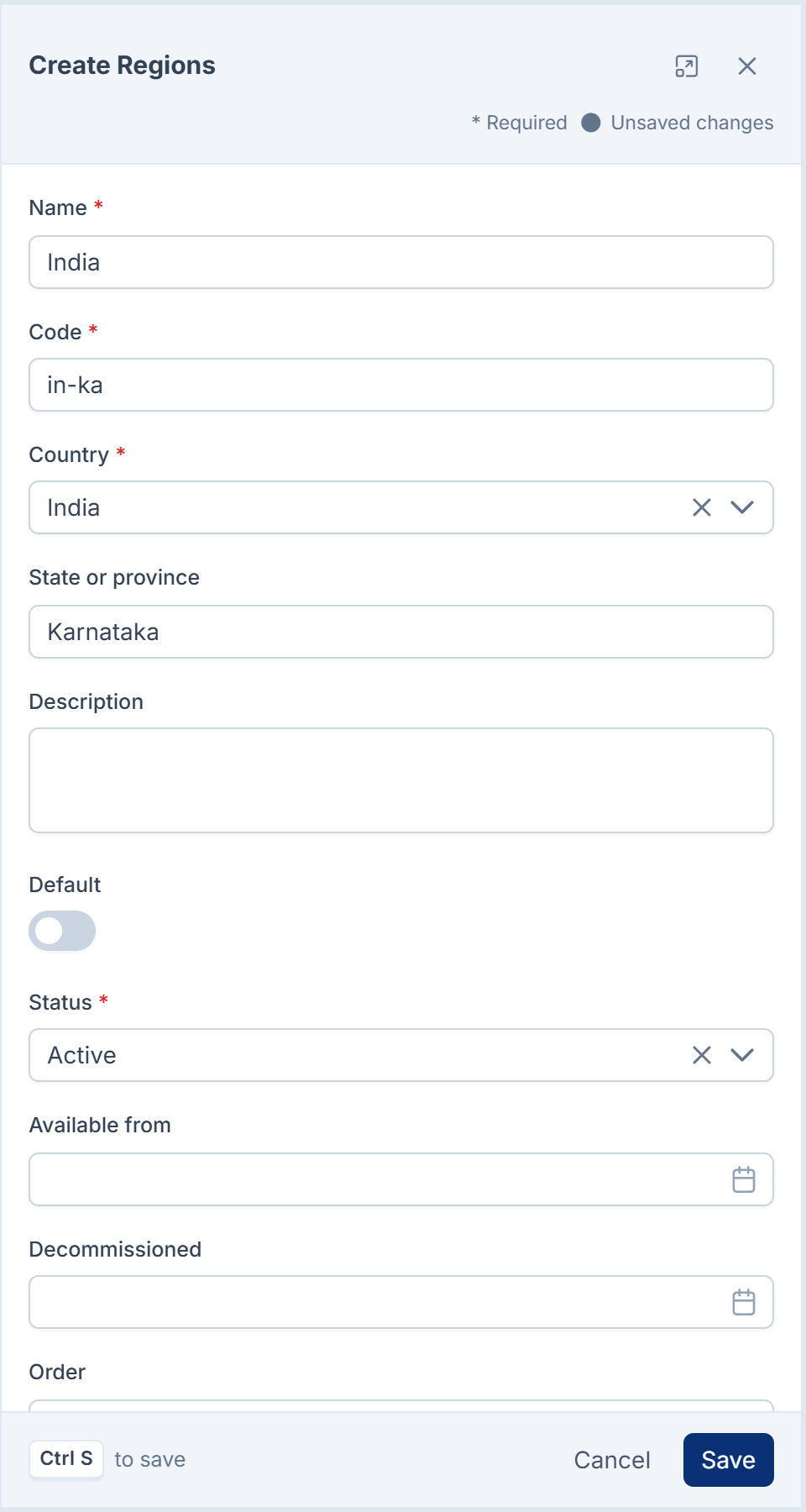
In Name, enter the name your team will see, such as
India. You can enter it in each of your languages. -
In Code, enter a unique code of up to 60 characters.
-
In Country, choose the country.
-
In State or province, enter the state if the region covers only one, such as
Karnataka. Leave it empty for the whole country. -
Leave Status as Active.
-
Select Save.
You see Region created. Code, Country and State or province can't be changed after this. To change them, add a new region and move your plans to it.
Each country and state can have only one region. A second region for the same country with an empty State or province, for example, is refused. Monetization 3.0.0 refuses it with a message that doesn't mention the duplicate: This record cannot be deleted because it is being used in another record. Nothing is saved.
The other fields are for your own records: Default, Description, Available from, Decommissioned and Order. In Monetization 3.0.0 nothing reads a region's Default, Available from or Decommissioned. A region whose decommission date has passed can still be chosen on plans.
Add its currencies and languages
-
In the region's row, select Currencies & languages.
-
Select New Currency or language.
-
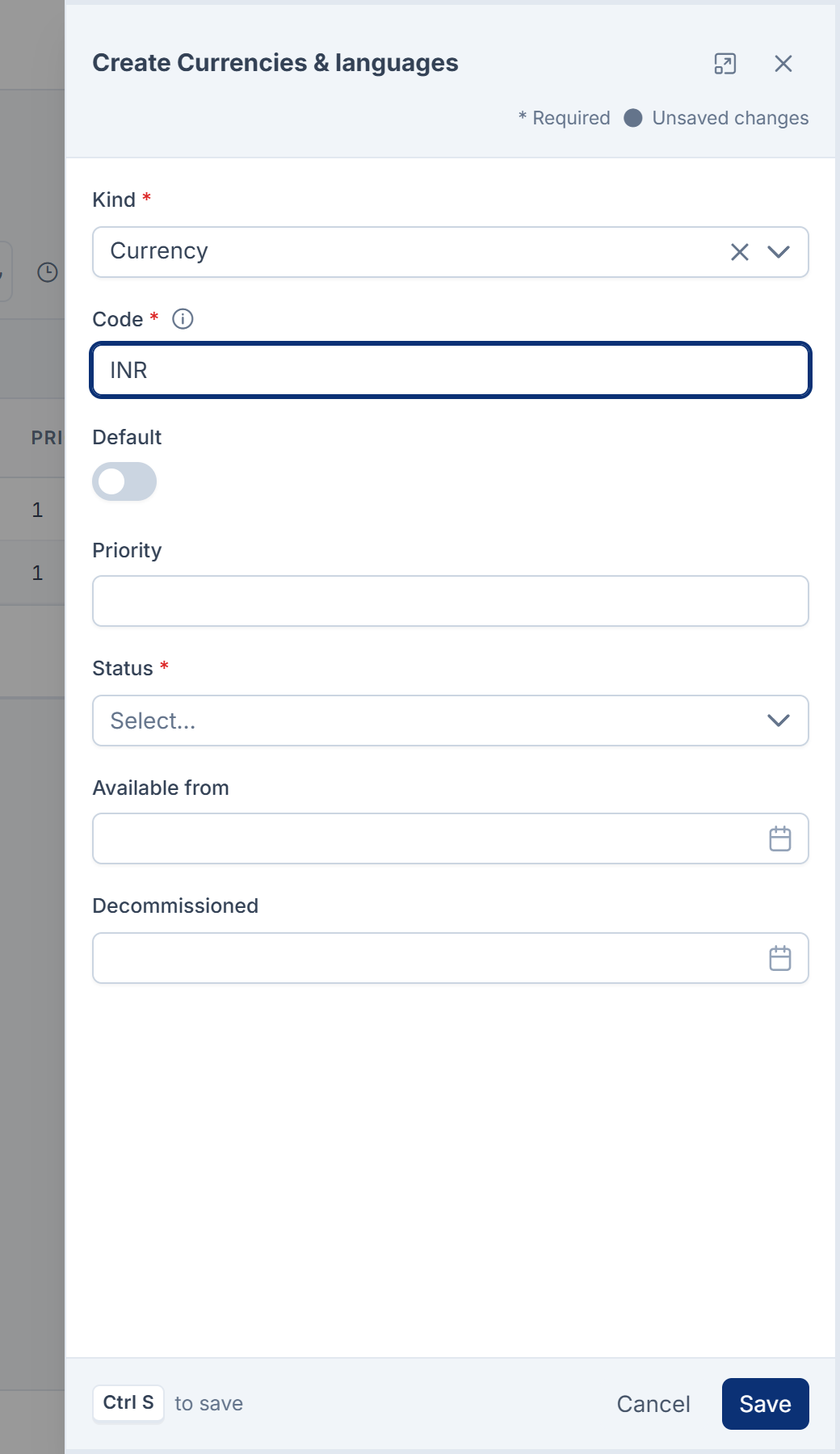
In Kind, choose Currency or Language.
-
In Code, enter the ISO code, such as
INRfor a currency orenfor a language. -
Turn on Default for the region's main currency, and for its main language.
-
Optional: set a Priority, and Available from and Decommissioned dates.
-
Leave Status as Active.
-
Select Save.
A region has one default of each kind. Turning on Default for a new currency turns it off on the old one.
The code is stored as text, not picked from a list, so it isn't checked. Type it exactly. In Monetization 3.0.0 a region's currencies don't limit the prices you can give a plan in that region. They're a record for your team: nothing in your Laramin reads them, and the catalogue API doesn't return them.
What a region does
- A plan can belong to one region. Choose it in the plan's Region. See Create and publish a plan.
- Plan names are unique within a region. Two plans in the same region can't have the same Name. Plans in different regions, or with no region, can.
- Your website can group plans by region. The catalogue API returns each plan's region as
region_key, such asIN:Karnataka. See Monetization catalogue API reference. - A subscription remembers it. When a subscription starts, it keeps a copy of its plan's region, so later changes don't rewrite what the customer bought.
Delete a region
Select Delete on the region's row. A deleted region goes to the trash, and you can restore it. Plans keep pointing at it while it's there, but their Region shows empty.
Removing a region for good from the trash clears Region on its plans. See Delete and restore records in bulk.
Before you delete a region, move its plans to another region, or leave them with none.
Thanks. That helps us decide what to write next.
Thanks for telling us what was missing.
You already answered for this article today. Thanks.
We got a lot of answers from your network just now. Try again in a few minutes.
We couldn't send that. Check your connection and try again.
Links in this article
Printed from help.bsscn.com. The online article may have changed since.