Security settings
Every field on the Security settings panel, with its default and the values it accepts, and how to download the security log. Covers sign-in, lockouts, API tokens, trusted devices, IP access control and the Content-Security-Policy header.
Why this step
A few sign-in rules stop most account break-ins. The rest of this panel can wait.
Today you only need:
- Applies to
- Core 12.0 and later
- Who can do this
- Platform owner
- Permission
feature.core. security.edit - Where
- Configurations › Security › Security Settings
The Security settings panel is for super admins only. Its permissions, feature. and feature., are left out of the standard Administrator role. Someone with .view and not .edit sees the panel read-only. To save your changes, select Save changes. They apply straight away.
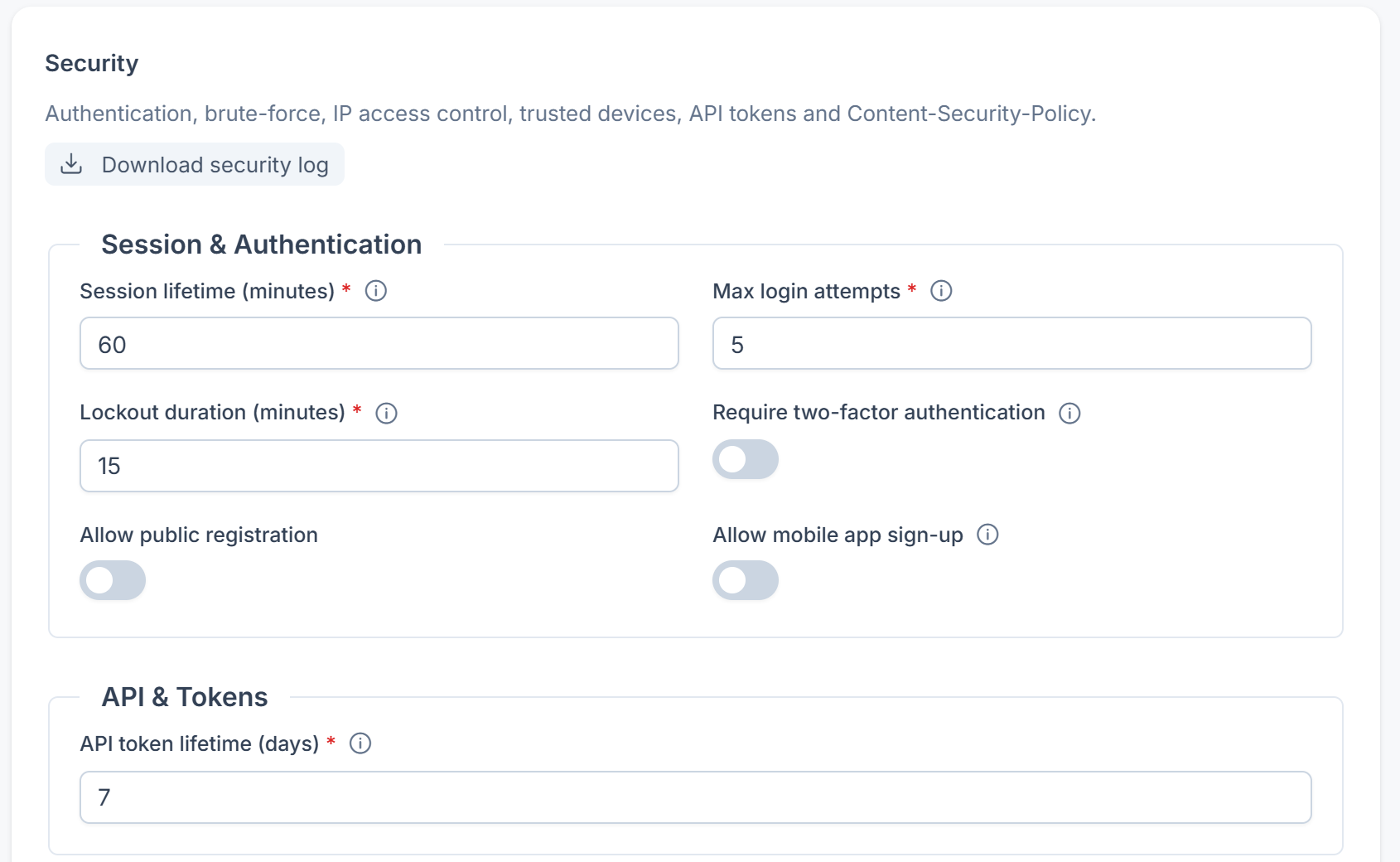
Session & Authentication
| Field | What it does | Default | Notes |
|---|---|---|---|
| Session lifetime (minutes) | How long an idle session stays valid. | 60 | 5–480 |
| Max login attempts | How many failed sign-ins are allowed before the account is locked out. Laramin counts failures for each email address and for each IP address. | 5 | 1–20. Only applies while Enable brute-force protection is on. |
| Lockout duration (minutes) | How long a locked-out account stays locked. | 15 | 1–1440. Only applies while Enable brute-force protection is on. |
| Require two-factor authentication | Everyone who uses the admin must set up two-factor authentication. Until they do, they can only open Profile › Security. It applies to the mobile app too: the app asks them to set it up on the web before it signs them in, and asks people already signed in on their next step. | Off | Super admins and portal users aren't affected. |
| Allow public registration | Lets visitors create their own account from the sign-up form. | Off | From Core 12.8.7, your global IP rules apply to it: a visitor on an address they refuse can't sign up, and no account is created. See How IP access control works. |
| Allow mobile app sign-up | Lets people create an account from the mobile app. | Off | Accounts created from the mobile app get API access automatically. Leave this off unless you want self-serve sign-up. It also controls a person's first social sign-in from the app. |
API & Tokens
| Field | What it does | Default | Notes |
|---|---|---|---|
| API token lifetime (days) | The default expiry for newly issued API tokens. | 7 | 1–365 |
Trusted Devices
| Field | What it does | Default | Notes |
|---|---|---|---|
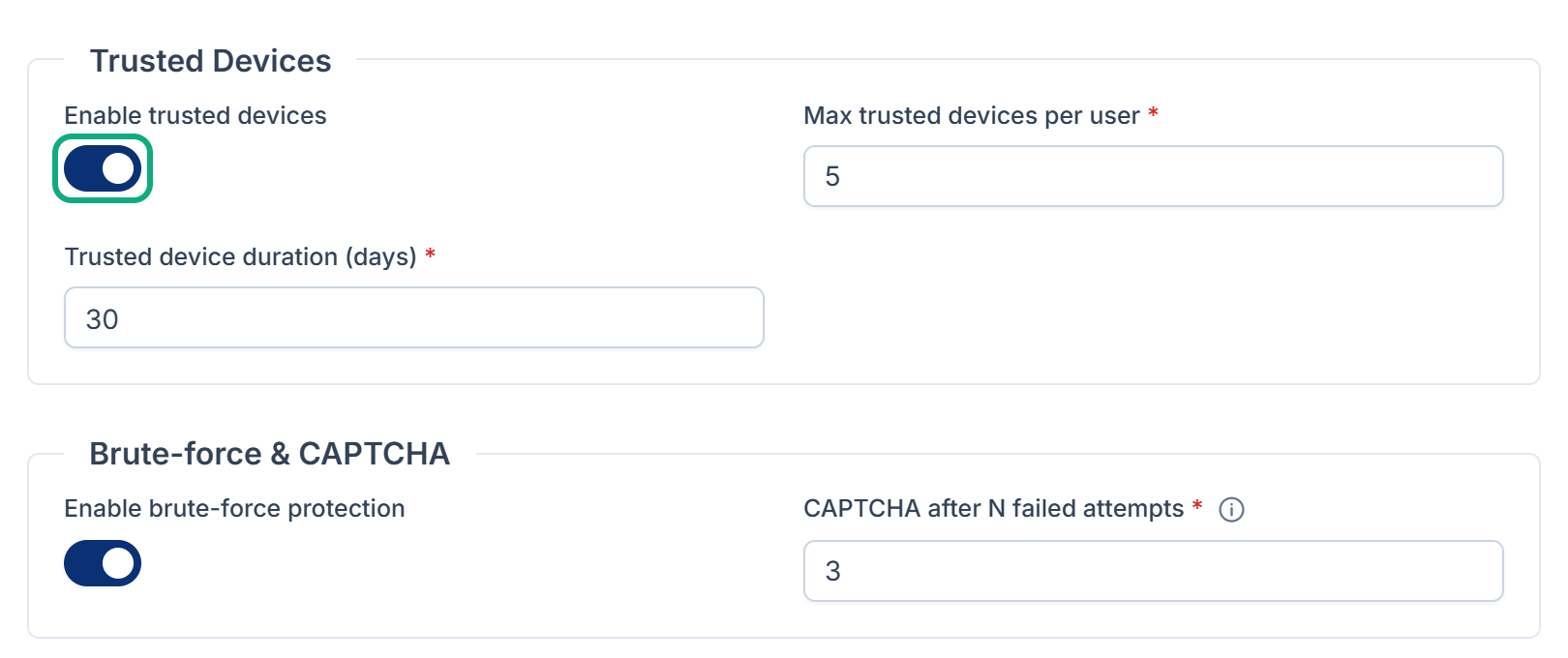
| Enable trusted devices | Shows Trust this device on the sign-in form. A person who uses two-factor authentication isn't asked for a code again on a device they've trusted. | Off | |
| Max trusted devices per user | The most devices one person can trust. | 5 | 1–50. Shown only when trusted devices are on. |
| Trusted device duration (days) | How long a device stays trusted. | 30 | 1–365. Shown only when trusted devices are on. |
Brute-force & CAPTCHA
| Field | What it does | Default | Notes |
|---|---|---|---|
| Enable brute-force protection | Turns on the account lockout set by Max login attempts and Lockout duration (minutes). | On | |
| CAPTCHA after N failed attempts | Shows a CAPTCHA on the sign-in form after this many failed attempts. | 3 | 1–10. The CAPTCHA appears only if CAPTCHA is also turned on in CAPTCHA settings. |
IP Access Control
| Field | What it does | Default | Notes |
|---|---|---|---|
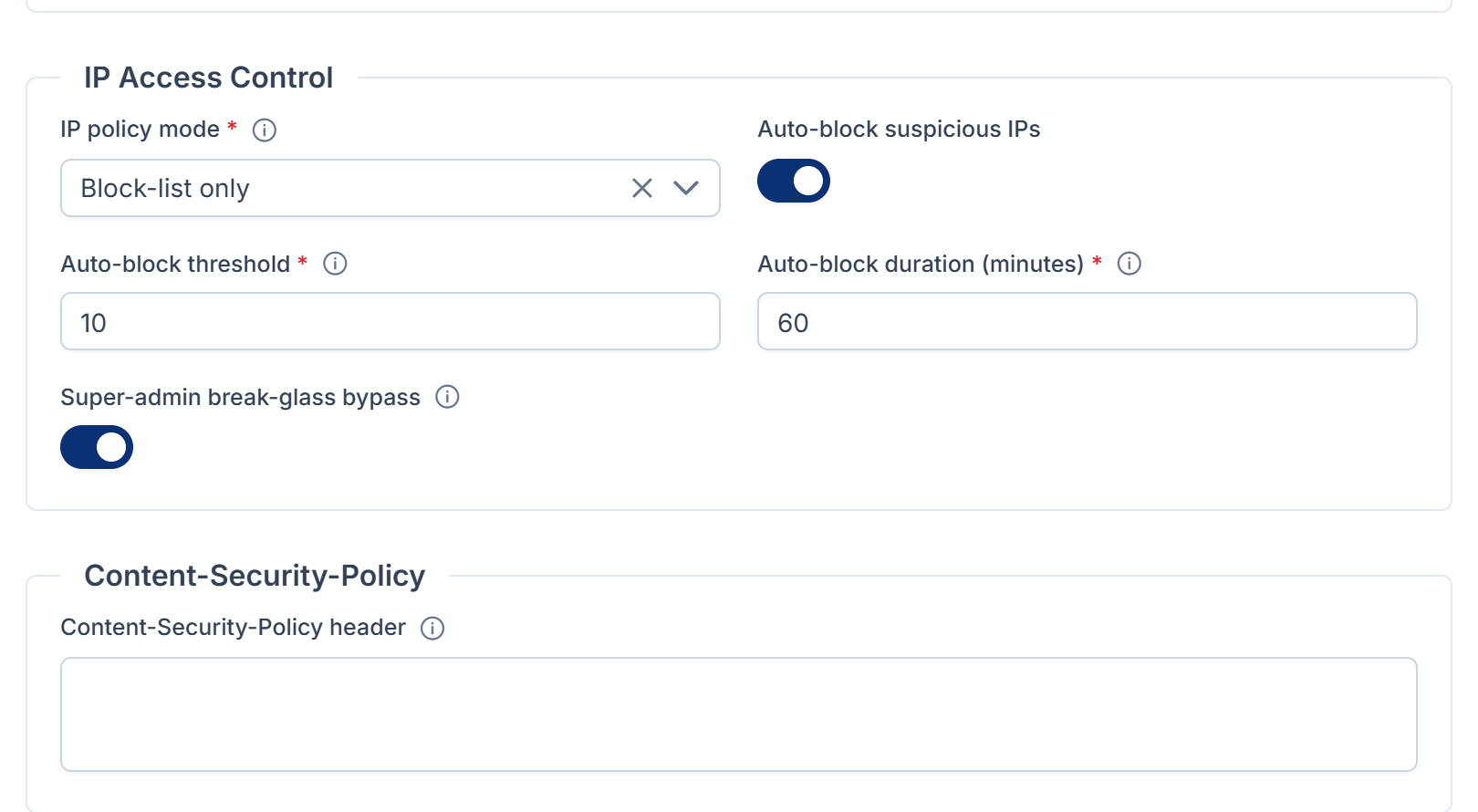
| IP policy mode | Block-list only: every IP address may sign in except the ones you block. Allow-list only: only IP addresses on a global allow rule may sign in. | Block-list only | See How IP access control works. |
| Auto-block suspicious IPs | Blocks an IP address automatically after repeated failed sign-ins. | On | |
| Auto-block threshold | How many failed sign-ins from one IP address, within 10 minutes, trigger a block. | 10 | 1–100 |
| Auto-block duration (minutes) | How long an auto-blocked IP address should stay blocked. | 60 | 1–10080 |
| Super-admin break-glass bypass | Lets super admins sign in from an address that isn't on the allow list, so you can't lock yourself out. | On | It doesn't override an explicit block rule. |
Danger: If you switch IP policy mode to Allow-list only before you've added a global allow rule for your own addresses, nobody but super admins can sign in. If you've also turned off Super-admin break-glass bypass, super admins are locked out too. Add your allow rules in IP Rules first.
Content-Security-Policy
| Field | What it does | Default | Notes |
|---|---|---|---|
| Content-Security-Policy header | The raw Content- header value Laramin sends with its responses. | Blank | Up to 2,000 characters. Leave it blank to send no header. |
Download the security log
Laramin writes security events to their own log, separate from the application log. The log records failed sign-ins (with the email address and IP address), IP addresses blocked automatically, monitoring alerts, and requests for a host name the app doesn't trust. Laramin writes one file per day and keeps 90 days.
To download it, you need feature..
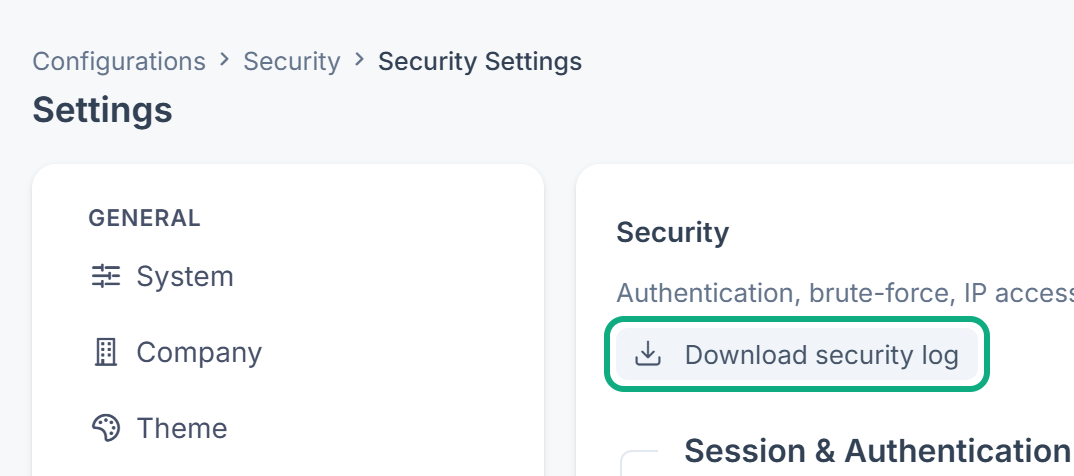
If one day of log is retained, you get that day's file, for example security-. If several days are retained, you get them all in one zip file. If there's no log yet, you see Security log file not found.
Danger: Clear Log in Extra Utilities deletes every .log file, including the security log. Download the security log before you clear the logs, or you lose that audit history for good. See Extra Utilities.
Links in this article
Printed from help.bsscn.com. The online article may have changed since.