You can't get past the CAPTCHA
Sign-in, sign-up or password reset keeps answering that the CAPTCHA code is invalid or expired, says the CAPTCHA isn't set up or couldn't load, or the provider's CAPTCHA doesn't appear. Find the cause, and how to get back in when nobody can sign in.
- Applies to
- Core 12.7 and later
- Who can do this
- Team member, Administrator, Platform owner
- Permission
feature.core. captcha.edit - Where
- Configurations › General Settings › CAPTCHA Settings
On this page
Symptom
On the sign-in, sign-up or password-reset form, Laramin answers:
The CAPTCHA code you entered is invalid or expired. Please try again.
It keeps saying so however carefully you answer. Or the form shows a code to type, although your Laramin uses a provider such as Cloudflare Turnstile. Or, in place of the CAPTCHA, the form says:
This form's security check (CAPTCHA) isn't set up yet, so it can't be sent. Please contact your administrator.
That last message means only an administrator can fix it: go to check 3. Or the form says:
The security check couldn't load. Refresh the page or contact your administrator.
That means the provider's box couldn't load in your browser: refresh the page first, then go to check 3.
Check these, in order
1. The built-in code expired or was misread
Laramin's built-in CAPTCHA shows a picture of letters or numbers to type.
- A picture expires after a few minutes, 5 unless your administrator changed Expiry (minutes). If the form was open longer, select Get a new code (the refresh button) and type the new one.
- If a code is hard to read, get a new one rather than guessing.
- If Case Sensitive is on, type capital and small letters exactly as shown.
2. The CAPTCHA appeared after failed sign-ins
If the sign-in form didn't show a CAPTCHA at first, it appeared because of earlier failed attempts from your email address or network. CAPTCHA after N failed attempts in Security settings decides when.
Fix: Answer it, or wait for the Lockout duration (minutes), 15 by default. Failed attempts older than that stop counting. If you've forgotten your password, select Forgot your password? instead of trying again. See Security settings.
3. The provider's keys or domain are wrong (administrator)
When the CAPTCHA comes from Google reCAPTCHA, Cloudflare Turnstile or hCaptcha, your Laramin asks the provider whether each answer is right.
-
A wrong site key or secret key, or a domain the provider doesn't know: the provider refuses every answer, and everyone sees the message above.
-
The form shows a typed code instead of the provider's box: the browser couldn't load the provider's box while Fallback on Failure is on, or no site key is saved, so Laramin showed its built-in one. Type the code in the picture: Laramin checks it against that picture, as in step 1. If it's refused, get a new code with the refresh button and type it carefully.
-
The form says the security check couldn't load: a provider is chosen with its site key, but its box couldn't load in this browser, and Fallback on Failure is off, so there's nothing to show in its place. A network, firewall, ad blocker or browser extension may be blocking the provider, or the provider may be having an outage. Fix: refresh the page, or try another browser or network. If it happens to everyone, an administrator checks that the provider is reachable, or turns Fallback on Failure on so the built-in CAPTCHA stands in when the box can't load.
On earlier versions: on Core 12.8.4 and earlier, the form showed an empty space where the box should be, with no message. Update Core to 12.8.5.
-
The form says the CAPTCHA isn't set up: a provider is chosen in CAPTCHA Provider, no site key is saved for it, and Fallback on Failure is off. The provider's box can't load without its site key, and with Fallback on Failure off only the provider's answer counts, so nobody can get past the form. Fix: an administrator saves the provider's site key and secret key, turns Fallback on Failure on, or chooses None (Use Core CAPTCHA). If no administrator is still signed in, see check 4.
On earlier versions: on Core 12.8.3 and earlier, the form showed the built-in picture here instead, and every code typed from it was refused. Update Core to 12.8.4.
On earlier versions: on Core 12.8.2 and earlier, Laramin checked the typed code with the provider, so it was refused every time. Update Core to 12.8.3. Until then, try another browser or network, which may load the provider's box, or ask an administrator to apply the fix below.
Fix: Someone who is still signed in, with feature., opens Configurations › General Settings › CAPTCHA Settings. On Third-Party Providers, they paste the site key and secret key again from the provider's account, and check that your Laramin's domain is registered there. Then they select Save changes and test in a private browser window. To stop using the provider, choose None (Use Core CAPTCHA) in CAPTCHA Provider.
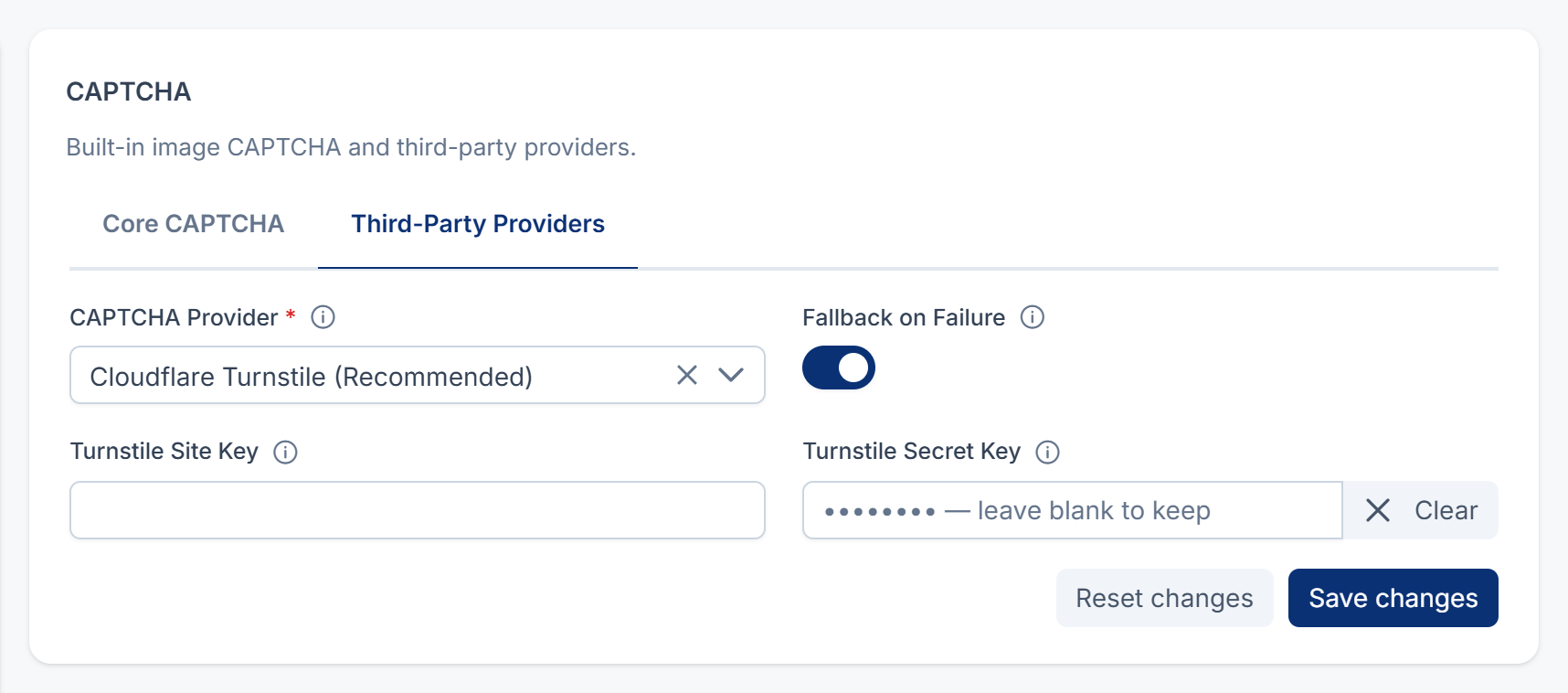
Careful: Fallback on Failure doesn't help when the provider's box appears but every answer is refused, as with a wrong secret key or a domain the provider doesn't know. Laramin falls back to its built-in CAPTCHA only when the box can't load or the provider can't be reached, not when the provider says no.
4. Nobody can sign in at all (platform owner)
If every sign-in is refused and nobody who can change CAPTCHA settings is still signed in, the admin can't fix it. Ask whoever runs your server to turn the CAPTCHA off in the database, then clear Laramin's cache:
Couldn't copy. Select the code and press Ctrl+C (⌘+C on a Mac).
UPDATE general_settings SET value = 'inactive' WHERE name = 'captcha_status';Couldn't copy. Select the code and press Ctrl+C (⌘+C on a Mac).
php artisan cache:clearThis turns off CAPTCHA Enabled, so every form works without a CAPTCHA. Sign in, correct the CAPTCHA settings, test them in a private browser window, and turn CAPTCHA Enabled on again.
Still not working?
Raise a ticket from Support Center in your Laramin app. Include this page's link, the form you were on, the CAPTCHA Provider you use, and the exact message.
Thanks. That helps us decide what to write next.
Thanks for telling us what was missing.
You already answered for this article today. Thanks.
We got a lot of answers from your network just now. Try again in a few minutes.
We couldn't send that. Check your connection and try again.
Links in this article
Printed from help.bsscn.com. The online article may have changed since.