Create an IP rule
Allow or block an IP address or CIDR range for everyone, for one role or for one user, so people can sign in only from the networks you choose.
- Applies to
- Core 12.0 and later
- Who can do this
- Administrator, Platform owner
- Permission
feature.core. ip_rule. create - Where
- Configurations › Security › IP Rules
On this page
Before you start
- You need
feature.. To change or remove rules, you needcore. ip_rule. create feature.orcore. ip_rule.edit feature..core. ip_rule. delete - Read How IP access control works. A single user or role rule replaces the global rules for that person, which can surprise you.
- Know the address or range you want, for example
192.168.1.10or10.0.0.0/24. IPv4 and IPv6 both work. - For a role rule, the role must exist already.
Danger: IP rules can lock people out, including you. Before you change IP policy mode to Allow-list only, create a global Allow rule for every network your team signs in from. Test it by signing in from a second browser before you close your own session.
Steps
-
In the sidebar, open Configurations › Security › IP Rules.
-
Select Create.
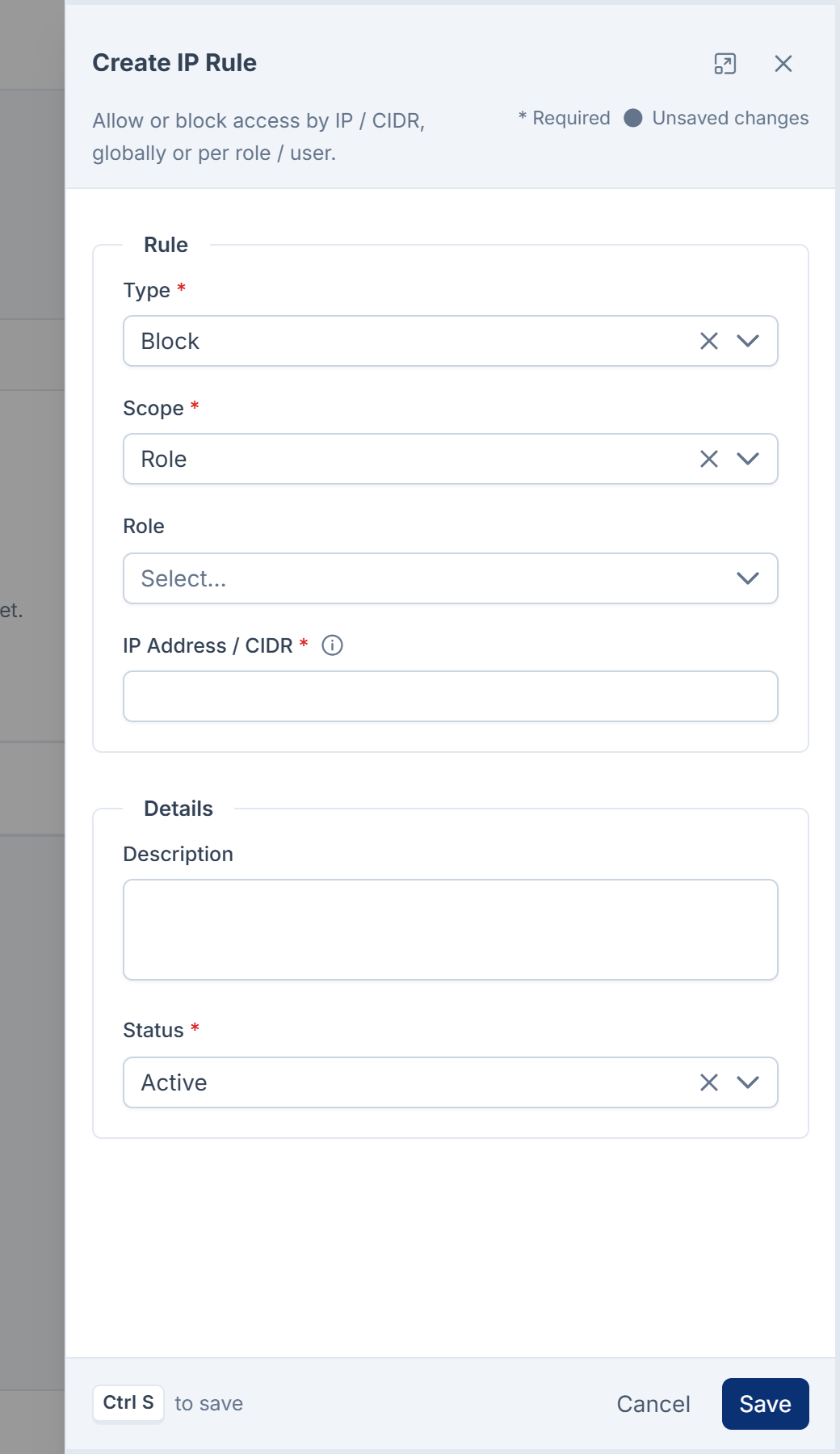
-
In Type, choose Allow or Block.
-
In Scope, choose who the rule is for:
- Global: everyone.
- Role: then choose the role in Role.
- User: then enter the person's number in User ID.
-
In IP Address / CIDR, enter one address, such as
192.168.1.10, or a range, such as10.0.0.0/24. -
In Description, write what the rule is for.
-
Check that Status is set to Active.
-
Select Save.
Turn a rule off for a while
- In the rule's row, open the actions menu and select Edit.
- Set Status to Inactive.
- Select Save.
The rule stays in the list but no longer counts. To remove it for good, select Delete from the row's actions menu. Laramin asks you to confirm, because deleting can't be undone.
What happens next
The rule applies to the next sign-in and to every REST API request. People who are already signed in aren't signed out. In the list, Scope shows who a rule covers, for example "Role: Sales" or "User: #42".
If you want only listed networks to reach Laramin, set IP policy mode to Allow-list only in Security settings once your allow rules are in place.
Thanks. That helps us decide what to write next.
Thanks for telling us what was missing.
You already answered for this article today. Thanks.
We got a lot of answers from your network just now. Try again in a few minutes.
We couldn't send that. Check your connection and try again.
Links in this article
Printed from help.bsscn.com. The online article may have changed since.