Your pages don't show in search results
Search engines report your pages as "noindex", or a new article isn't in your sitemap yet. Work through the causes, starting with the site-wide indexing defaults.
- Applies to
- SEO 1.1 and later
- Who can do this
- Administrator, Platform owner
- Permission
feature.seo. setting.edit - Where
- SEO › SEO Settings
On this page
Symptom
One of these:
- Google Search Console or Bing Webmaster Tools reports pages as excluded by
noindex. - Your website's pages carry
noindexornofollowin their search details. - A blog article you just published isn't in your sitemap yet.
Check these, in order
1. SEO Settings was saved with Default indexing off
On an installation where SEO Settings has never been saved, your website is told to index every page. But the Indexing tab's two switches start off. Saving the panel for any reason, even without touching that tab, stores No index and No follow for every page that has no SEO details of its own.
Open SEO › SEO Settings, then the Indexing tab.

Fix: Set Default indexing to Index and Default link following to Follow, then select Save changes. While you're there, open the Social tab and choose a Default card type: the same save leaves it empty. See Set up your SEO defaults.
Pages that have their own SEO details keep their own choice. See the next step.
2. The page's own Search indexing is Not indexed
A page saved with its SEO section uses its own Search indexing and Link following, whatever the defaults say.
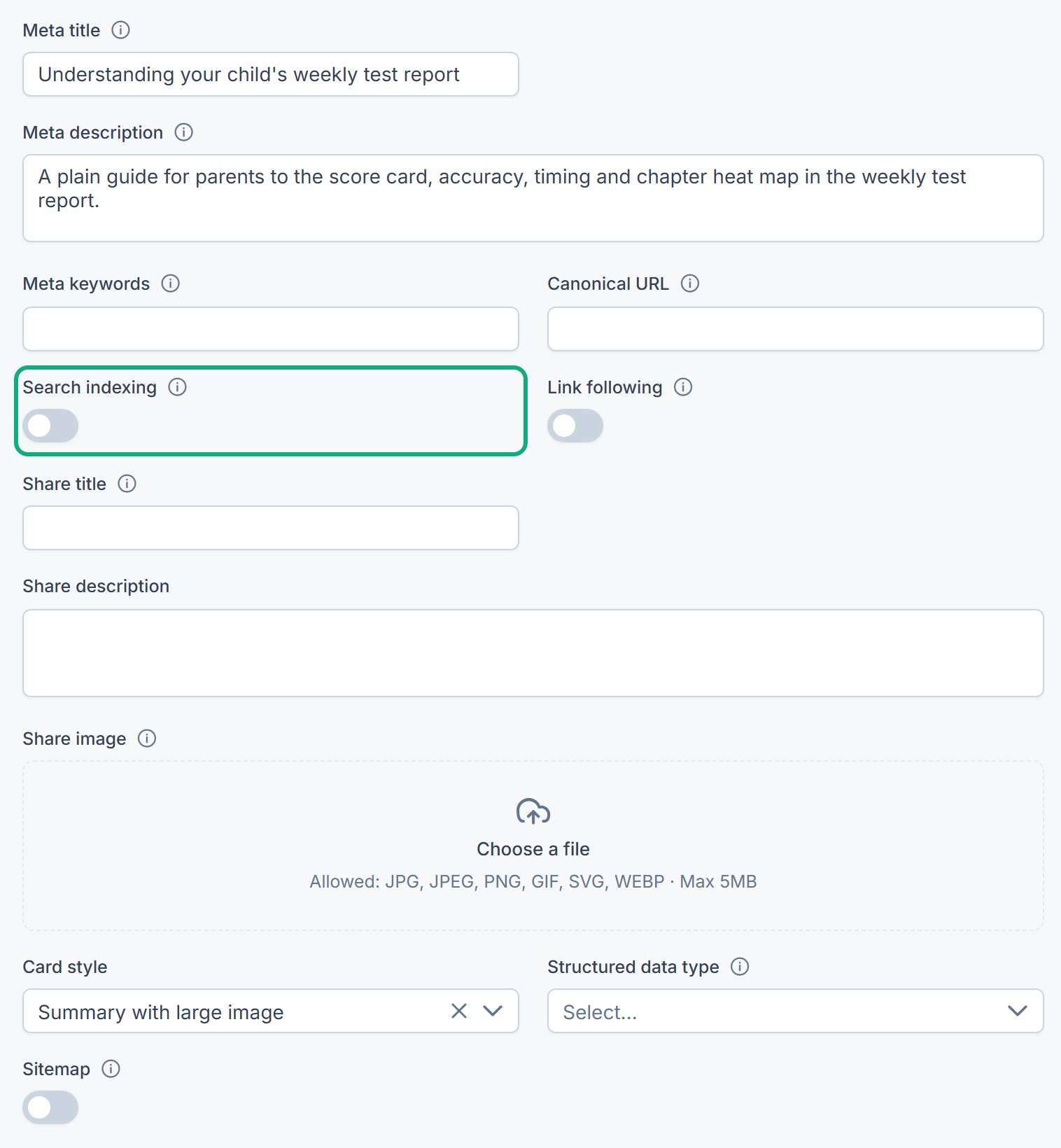
Fix: Open the blog article or property, set Search indexing to Indexed in its SEO section, and save. See Set a page's search and share details.
3. A new blog article isn't in the sitemap yet
Your sitemap is built once and reused for the time in Sitemap cache (minutes) on the Sitemap tab. Property CRM refreshes it whenever a property changes. Publishing a blog article doesn't, although the field's help text says publishing clears it. So a new article appears only when the cache time runs out.
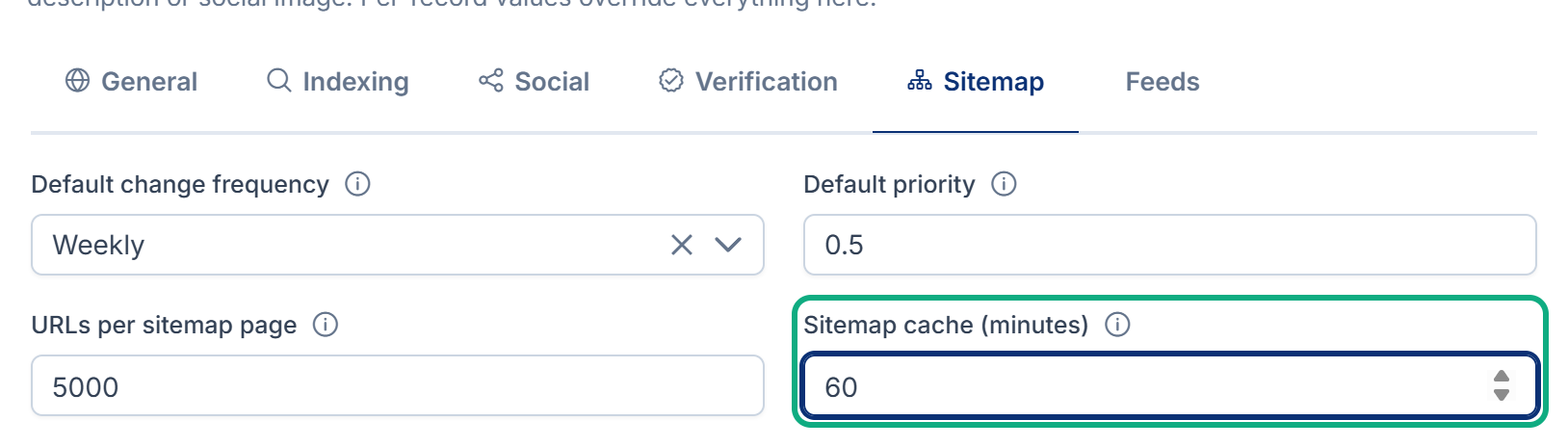
Fix: Wait for the cache time, or lower Sitemap cache (minutes) and select Save changes. 0 builds the sitemap fresh every time. See How your sitemap and feeds are built.
4. The page isn't public
SEO only describes pages that the add-on behind them shows on your website. A draft, private or password-protected article never reaches search engines. See An article doesn't show on your website.
5. Your website doesn't use SEO's details
SEO only supplies the search details and the sitemap. Your website must put them into its pages and serve the sitemap at its own address, usually /sitemap.xml.
Fix: Ask your website's developers to check that each page reads its details from your Laramin, and that the sitemap is served and submitted in Google Search Console and Bing Webmaster Tools. See How the SEO add-on works.
6. Search engines haven't been back yet
Search engines visit on their own schedule. A fixed page can take days to reappear. Fix: ask for the page to be crawled again in Google Search Console or Bing Webmaster Tools.
Not sure which add-on serves the page? See Your change doesn't show on your website or app.
Still not working?
Raise a ticket from Support Center in your Laramin app. Include this page's link, the page's address on your website, and what Search Console reports for it.
Thanks. That helps us decide what to write next.
Thanks for telling us what was missing.
You already answered for this article today. Thanks.
We got a lot of answers from your network just now. Try again in a few minutes.
We couldn't send that. Check your connection and try again.
Links in this article
Printed from help.bsscn.com. The online article may have changed since.