How the Blog add-on works
Blog keeps your articles, with their categories, tags and authors, takes each one through drafting, review and publishing, and serves the published ones to your website. Here's how the pieces fit.
- Applies to
- Blog 2.3 and later
- Who can do this
- Platform owner, Administrator, Team member
On this page
In short
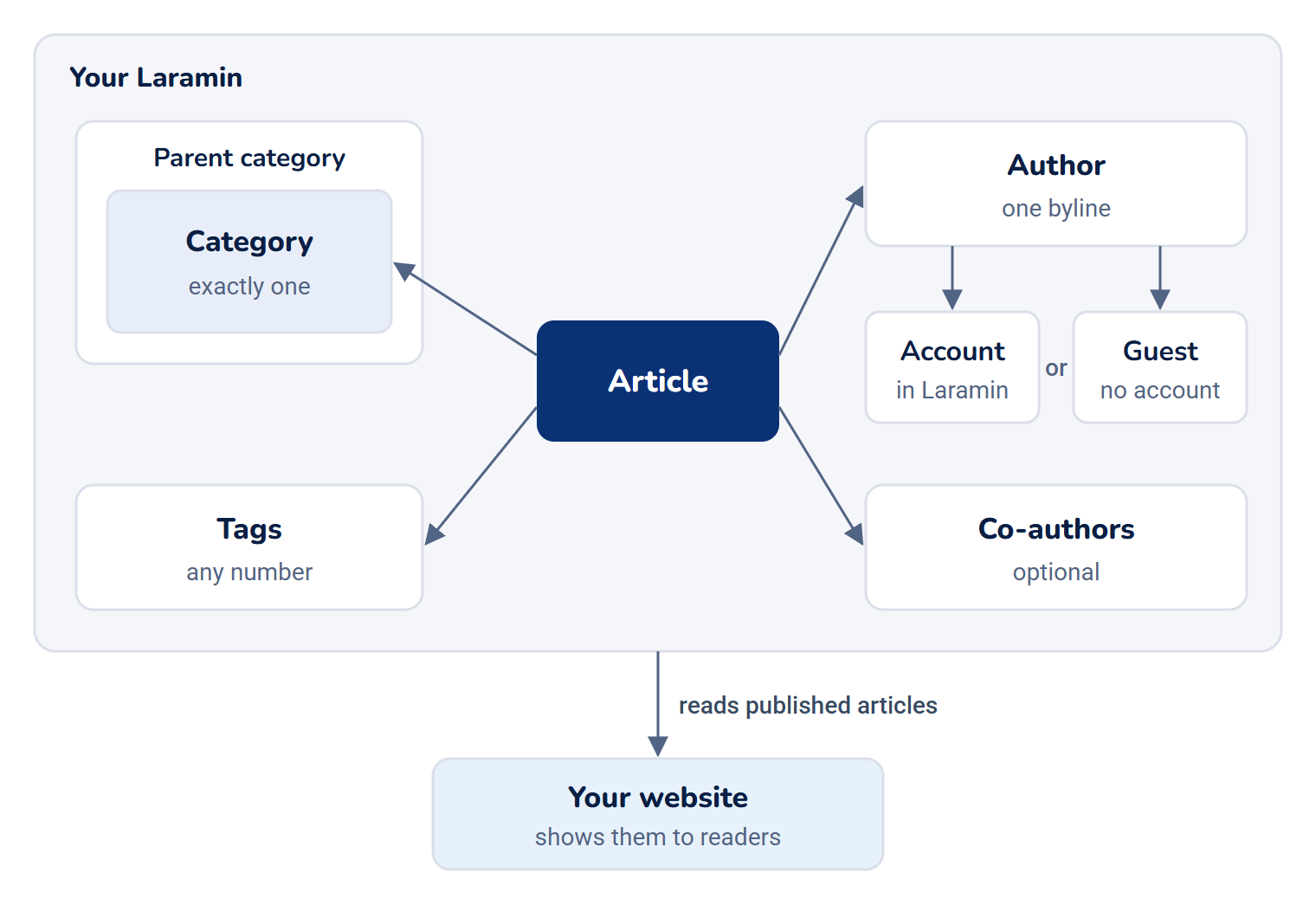
Blog is where you write and manage articles for your public website: blog posts, news, knowledge base pages, release notes and documentation. You write each article in your Laramin, file it under a category, give it an author and tags, and move it through drafting and review until it's published.
Blog doesn't show a public website itself. Your website reads the published articles from your Laramin and shows them. If your website isn't built to read them, publishing an article changes nothing your readers see. Ask whoever built your website whether it does.
How it works
The parts
| Part | What it is | Where you manage it |
|---|---|---|
| Articles | The articles themselves: title, body, images, gallery and publishing details. | Blog › Articles |
| Categories | A tree of topics. Each article sits in exactly one category. Categories can sit inside other categories, as deep as you need. | Blog › Categories |
| Tags | Flat labels. An article can carry any number of them. | Blog › Tags |
| Authors | The bylines shown on articles. An author can be linked to a person's account in your Laramin, or be a guest author with no account, such as an outside writer. | Blog › Authors |
| Blog URLs | The address of your public website, and the start of each article's address there. | The Blog URLs panel in the Settings hub |
An author is separate from the account that writes the article. Removing someone's account doesn't remove their byline from what they wrote.
An article's address
Each article has a Slug, the last part of its address, such as spring-. Its Content type picks the part before it, such as /blog/ or /news/. On your website, the address looks like https://www.example.com.
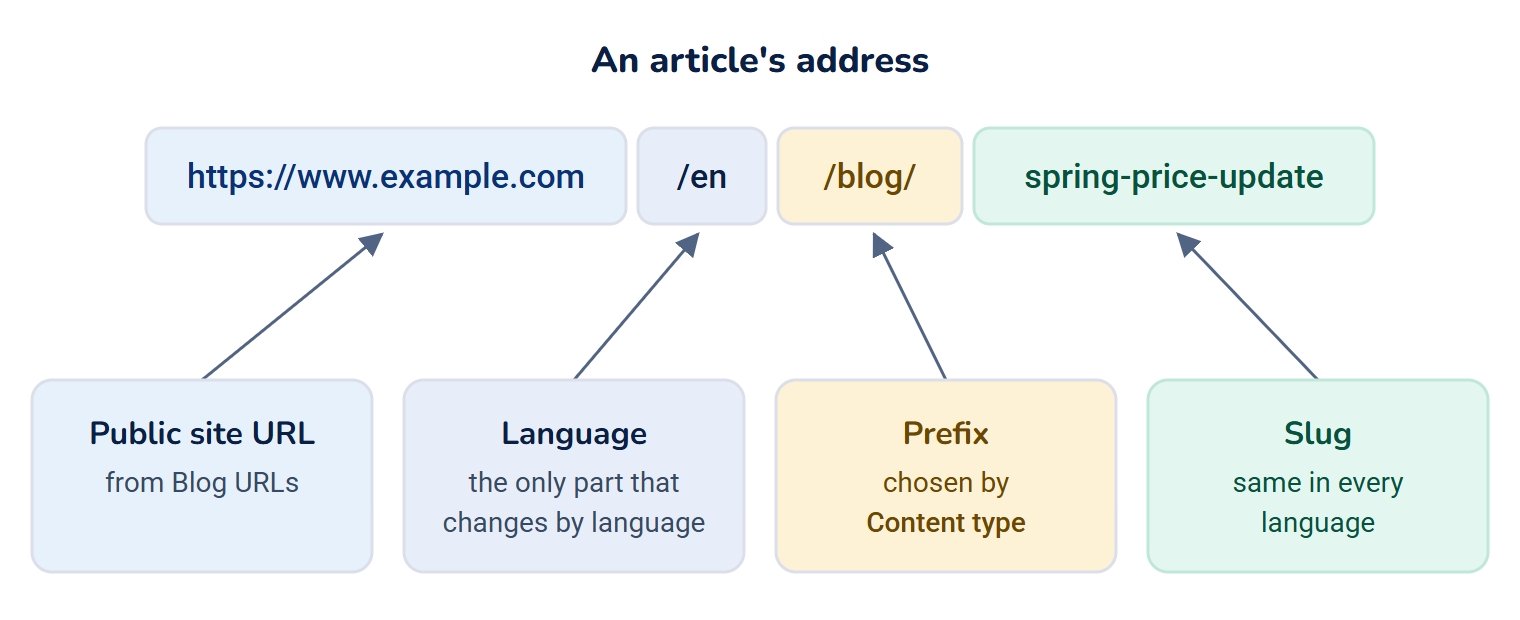
- The slug is the same in every language. Only the language part of the address changes, so a reader switching language stays on the same article.
- While an article is a draft, you can change its slug and content type freely.
- Once it's published, both are fixed. Changing them afterwards needs its own permission and adds a redirect from the old address. See Change a published article's address.
From draft to published
Every article has a Status:
| Status | Meaning | Readers see it? |
|---|---|---|
| Draft | Being written. | No |
| Pending Review | Sent for review. | No |
| In Review | Someone is reviewing it. | No |
| Rejected | Sent back to the writer with a reason. | No |
| Scheduled | Set to go live at a time you chose. | Not yet |
| Published | Live. | Yes, if its Visibility allows |
| Archived | Retired. Its address stays reserved. | No |
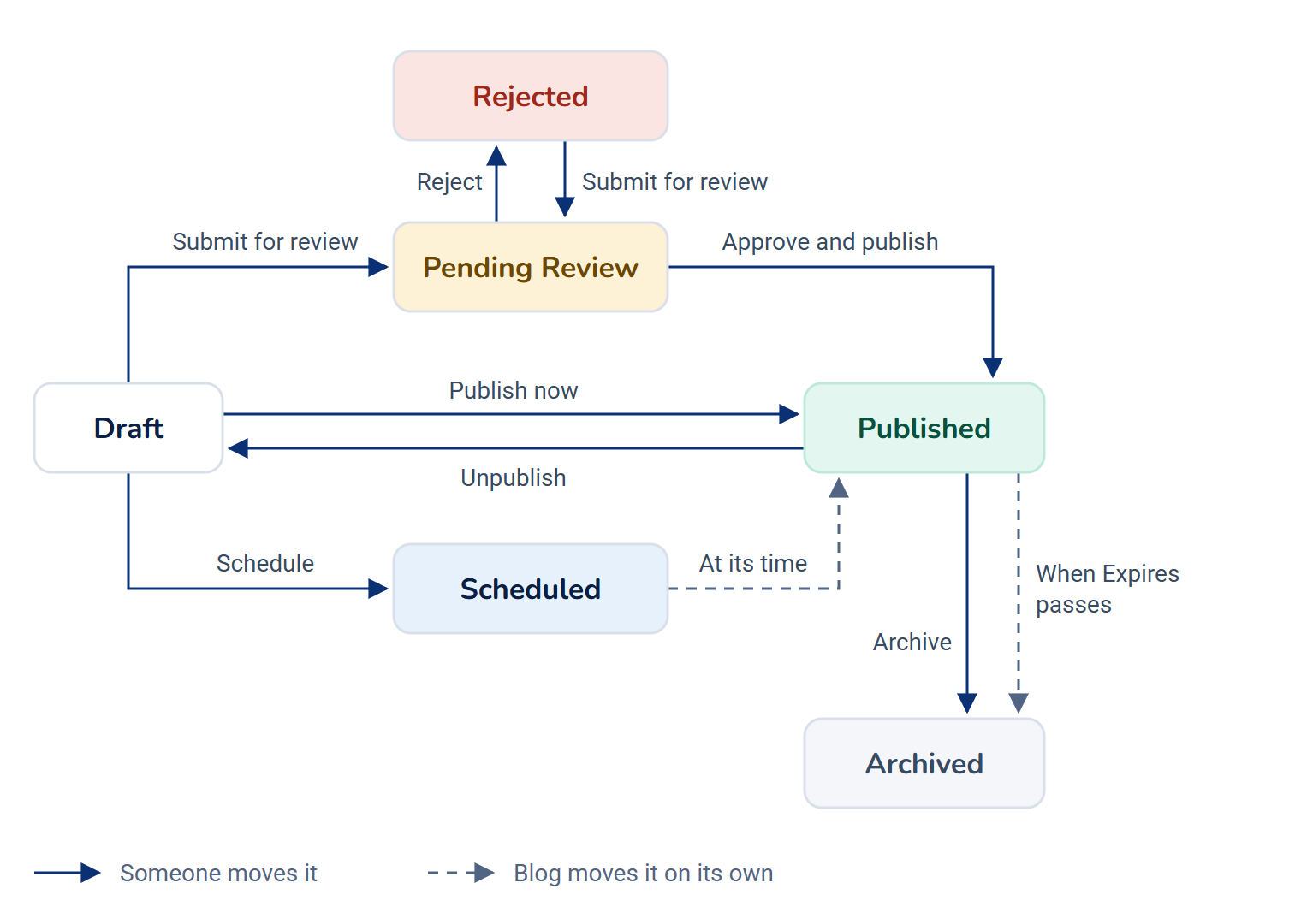
Each move between statuses, such as publishing, approving, sending back or taking an article down, is a separate permission. So you can let some people write and others decide what goes live. See Review and publish an article.
Blog moves articles on its own too: a scheduled article goes live within a minute of its time, and a published article whose Expires date has passed is archived within the hour. Readers stop seeing it as soon as the expiry date passes.
Who can read a published article
| Visibility | On your website |
|---|---|
| Public | Listed and readable by everyone. |
| Password Protected | Not listed. Anyone with the link sees a lock, and can read it after entering the password. |
| Private | Never shown. Only people in your Laramin can open it. |
| Members Only | Never shown. Blog 2.4.1 has no way for readers to sign in on your website, so a Members Only article can't be read there at all. |
Languages
When your Laramin has more than one language turned on, you can write an article's title, subtitle, excerpt and body in each language. The same goes for the names and descriptions of categories and tags, and authors' biographies and designations. Your website asks for the language it wants. If an article isn't written in that language, it gets your default language instead.
Views and shares
Your website tells your Laramin each time someone reads or shares an article. Blog counts every read, and separately counts each reader once a day, without storing their address. Your website can use the counts to show popular and trending articles. In Blog 2.4.1 no screen in your Laramin shows these counts. Only your website can read them.
Version history
Each time an article is saved, Blog keeps a copy, up to the newest 50. You can compare two versions and go back to an earlier one. See Go back to an earlier version of an article.
How it relates to
- SEO. With the SEO add-on on, each article's form has a section for its search title, description and share image, and published articles appear in your sitemap and feed. Without SEO, Blog works the same, minus those parts. See How the SEO add-on works.
- Notifications. With Notification Manager on, the article's writer is told when it's published and when it's sent back, with the reviewer's reason. See How Notification Manager works.
- Custom fields. Fields you add for articles, categories or authors appear on their forms under Additional fields. See How custom fields work.
- Search. Articles and categories can be found from the command palette, by their title in any language, including drafts you're allowed to see. See Search with the command palette.
- Workspaces. Articles, categories, tags and authors are shared by your whole Laramin, not kept per workspace.
- Comments. Articles have an Allow comments switch, but Blog 2.4.1 doesn't collect or show comments yet.
Next steps
Thanks. That helps us decide what to write next.
Thanks for telling us what was missing.
You already answered for this article today. Thanks.
We got a lot of answers from your network just now. Try again in a few minutes.
We couldn't send that. Check your connection and try again.
Links in this article
Printed from help.bsscn.com. The online article may have changed since.