Write an article
Start a new article, write its body in one or more languages, add images and a gallery, file it under a category with an author and tags, and save it as a draft.
- Applies to
- Blog 2.3 and later
- Who can do this
- Administrator, Team member
- Permission
feature.blog. post. create - Where
- Blog › Articles
On this page
An article starts as a draft. Nobody outside your Laramin sees it until it's published, so you can save as often as you like.
Before you start
- You need Create Post (
feature.). To change the article later, you need Edit Post or Edit Post (Own).blog. post. create - At least one category and one author must exist. See Set up your blog.
Steps
-
In the sidebar, open Blog › Articles.
-
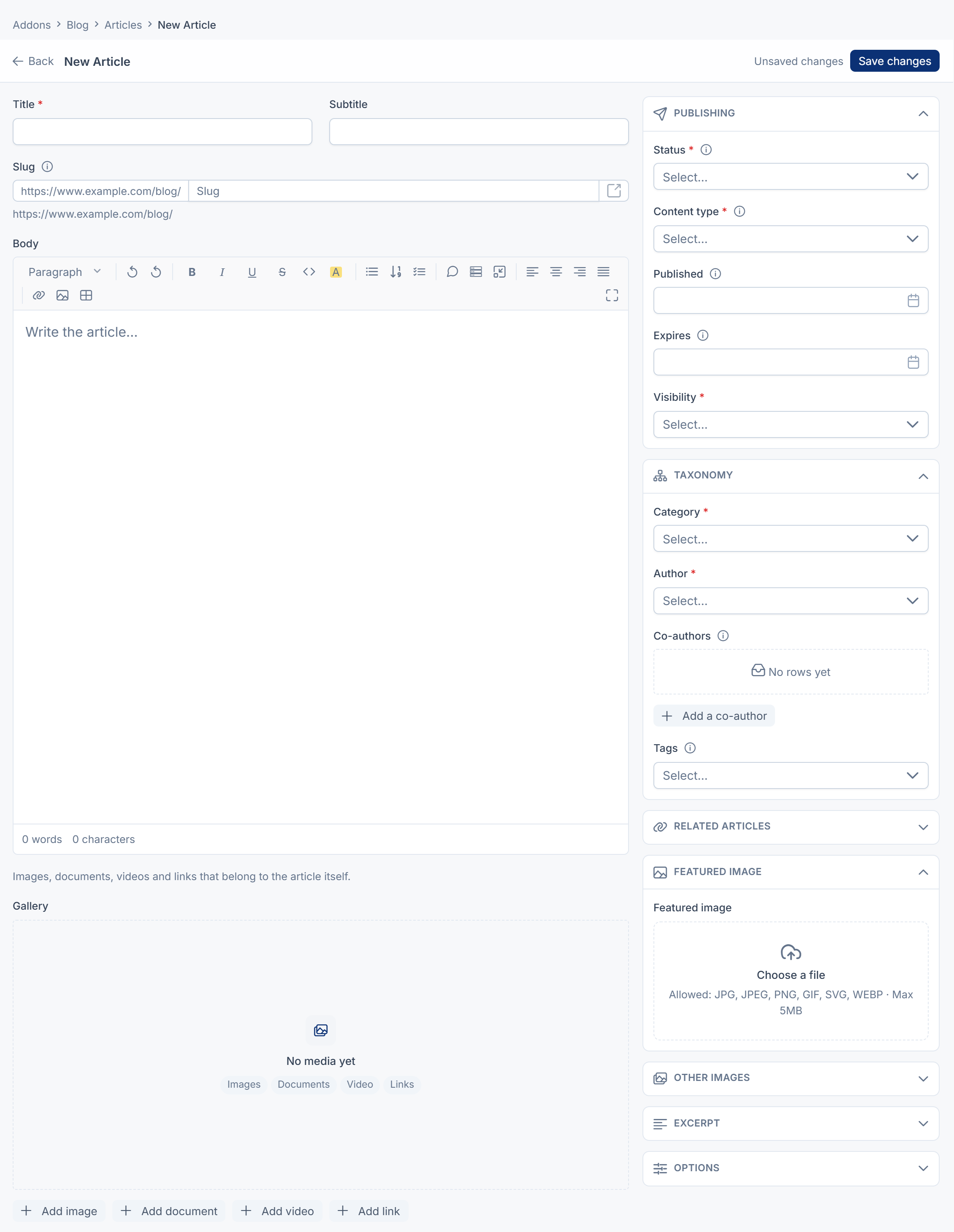
Select New Article. The article form opens as a full page, with the writing area on the left and the settings on the right.
-
Under Content, fill in Title and, if you want one, Subtitle.
-
Leave Slug empty to build it from the title, or type your own. Once Public site URL is set in Blog URLs, the address it will have on your website is shown with it.
-
Write the article in Body. Use the toolbar for headings, lists, quotes, tables, code and images.
-
If your Laramin has more than one language, switch to another language's tab and write that version. The title, subtitle, excerpt and body can each be written per language. You don't need every language.
-
On the right, under Publishing:
- Set Status to Draft.
- Choose the Content type, such as Article or News. It decides the start of the address.
- Leave Visibility on Public, unless the article needs a password or should stay inside your Laramin.
-
Under Taxonomy, choose the Category and the Author. Add Co-authors with their Contribution, and pick or type Tags.
-
Under Featured image, upload the article's main picture.
-
Open Excerpt and write a short summary for listings and link previews.
-
Select Save changes.
You see Article created. The article is listed in Blog › Articles with the status Draft.
Optional extras
- Gallery: add up to 30 images, documents, videos and links below the body, each with a caption and alt text. Drag the cards to change their order.
- Other images: a Thumbnail, Cover image and Banner image, if your website's layout uses them.
- Related articles: pick up to 12 articles to suggest next. Left empty, your website suggests articles with the same tags and category.
- Options: turn on Featured to let your website promote it, or Pinned to keep it at the top of listings.
- Expires: set a date for an article that should come down on its own, such as an offer.
- SEO: with the SEO add-on, set its search title, description and share image. See Set a page's search and share details.
When Laramin refuses to save
| Message | What to do |
|---|---|
| Another article of this type already uses that address. | Change the Slug, or leave it empty to get a unique one. |
| Use letters and numbers separated by single hyphens. | Remove spaces and other characters from the Slug. |
| Set a password, or choose a different visibility. | Fill in Password for a Password Protected article. |
| The expiry must come after the publication date. | Move Expires later. |
| That body is too large to store. Split it into more than one article. | Shorten the body, or split it. |
What happens next
- To send it for review or publish it, see Review and publish an article.
- Every save keeps a version. See Go back to an earlier version of an article.
- Once Public site URL is set, the page's Preview button opens the article's address on your website. Your website shows only published articles, so a draft's preview usually shows "not found".
Thanks. That helps us decide what to write next.
Thanks for telling us what was missing.
You already answered for this article today. Thanks.
We got a lot of answers from your network just now. Try again in a few minutes.
We couldn't send that. Check your connection and try again.
Links in this article
Printed from help.bsscn.com. The online article may have changed since.