Add a redirect
Send visitors and search engines from an old address on your website to a new one, so old links keep working. Also change, retire, restore and delete redirects, and see the ones Blog adds for you.
- Applies to
- SEO 1.1 and later
- Who can do this
- Platform owner, Administrator
- Permission
feature.seo. redirect. create - Where
- SEO › Redirects
On this page
When a page moves to a new address, add a redirect from the old address to the new one. Visitors who follow an old link land on the right page, and search engines move the page's ranking across.
Before you start
- You need Create Redirect (
feature.). To open the list you need List Redirect (seo. redirect. create feature.), and to change a redirect, Edit Redirect (seo. redirect.list feature.).seo. redirect.edit - Your website does the redirecting. It reads the active redirects from your Laramin. Check that it's built to.
Steps
-
In the sidebar, open SEO › Redirects.
-
Select New Redirects.
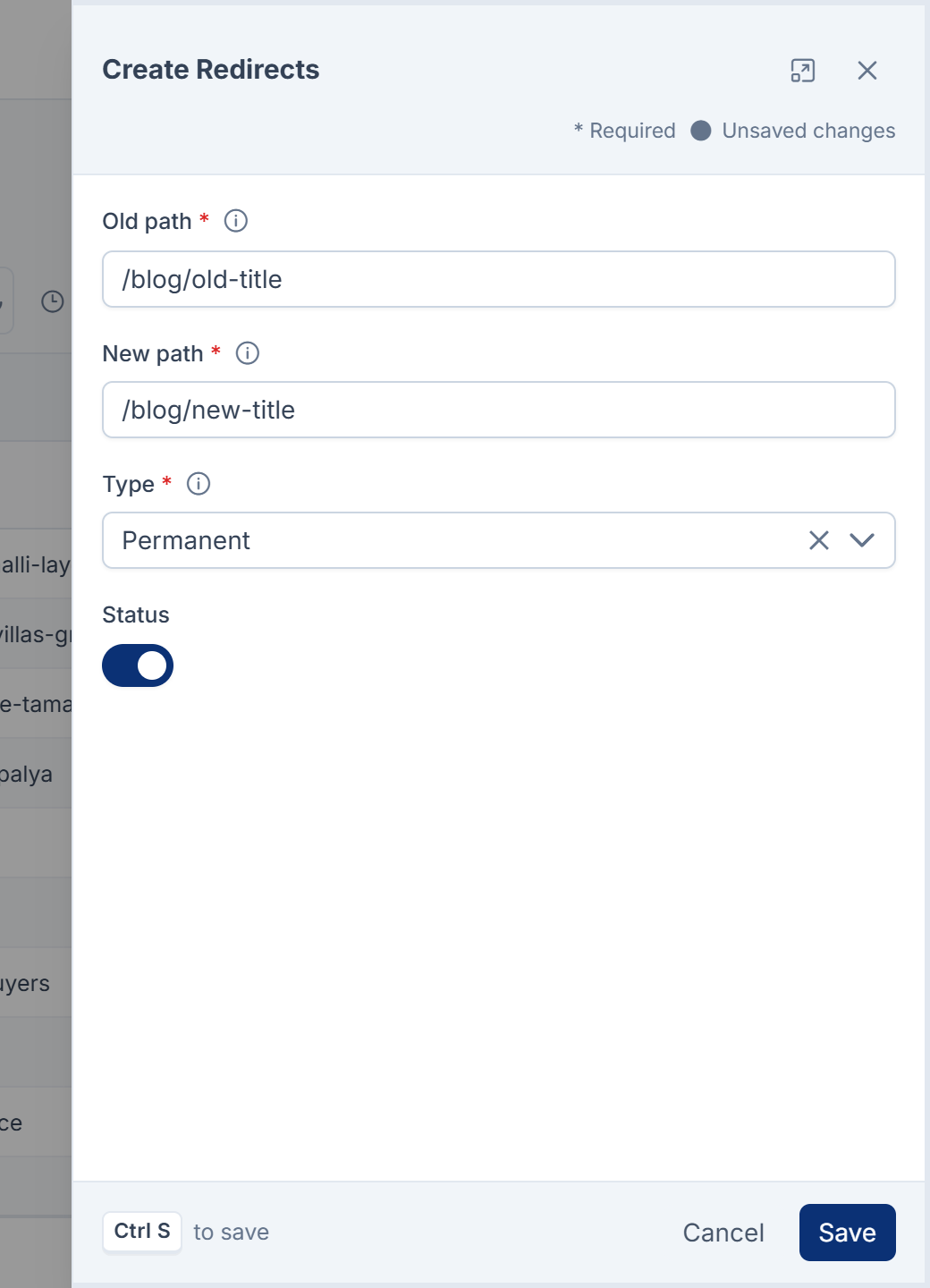
-
In Old path, enter the address people still arrive at, without the domain or language prefix, for example
/blog/old-title. -
In New path, enter where they should go instead, for example
/blog/new-title. -
In Type, choose Permanent for a page that has moved for good. Choose Temporary only for a move you'll undo.
-
Leave Status on Active.
-
Select Save.
You see Redirect added., and the redirect is listed with Added by set to Manually.
How paths are saved
- Both paths are tidied: the domain, the query string and a trailing slash are removed, and a leading
/is added. Sohttps://www.example.comis saved as/old/ ?ref=mail /old. - New path is always a path on your own website. You can't redirect to another site.
- If another redirect already pointed at your Old path, it's changed to point straight at the new path. Visitors always make one jump, never two.
When Laramin refuses
| Message | Why | What to do |
|---|---|---|
| Another live redirect already starts from this path. | Only one redirect can start from a path, even an inactive one. Retired redirects don't count. | Edit the existing redirect instead. |
| This would send visitors round in a circle. Following the existing rules from the new path leads back to the old one. | Following the redirects from New path leads back to Old path. | Point New path at the final page, or retire the redirect that leads back. |
Redirects that Blog adds for you
When someone with permission changes a published blog article's address with Change the address (see Change a published article's address), Blog adds a Permanent redirect from the old address to the new one. It's listed with Added by set to Address change. If the article is later moved back to an address it had before, the redirect that sent that address away is retired, so the two never send visitors round in a circle.
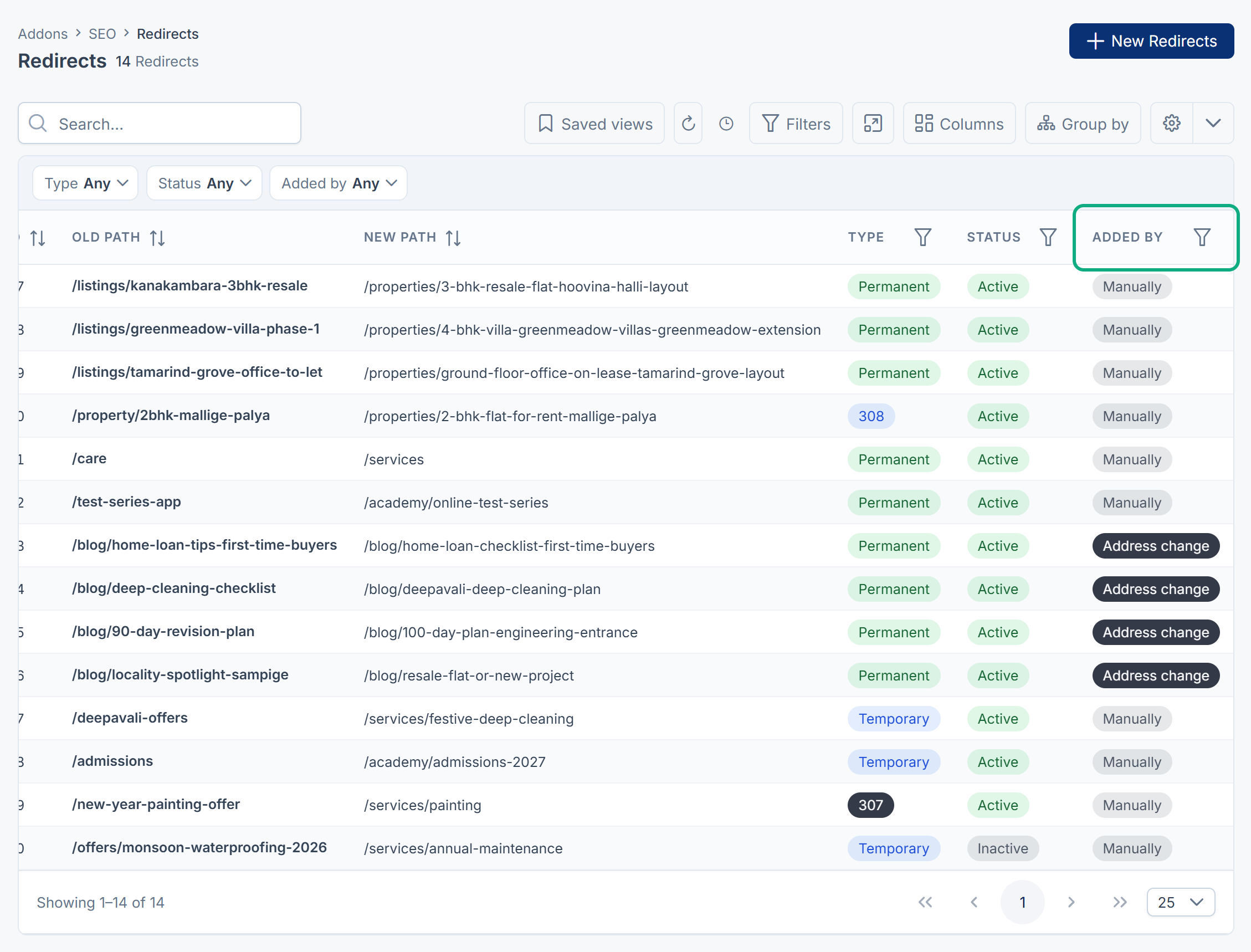
Editing an Address change redirect keeps it marked Address change.
Change, retire or remove a redirect
- Change: open the row's actions menu and select Edit. Change the fields, then select Save. You see Redirect updated.
- Pause: edit it and set Status to Inactive. Inactive redirects aren't sent to your website.
- Retire: select Delete in the row's actions menu. You see Redirect retired. Its old path is free for a new redirect at once.
- Restore: in the list's Trashed view, select Restore. You see Redirect restored. Laramin refuses if a live redirect now starts from the same path, or if restoring it would send visitors round in a circle.
- Delete forever: in the Trashed view, select Delete forever. You see Redirect removed for good. This can't be undone.
For the Trashed view and deleting several at once, see Delete, restore and act on records in bulk.
What happens next
Your website picks up the change the next time it reads the redirects from your Laramin. If a redirect doesn't work, see A redirect doesn't work.
Thanks. That helps us decide what to write next.
Thanks for telling us what was missing.
You already answered for this article today. Thanks.
We got a lot of answers from your network just now. Try again in a few minutes.
We couldn't send that. Check your connection and try again.
Links in this article
Printed from help.bsscn.com. The online article may have changed since.